Both apps create editable automatic zooms and support polished post-recording edits. Compare FocuSee's distinctive 3D Motion, Windows support, and silence removal with Tight Studio's free watermark-free standard exports, multi-take projects, collaboration, and AI media workflow.
When you want free standard exports without a watermark, same-project multi-take capture, collaborative Mac editing, or AI voice and generated media.
Choose FocuSee
When you need AI Avatar presenters, Windows or Android support, automatic silence removal, 3D Motion, or AI cleanup for webcam and microphone recordings.
On zoom: both products automatically create editable 2D zooms and let you choose a manual center. FocuSee has the broader motion toolkit because it also offers 3D Motion, though the extra perspective is a stylistic choice rather than an automatic improvement.
This is a first-party comparison. Ethan reviewed both editors on August 20, 2026, using the same 31-second Notion walkthrough to inspect zoom, backgrounds, cursor effects, overlays, camera layouts, webcam appearance, captions, AI generation, microphone, music, and device-capture controls. Pricing and plan limits were rechecked against FocuSee's official pricing and free-versus-activated guide on August 21, 2026.
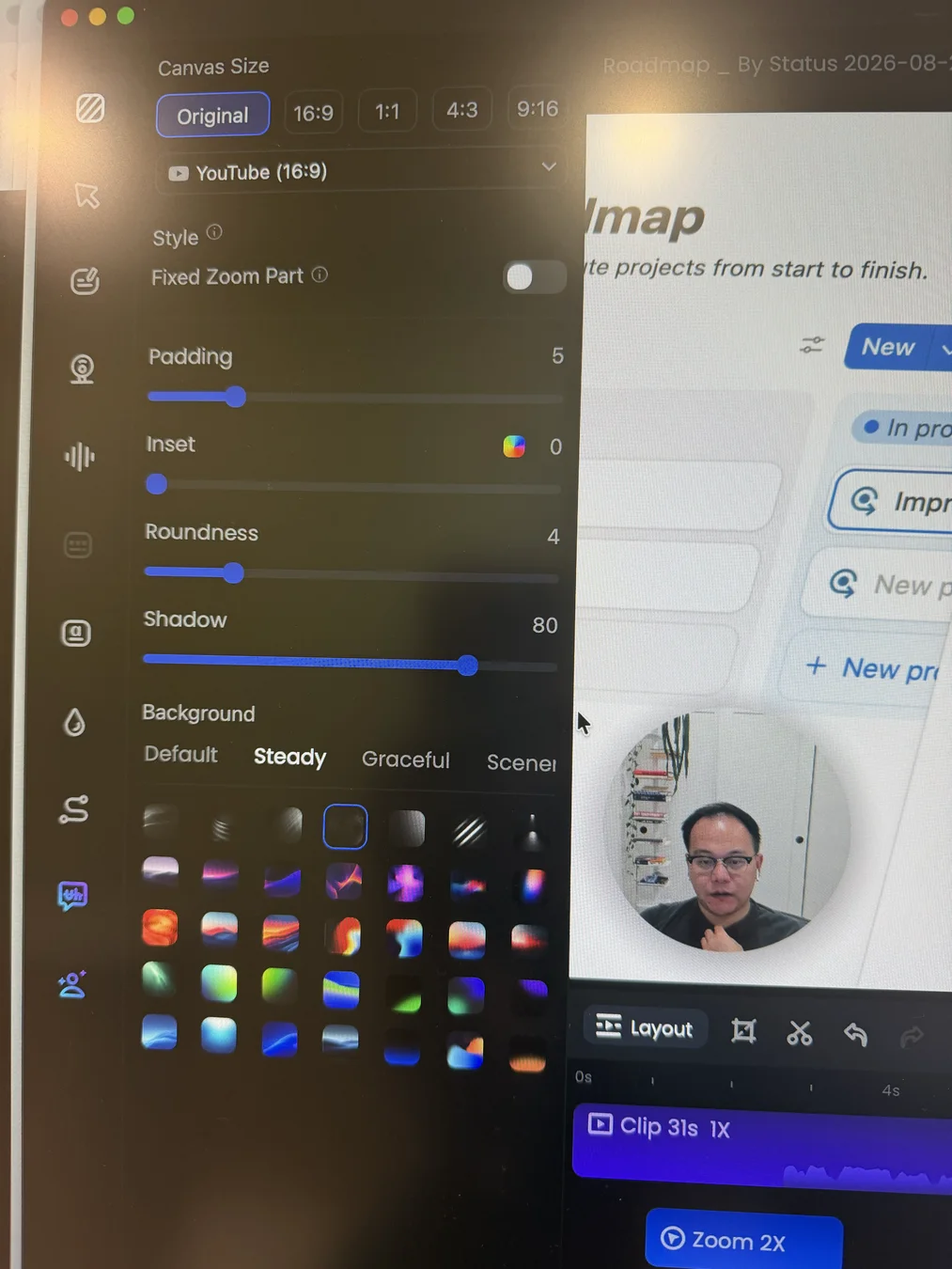
Screenshot note: FocuSee blocks direct screenshots of its editor, so we photographed the interface with a phone. Differences in sharpness, color, or framing reflect the capture method, not product or export quality.
Automatic zoom, manual focus, and 3D Motion
Automatic zoom turns clicks and cursor activity into animated close-ups after recording. Both products keep those zooms editable, while FocuSee adds perspective-based 3D movement.
The problem it solves
A full-screen capture can make the important button, field, or menu too small to follow. Building every close-up by hand takes time. Automatic zoom directs attention while preserving an editable timeline for corrections.
Our take
FocuSee wins on range because 3D Motion adds perspective, tilt, and spatial movement. For conventional 2D zoom, it is a tie: both generate zooms automatically, let you move the center manually, and keep the effect editable after recording.
Tight Studio
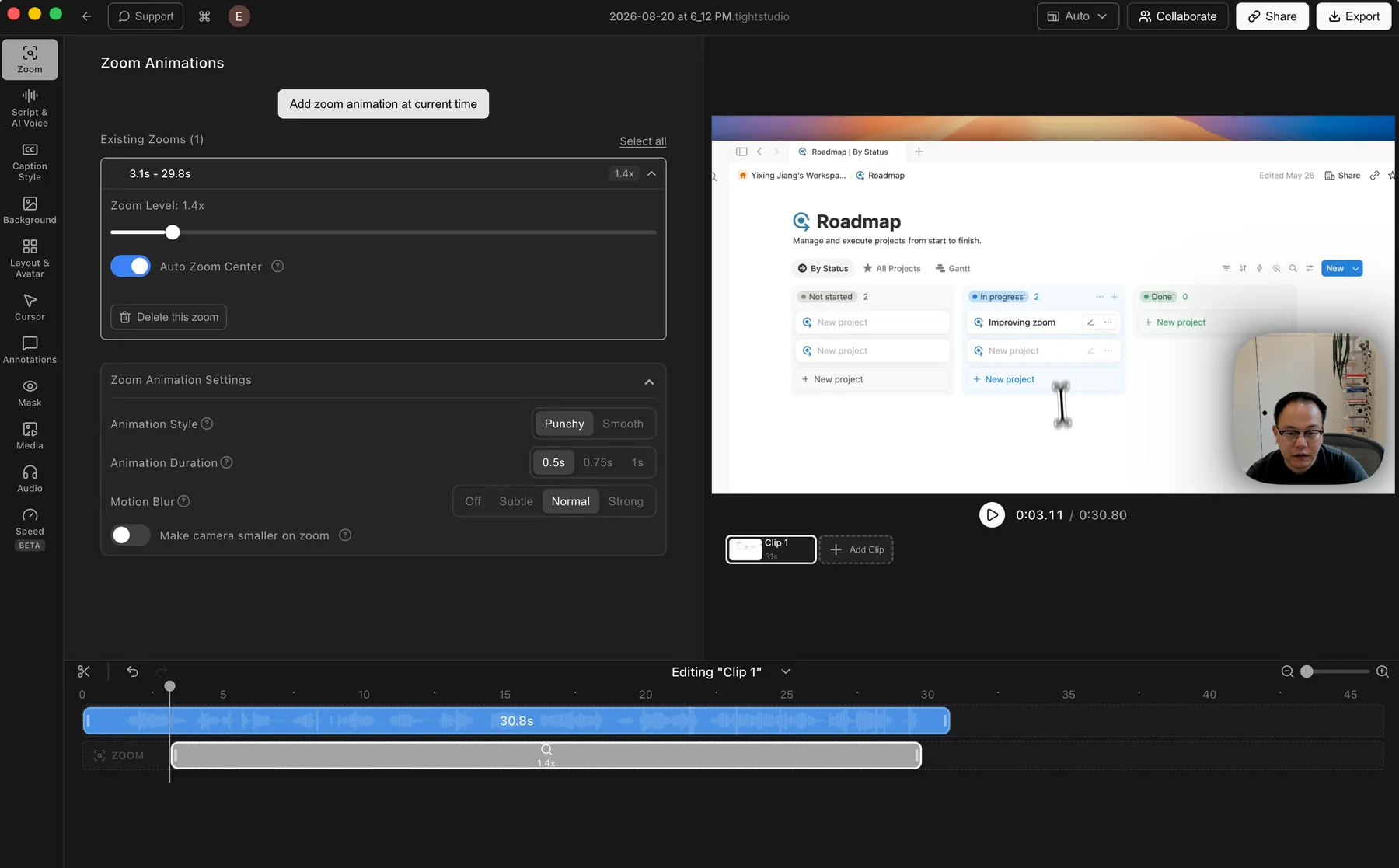
Tight Studio: an automatic zoom segment with its animation controls open.
Pros
Generates zooms after recording, so the original capture remains editable.
Manual zooms can be added and adjusted directly on the timeline.
Controls cover zoom level, auto-centering, animation style and duration, motion blur, and camera size.
Cons
Does not offer a perspective-based 3D motion mode.
Finding your preferred motion style may still take a little adjustment.
FocuSee
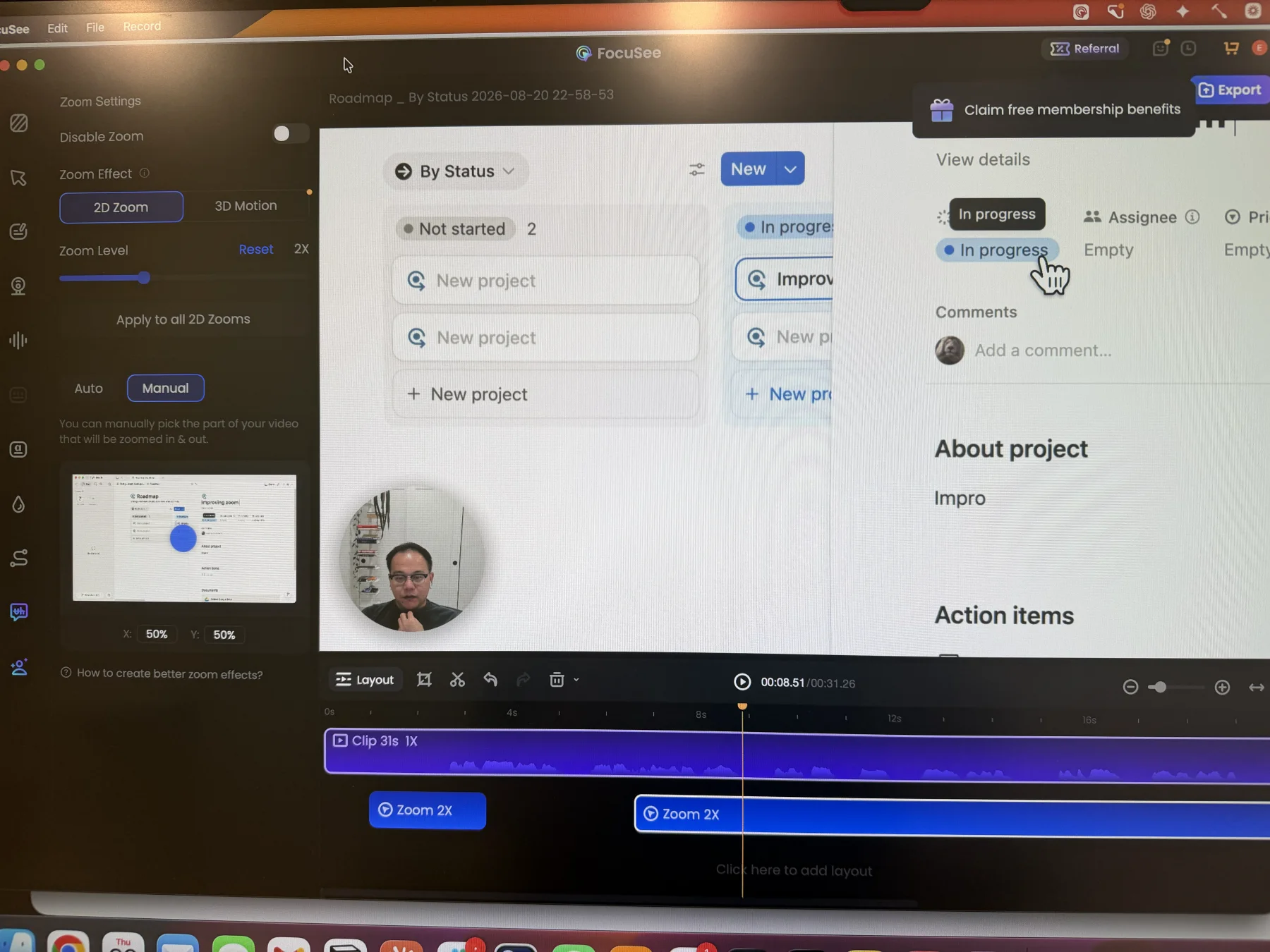
FocuSee: an automatically generated 2D Zoom switched to manual focus positioning.
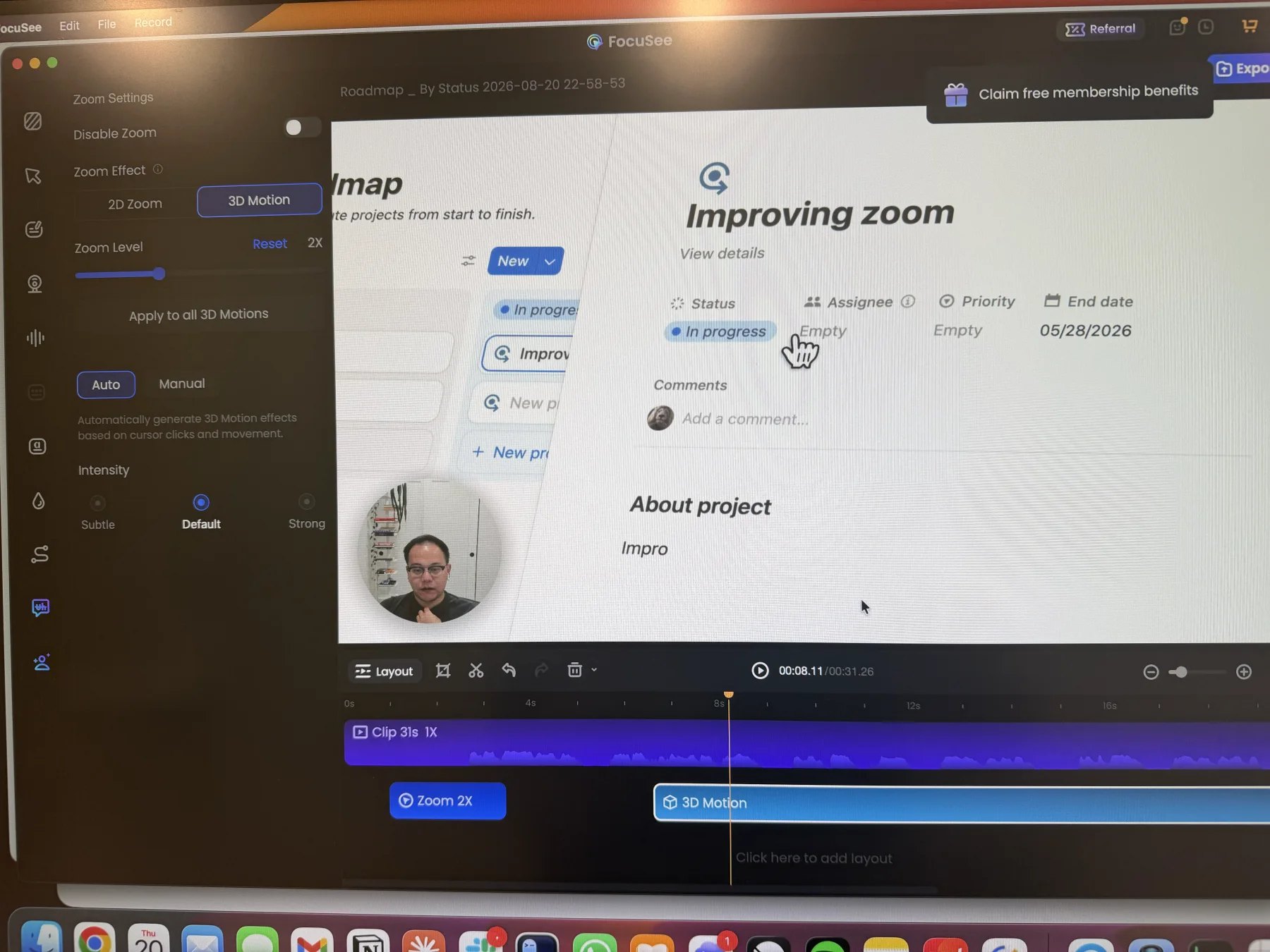
FocuSee: a 3D Motion segment with automatic cursor-based movement and intensity presets.
Pros
Automatically generates click-based zoom segments and keeps them editable on the timeline.
Supports automatic cursor tracking or a manually selected zoom center, plus per-segment zoom level controls.
Adds a distinct 3D Motion mode with automatic or manual positioning, perspective controls, and intensity presets.
Cons
3D perspective and tilt can add more movement than a straightforward interface tutorial needs.
The extra motion option is only an advantage when it fits the visual style of the recording.
Backgrounds and advanced canvas styling
Backgrounds add separation around a captured window and give the recording a more intentional visual frame. FocuSee pairs a large image library with unusually detailed canvas controls.
The problem it solves
Raw screen captures often fill the frame and can feel visually flat, especially when the app window and video canvas share similar colors. Backgrounds, padding, rounded corners, and shadows add contrast without rebuilding the recording in another editor.
Our take
FocuSee has the edge. Both products cover the core background workflow, but FocuSee exposes a richer preset collection plus aspect ratios, padding, inset, roundness, shadow, fixed zoom behavior, and background controls together. Its depth is very similar to Screen Studio.
Tight Studio
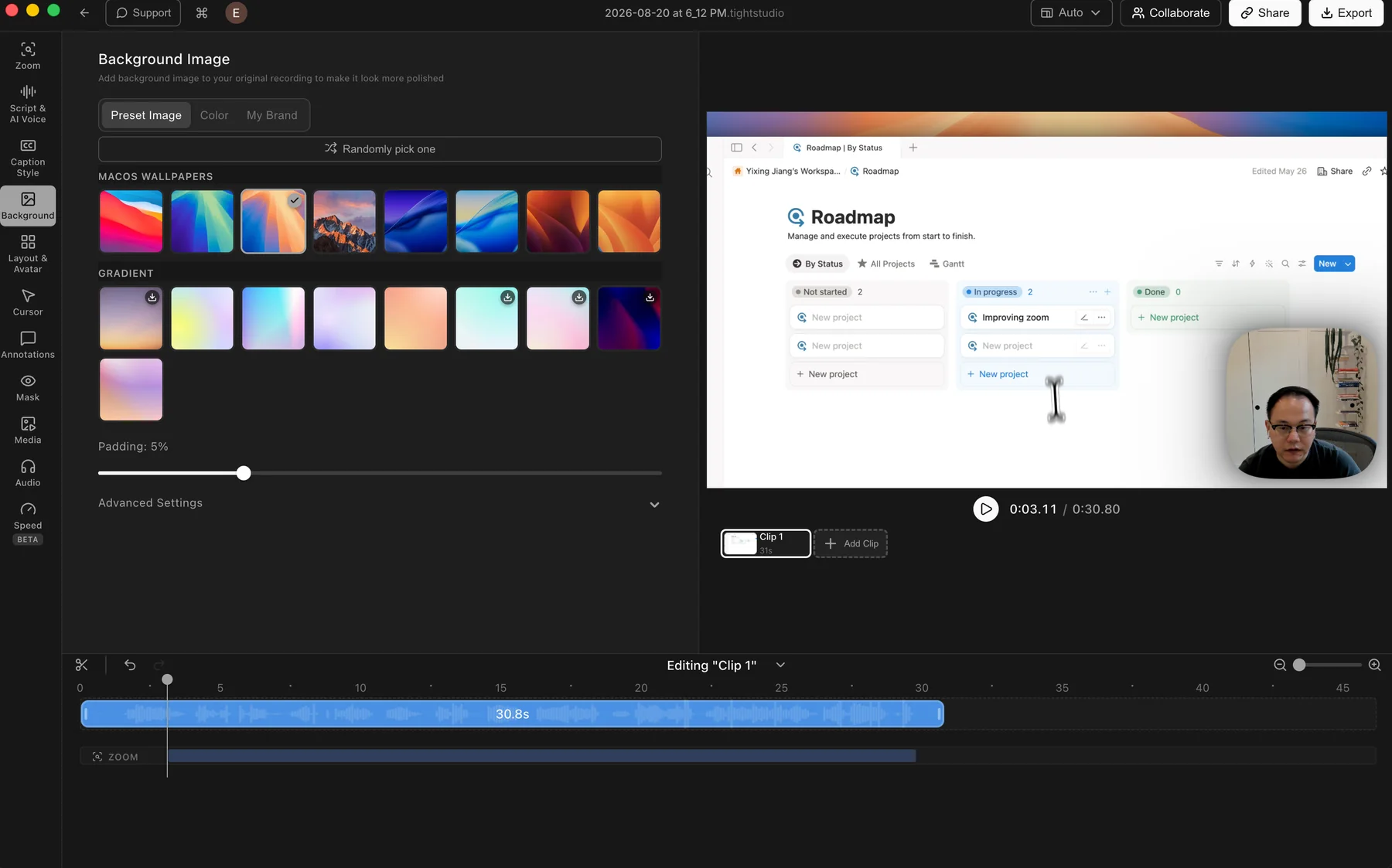
Tight Studio: preset wallpapers and gradients with color, brand image, and padding controls.
Pros
Includes preset macOS wallpapers and gradient backgrounds for quick styling.
Solid colors and custom brand images cover the main branded-video workflows.
Random selection and padding controls make it easy to change the frame quickly.
Cons
Shows fewer background presets and fewer canvas adjustments at a glance than FocuSee.
Some fine controls sit inside Advanced Settings instead of the main panel.
FocuSee
FocuSee: a large categorized background library beside its advanced canvas styling controls.
Pros
Provides a large, categorized collection of built-in background images.
Supports common aspect ratios plus presets tailored to platforms such as YouTube.
Keeps padding, inset, roundness, shadow, fixed zoom behavior, and background controls together in one panel.
Cons
The combined preset library and advanced canvas controls make the panel denser to scan.
Its advantage is breadth and direct access; Tight Studio still covers the core background and framing workflow.
Cursor styles, click effects, and sounds
Cursor treatment keeps the pointer readable and gives every interaction clear visual or audio feedback. FocuSee provides one of the broadest cursor-effect libraries in this comparison.
The problem it solves
The default system pointer is easy to lose at video scale, especially against busy interfaces. A clearer cursor, smooth movement, and click feedback help viewers track where an interaction happens without replaying the recording.
Our take
FocuSee wins overall. Both products support cursor sizing, styling, smoothing, and idle hiding, but FocuSee adds a much richer built-in cursor collection, numerous visual click effects, selectable click sounds, and volume control. Tight Studio wins only when a custom uploaded cursor image matters.
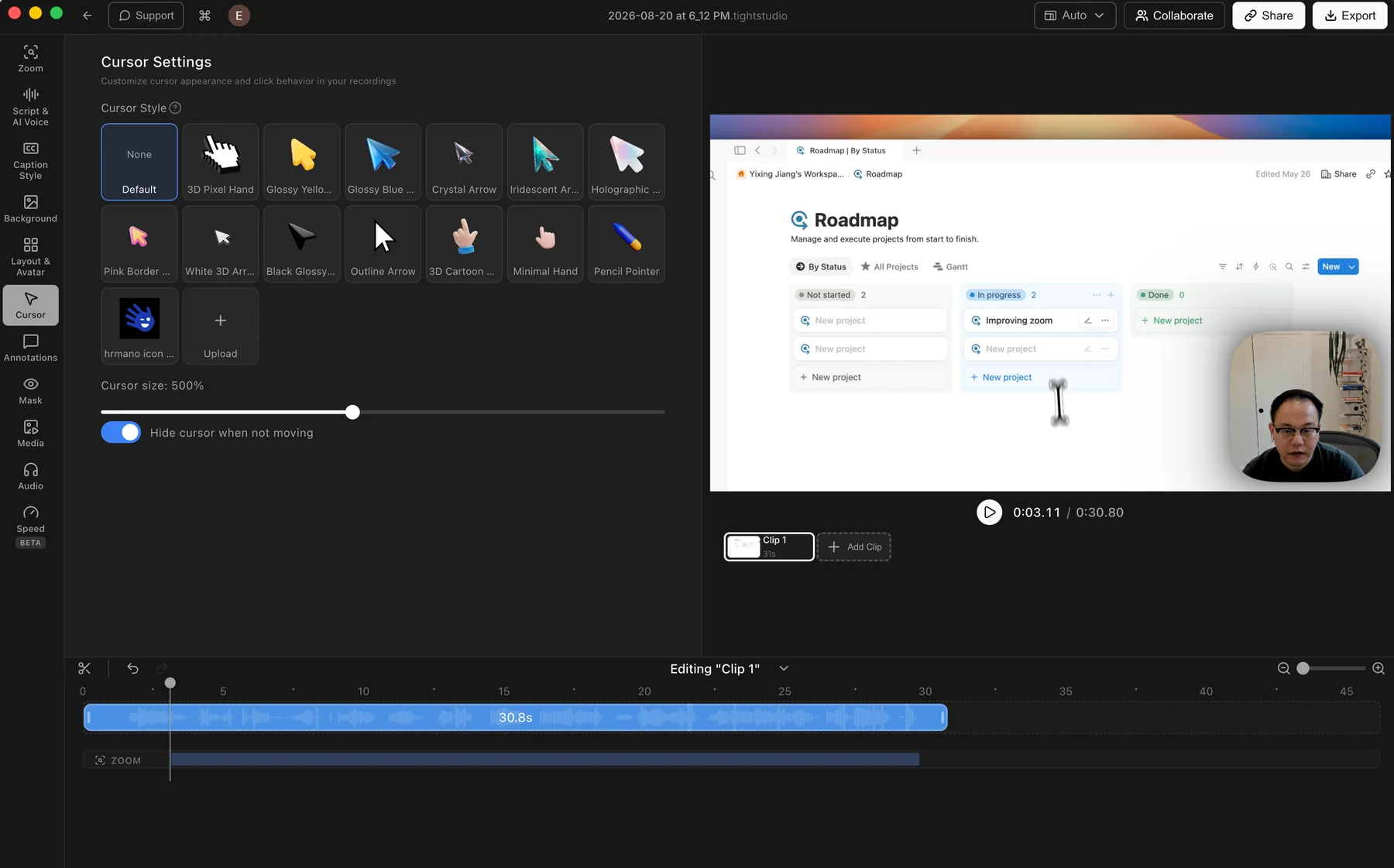
Offers a varied library of preset cursor designs and adjustable cursor size.
Lets users upload their own cursor image for a branded or product-specific pointer.
Can hide the cursor when it is not moving to reduce visual clutter.
Cons
Does not offer built-in click effects or click sounds.
FocuSee
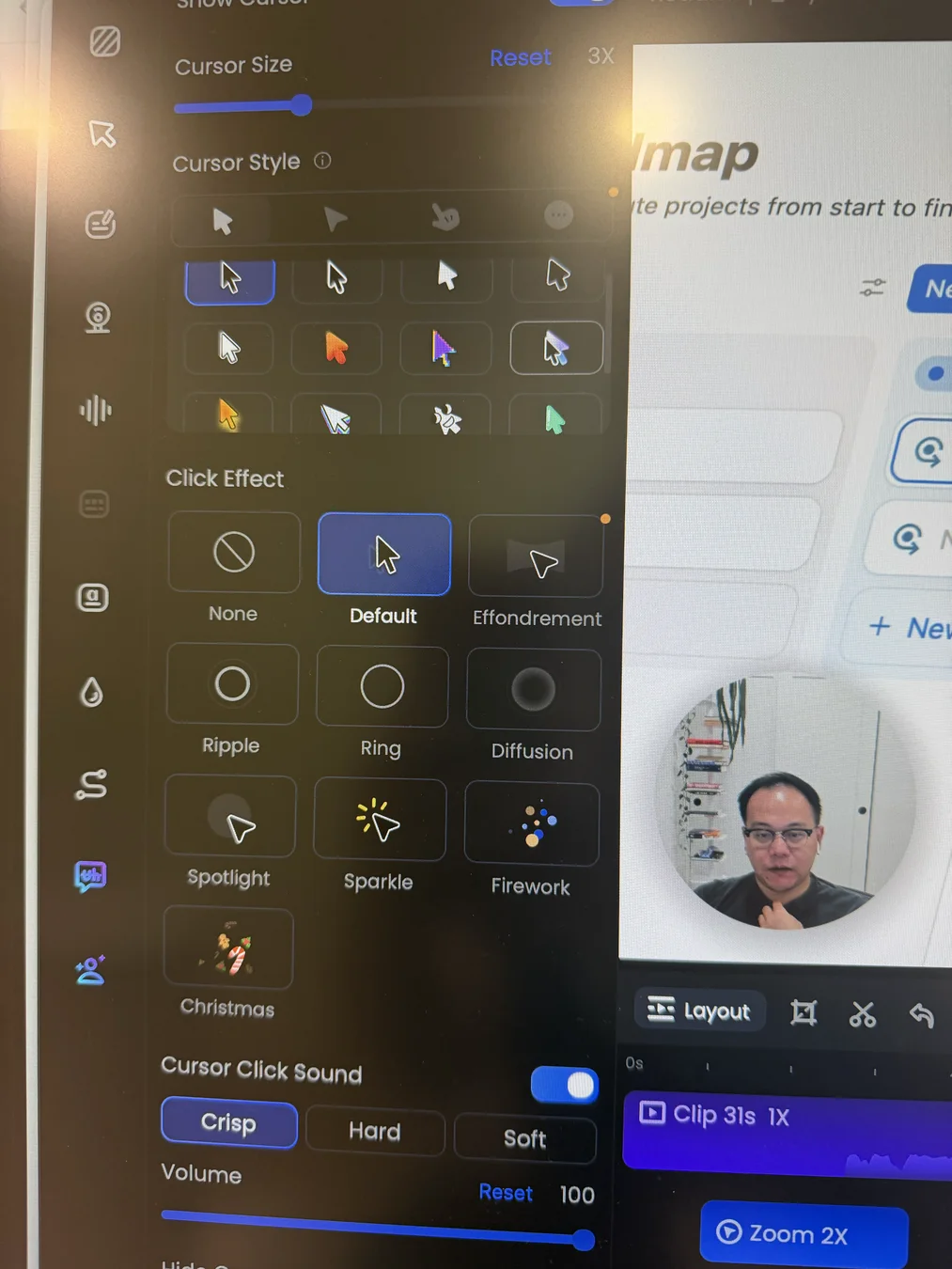
FocuSee: cursor styles, visual click effects, and selectable click sounds in one panel.
Pros
Provides a large built-in collection of cursor appearances with adjustable size.
Includes a broad click-effect library with restrained options such as Ripple and Ring plus more expressive effects such as Sparkle and Firework.
Adds Crisp, Hard, and Soft click sounds with an enable switch and independent volume control.
Supports cursor smoothing and automatic hiding after idle time.
Cons
The larger style and effect library takes longer to scan than Tight Studio's simpler cursor panel.
Tight Studio retains a distinct advantage for uploading a custom branded cursor image.
Text and shape overlays, masks, and highlights
Annotations explain what is happening on screen, while masks protect private information or direct attention to a specific area. Both editors provide a strong post-recording toolkit.
The problem it solves
A recording can expose names, emails, access details, or customer data, while dense interfaces make the important control hard to spot. Timed labels, shapes, blur, and focus effects make the video safer and easier to follow without recording it again.
Our take
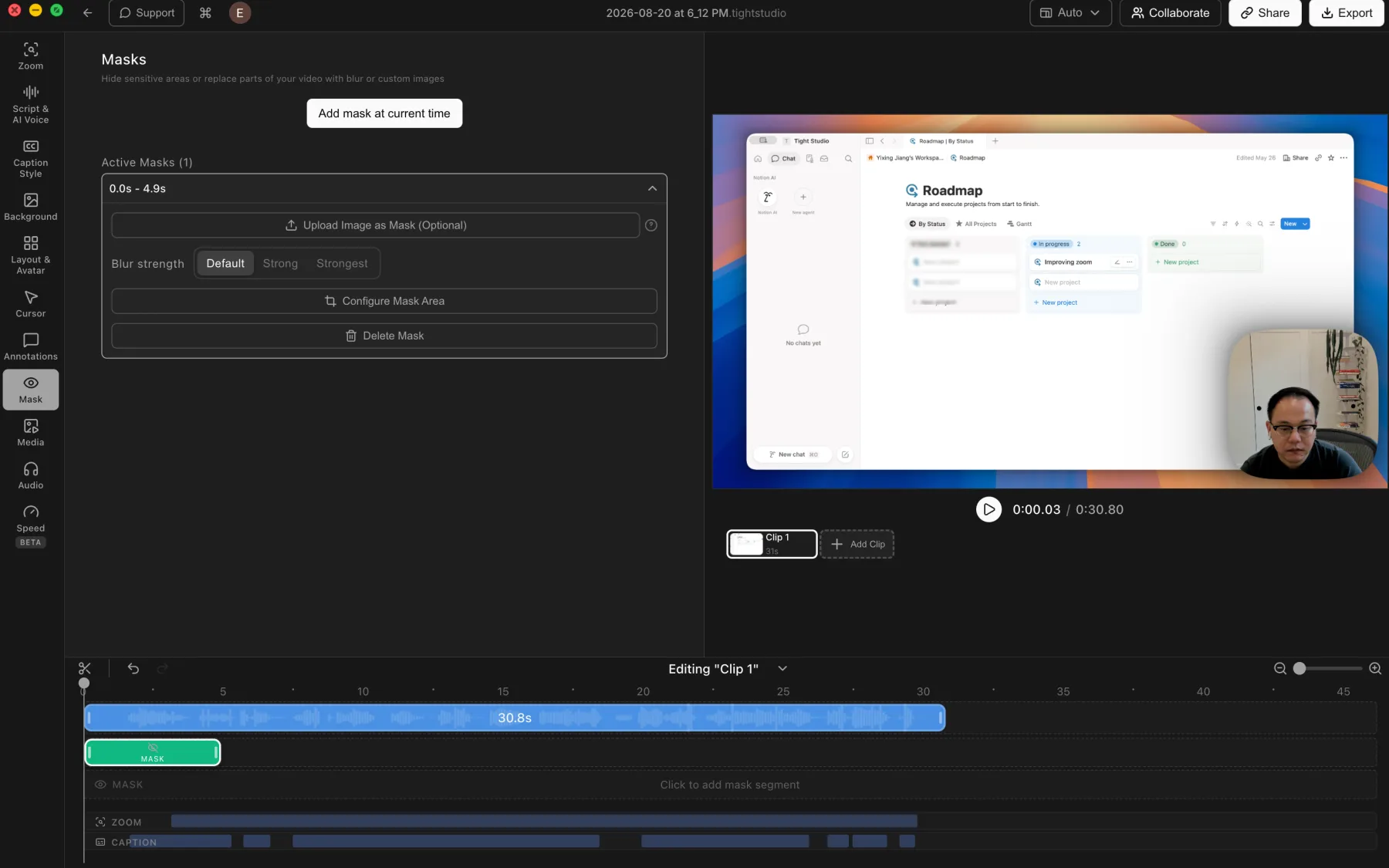
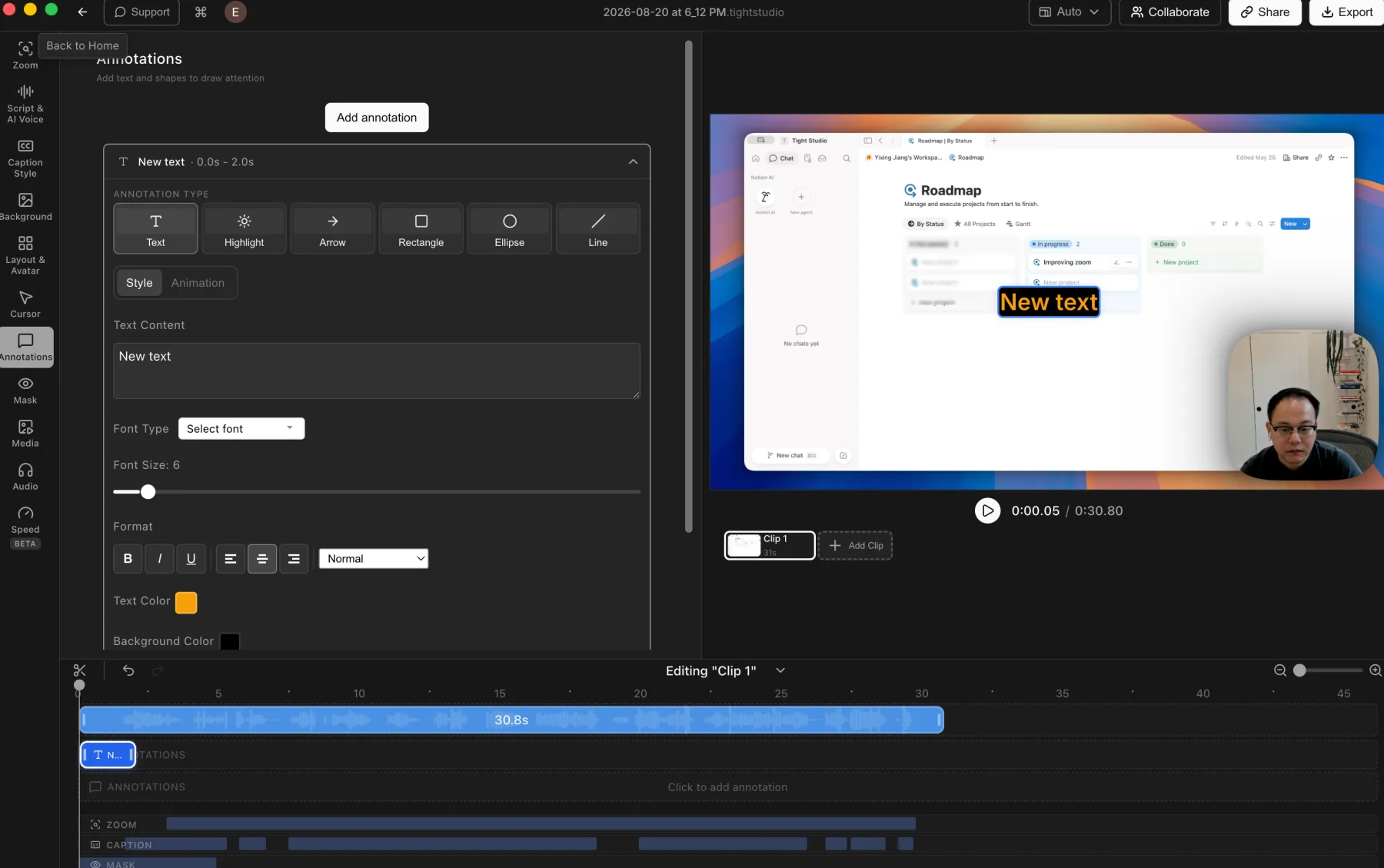
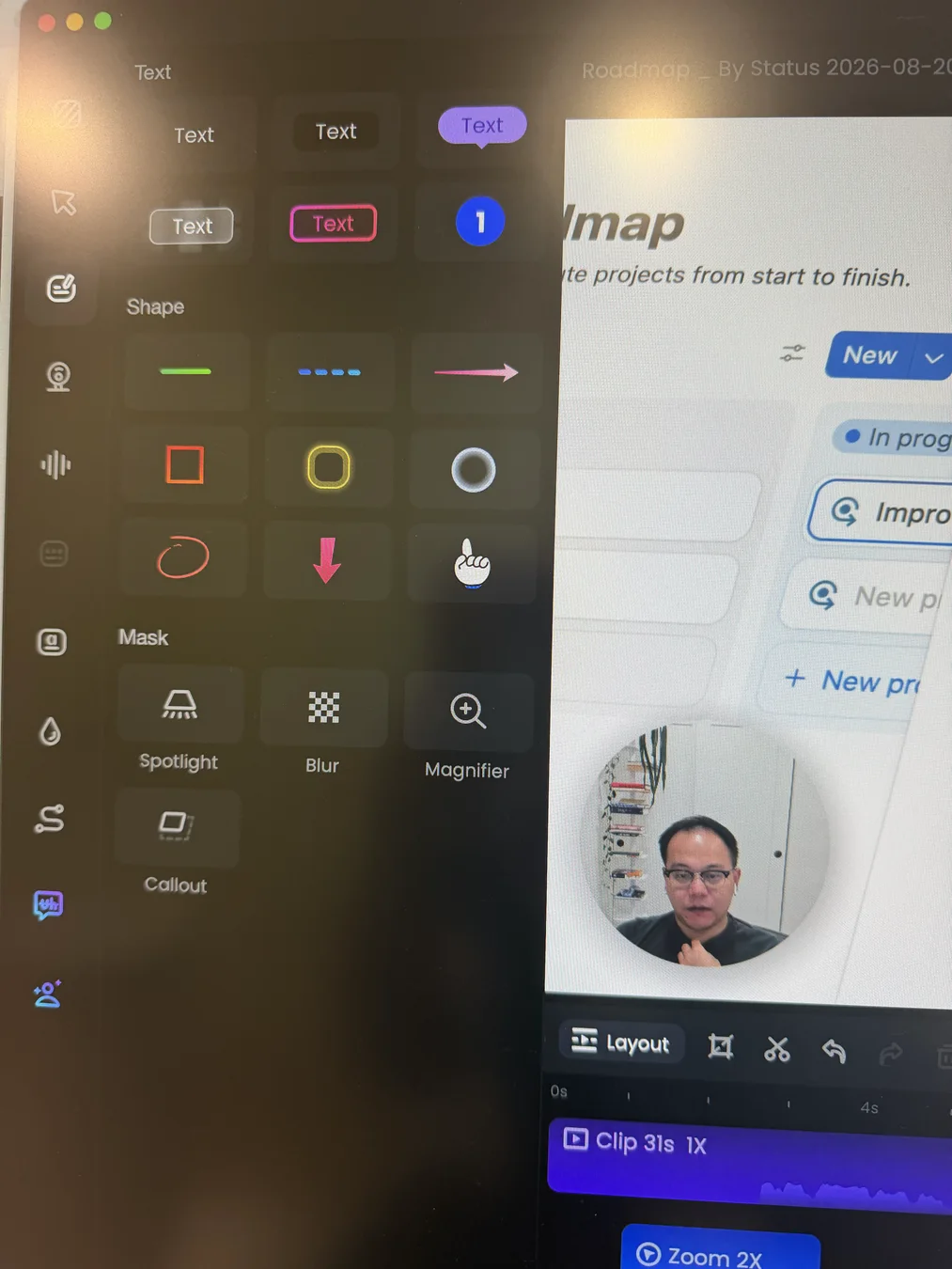
Split decision. FocuSee wins for ready-made variety with styled text, decorative shapes, Spotlight, Blur, Magnifier, and Callout effects. Tight Studio wins for privacy masks that can replace the selected area with a custom image. Both support timed annotations and focus effects with meaningful customization.
Tight Studio
Tight Studio: timed privacy masks with blur strength and custom-image replacement.
Tight Studio: styled text, highlights, arrows, rectangles, ellipses, and lines.
Pros
Supports privacy masks and highlight masks for hiding details or directing attention.
Privacy masks can be timed, resized, and adjusted with multiple blur strengths or a custom replacement image.
Adds styled text, highlights, arrows, rectangles, ellipses, and lines with timeline control.
Cons
Does not offer dedicated Magnifier or Callout mask effects.
Masks and annotations require manual placement and timing.
FocuSee
FocuSee: ready-made text and shape overlays plus Spotlight, Blur, Magnifier, and Callout masks.
Pros
Provides multiple ready-made text treatments, including labels and numbered markers.
Includes lines, arrows, rectangles, ellipses, pointer graphics, and other shape styles.
Combines Spotlight, Blur, Magnifier, and Callout effects for privacy and visual focus.
Supports timeline duration plus position, size, rotation, style, opacity, intensity, and animation controls.
Cons
Does not match Tight Studio's custom-image replacement option for privacy masks.
The larger preset library makes the annotation panel denser to scan.
Camera layouts, background removal, and beauty filter
Both editors keep the webcam feed editable after recording. Tight Studio offers more timed layout choices and preset virtual backgrounds, while FocuSee adds AI background removal, blur, and a distinctive beauty filter.
The problem it solves
A single picture-in-picture layout rarely fits an entire demo. Introductions may need a camera-first view, detailed steps need more screen space, and an untidy room can distract from the explanation. Timed layouts and webcam appearance controls solve those problems without a second editor.
Our take
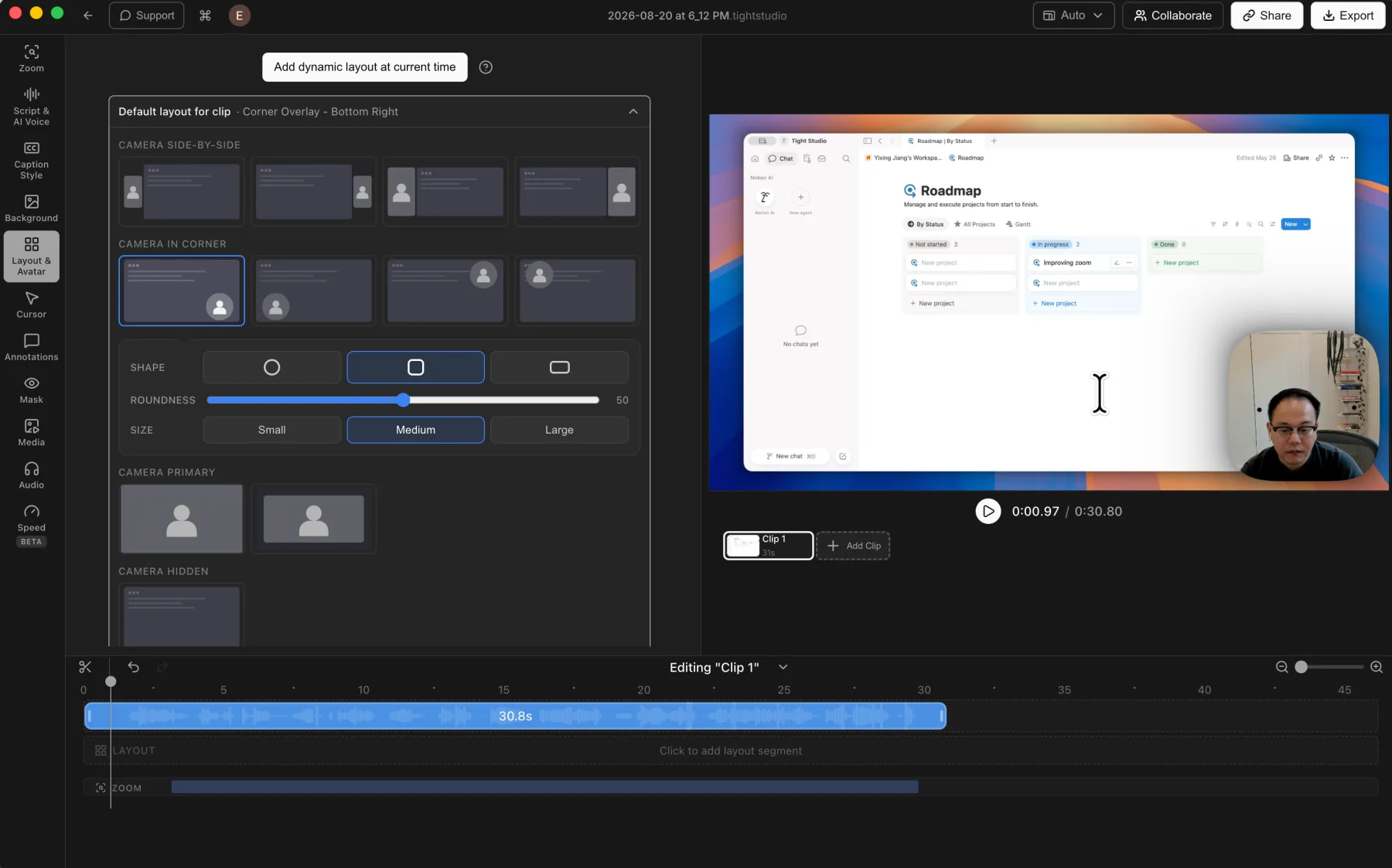
Tight Studio wins for layout flexibility and ready-made virtual backgrounds. FocuSee has six useful starting layouts and supports timed changes, but its tested dynamic-layout editor narrows each segment to three choices. FocuSee wins for appearance enhancement because it can remove or blur the camera background and adds a unique, adjustable AI beauty filter.
Tight Studio
Tight Studio: a broad timed-layout library with camera shape, size, and background controls.
Pros
Supports camera position, shape, size, mirroring, and layout changes across the timeline.
Offers side-by-side, corner overlay, camera-primary, and camera-hidden layout styles for timed segments.
Lets users replace the camera background with built-in presets or upload their own brand image.
Cons
Does not offer a built-in beauty filter for webcam footage.
The broader layout library makes the panel denser to scan.
FocuSee
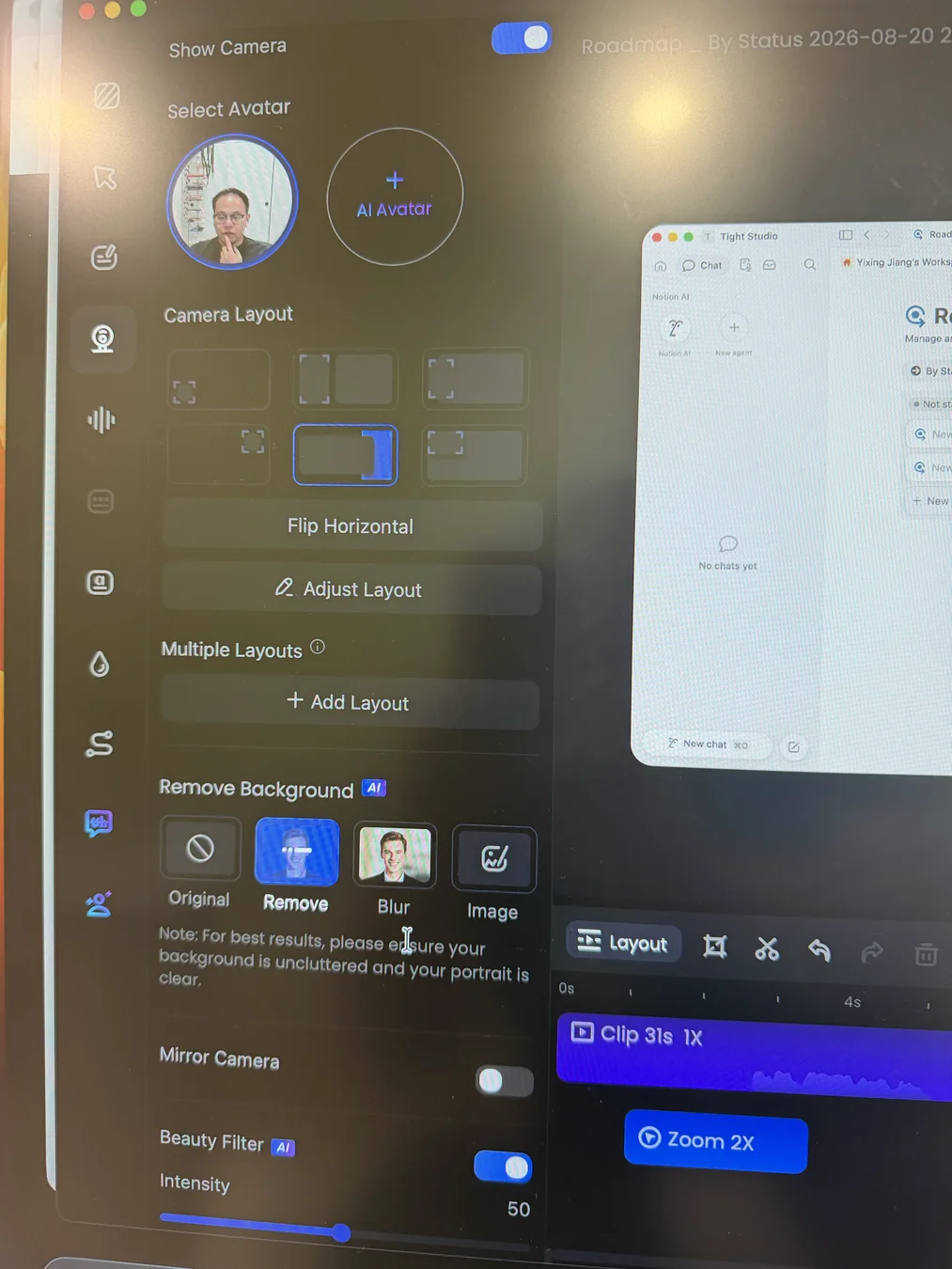
FocuSee: default layouts, AI background treatment, mirroring, and a beauty-intensity slider.
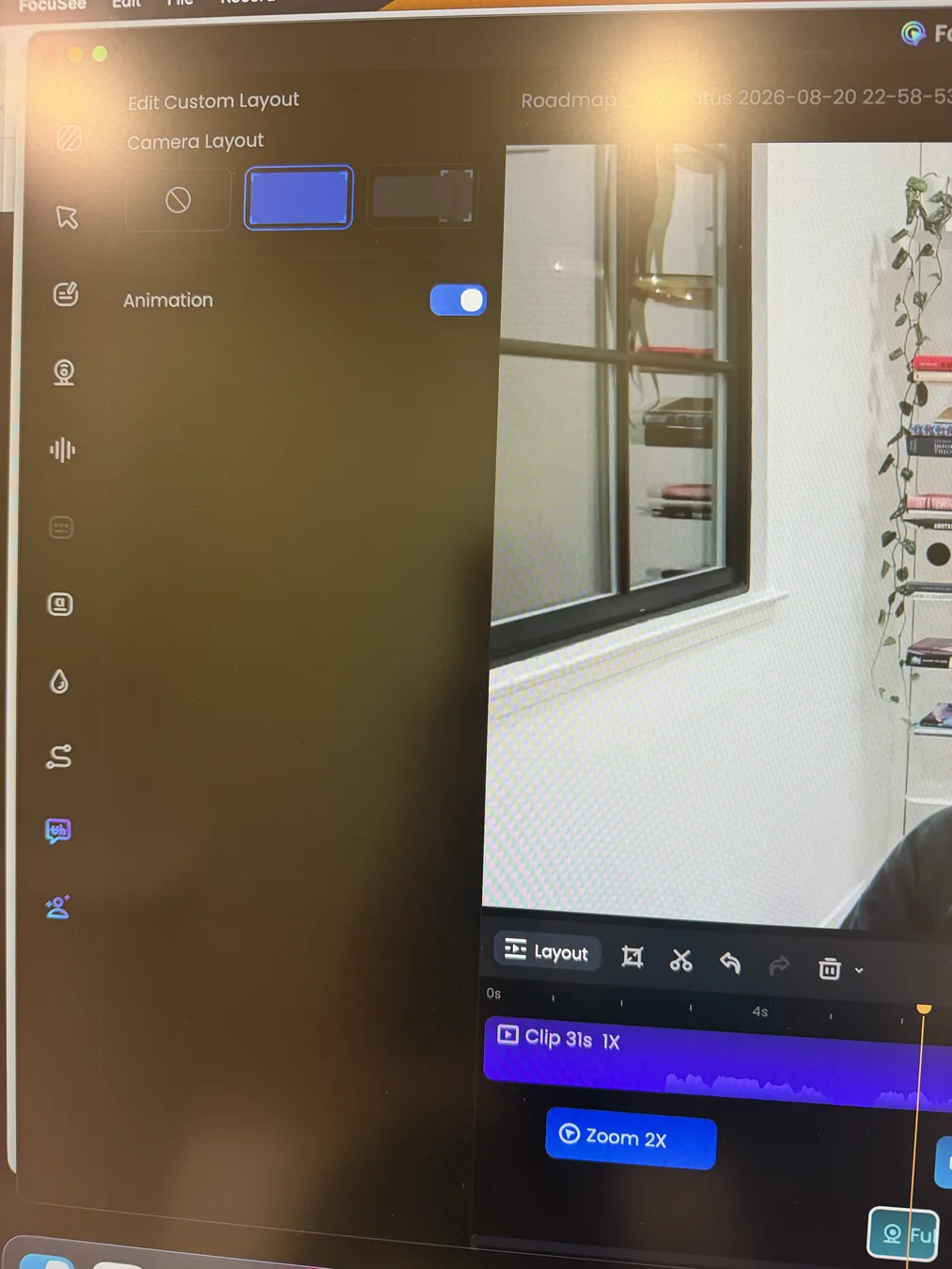
FocuSee: each added dynamic-layout segment exposes three layout choices plus animation.
Pros
Provides six initial camera arrangements plus manual position and size adjustment.
Can add layout changes at specific moments, with animated transitions between screen-only, camera-only, and combined views.
Uses AI to keep, remove, blur, or replace the webcam background with an uploaded image.
Adds a distinctive, non-destructive beauty filter with real-time preview and an adjustable intensity slider.
Cons
The tested dynamic-layout editor offers only three choices per timed segment, fewer than Tight Studio's timed layout library.
In the tested Mac editor, the Image option opened an upload workflow without a visible preset camera-background gallery like Tight Studio's.
Captions, transcription, and subtitle editing
FocuSee gives users a free local transcription path and a credit-gated higher-accuracy model, then provides capable subtitle-block editing. Tight Studio focuses more heavily on polished caption design and readable script-based correction.
The problem it solves
Automatic captions save time only when errors are easy to correct and the final text remains readable over the recording. Transcription privacy, model cost, segment editing, and visual styling all affect whether captions feel like a finished feature or raw generated text.
Our take
Split decision. FocuSee wins for transcription choice and subtitle-block operations: its Local Model is free, while its Advanced Model trades credits for higher accuracy and broader language coverage. Tight Studio wins for per-word timing and visual presentation. It retains timing for individual words and provides a larger professional style library with deeper customization. FocuSee can emphasize the current word or phrase, but its tested timing editor works at block level.
Tight Studio
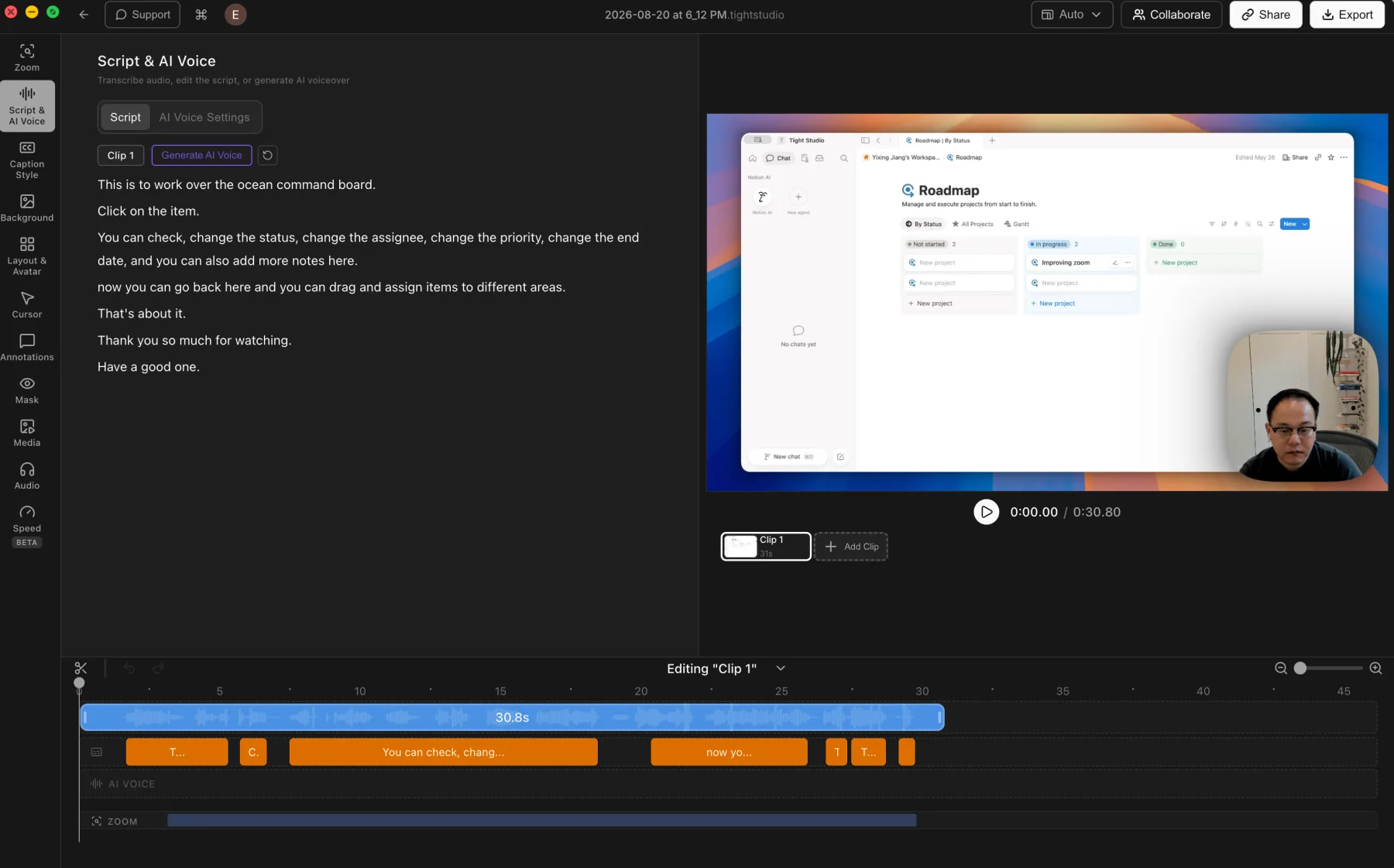
Tight Studio: readable script editing beside synchronized caption segments on the timeline.
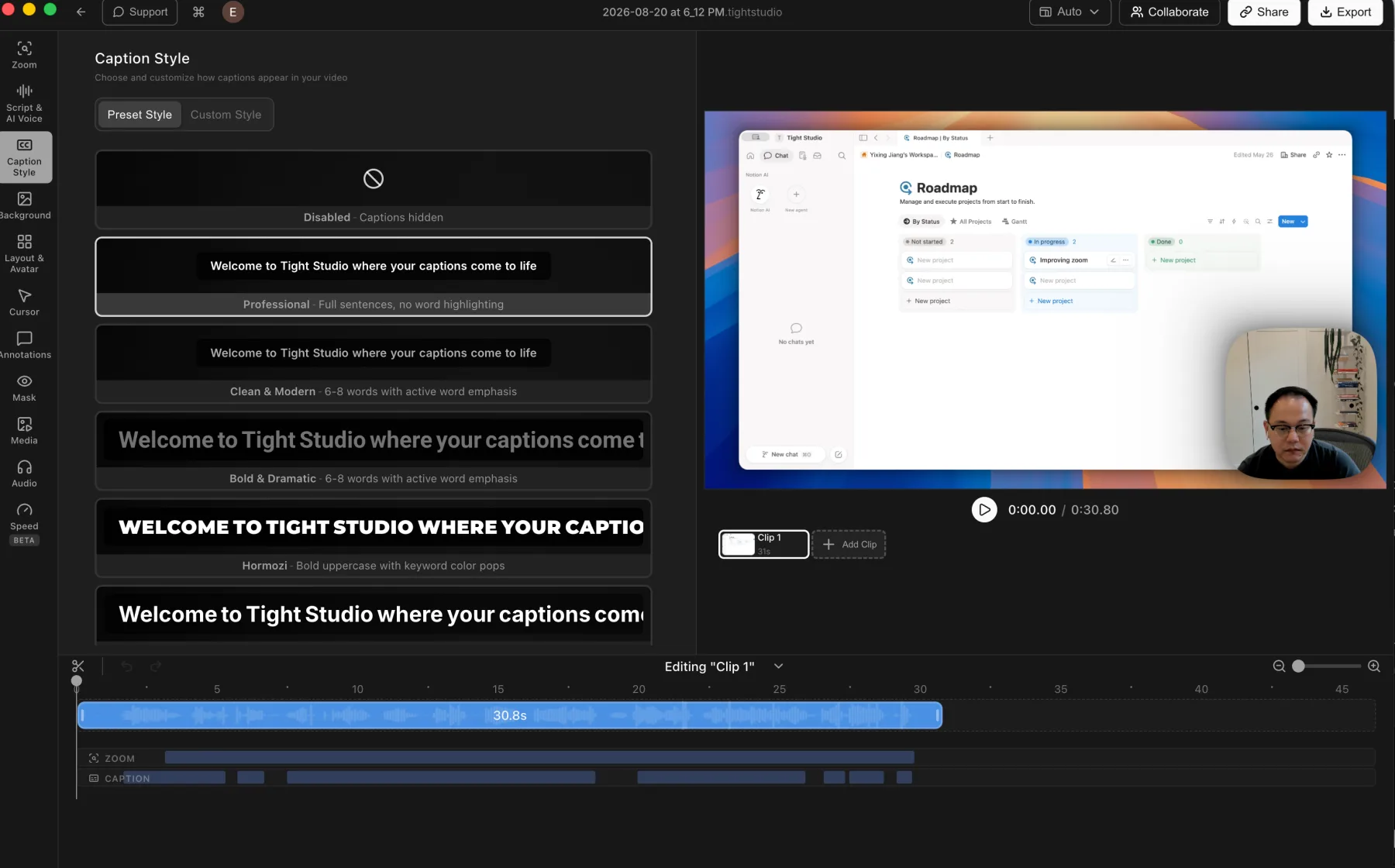
Tight Studio: a broad preset library plus detailed custom caption styling.
Pros
Presents transcript editing as readable script text beside synchronized caption segments on the timeline.
Retains word-level timestamps and supports correcting the source timing of an individual caption word.
Includes Professional, Clean and Modern, Bold and Dramatic, and Hormozi-style visual presets.
Provides detailed custom controls for typography, emphasis, background, position, and animation.
Cons
Uses ElevenLabs cloud transcription rather than a free local transcription model.
Transcription requires an internet connection and sends audio to a cloud processor under the stated no-retention policy.
FocuSee
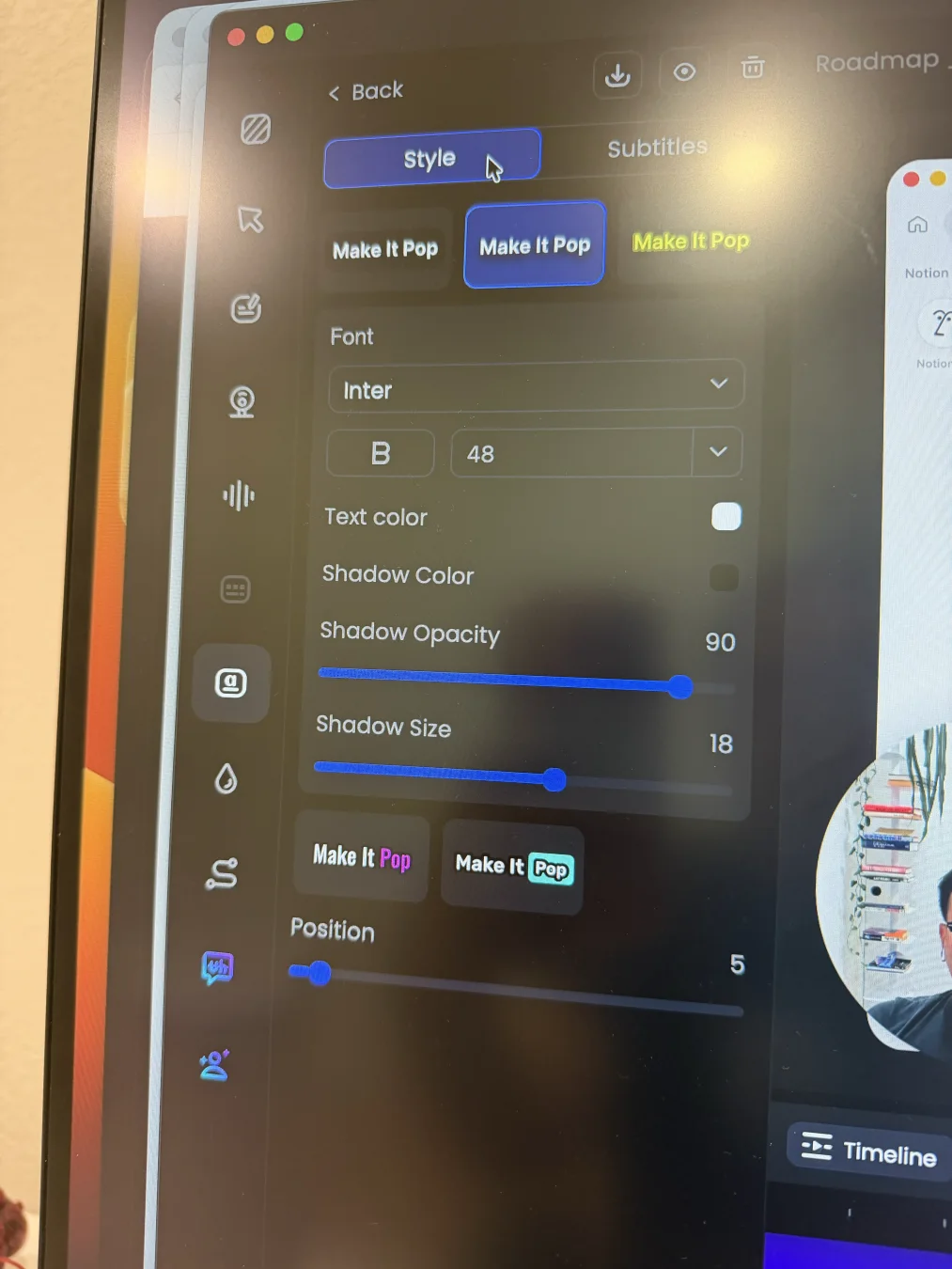
FocuSee: a small preset selection with practical font, color, shadow, emphasis, and position controls.
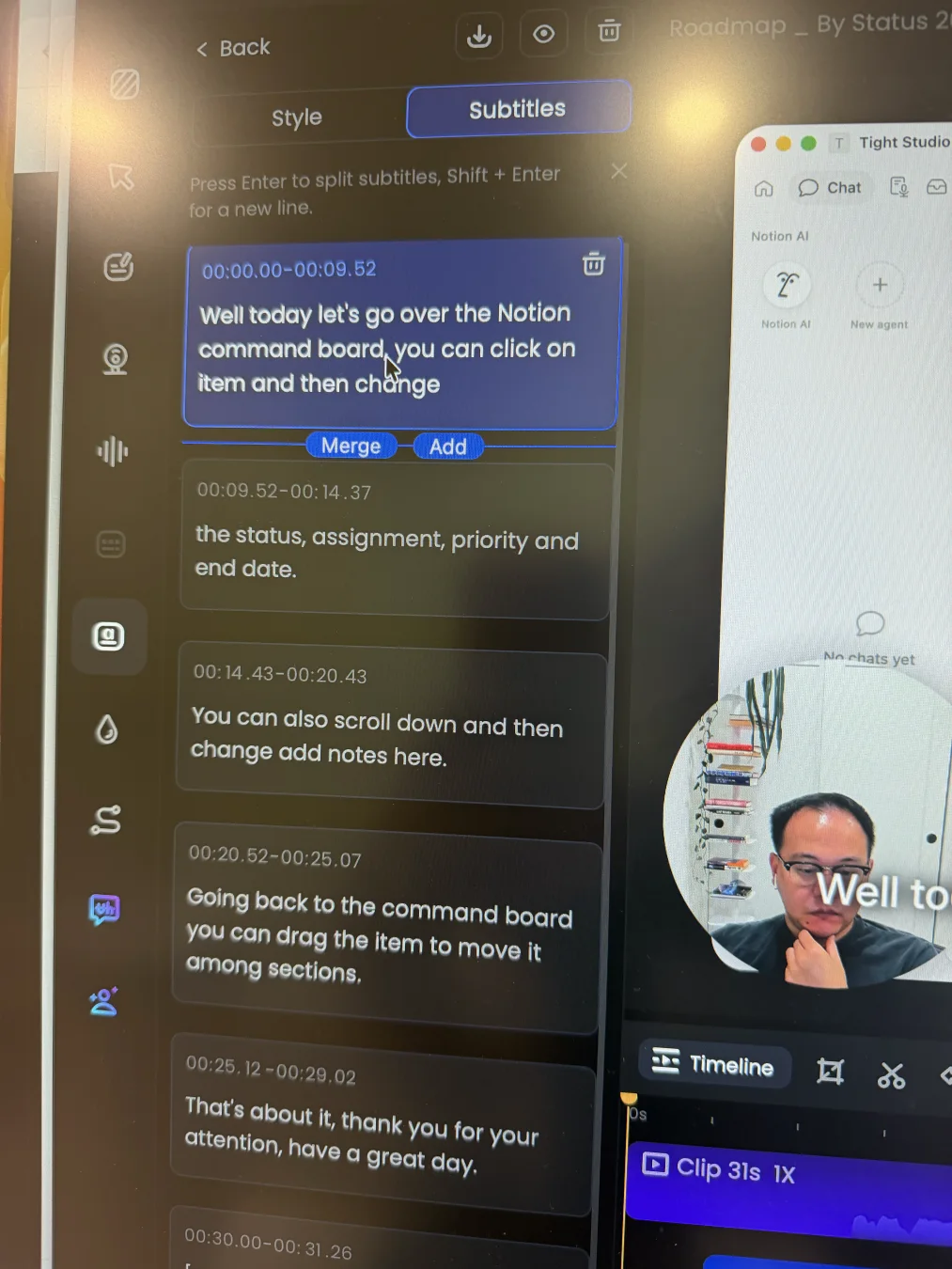
FocuSee: timestamped subtitle cards that can be edited, split, added, merged, and deleted.
Pros
Offers a completely free Local Model with Nano, Basic, and Pro accuracy options.
Provides a credit-gated Advanced Model for higher accuracy and broader language support.
Lets users edit text and timestamps, add or delete blocks, split or merge captions, and import SRT files.
Includes a few ready-made styles plus font, weight, size, color, shadow, emphasis, and position controls.
Cons
The visible preset collection and styling depth are more limited than Tight Studio's caption library.
The tested timing editor works at subtitle-block level; we found no control for retiming an individual word inside a block.
The higher-accuracy Advanced Model consumes one AI credit per minute instead of remaining part of the free local workflow.
AI voice narration versus AI Avatar
These are adjacent but different capabilities. Tight Studio turns editable script text into voice-only narration with segment-level control. FocuSee turns source speech into a visible virtual presenter.
The problem it solves
A narration mistake may require changing only one sentence, while camera-shy creators may want a presenter without appearing on screen. Script-to-voice generation optimizes revision control; AI avatars optimize visual presence. Treating them as the same feature hides the workflow difference.
Our take
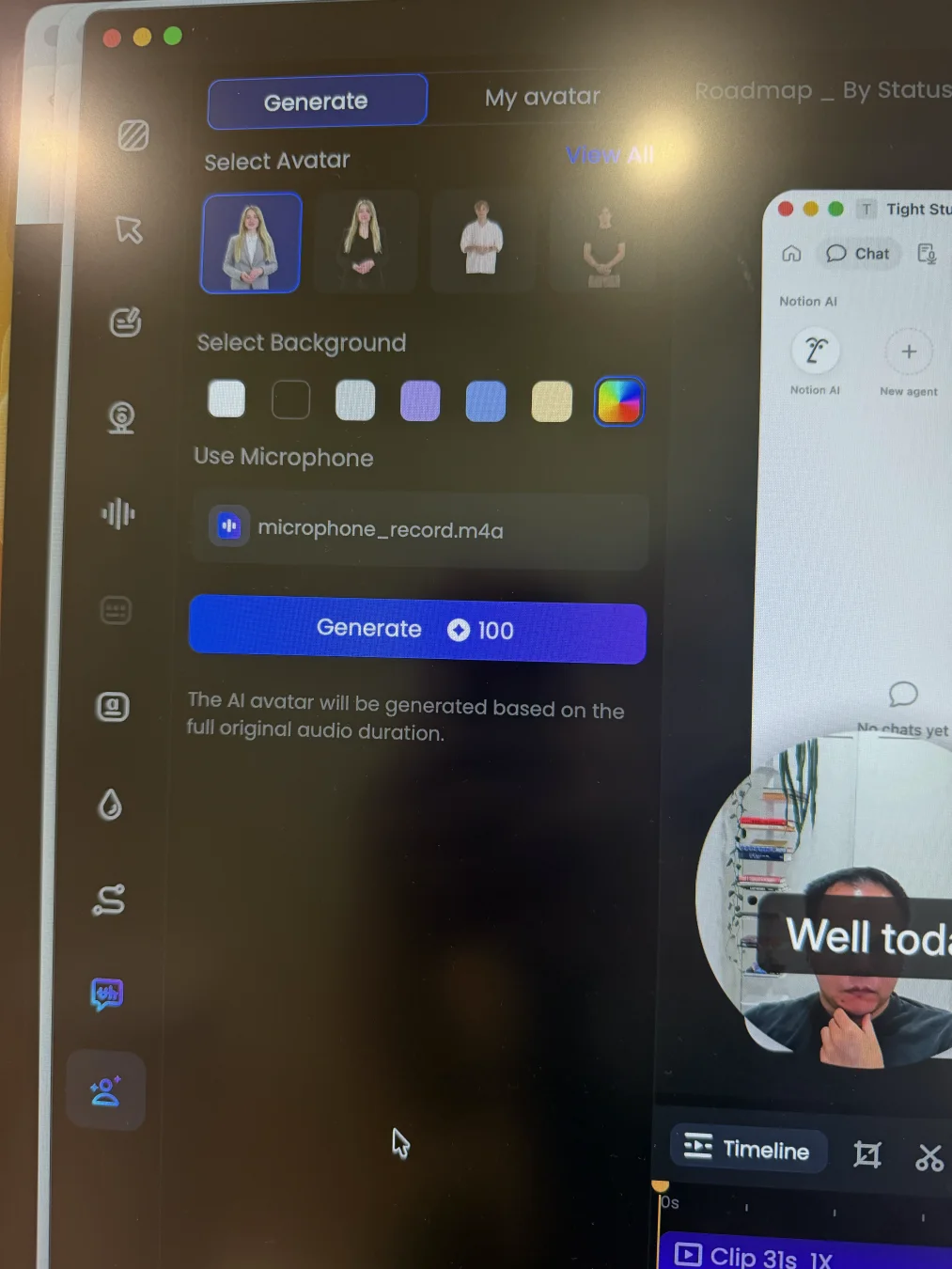
Split by goal. Tight Studio wins decisively for AI narration because users can generate or replace individual voice segments, choose premade voices or clone their own, and try the workflow with 100 credits. FocuSee does not offer that equivalent editor, but it wins the separate AI Avatar category, which Tight Studio does not support. In our tested editor flow, FocuSee used the original microphone track and full duration, and Avatar generation required paid credits.
Tight Studio
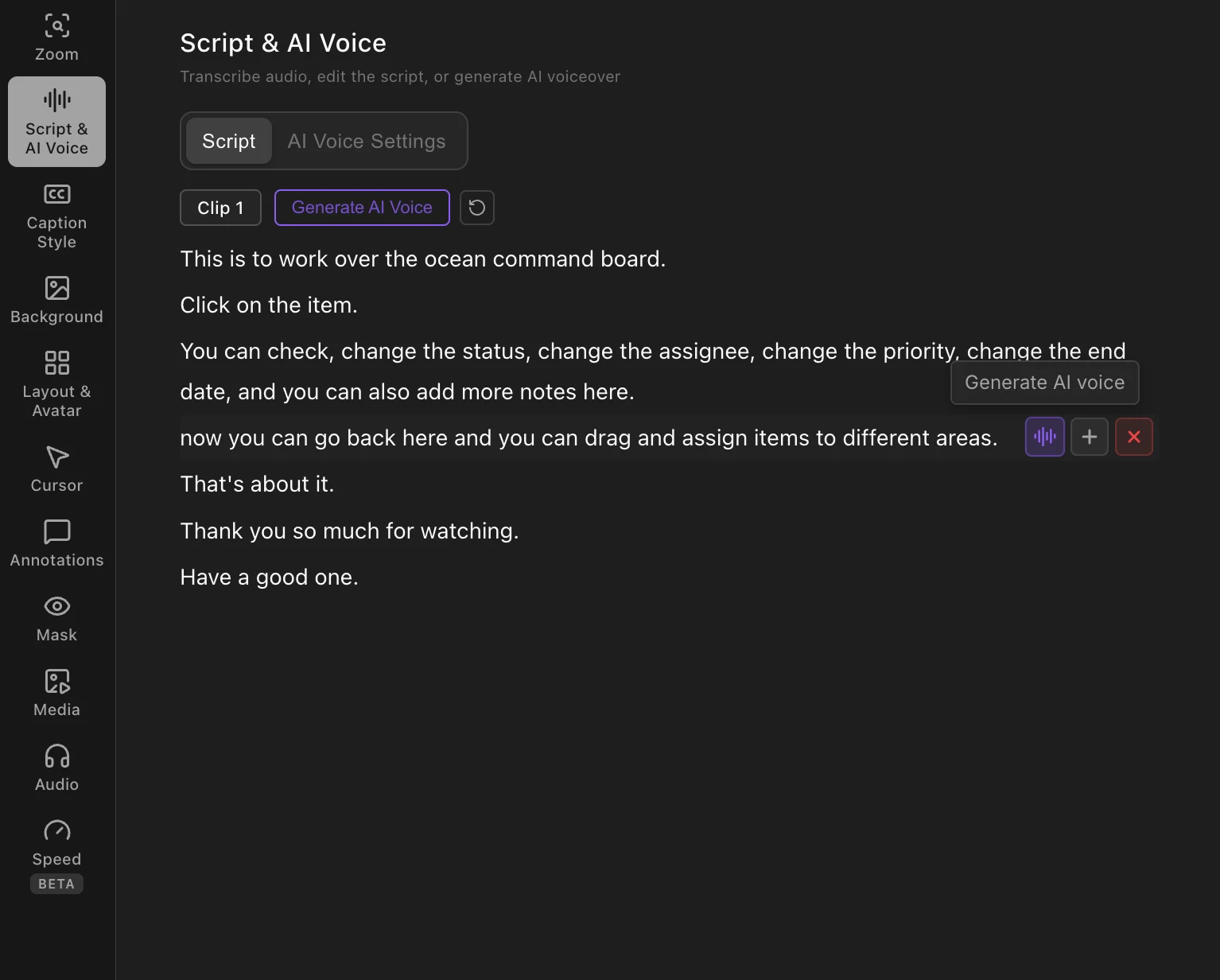
Tight Studio: generate or replace narration for an individual script segment instead of regenerating the full clip.
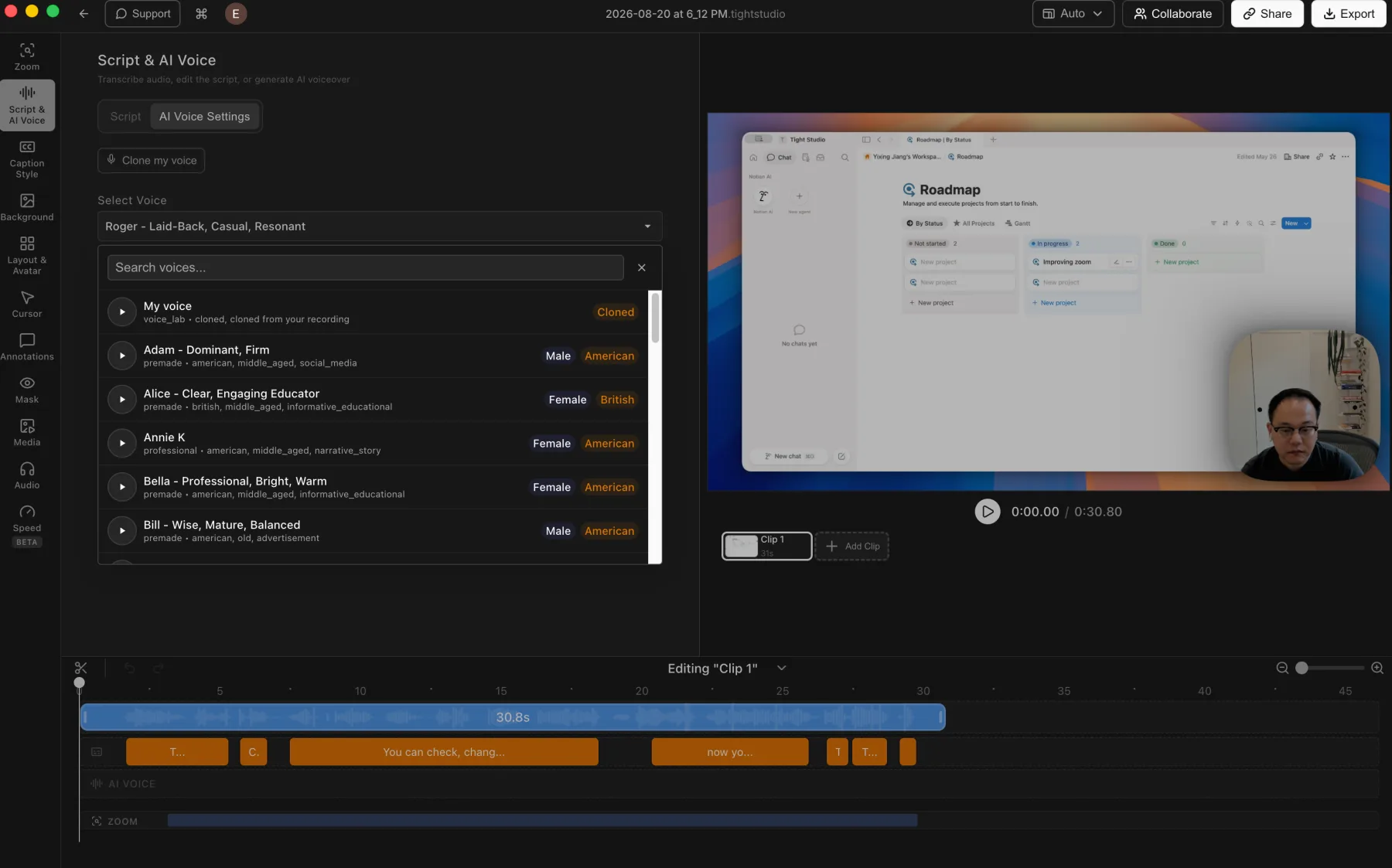
Tight Studio: voice cloning and a searchable voice library connected to a dedicated timeline track.
Pros
Generates voice-only narration directly from editable script text without requiring an original microphone recording.
Lets users generate, regenerate, add, or delete narration segment by segment for precise wording and timing control.
Offers personal voice cloning plus a searchable library of natural-sounding premade voices.
Includes 100 trial AI credits; Pro includes 1,000 shared AI credits per month.
Cons
Does not generate a visual AI avatar presenter.
Exports containing trial AI Voice generation include a watermark.
FocuSee
FocuSee: an AI Avatar generated from the tested project's original microphone recording and full audio duration.
Pros
Generates a visual virtual presenter, a capability Tight Studio does not currently offer.
Provides a library of avatar appearances plus selectable background treatments.
Can apply the completed avatar to the camera layer, where its position, size, and crop remain adjustable.
Cons
Does not provide a comparable voice-only, script-to-narration editor with segment-level generation controls.
In the tested recording-editor flow, generation was tied to the original microphone track and its full duration rather than selected script segments.
AI Avatar is not included in the standard free trial and consumes 150 AI credits per minute.
Music and microphone controls
The core workflow is similar: both editors can mute microphone audio, adjust its level, add built-in music, and import a custom track. Their strengths differ once the mix needs cleanup or more precise timing.
The problem it solves
Narration can be too quiet or carry background noise, while one music bed across a whole video may compete with spoken sections. Voice cleanup and flexible track timing determine whether the final mix feels polished rather than merely present.
Our take
Split decision. FocuSee wins for microphone cleanup with AI noise reduction and vocal enhancement. Tight Studio wins for advanced music timing because it supports flexible music segments directly on the main timeline. FocuSee can trim a track and set custom start and end times, but it limits each project to one background music track.
Tight Studio
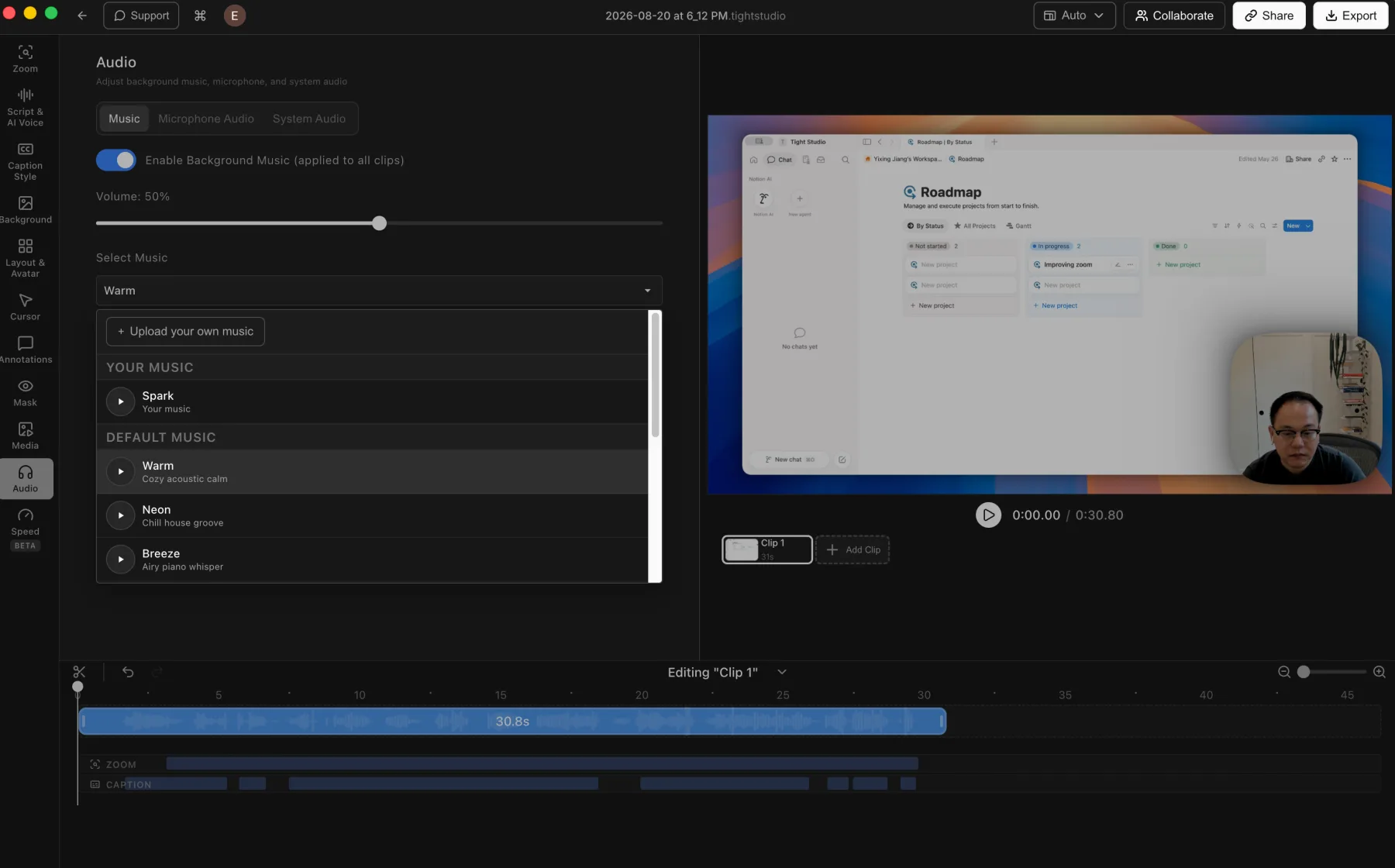
Tight Studio: built-in music, custom uploads, and music volume controls.
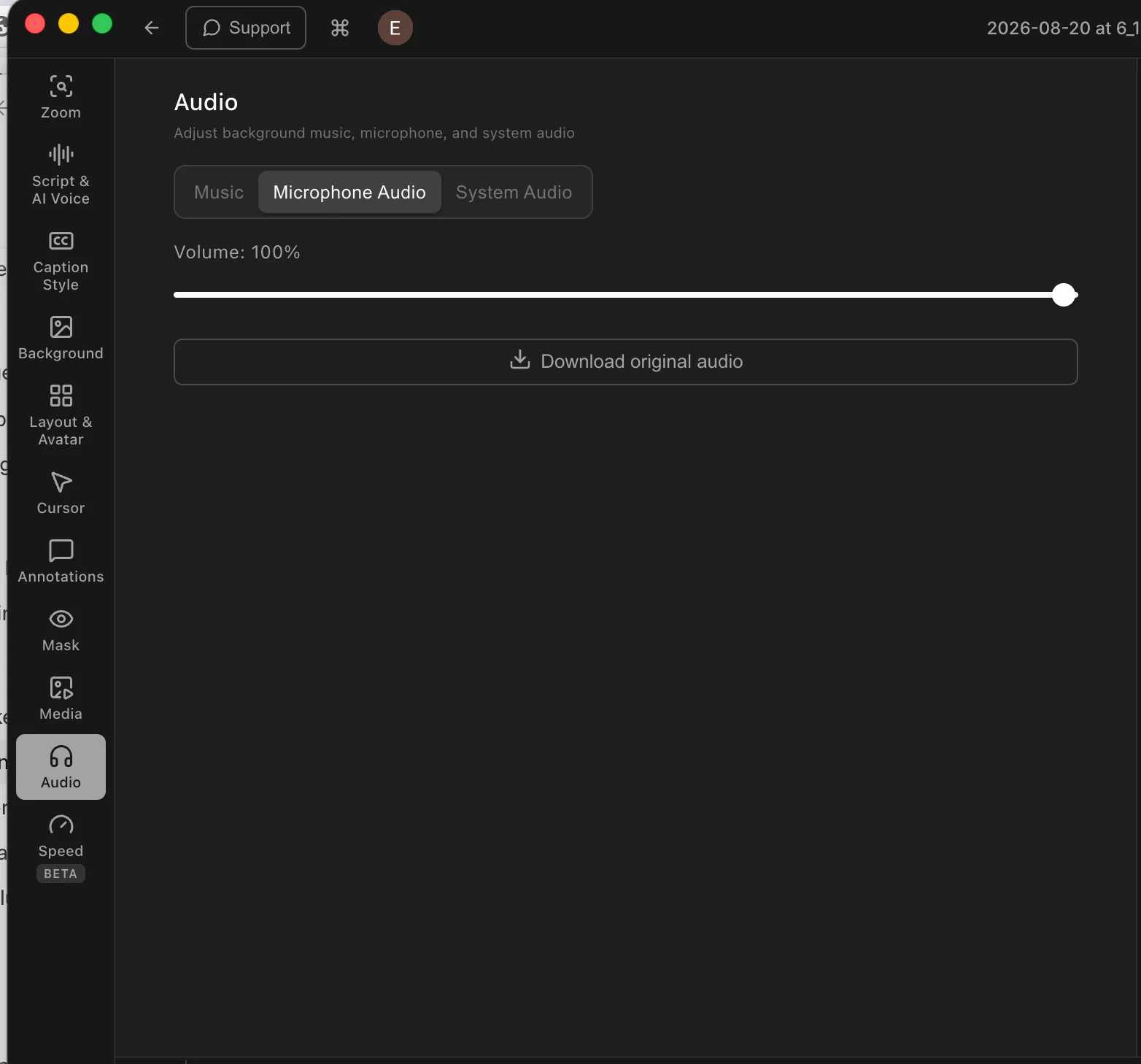
Tight Studio: direct microphone volume control and original-audio download.
Pros
Includes built-in music and lets users upload their own audio files.
Advanced music segments can be placed and trimmed to chosen time ranges directly on the timeline.
Supports microphone muting, direct microphone volume adjustment, and original-audio download.
Cons
Does not provide automatic microphone noise reduction or vocal enhancement.
Custom music timing requires the advanced music-segment workflow rather than the simpler background-music mode.
FocuSee
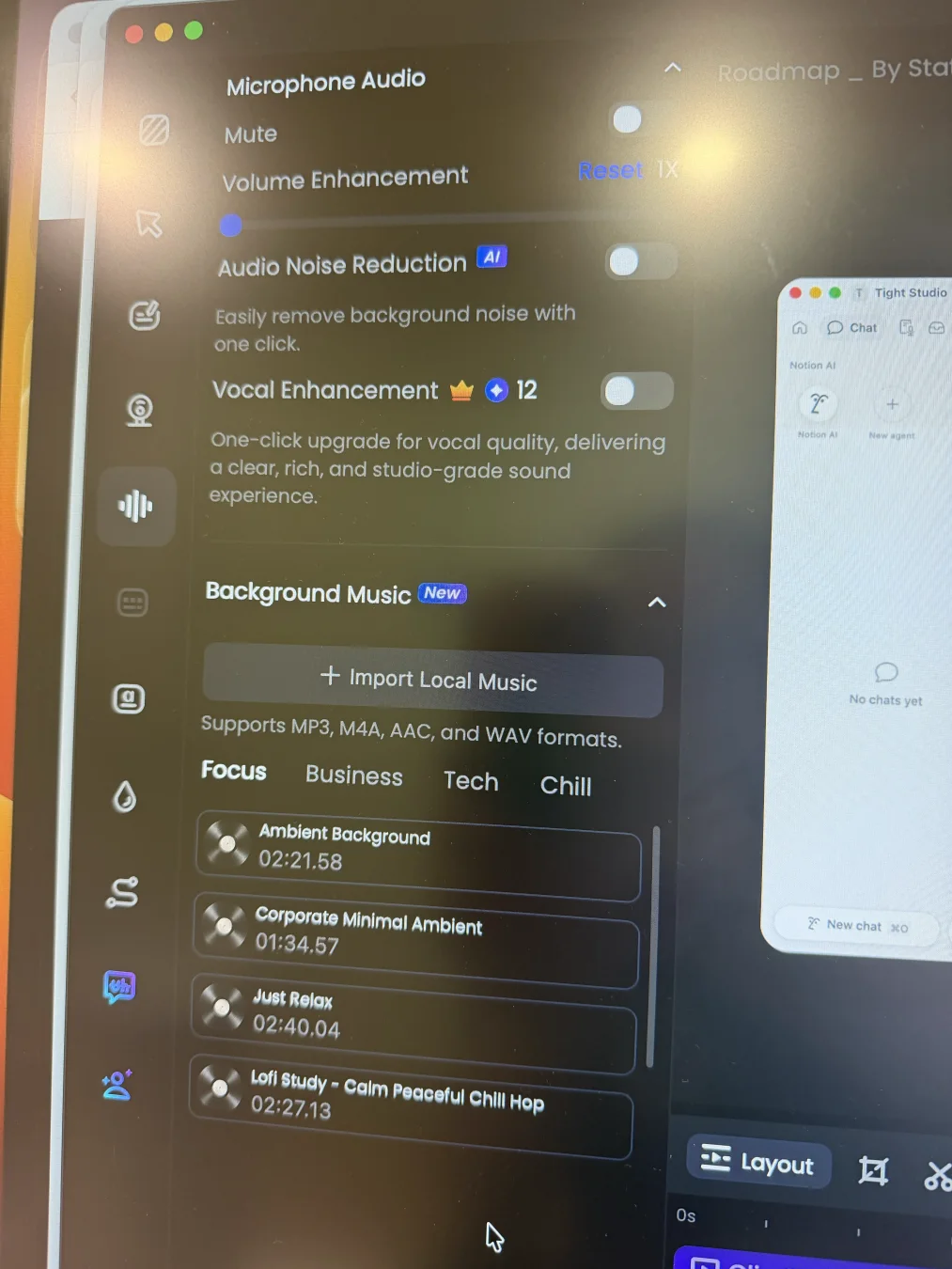
FocuSee: microphone cleanup and volume controls above its built-in and imported music options.
Pros
Supports microphone muting and volume enhancement up to 300%.
Adds one-click AI noise reduction plus credit-metered vocal enhancement.
Includes built-in Focus, Business, Tech, and Chill music categories and accepts MP3, M4A, AAC, and WAV uploads.
After a track is added, it can be trimmed and given a start time, end time, volume, fade, and loop behavior.
Cons
Supports only one background music track per project.
Music timing uses settings and a separate trim editor instead of Tight Studio's flexible music segments placed directly on the main timeline.
Multi-clip editing and media imports
Combining recordings, imported video, and still images in one project removes the handoff to a separate editor.
The problem it solves
When a tutorial needs a second take, supporting clip, or product image, a single-clip editor forces the creator to export, assemble elsewhere, and export again. That adds editing time and performs an extra video encode, which can soften detail when lossy settings are used.
Our take
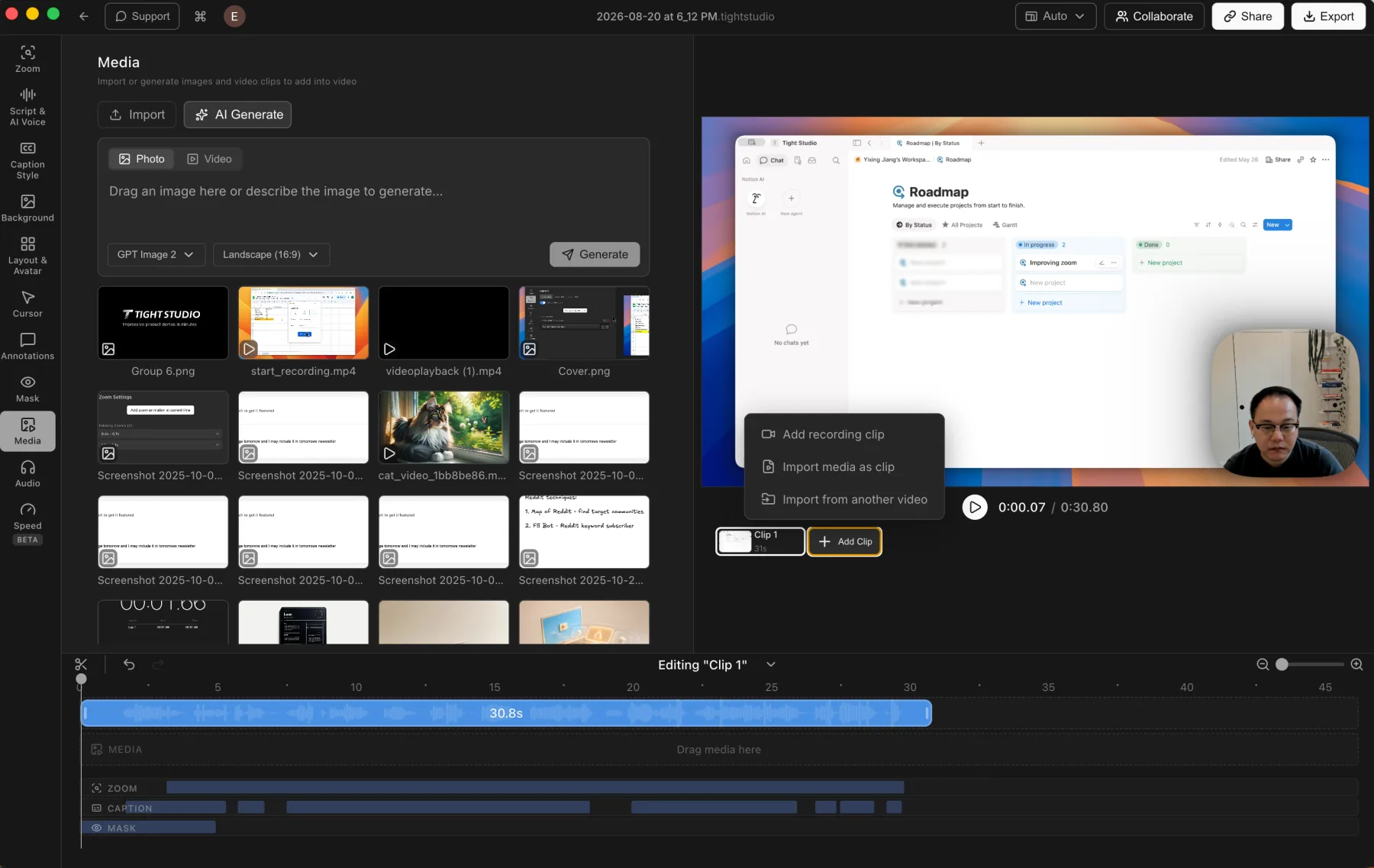
Tight Studio wins decisively. It combines multiple recordings, imported video clips, and photos in one project. FocuSee can create a new project from one imported H.264 MP4, but the tested editor does not add another recording, append an external clip, or place imported photo and video media inside an existing project.
Tight Studio
Tight Studio: imported media and additional recording clips stay inside one editable project.
Pros
Combines multiple screen recordings into one project, including new takes and clips imported from another video.
Imports photos and videos into the media library, then places them on the timeline as timed visual layers.
Keeps assembly, visual edits, and the final export in one app, avoiding an extra handoff and video encode.
Cons
Larger multi-clip projects require more timeline organization than a simple one-take recording.
FocuSee
No in-project multi-clip assembly
FocuSee can create a new standalone project from one imported H.264 MP4, but the tested editor does not add another recording, external video clip, or photo to an existing project.
Can turn one existing H.264 MP4 into a new project for backgrounds, zoom, annotations, layouts, captions, and other enhancements.
Cons
Does not record an additional take inside the current project.
Does not append external video clips or add photos and videos as timed media layers.
Multi-part assembly requires another editor, adding a handoff and another export before or after the FocuSee edit.
iPhone and iPad recording
Direct device capture keeps mobile-app demos, tutorials, handwritten iPad lessons, and gameplay sharp without filming the device through a camera.
The problem it solves
Pointing a webcam at a phone or tablet introduces glare, hand movement, and uneven focus. A direct device connection preserves the screen signal, keeps interface text readable, and brings the recording into the same post-production workflow.
Our take
Tie for iPhone and iPad recording. Both products capture a connected iOS device over USB and support manual post-recording zoom because finger taps do not provide cursor metadata. Tight Studio wins when multiple device takes must stay in one project; FocuSee wins for broader device coverage because it also supports Android and Windows.
Tight Studio
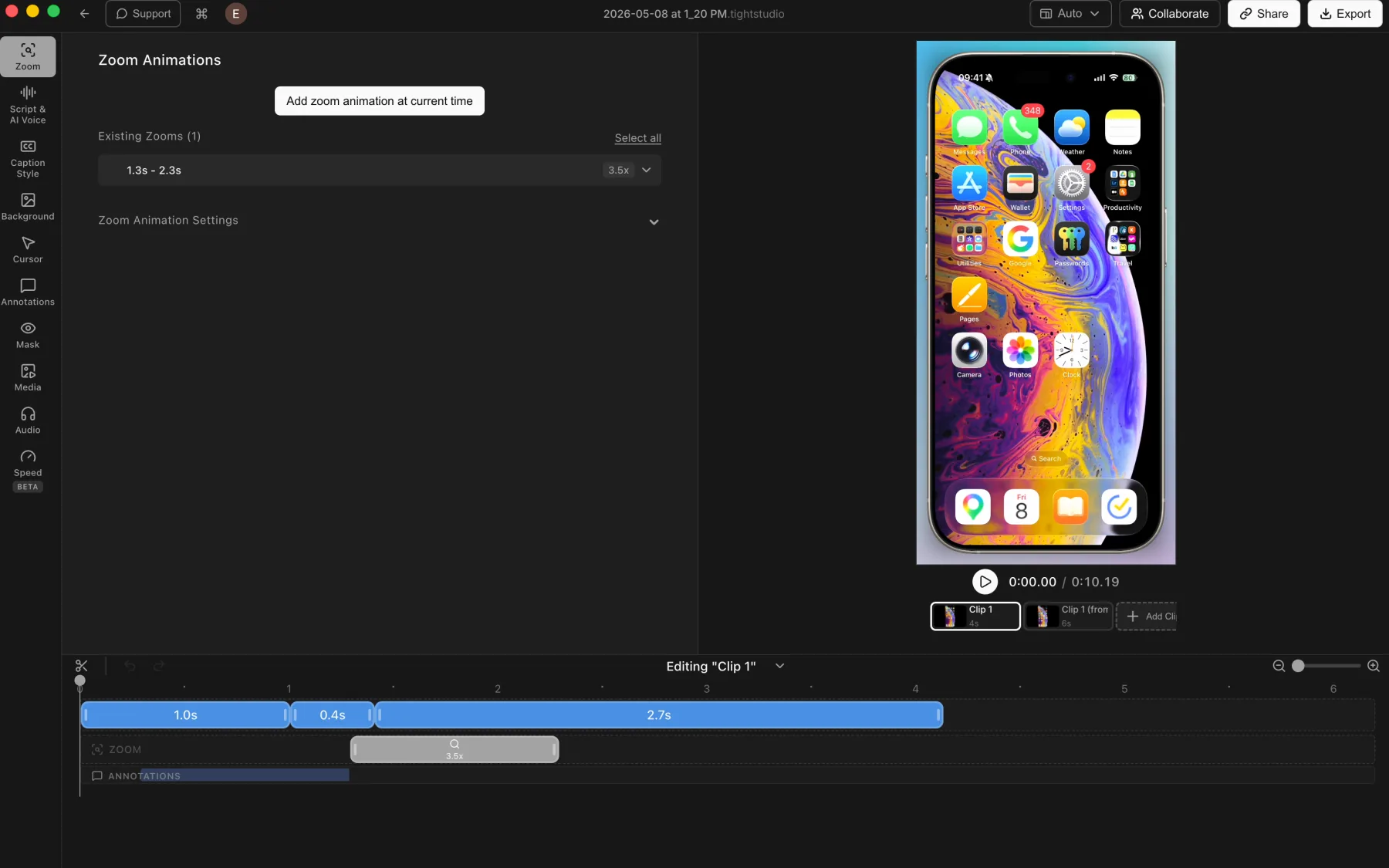
Tight Studio: a connected iPhone recording with multiple clips, zoom, and annotation tracks.
Pros
Captures a connected iPhone or iPad directly into the Tight Studio editor.
Applies the usual post-recording tools, including manual zooms, backgrounds, captions, masks, and annotations.
Combines multiple mobile-device takes as clips inside one project.
Cons
Requires connecting and trusting the device before recording.
Touch gestures do not provide desktop-style cursor metadata, so zooms may need manual placement.
Does not currently record Android devices.
FocuSee
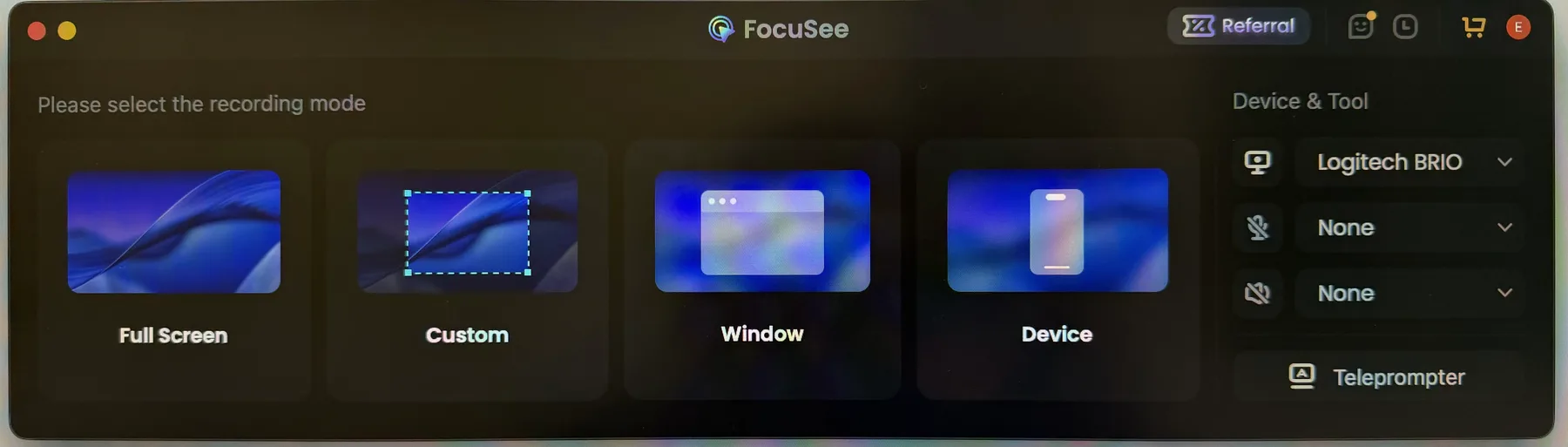
FocuSee: the recording picker includes a Device entry point.
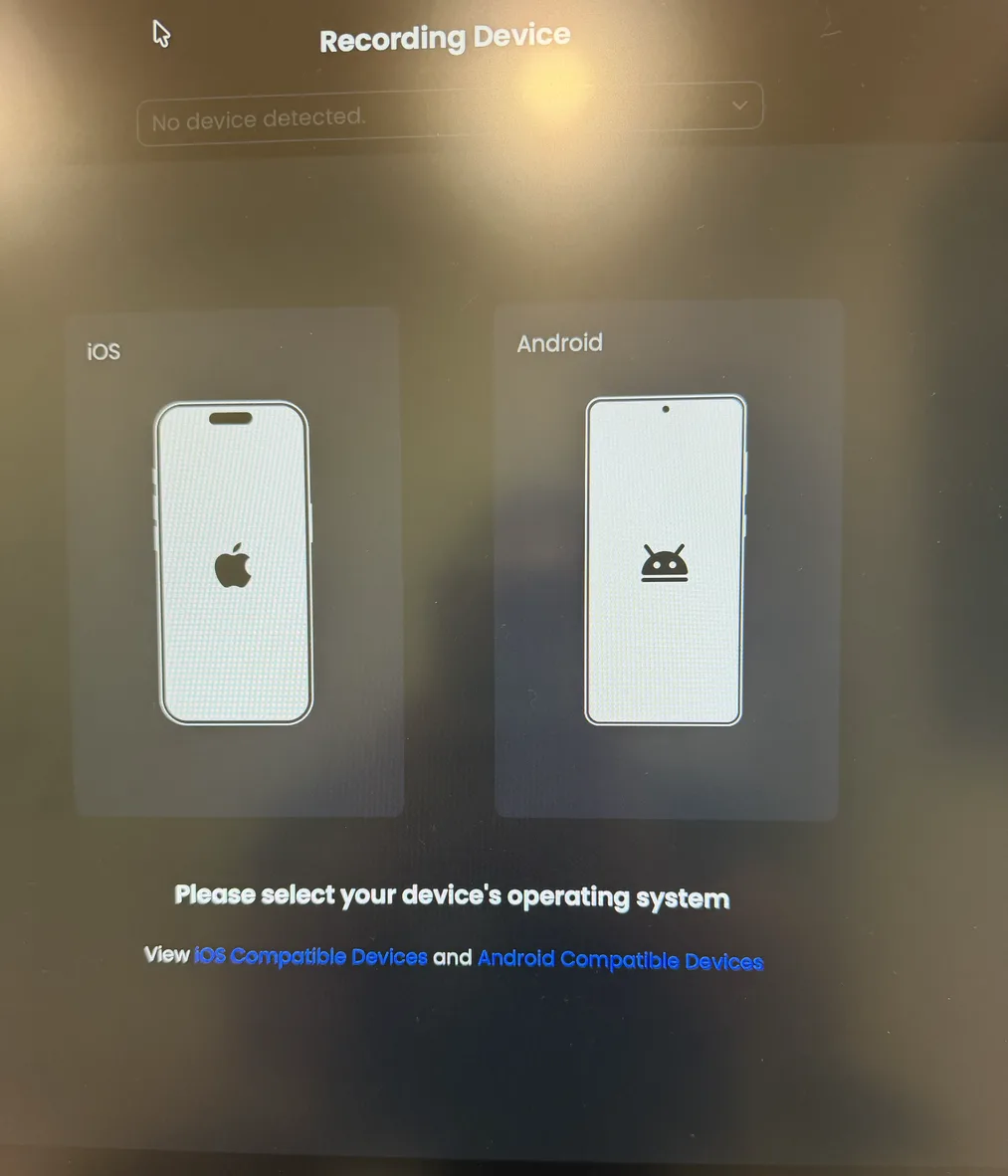
FocuSee: choose iOS or Android in Device mode. No phone was connected when this photo was taken.
Pros
Records iPhone and iPad screens over USB on macOS or Windows and supports iOS 10 or later.
Can capture computer camera and microphone input alongside mobile-device system audio.
Provides selectable iPhone and iPad device frames after recording and also supports Android capture.
Cons
Requires a USB connection plus an unlocked and trusted device before recording.
Automatic zoom, cursor effects, and shortcut overlays are unavailable for iOS recordings, although zoom can be added manually.
Does not combine multiple mobile-device takes inside one project.
The core difference
Cross-platform automatic editing versus a multi-take Mac workflow
Both products create editable automatic zooms and provide meaningful post-recording controls. FocuSee adds AI Avatar presenters, perspective-based 3D Motion, silence removal, Windows, and Android support, while Tight Studio emphasizes segment-level AI narration, same-project multi-take capture, collaborative Mac projects, and generated media.
FocuSee strengths
When should you choose FocuSee?
You want automatic silence removal
FocuSee can detect and remove silence, a feature not listed for Tight Studio.
You record on Windows or mobile devices
FocuSee supports Windows and can capture iOS or Android devices over USB.
You want perspective-based motion
FocuSee adds a distinct 3D Motion mode with automatic cursor-based movement, manual positioning, tilt and perspective controls, and intensity presets.
You want webcam appearance enhancement
FocuSee can remove or blur the camera background and adds a non-destructive AI beauty filter with real-time preview and adjustable intensity.
You want automated microphone cleanup
FocuSee supports microphone muting and volume enhancement, then adds AI noise reduction and credit-metered vocal enhancement.
You want a free local caption model
FocuSee offers free local Nano, Basic, and Pro transcription models, with an optional credit-gated Advanced Model for higher accuracy and broader language support.
You want a visual AI presenter
FocuSee can generate an AI Avatar and apply it to the camera layer. This is distinct from voice-only narration and is not currently available in Tight Studio.
Tight Studio strengths
When should you choose Tight Studio?
You want a conventional motion workflow
Tight Studio keeps automatic and manual zoom focused on editable 2D movement, with controls for timing, position, animation style, duration, motion blur, and camera size.
You use multiple takes
Tight Studio can record additional takes and append imported clips inside one project. FocuSee can start a separate project from one imported H.264 MP4, but it does not add another take, video clip, or photo to the current project.
You want more creative elements
AI media generation, same-project capture, and a collaborative Mac workspace support a different production flow. FocuSee already provides animated text, background music, subtitles, blur, spotlight, and other visual controls.
You want more timed camera layouts
Tight Studio provides a broader timeline layout library and preset virtual camera backgrounds. In our Mac test, FocuSee offered six starting arrangements but only three choices inside each added dynamic-layout segment.
You want flexible music segments
Tight Studio can place and trim advanced music segments directly on the main timeline. FocuSee can trim music and set custom playback times, but currently allows only one background music track per project.
You want more polished caption styles
Tight Studio provides editable word-level timing, a broader professional caption preset library, and deeper custom styling. FocuSee offers capable subtitle-block editing and practical appearance controls, but its tested timing controls apply to whole blocks and its visible preset collection is smaller.
You want editable AI narration
Tight Studio generates voice-only narration directly from script text and lets users generate, regenerate, add, or delete individual segments. FocuSee offers AI Avatar instead of a comparable segment-level voice editor.
What both do well
The table does not need to repeat the basics
Both products already cover the foundation of a polished Mac screen recorder. The comparison below focuses on the differences that can actually change your choice.
Automatic 2D zoom with editable timeline segments
Manual zoom positioning and per-segment zoom levels
Background images and adjustable canvas framing
Smooth cursor animation with adjustable cursor styles
Timed text, shape, privacy, and focus overlays
Camera layouts that can change across the timeline
Built-in background music, custom audio uploads, and microphone muting
Local screen recording and video editing
Editable subtitles and text annotations
Teleprompter, mobile-device capture, and share links
Decisive differences
The differences that can change your decision
Shared capabilities are summarized above. This table focuses on the places where the products lead to a different buying decision.
Feature
Tight Studio
FocuSee
Automatic 2D zoom
YesAuto-detects clicks and keystrokes
YesClick-based zoom segments
Manual zoom center
YesEditable on the timeline
YesAuto or manual focus positioning
3D perspective motion
No
YesAutomatic or manual 3D Motion
Backgrounds and canvas styling
YesWallpapers, gradients, colors, and brand images
YesLarge preset library with advanced canvas controls
Cursor styles and smoothing
YesPreset and custom cursor images
YesLarge built-in cursor library
Cursor click effects and sounds
No
YesVisual click effects plus selectable sounds
Video editor
YesClip assembly, zoom, captions, overlays, and music
NoNo additional-take capture inside the current project
In-project video and photo imports
YesAdd clips or timed visual layers
NoCan only create a separate project from one H.264 MP4
Free local transcription model
NoCloud transcription
YesLocal Nano, Basic, and Pro models
Advanced cloud transcription
YesElevenLabs cloud transcription
PartialHigher accuracy and broader languages at one credit/minute
Caption text and segment editing
YesReadable script with synchronized timeline segments
YesEdit, add, split, merge, delete, and adjust timestamps
Editable per-word caption timing
YesCorrect an individual word's source timing
NoTiming controls apply to subtitle blocks
Professional caption style library
YesBroad preset library and detailed custom styles
PartialA few presets with practical appearance controls
Script-to-voice narration
YesNatural voices and personal voice cloning
NoNo comparable voice-only narration editor
Segment-by-segment AI voice
YesGenerate, regenerate, add, or delete individual segments
No
Included AI generation trial
Yes100 trial AI credits; AI Voice exports are watermarked
NoAI Avatar requires a premium entitlement and credits
Visual AI avatar presenters
No
YesAvatar library at 150 credits/minute
Text and shape overlays
YesAnimated text, highlights, arrows, and shapes
YesBuilt-in text styles, arrows, lines, and shapes
Privacy masks and focus effects
YesBlur, highlight, and custom-image replacement
YesSpotlight, blur, magnifier, and callout
Timed camera-layout library
YesBroad layout library across the timeline
PartialThree choices per dynamic-layout segment in our test
Camera background treatment
YesPreset virtual backgrounds plus uploads
YesRemove, blur, or upload an image
Webcam beauty filter
No
YesAI smoothing and whitening with adjustable intensity
Microphone mute and volume
YesMute and direct volume adjustment
YesMute and enhancement up to 300%
Microphone noise and vocal cleanup
No
YesAI noise reduction and credit-metered vocal enhancement
Built-in and custom music
YesCurated library plus uploads
YesCategorized library plus MP3, M4A, AAC, and WAV uploads
Advanced music timing
YesFlexible segments placed and trimmed on the timeline
PartialOne track with trim and custom start/end settings
AI image and video generation
YesGenerate visual assets on demand
NoAI Avatar is a separate presenter workflow
Watermark-free exports on the free version
YesStandard exports have no watermark
NoOne free export, with a FocuSee watermark
Desktop-native app
YesFull macOS app
YesmacOS and Windows
Local video processing
YesVideos stay on your Mac
YesLocal processing
Silence removal
No
YesAutomatic silence detection
Windows support
No
YesWindows 10/11
iPhone and iPad recording
YesUSB capture into the Mac editor
YesUSB capture on macOS or Windows
Android device recording
No
YesUSB capture on macOS or Windows
Teleprompter
YesBuilt-in teleprompter
YesBuilt-in teleprompter
Shareable video links
YesOne-click sharing
YesCloud sharing on paid plans
Your questions, answered
What is the practical difference?
Choose based on the work you need to finish, not the longest feature list.
Workflow
FocuSee combines automatic cleanup with manual zoom, annotations, blur, spotlight, magnification, layouts, subtitles, music, and editing of one recorded or imported source video. Tight Studio adds same-project multi-take capture, appended video clips, timed photo and video layers, and clip-oriented collaboration.
Finished video quality
Both offer editable automatic zoom, manual focus positioning, background styling, cursor effects, editable subtitles, animated text, built-in and custom music, timed camera layouts, and a teleprompter. Tight Studio adds editable per-word caption timing, segment-level AI narration and voice cloning, generated media, multi-take projects, appended clips, timed photo and video layers, flexible timeline music segments, a broader caption style library, more timed layouts, and preset virtual camera backgrounds; FocuSee adds AI Avatar presenters, free local caption models, advanced subtitle-block editing, 3D Motion, AI camera-background removal, a beauty filter, AI microphone cleanup, silence removal, blur, spotlight, magnifier, and Android capture.
Privacy and storage
Both are described as processing locally and both offer cloud sharing. The existing page does not establish a larger privacy difference.
Pricing and ownership cost
FocuSee allows one free export with a watermark; paid annual, monthly, and lifetime plans remove it. Tight Studio allows standard exports without a watermark on its free tier and offers subscriptions from $9 per month billed yearly. Tight Studio Pro includes 1,000 shared AI credits per month, while FocuSee includes AI credits with Advanced plans but not Standard.
Pricing
Current plans and practical limits
$0 / month
Standard exports have no watermark. Free includes five Add Clip trial uses, up to five seven-day share links, and 100 trial AI credits; trial AI Voice exports are watermarked.
The free tiers differ clearly: Tight Studio allows standard exports without a watermark, while FocuSee allows one free export with a watermark. Paid FocuSee plans remove the watermark. Both products meter some AI usage; Tight Pro includes 1,000 shared AI credits per month, while FocuSee Advanced subscriptions issue 300 credits monthly.
Tight Studio
Free$0No watermark on standard exports; 5 Add Clip trial uses, up to 5 shareable links with 7-day expiration, and 100 trial AI credits
Plus$9/moBilled yearly, or $19/mo monthly. Unlimited multi-clip recording and unlimited non-expiring shareable links
Pro$24/moBilled yearly, or $49/mo monthly. 1,000 AI credits/mo plus team workspace and collaborative editing
FocuSee
Free$0One export with a FocuSee watermark; no cloud sharing
Standard$49.99 first yrAnnual subscription; no AI credits included, or $19.99/mo
Advanced$79.99 first yrAnnual subscription; 300 AI credits issued monthly, or $24.99/mo
Advanced Lifetime$199.99FocuSee 2.x access; 1,000 AI credits valid for one year
Using both products
Can you use both?
You can, but their overlap means most people will choose by workflow. FocuSee can cover Windows, Android capture, 3D Motion, or silence removal, while Tight Studio can handle Mac projects needing same-project multi-take capture, collaboration, and generated media. No integration is claimed.
How we checked the facts
Reviewed against current public product information
This is a first-party comparison written and reviewed by the Tight Studio team. We reviewed it on August 21, 2026 using official product documentation, pricing pages, and the current Tight Studio pricing and feature pages. Feature availability can depend on plan, platform, or workflow, so the table uses notes and “Partial” where a simple yes/no would be misleading.
“Tight Studio combines simplicity with impact. It's effortless to use, yet the videos I create in minutes consistently help attract new users to our latest product features.”
“I've been using Tight Studio recently to prep presentations and share demos with my colleagues, and it's been a huge time saver. The whole flow feels really smooth, even for someone with no video editing skills. I can go from recording to a clean, shareable product demo in minutes with almost no effort.”
“Awesome tool - I've used it to seamlessly edit my video recordings to show it to peers and for presentations and guides for software usage! Setup is super easy, and I LOVE the auto-zoom feature. Crazy how fast the team is shipping too.”
Choose FocuSee for AI Avatar presenters, free local captions, Windows, Android capture, 3D Motion, automatic silence removal, its annotation toolkit, and AI webcam or microphone cleanup. Choose Tight Studio for segment-level AI narration and voice cloning, more polished caption styles, free standard exports without a watermark, flexible timeline music segments, more timed camera layouts, preset virtual backgrounds, same-project multi-take capture, appended clips, imported media layers, generated media, and team collaboration on Apple Silicon Macs.
FAQ
Frequently asked questions
Is Tight Studio a good alternative to FocuSee?
Yes, depending on workflow. Both apps provide automatic zoom, cursor treatment, subtitles, text annotations, music, iPhone and iPad capture, and meaningful post-capture controls. FocuSee adds AI Avatar presenters, Windows, Android capture, automatic silence removal, AI microphone cleanup, blur, and spotlight tools. Tight Studio adds segment-level AI narration and voice cloning, same-project multi-take capture, flexible timeline music segments, AI media generation, and team collaboration.
Is Tight Studio free?
Free includes standard exports without a watermark, five account-level Add Clip trial uses, up to five shareable links with seven-day expiration, and 100 trial AI credits. AI Voice exports use a watermark during the trial.
Does FocuSee add a watermark to free exports?
Yes. FocuSee's official guide says its free version allows one video export with a FocuSee watermark and does not include cloud sharing. An activated plan unlocks unlimited exports without that watermark. Tight Studio allows standard exports without a watermark on its free tier; only exports using trial AI Voice generation are watermarked.
How does auto-zoom compare between Tight Studio and FocuSee?
Both apps automatically detect interactions, create editable zoom segments after recording, and let you manually control the zoom center and level. FocuSee adds 3D Motion with perspective, tilt, automatic cursor-based movement, manual positioning, and intensity presets. Tight Studio provides more conventional 2D zoom controls including animation style, duration, motion blur, and camera size. For standard 2D zoom the result is a practical tie; FocuSee has the wider motion toolkit.
How do backgrounds compare between Tight Studio and FocuSee?
Both apps frame recordings with built-in backgrounds and adjustable spacing. Tight Studio offers preset wallpapers, gradients, solid colors, custom brand images, and padding controls. FocuSee exposes a larger categorized image library plus aspect-ratio presets, padding, inset, roundness, shadow, fixed zoom behavior, and other canvas controls in one panel. FocuSee has the edge for preset breadth and direct access to advanced framing controls.
Which app has better cursor effects?
FocuSee wins for cursor effects. It combines a large built-in cursor library with adjustable size, cursor smoothing, idle hiding, visual click effects, selectable click sounds, and volume control. Tight Studio supports preset cursors, sizing, idle hiding, and custom cursor-image uploads, but it does not currently include built-in click animations or sounds.
Can Tight Studio and FocuSee add text, shapes, masks, and highlights?
Yes. Both apps place timed text, arrows, shapes, privacy masks, and focus effects over a recording. FocuSee offers more ready-made text and shape treatments plus Spotlight, Blur, Magnifier, and Callout effects. Tight Studio provides styled text and shape controls plus privacy masks that can blur information or replace the selected area with a custom image. The better choice depends on whether preset effect variety or custom privacy-mask replacement matters more.
How do camera layouts and webcam appearance compare?
Both editors let you position and resize a webcam feed and change layouts over time. FocuSee provides six initial layouts, manual adjustment, and dynamic segments, but the timed custom-layout editor in our Mac test offered only three choices. Tight Studio provides a broader timed layout library with side-by-side, corner-overlay, camera-primary, and camera-hidden arrangements. For webcam backgrounds, both support custom images; Tight Studio also shows a preset virtual-background library, while FocuSee adds AI removal and blur. FocuSee has the unique advantage of a non-destructive beauty filter with real-time preview and adjustable intensity.
How do captions and transcription compare?
FocuSee offers the more flexible transcription choice: its Local Model is completely free and includes Nano, Basic, and Pro options, while its higher-accuracy Advanced Model supports more languages and consumes one AI credit per minute. Tight Studio uses ElevenLabs cloud transcription and does not provide an offline local model. Both let users correct caption text and segment timing. FocuSee can add, delete, split, or merge subtitle blocks, import SRT files, and visually emphasize the current word or phrase. Its tested timing editor remains block-based, while Tight Studio retains word-level timestamps and supports correcting one word's source timing. Tight Studio also provides a broader library of polished caption presets and deeper custom styling.
How do Tight Studio AI Voice and FocuSee AI Avatar compare?
They solve different problems. Tight Studio generates voice-only narration from editable script text and lets users generate, regenerate, add, or remove individual voice segments. It does not require an original microphone recording, offers premade voices and personal voice cloning, and includes 100 trial AI credits. FocuSee instead generates a visual AI Avatar presenter. In the recording-editor flow we tested, the avatar used the original microphone track and full original duration rather than selected script segments; FocuSee's broader standalone guide also describes text or audio input. AI Avatar is outside the standard free trial and consumes 150 credits per minute. Choose Tight Studio for precise script-to-voice editing or FocuSee when a visible virtual presenter is the goal.
How do music and microphone controls compare?
Both apps can mute microphone audio, adjust its level, provide built-in background music, and import a custom track. FocuSee goes further on voice cleanup with AI noise reduction and credit-metered vocal enhancement. Its current guide also documents music trimming, start and end times, volume, fades, and looping after a track is added, but only one background track can be used per project. Tight Studio provides the more flexible music-timing workflow because multiple advanced music segments can be placed and trimmed directly on the main timeline. For simple background music the products are similar; choose FocuSee for automated voice cleanup or Tight Studio for more timeline-oriented music editing.
Can FocuSee combine multiple clips or imported media in one project?
No, not in the workflow we tested. FocuSee can import one H.264 MP4 and turn it into a new standalone editing project, but it does not add another recording take, append another video clip, or place imported photos and videos as timed layers inside the current project. Tight Studio supports all three workflows through Add Clip and its media library.
Can FocuSee record an iPhone or iPad?
Yes. FocuSee records iPhone and iPad screens over USB on macOS or Windows and supports iOS 10 or later. The “No device detected” state in our photo appears because no phone was connected when the photo was taken, not because iOS capture is unsupported. FocuSee can include computer camera and microphone input plus mobile-device system audio, but automatic zoom, cursor effects, and shortcut overlays are unavailable for iOS recordings. Tight Studio also records iOS devices and can combine multiple device takes in one project; FocuSee has broader device coverage because it also supports Android.
Does Tight Studio work on Windows?
Currently, Tight Studio is available for macOS with Apple Silicon only. FocuSee supports both Windows and macOS. If you need Windows support, email ethan@tight.studio and we will prioritize accordingly.
Does FocuSee have AI credit limits?
Yes. FocuSee Standard includes no AI credits, although they can be purchased separately. Advanced subscriptions issue 300 credits monthly, while the Advanced Lifetime license includes 1,000 credits valid for one year. Tight Studio also uses credits: Pro includes 1,000 shared AI credits per month for narration and generated media. Compare what each action consumes rather than treating either product as unlimited.
What can Tight Studio do that FocuSee cannot?
Tight Studio offers same-project Add Clip capture, appended video clips, imported photos and videos as timed media layers, AI image and video generation, and team workspace collaboration. FocuSee has its own broader annotation and music toolset, plus Windows, Android capture, silence removal, blur, spotlight, magnifier, and custom templates. Both products record connected iPhones and iPads.
Want to try Tight Studio?
Download Tight Studio for editable automatic zooms, multi-take projects, animated overlays, styled captions, and optional AI creation - with a free starting tier.