By Ethan Jiang

Tight Studio vs OBS Studio

OBS is a free, powerful recorder and live-production tool. Tight Studio is a screen recorder with the post-capture editing features OBS leaves to a separate app, including automatic zoom, cursor animation, captions, multi-clip editing, annotations, music, AI voice, and share links.

Download Tight Studio free

macOS Apple Silicon - Free to start

Quick verdict

Choose the workflow, not the longer feature list

Choose Tight Studio

When the recording needs to become a finished video in the same app, with editable zoom, cursor motion, captions, retakes, overlays, music, narration, and sharing.

Choose OBS Studio

When you need live streaming, complex real-time scenes, detailed audio and encoder controls, community plugins, or Windows and Linux support.

The biggest difference: OBS Studio is completely free and much stronger for live production, but it stops when the recording file is created. Tight Studio Free produces standard exports without a watermark and adds a purpose-built post-capture editor; paid plans expand retakes, sharing, AI creation, and collaboration.

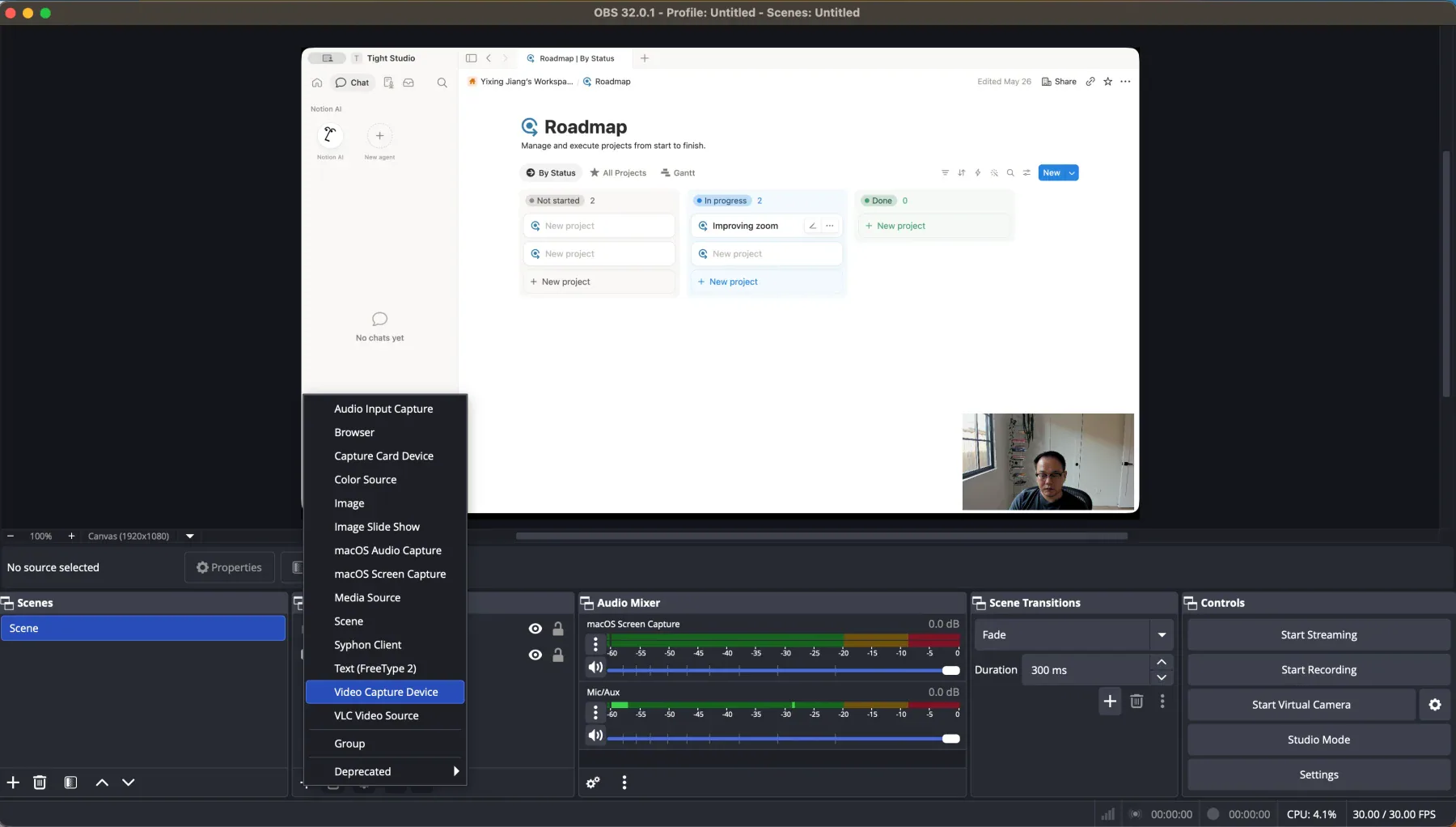
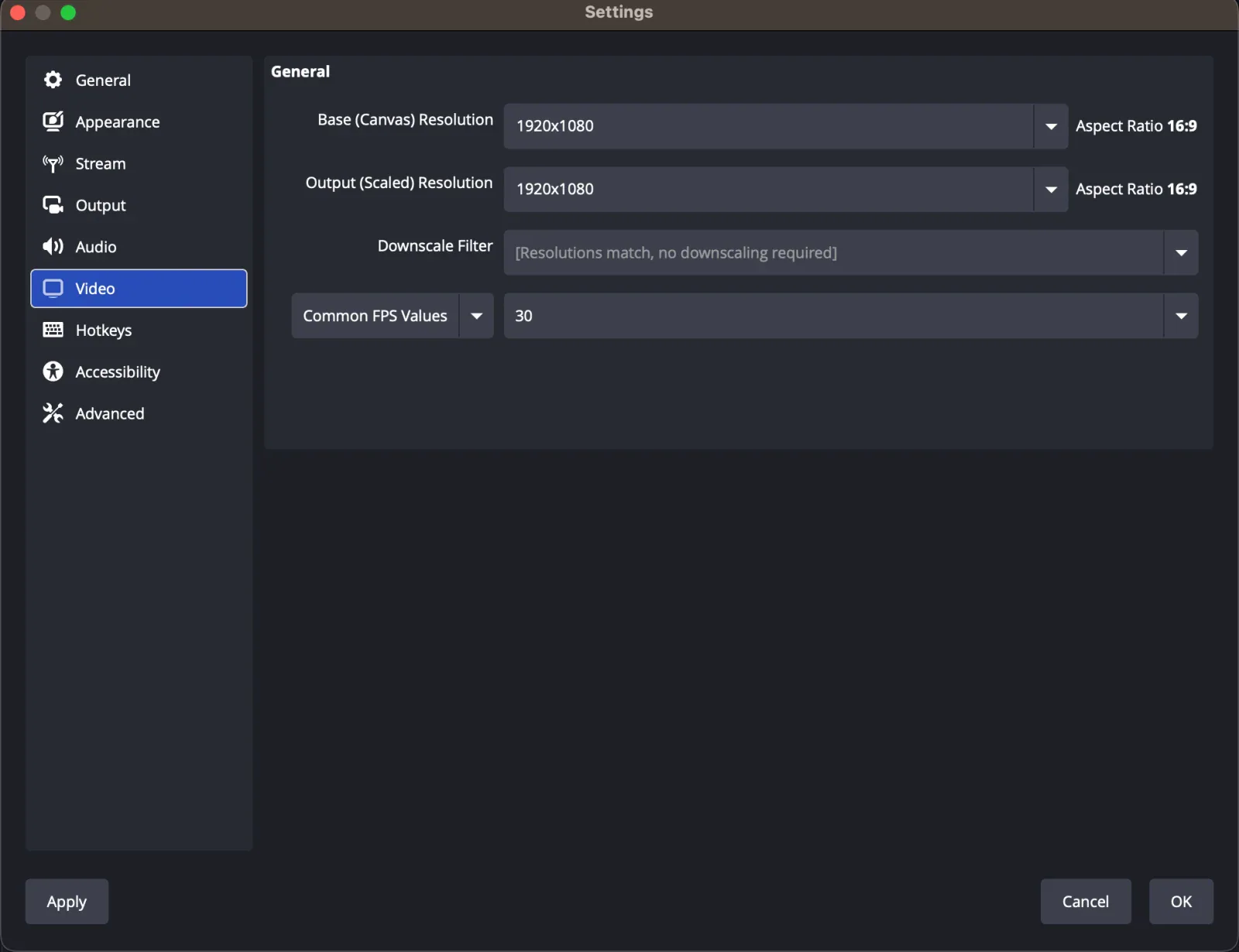
This is a first-party comparison. Ethan tested OBS Studio 32.0.1 on August 20, 2026, by composing a Mac screen and webcam on a 1920x1080 canvas and recording 30 seconds at 30 fps. Tight Studio screenshots reuse the feature checks from our Screen Studio comparison.

The OBS test produced a 23.4 MB MOV. File size varies with the encoder, quality, bitrate, recording format, and visual activity. We also checked OBS 32.2.2 feature availability against the official OBS overview, source, audio, media, recording, and download documentation.
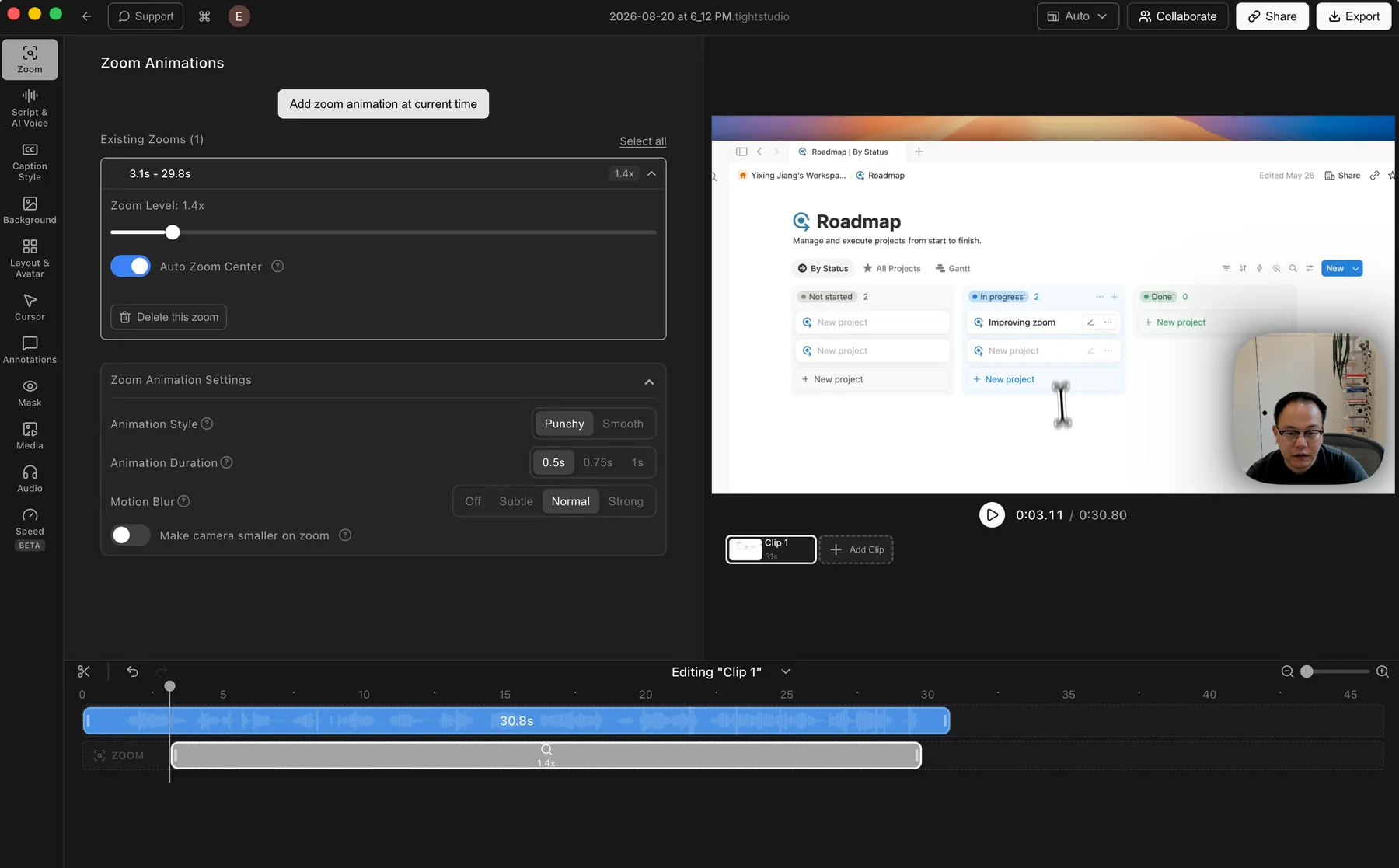
Automatic zoom and manual zoom controls

Automatic zoom turns clicks and cursor activity into animated close-ups after recording, keeping interface details readable without manual keyframing.

The problem it solves

A full-screen capture can make the important button, field, or menu too small to follow. Building every close-up before recording or adjusting the scene live adds production work and leaves little room to correct the timing afterward.

Our take

Tight Studio wins for recorded screen videos. It creates editable automatic and manual zoom segments after capture. OBS can resize or switch sources in real time, but it has no built-in post-capture zoom editor.

Tight Studio

Pros

  • Generates zooms after recording, so the original capture remains editable.
  • Manual zooms can be added and adjusted directly on the timeline.
  • Controls cover zoom level, auto-centering, animation style and duration, motion blur, and camera size.

Cons

  • Finding your preferred motion style may still take a little adjustment.

OBS Studio

No built-in post-capture zoom editor

OBS records the scene as it is composed in real time. It does not analyze clicks or add editable zoom segments after recording.

View the OBS Studio overview

Pros

  • Sources can be cropped, resized, and repositioned before recording or while producing a live scene.
  • Scene switches can create planned close-ups during a recording or stream.

Cons

  • Does not generate automatic click-following zooms.
  • Does not provide manual zoom segments on a post-capture timeline.
  • A zoom created in the live composition is flattened into the recorded file.

Backgrounds and brand customization

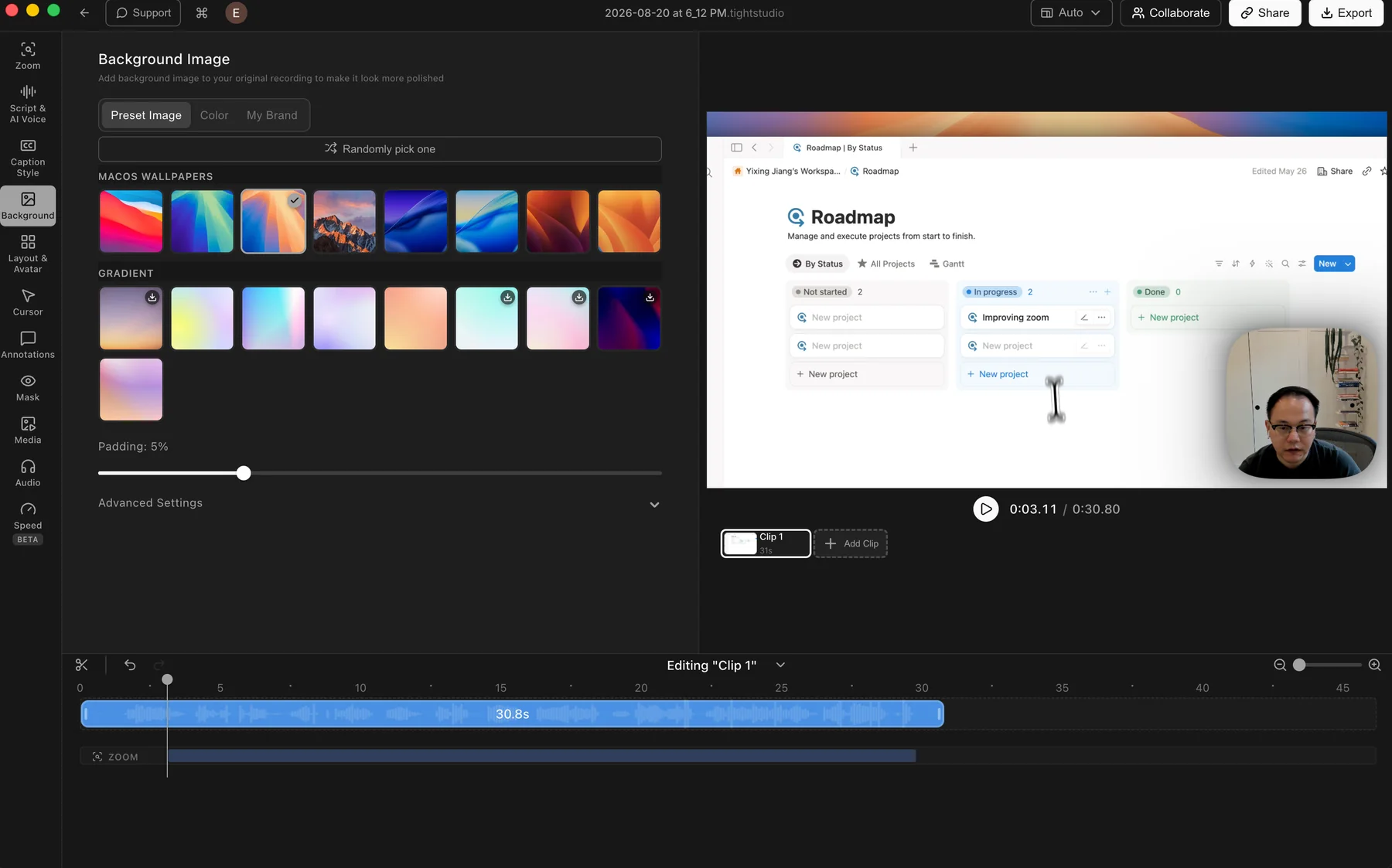
A background adds space around the captured window, improves separation, and gives the recording a consistent visual treatment.

The problem it solves

Raw screen captures can feel visually flat, especially when the app window and video canvas share similar colors. A background, padding, and repeatable brand treatment create contrast without rebuilding the whole composition elsewhere.

Our take

Tight Studio wins for speed and post-capture control. OBS can build more freeform backgrounds from color, image, browser, and media sources, but those layers must be composed before or during recording and are flattened into the result.

Tight Studio

Pros

  • Includes preset macOS wallpapers and gradient backgrounds for quick styling.
  • Solid colors and custom brand images cover the main branded-video workflows.
  • Random selection and padding controls make it easy to change the frame quickly.

Cons

  • Some fine controls sit inside Advanced Settings instead of the main panel.

OBS Studio

Available through live scene sources

OBS can place color, image, browser, and video sources behind a screen capture. The treatment must be composed before or during recording instead of revised afterward.

View the OBS Sources guide

Pros

  • Supports solid colors, images, browser content, and video as scene layers.
  • Provides freeform source ordering, cropping, sizing, and positioning.

Cons

  • Does not include a screen-recording background preset library.
  • Does not provide a post-capture padding or background editor.
  • The finished recording flattens the background and screen into one video.

Cursor animation, styling, and click feedback

A readable cursor guides attention, reinforces each action, and makes software interactions easier to follow.

The problem it solves

The default pointer can be hard to track at video scale, and hand movement often creates distracting paths. Smoothing, sizing, styling, idle hiding, and click feedback make the pointer part of the explanation instead of raw capture noise.

Our take

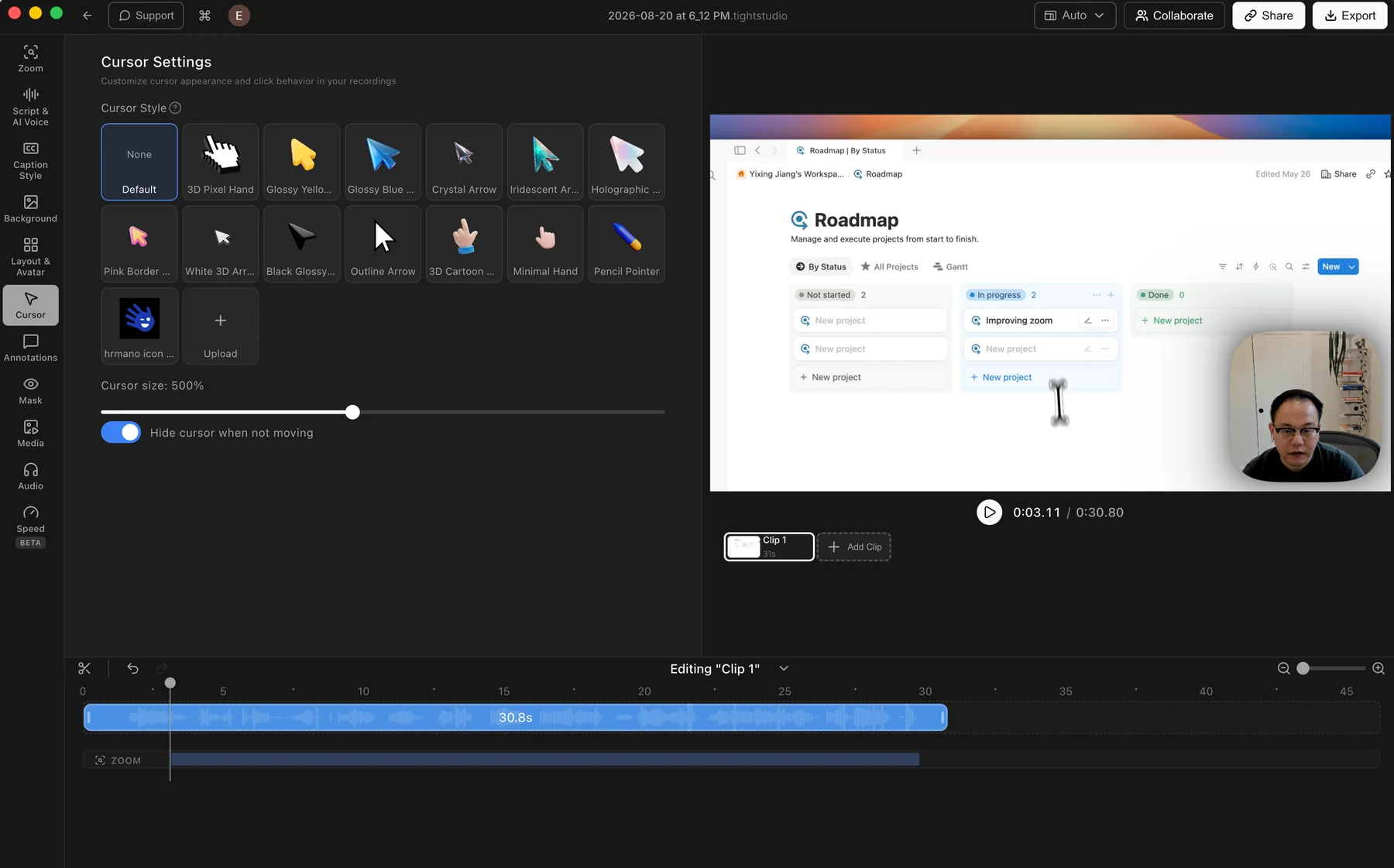
Tight Studio wins decisively. OBS captures the system pointer or hides it. Tight Studio reconstructs and smooths cursor motion, then adds styling, sizing, click feedback, and idle behavior after recording.

Tight Studio

Pros

  • Smooths cursor movement after recording so the path remains editable.
  • Offers preset cursor designs, custom cursor uploads, and adjustable cursor size.
  • Supports click highlighting, click sounds, and hiding the cursor when it is idle.

Cons

  • The additional styling controls take a little more time than keeping the captured system pointer unchanged.

OBS Studio

Captures the system cursor

OBS can include or exclude the pointer for supported capture sources, but its built-in workflow does not reconstruct or restyle the cursor after recording.

View the OBS Studio overview

Pros

  • Captures the native pointer without requiring post-processing.
  • Supported screen-capture sources can disable cursor capture when the pointer should stay hidden.

Cons

  • Does not smooth recorded cursor paths.
  • Does not provide built-in cursor replacement, sizing, idle hiding, or click effects.
  • Cursor changes after capture require another editor.

Camera layouts and real-time scene composition

Screen-and-camera layout controls keep the presenter visible without covering important content and let each part of a recording use the right composition.

The problem it solves

A fixed camera overlay can block the interface or feel repetitive. The core question is when composition should happen: live, while the recording is made, or afterward, when every layout change can be reviewed and corrected.

Our take

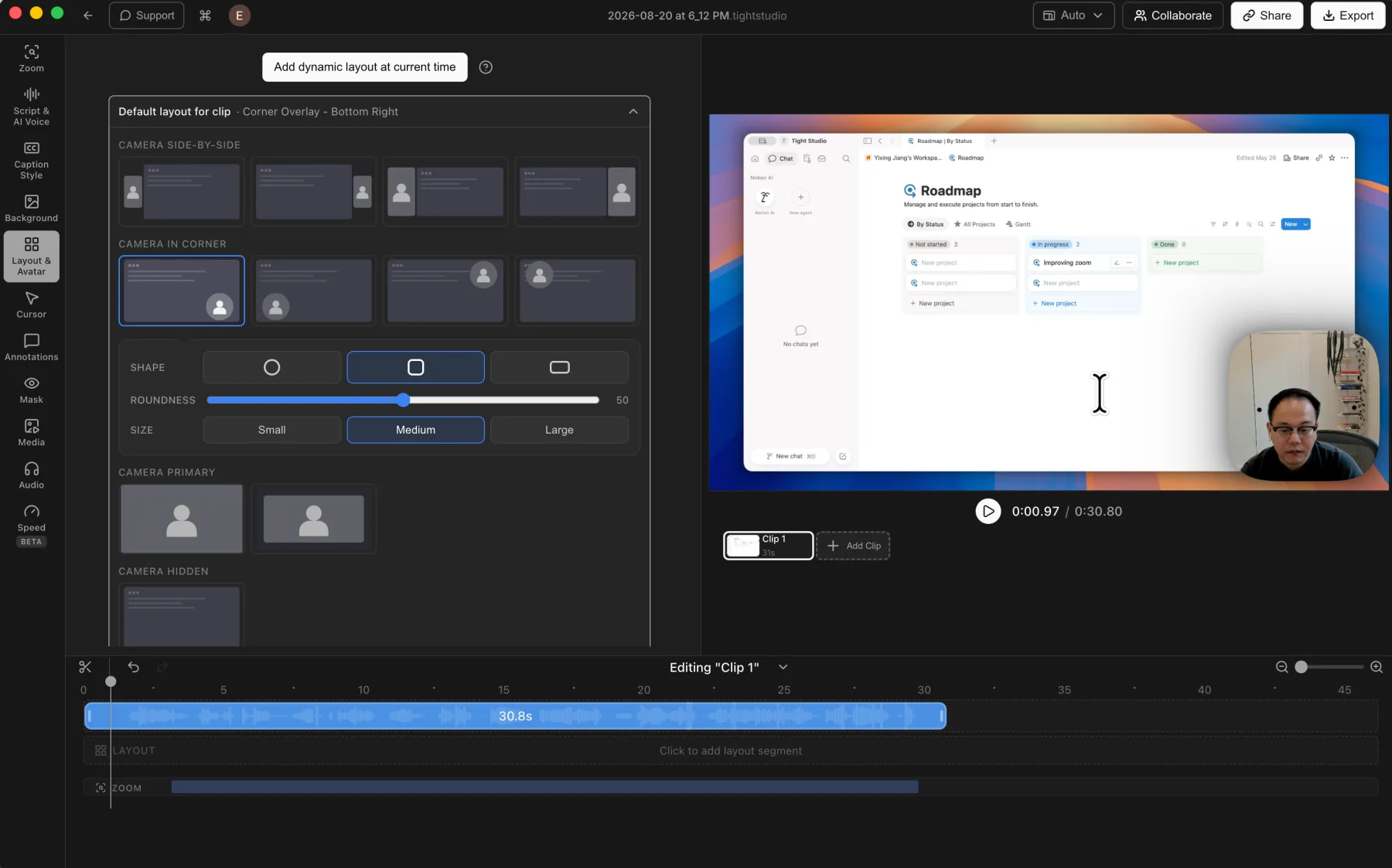
Split decision. OBS is substantially more powerful for freeform, multi-source scenes and live transitions. Tight Studio is better when screen-and-camera layouts need to remain editable on a post-capture timeline.

Tight Studio

Pros

  • Supports camera position, shape, size, mirroring, and layout changes across the timeline.
  • Offers side-by-side, corner overlay, camera-primary, and camera-hidden layout styles.
  • Lets users customize the camera background with presets or upload their own brand image.

Cons

  • The preset layout model is less freeform than positioning independent OBS sources on a canvas.

OBS Studio

Pros

  • Places screen, webcam, text, images, browser content, capture cards, and other sources freely on the canvas.
  • Supports unlimited scenes, source transforms, filters, and scene transitions.
  • Excels at changing a composition in real time while recording or streaming.

Cons

  • The scene must be set up before capture or adjusted live.
  • Screen and camera positions are flattened into the finished recording.
  • Changing a layout after recording requires another video editor.

Transcription and caption styling

Transcription saves manual typing, while synchronized captions and visual presets make corrections faster and the finished video easier to watch.

The problem it solves

Names, product terms, and sentence breaks usually need correction after automatic transcription. A raw recorder also leaves the timing, styling, and placement of every caption to another tool.

Our take

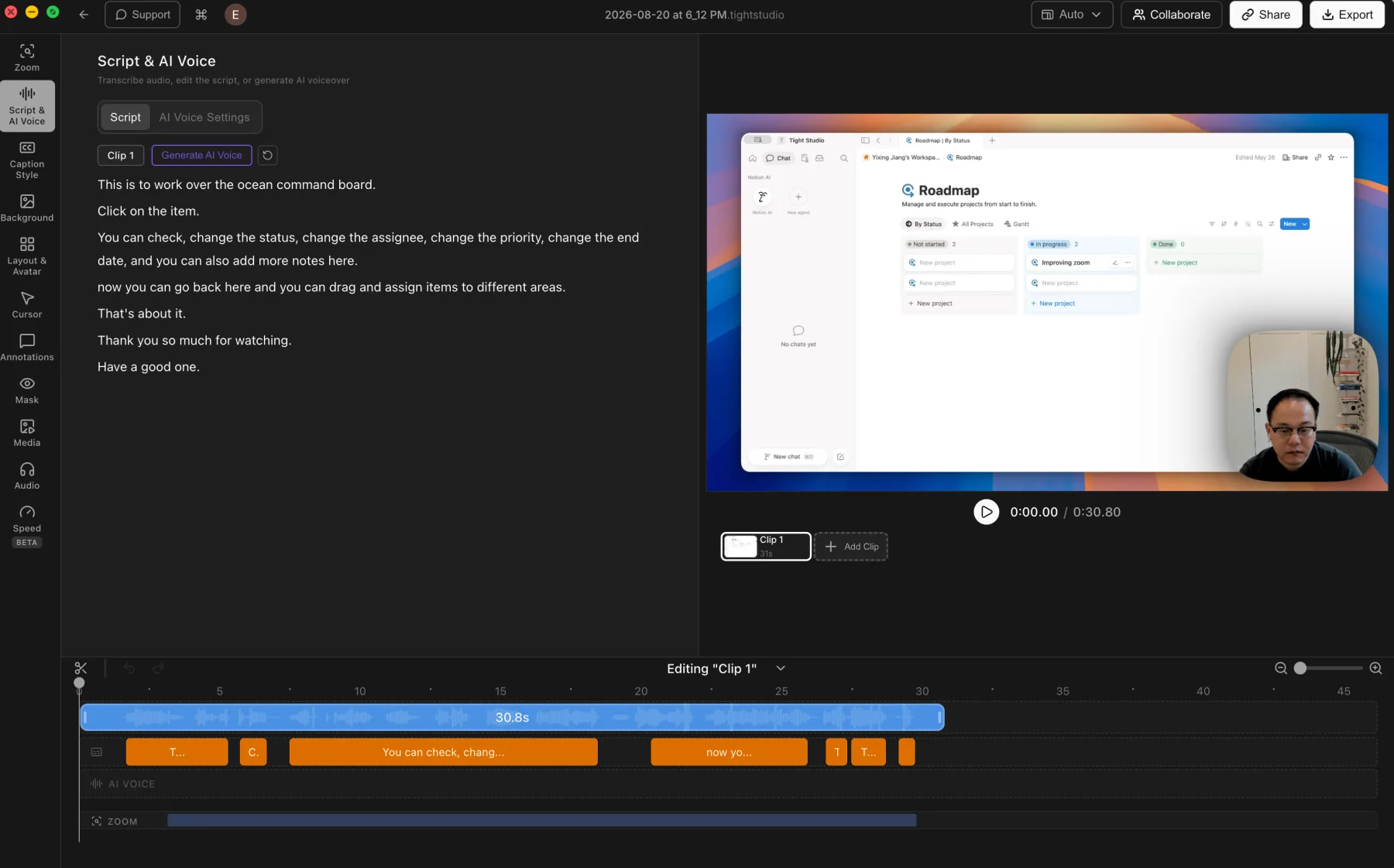
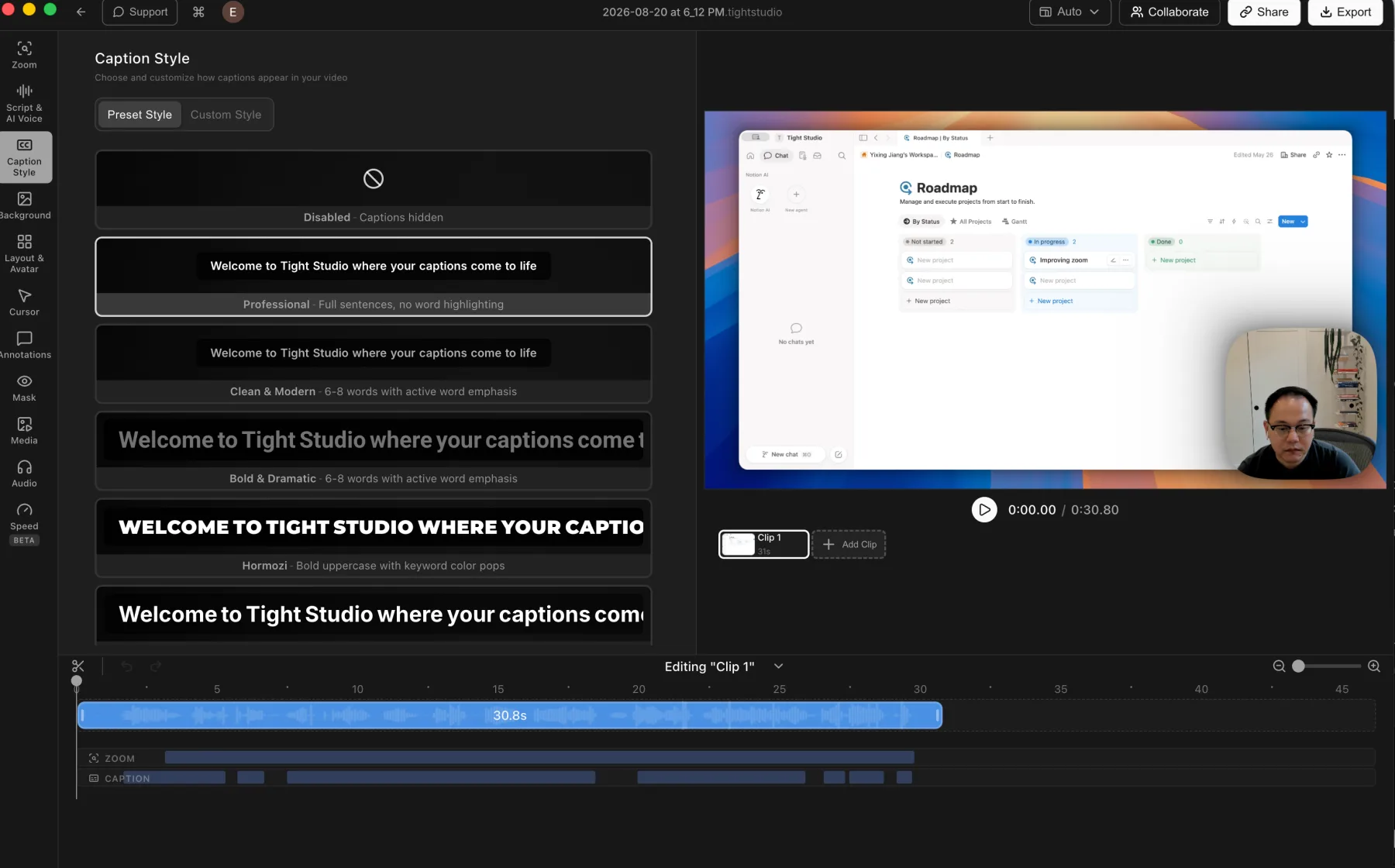
Tight Studio wins decisively. It generates an editable transcript and synchronized styled captions. OBS can display prepared text or connect to external live-caption workflows, but it does not include post-capture transcription or caption editing.

Tight Studio

Pros

  • Generates a transcript and keeps corrections beside synchronized caption segments on the timeline.
  • Includes caption style presets and detailed custom styling controls.
  • Can turn the same edited script into AI narration on the Pro plan.

Cons

  • Transcription requires an internet connection and sends audio to a cloud transcription provider.

OBS Studio

No built-in transcript or caption editor

OBS can place prepared text in a scene, but it does not transcribe a recording or create styled, synchronized captions after capture.

View the OBS Sources guide

Pros

  • Text sources can display manually prepared titles or live text inside a scene.
  • Live caption services can be added through external browser sources, integrations, or plugins.

Cons

  • Does not include speech-to-text for recorded videos.
  • Does not provide a transcript correction workflow or synchronized caption timeline.
  • Finished captions require another service or editor.

Music and microphone controls

Live audio controls protect the recording at capture time. Post-capture controls make it possible to rebalance narration and place music after the performance is finished.

The problem it solves

A weak microphone level, noisy room, or music cue at the wrong moment can undermine a clear recording. The best tool depends on whether you need detailed live mixing or a simpler edit after capture.

Our take

Split decision. OBS wins for live audio routing, filters, monitoring, VST plugins, and multi-track capture. Tight Studio wins for adding built-in music and adjusting microphone and music timing inside the finished video workflow.

Tight Studio

Pros

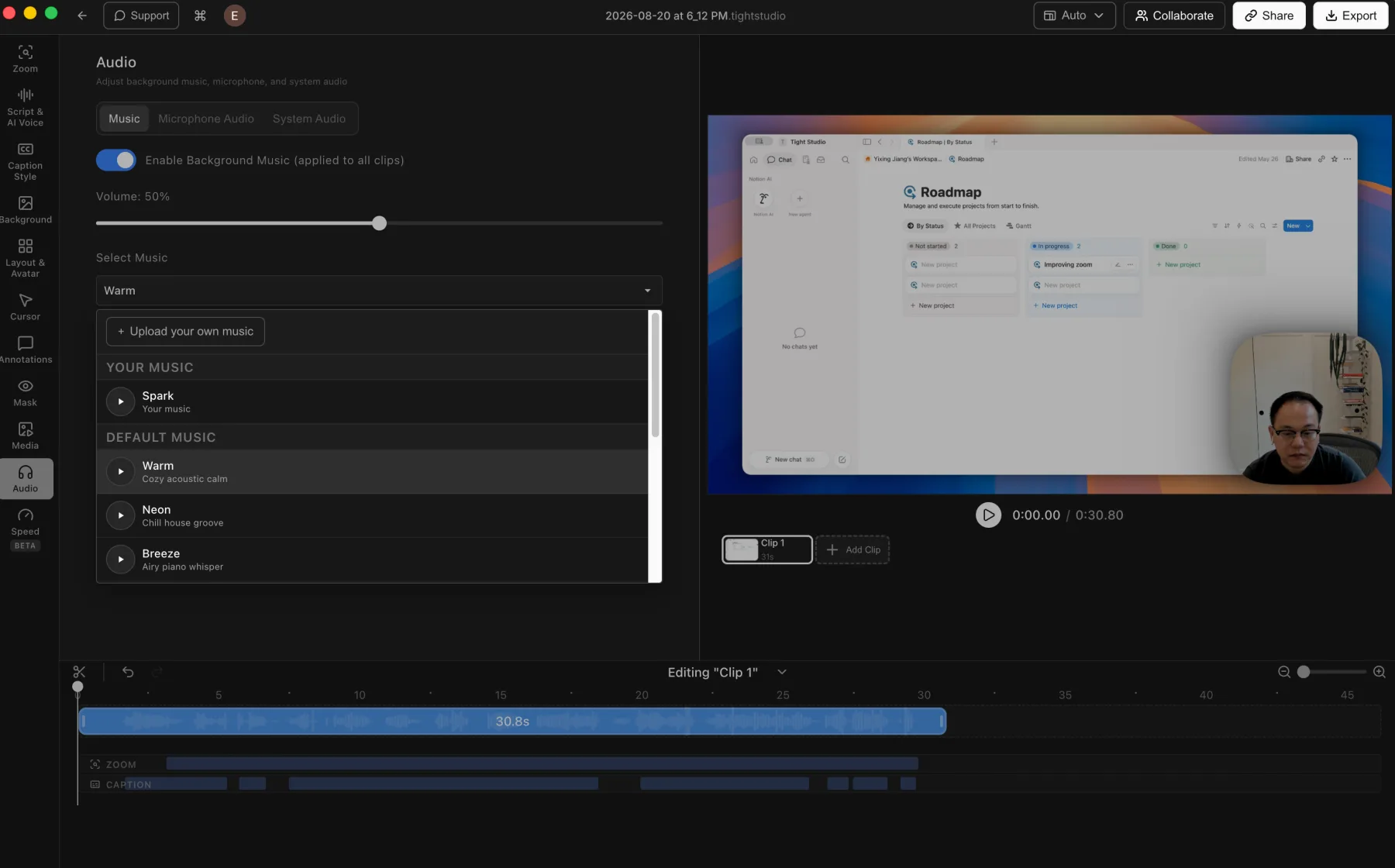
  • Includes built-in music and lets users upload their own audio files.
  • Advanced music segments can be placed and trimmed to chosen time ranges.
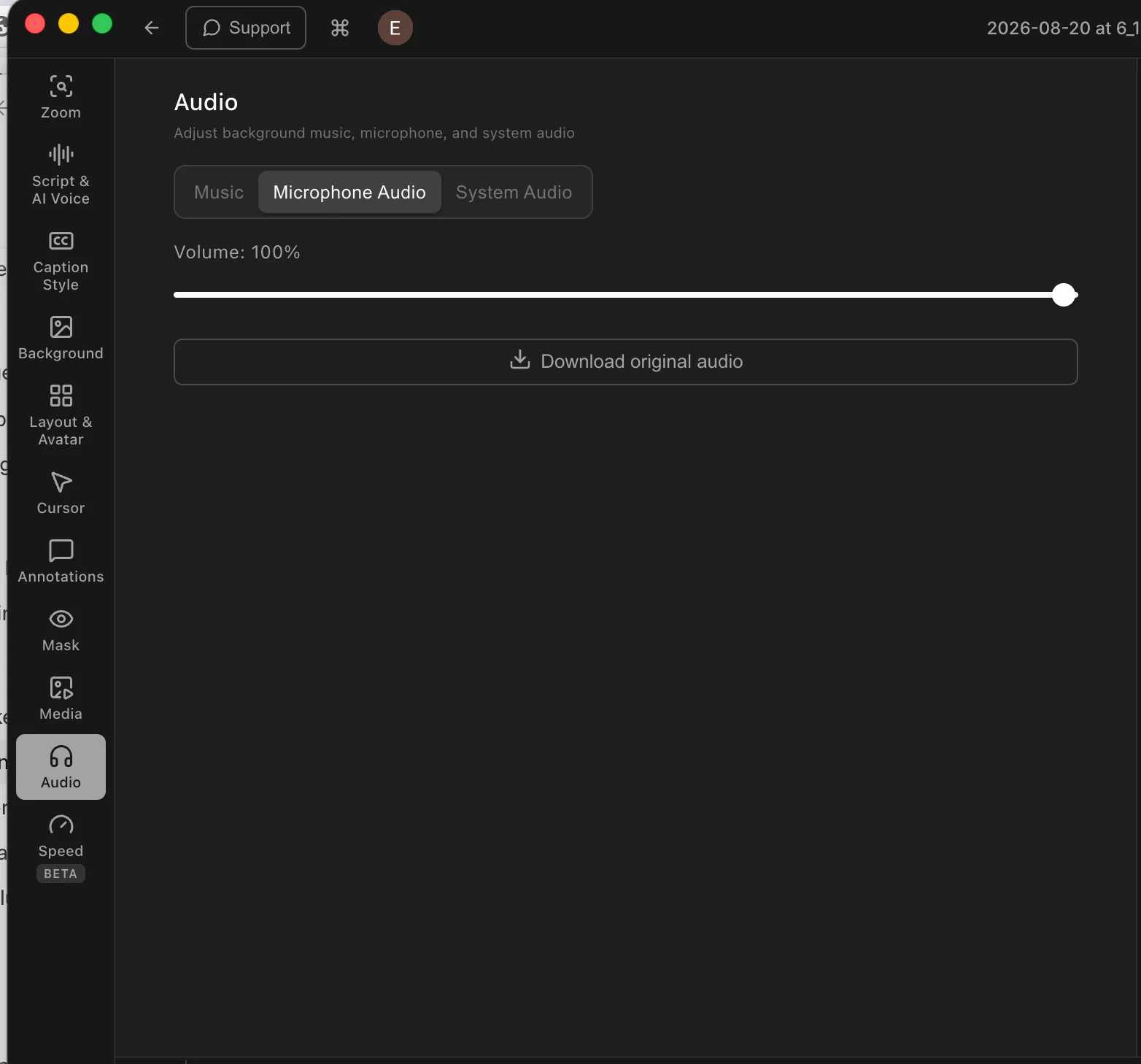
  • Supports microphone muting and direct microphone volume adjustment after recording.

Cons

  • Does not provide automatic microphone noise reduction or volume normalization.
  • Custom music timing requires the advanced music-segment workflow.

OBS Studio

Powerful live audio, no post-capture music timeline

OBS mixes audio sources while recording or streaming and supports per-source filters. It does not include a curated music library or a post-capture audio editor.

View the OBS Audio Mixer guide

Pros

  • Provides a live mixer with per-source levels, monitoring, muting, and filters.
  • Supports noise suppression, noise gate, gain, VST plugins, and multi-track recording.
  • Can play local audio files as media sources inside a scene.

Cons

  • Does not include a built-in royalty-free music library.
  • Does not provide post-capture music placement, trimming, or narration-volume editing.
  • Mixing decisions are usually made before or during capture unless another editor is used.

Privacy masks and annotations

Privacy masks hide information that should not be shared. Highlights, text, arrows, and shapes help viewers focus on the important control.

The problem it solves

Recordings can expose names, emails, access tokens, or customer data, while dense interfaces make a key action hard to spot. Fixing either problem after capture requires editable visual layers.

Our take

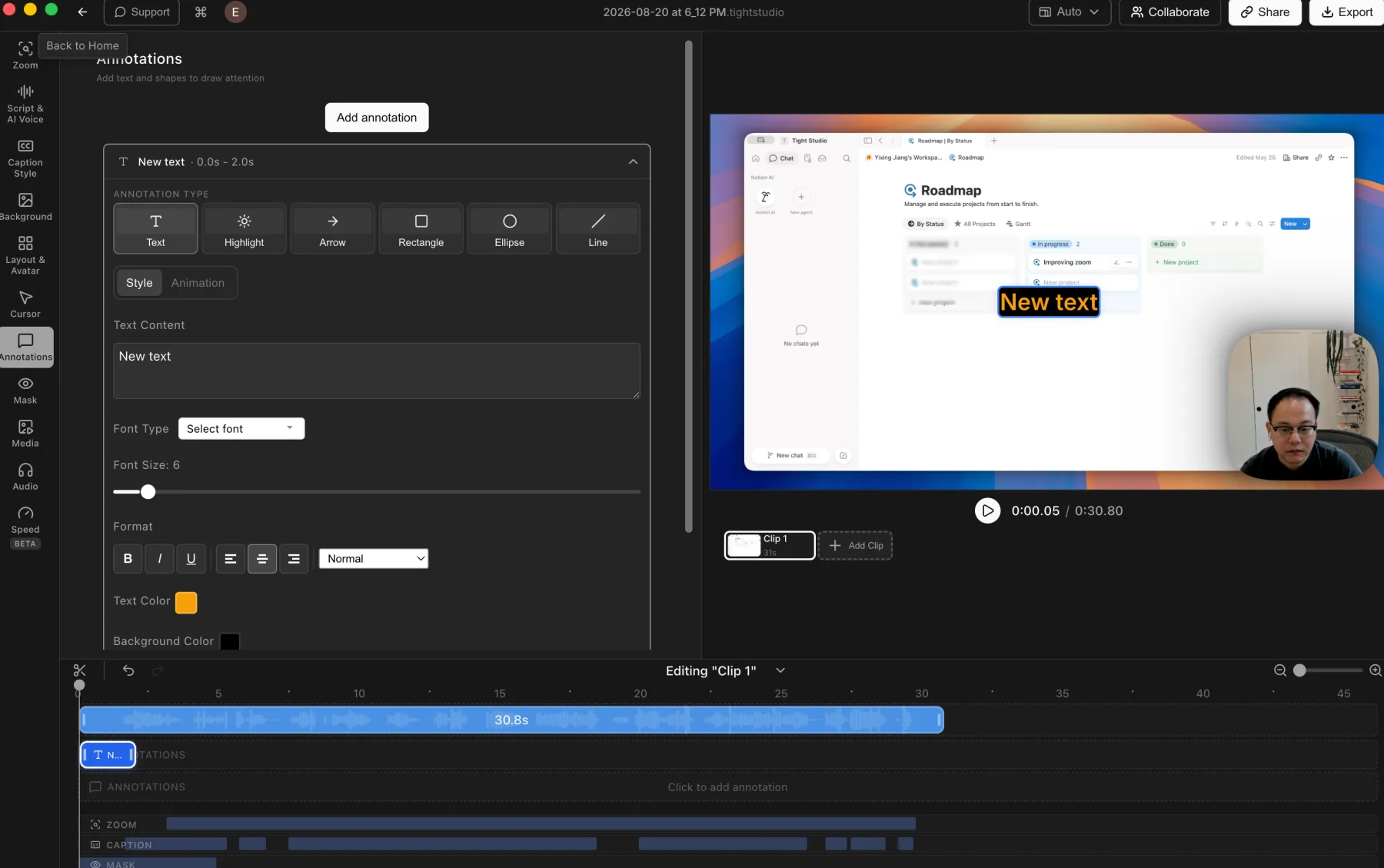
Tight Studio wins for recorded videos. OBS can build text, images, color blocks, crops, and masks into a live scene, but Tight Studio provides timed post-capture privacy masks, highlights, text, arrows, and shapes.

Tight Studio

Pros

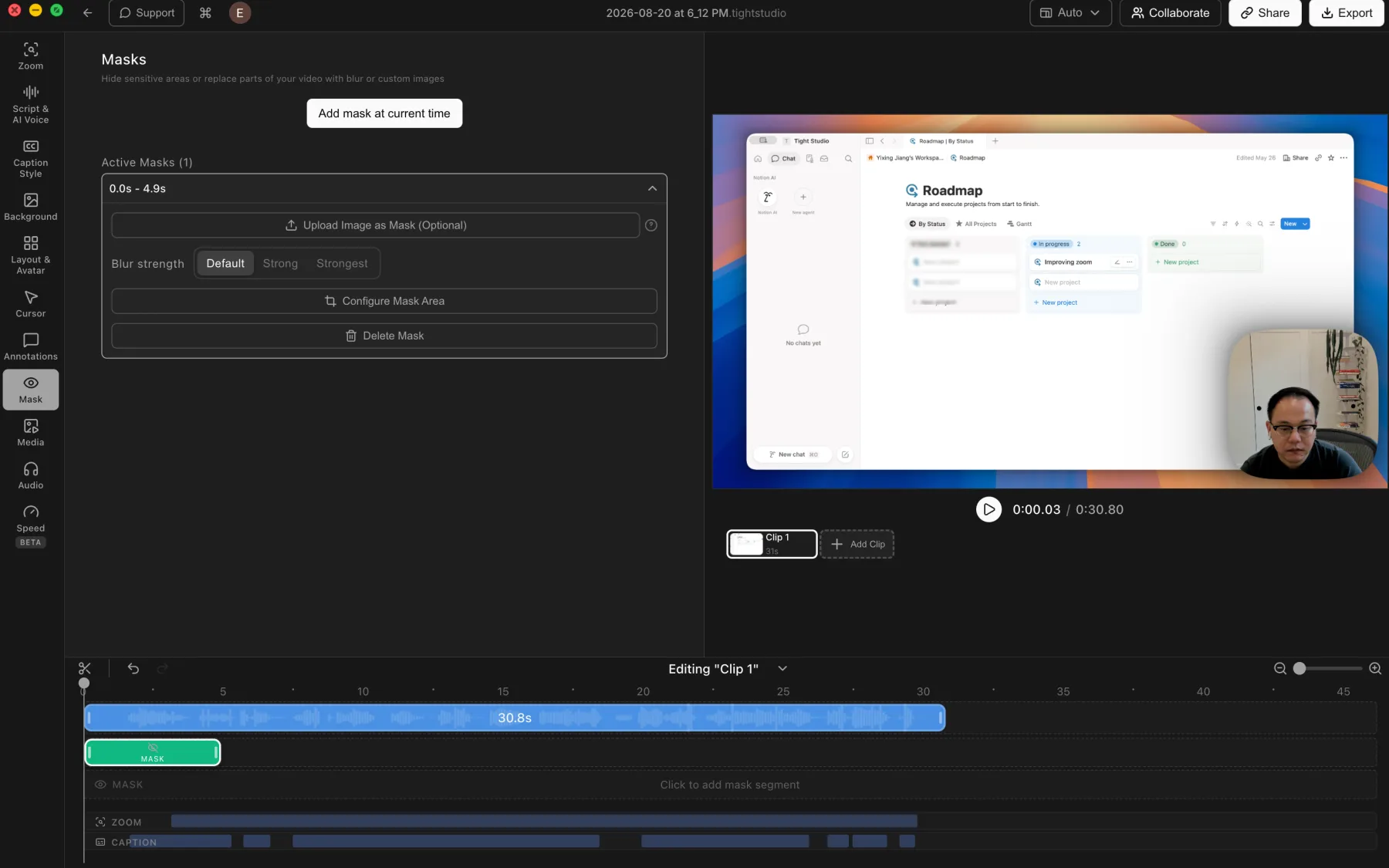
  • Supports privacy masks and highlight masks for hiding details or directing attention.
  • Privacy masks can be timed, resized, and adjusted with multiple blur strengths or a custom replacement image.
  • Adds styled text, highlights, arrows, rectangles, ellipses, and lines with timeline control.

Cons

  • Masks and annotations require manual placement and timing.

OBS Studio

Live sources and filters instead of post-capture annotations

OBS can layer text, images, and color sources and apply crop or image-mask filters. Those elements belong to the live scene, not an editable annotation track after recording.

View the OBS Studio overview

Pros

  • Can add text, images, color blocks, and browser overlays to a live scene.
  • Includes crop, image mask, color correction, chroma key, and other source filters.

Cons

  • Does not provide timed post-capture arrows, shapes, highlights, or privacy masks.
  • Sensitive information must be hidden before or during capture, or fixed in another editor.
  • Scene overlays are flattened into the recording.

AI voiceover and voice cloning

AI voice turns an edited script into narration, making it possible to correct a line or update a recording without matching another microphone take.

The problem it solves

Mispronunciations, background noise, uneven pacing, and outdated wording normally require another recording pass. A script-based narration track makes the spoken content editable with the rest of the video.

Our take

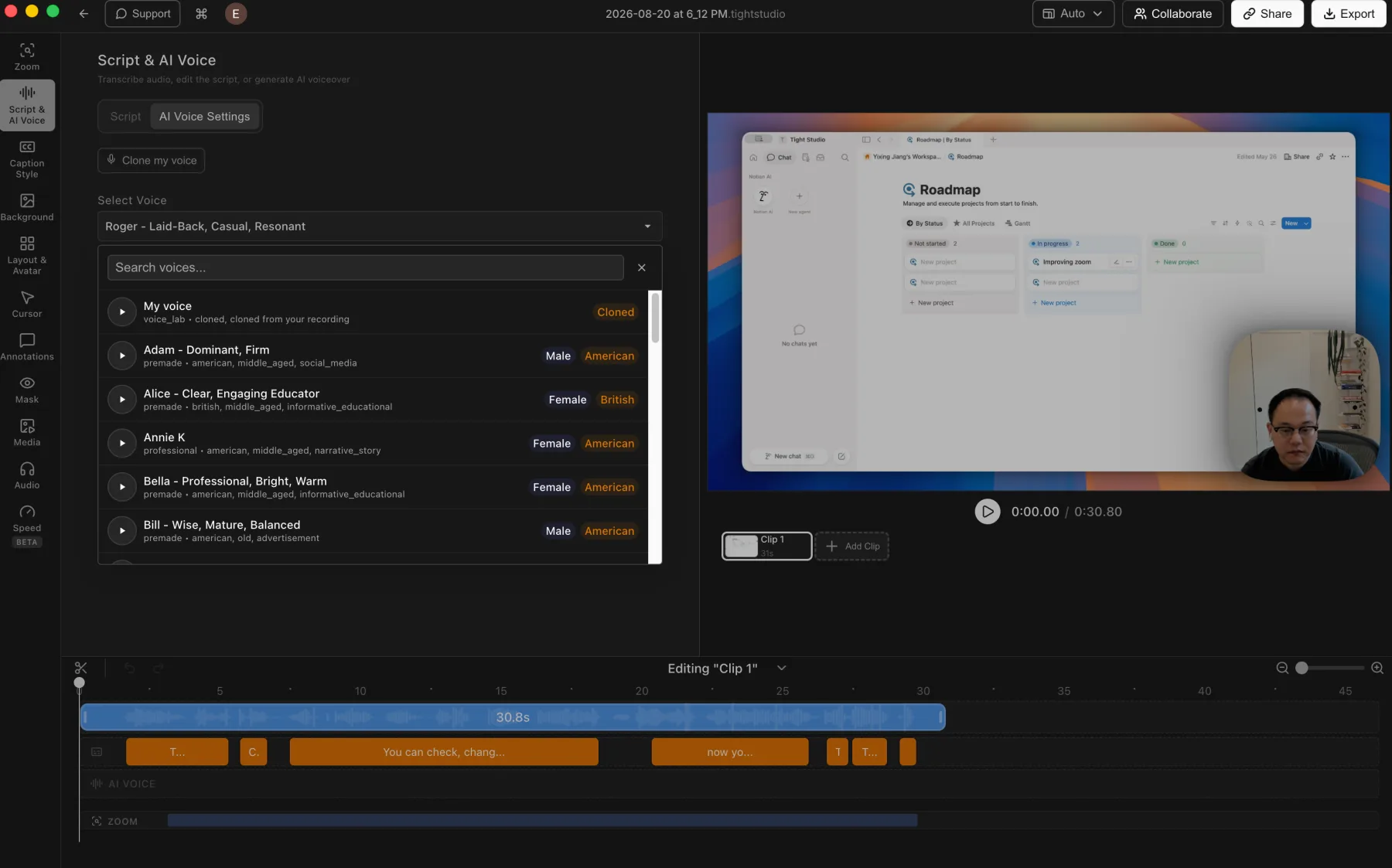
Tight Studio wins decisively. AI voice and personal voice cloning are built into its Pro editing workflow. OBS records and mixes audio sources but does not generate narration from a script.

Tight Studio

Pros

  • Turns an edited script into generated narration without recording another take.
  • Lets users clone their own voice or choose and preview a searchable library of premade voices.
  • Keeps generated narration on a dedicated AI Voice track for timeline-based editing.

Cons

  • Generated speech may still need previewing and script adjustments.
  • AI voice generation is a Pro feature rather than part of the free editing workflow.

OBS Studio

Not included

OBS records and mixes audio sources, but it does not generate narration from a script or clone a voice inside the app.

View the OBS Studio overview

Pros

  • Can capture live narration from any configured microphone or audio source.
  • Externally generated voice audio can be played through a media source during production.

Cons

  • Does not generate AI voiceover from text.
  • Does not include voice cloning or a searchable AI voice library.
  • Script changes require another recording or an external voice workflow.

Multi-clip editing and media imports

Combining recordings, imported video, and still images in one project removes the handoff to a separate editor.

The problem it solves

A second take, supporting clip, or product image turns a one-take recording into an editing project. Live media sources can play prepared assets, but they do not help trim and restructure footage after capture.

Our take

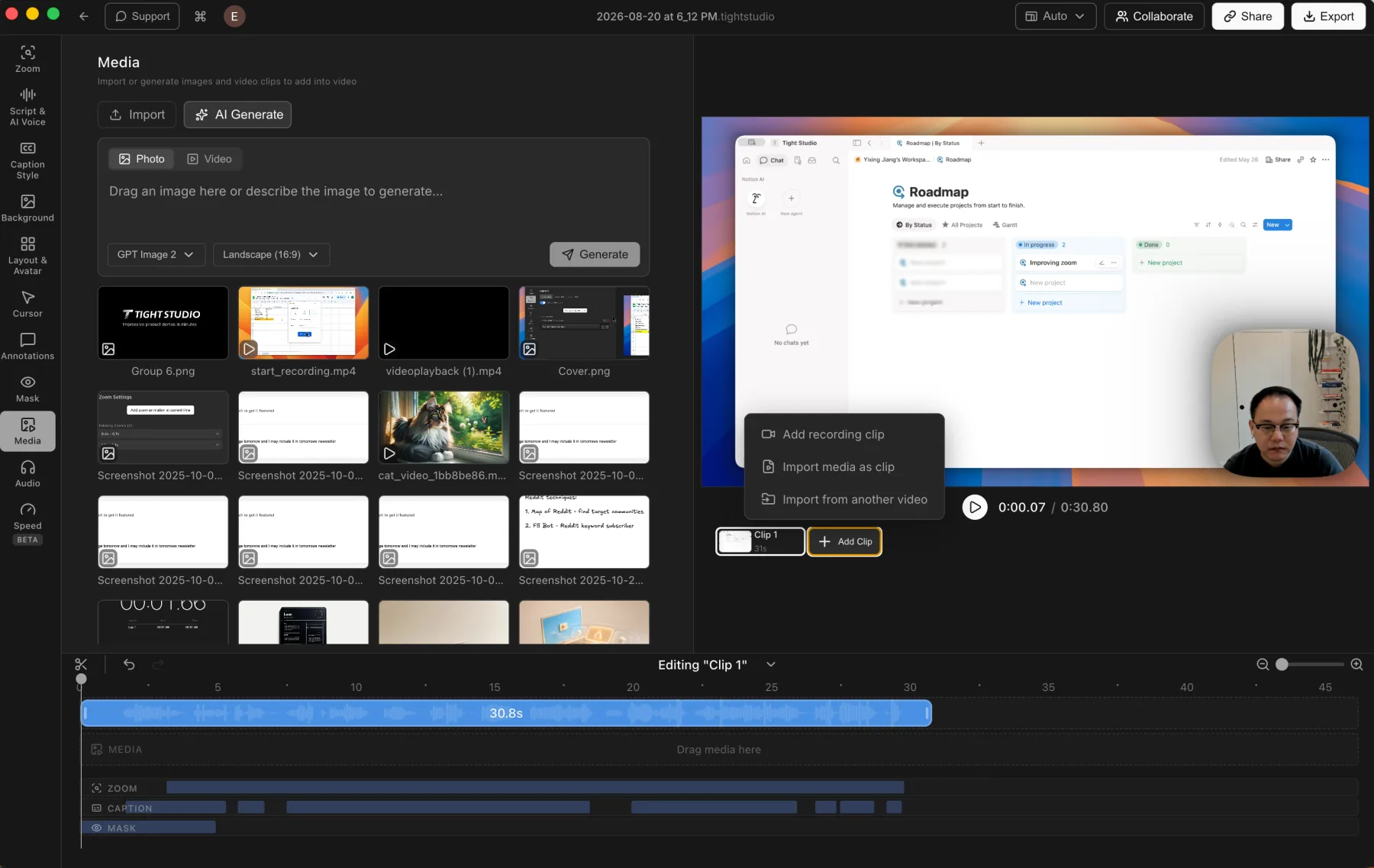
Tight Studio wins for post-capture assembly. It combines retakes, imported recordings, photos, and timed visual layers. OBS can play prepared media inside live scenes but does not edit completed recordings on a timeline.

Tight Studio

Pros

  • Combines multiple screen recordings into one project, including new takes and imported clips.
  • Imports photos and videos into the media library, then places them on the timeline as timed visual layers.
  • Keeps assembly, visual edits, and the final export in one app.

Cons

  • Larger multi-clip projects require more timeline organization than a simple one-take recording.

OBS Studio

Media sources, but no post-capture timeline

OBS can play video, audio, images, and browser content as sources inside a live scene. It does not assemble finished recordings on a post-capture editing timeline.

View the OBS Media Sources guide

Pros

  • Adds local video and audio files as media sources before or during production.
  • Can switch among multiple scenes and prepared media sources while recording.

Cons

  • Does not trim and combine completed recordings after capture.
  • Does not provide a multi-clip editing timeline for retakes or imported footage.
  • Mistakes and structural changes require another editor or a new recording.

iPhone and iPad recording

Direct device capture preserves a clean mobile screen and keeps that footage inside the same editing workflow as desktop recordings.

The problem it solves

A mirrored phone window or capture device can get mobile footage into a recorder, but it adds setup and still leaves the video without mobile-specific post-capture editing, retakes, captions, and annotations.

Our take

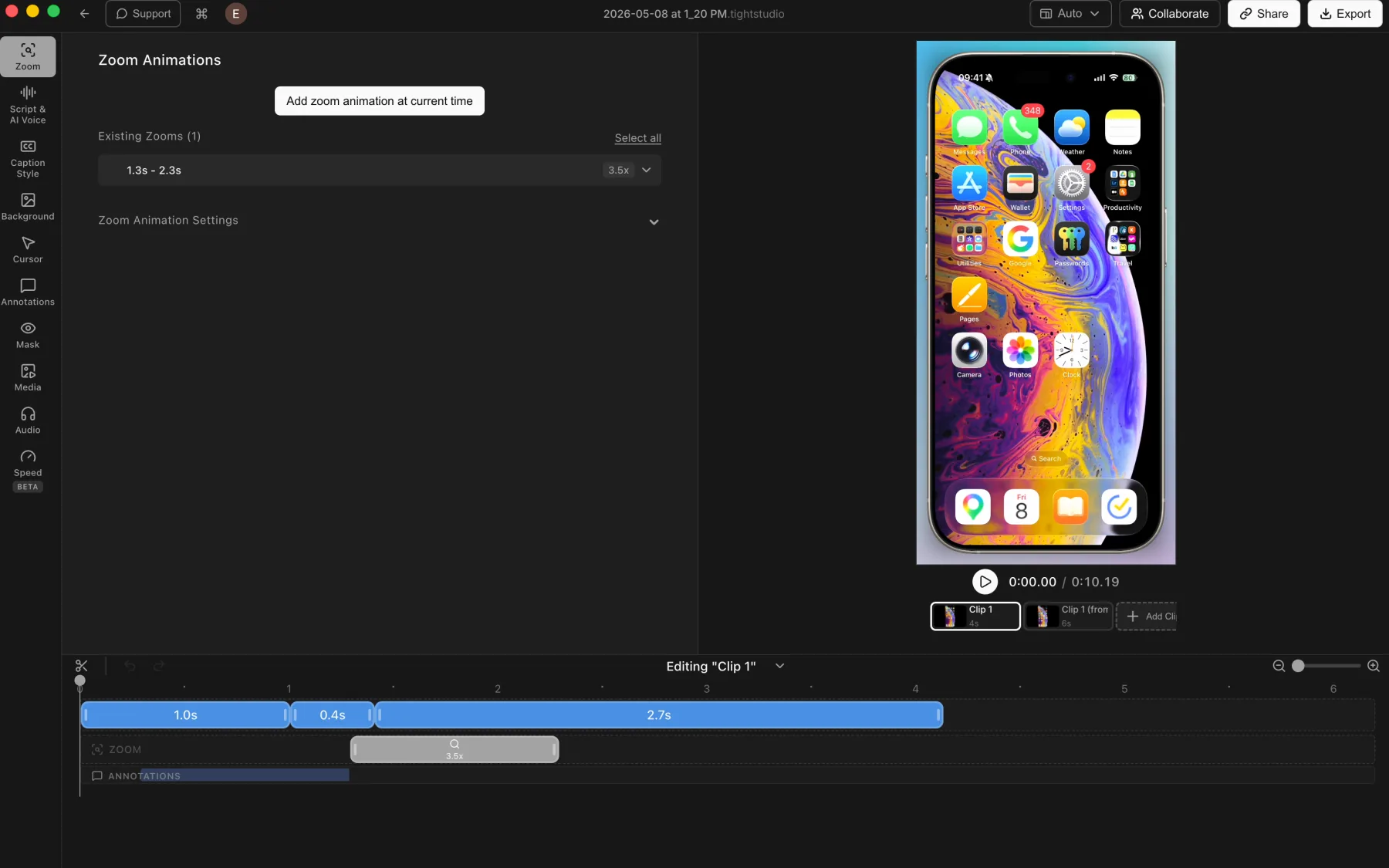
Tight Studio wins. It provides a dedicated connected iPhone and iPad recording flow and edits the result like any other project. OBS can capture a mirrored window or compatible video device but has no equivalent end-to-end mobile workflow.

Tight Studio

Pros

  • Captures a connected iPhone or iPad directly into the Tight Studio editor.
  • Applies the usual post-recording tools, including manual zooms, backgrounds, captions, masks, and annotations.
  • Combines multiple mobile-device takes as clips inside one project.

Cons

  • Requires connecting and trusting the device before recording.
  • Touch gestures do not provide desktop-style cursor metadata, so zooms may need manual placement.

OBS Studio

No dedicated iPhone recording workflow

OBS can capture a compatible video device or a mirrored iPhone window, but it does not provide a direct iPhone-to-editor workflow with mobile-specific post-capture tools.

View the OBS Sources guide

Pros

  • Can record a mirrored iPhone window as a screen-capture source.
  • Can accept compatible capture hardware as a video source.

Cons

  • Does not include a dedicated connected-device picker for iPhone or iPad capture.
  • Does not add the captured device footage to a post-capture mobile editing workflow.
  • Mirroring or capture hardware adds setup outside OBS.

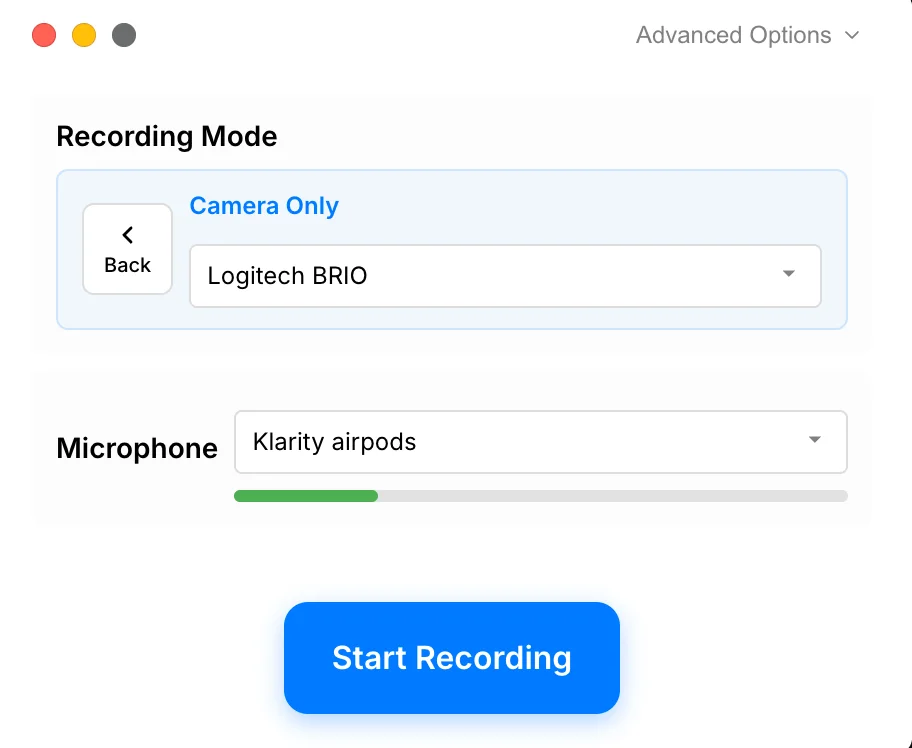
Camera-only recording

A camera-only mode records a presenter without requiring the screen to appear in the video.

The problem it solves

A recording may need a direct-to-camera section before, between, or after screen footage. The difference is whether the camera take becomes a finished live scene or stays editable beside other clips.

Our take

Tie for capture, Tight Studio for editing, OBS for live production. Both can record a camera without the screen. OBS offers more live scene control; Tight Studio keeps the camera take inside the same multi-clip post-capture editor.

Tight Studio

Pros

  • Records the camera and microphone without requiring a screen capture.
  • Keeps the camera-only take inside the same editor used for screen and mobile recordings.
  • Can combine camera-only footage with other recording clips in one project.

Cons

  • A camera-only recording does not include screen content unless another clip is added to the project.

OBS Studio

Supported as a camera scene

OBS does not require a display source. A scene can contain only a webcam, microphone, background, and any other live sources you choose.

View the OBS Quick Start guide

Pros

  • Records a camera and microphone without capturing the screen.
  • Supports freeform backgrounds, text, images, and multiple camera or audio sources.
  • Can stream the same camera-only scene live.

Cons

  • Does not provide a post-capture editor for the camera recording.
  • Retakes must be assembled in another editor.

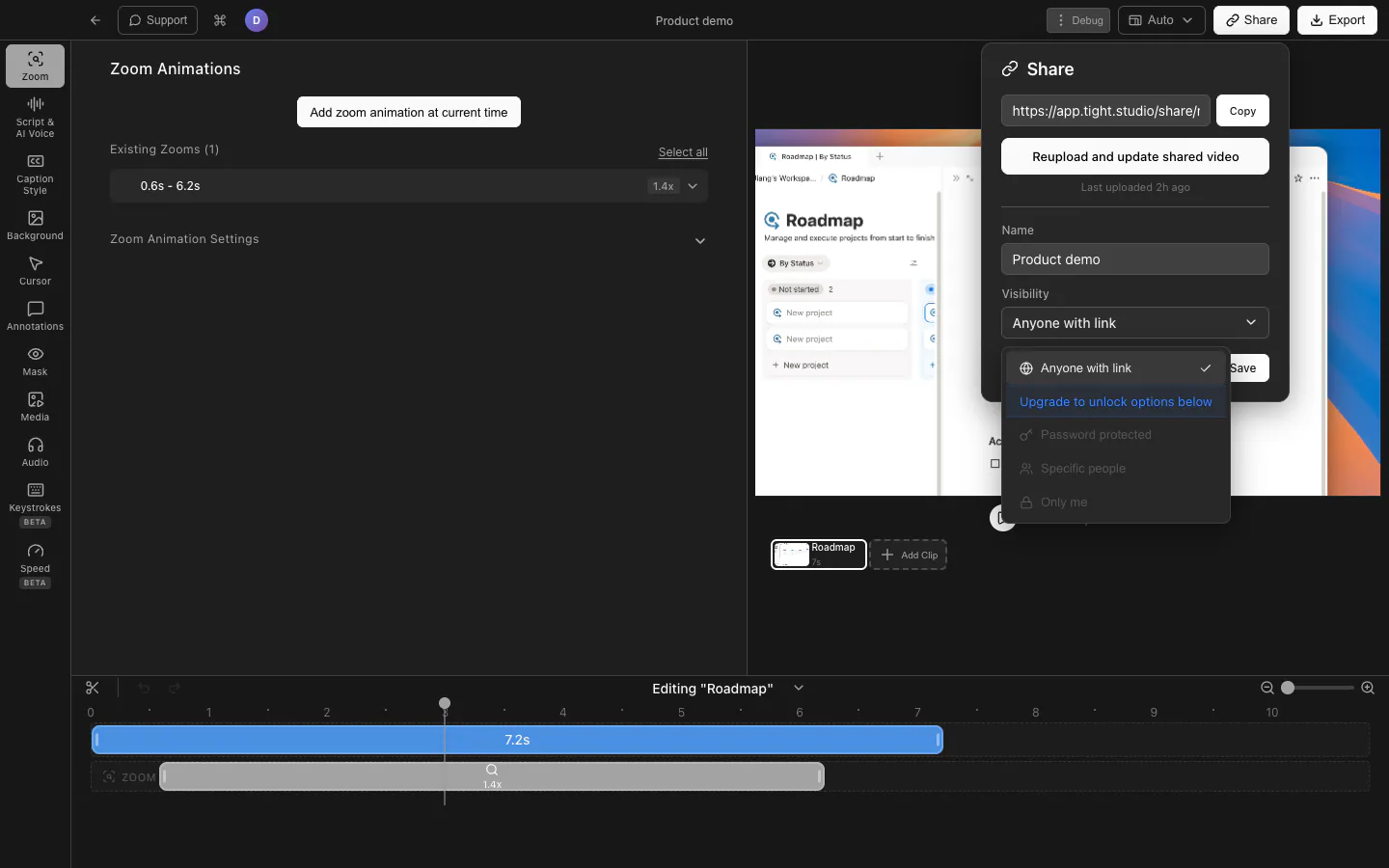
Local recording, live streaming, and share links

Local files support publishing workflows, live streams reach viewers immediately, and browser links make reviews and handoffs faster.

The problem it solves

Recording is only one part of delivery. Some workflows need detailed encoder settings or a live destination; others need a polished local master and a link that someone can open without downloading a file.

Our take

OBS wins for free local recording, output control, and live streaming. Tight Studio wins for an integrated path from editing to browser sharing, including free limited links and paid access controls.

Tight Studio

Pros

  • Free includes standard video exports without a watermark or credit card requirement.
  • Free accounts can create up to five shareable links, each available for seven days.
  • Plus adds unlimited, non-expiring shareable links, while paid access controls include password protection and specific viewers.

Cons

  • Free shareable links expire after seven days and are limited to five.
  • Password-protected, email-restricted, and private links require a paid plan.
  • Exports containing trial AI Voice generation include a watermark.

OBS Studio

Pros

  • Records local video without watermarks, time limits, or paid tiers.
  • Provides detailed control over resolution, frame rate, encoder, quality, bitrate, audio tracks, and recording format.
  • Can stream directly to supported services or a custom streaming server.

Cons

  • Does not provide hosted video pages or one-click shareable recording links.
  • The local recording must be uploaded elsewhere for browser viewing or review.
  • Our 30-second 1920x1080, 30 fps test produced a 23.4 MB MOV; size varies substantially with encoder and output settings.

Real-time production versus post-capture editing

OBS Studio is a recorder, mixer, and live-production system. It builds scenes from sources before or during capture, then saves or streams the finished composition. Tight Studio records first and keeps screen-focused elements editable afterward, including zoom, cursor motion, layouts, captions, annotations, clips, music, narration, and sharing.

When should you choose OBS Studio?

You live stream

OBS connects to supported streaming services or a custom streaming server, with live scenes, transitions, monitoring, and output controls. Tight Studio does not provide live streaming.

You compose complex live scenes

OBS can combine screens, windows, cameras, capture cards, images, text, browsers, video, and audio with freeform transforms, filters, transitions, plugins, and scripts.

You need free cross-platform software

OBS is completely free, open source, and available on Windows, macOS, and Linux, with no paid tier or recording limit.

When should you choose Tight Studio?

You need the recording to become a finished video

Tight Studio combines capture with automatic zoom, cursor animation, styled captions, privacy masks, annotations, music, AI narration, and browser sharing in one app.

You want to revise decisions after recording

Zoom timing, cursor treatment, screen-and-camera layouts, backgrounds, text, images, masks, and music remain editable instead of being permanently flattened at capture time.

You record in sections or fix mistakes later

Add Clip records another take inside the current project, while video and photo imports make it possible to assemble the finished recording without another editor.

The table does not need to repeat the basics

Both products already cover the foundation of a polished Mac screen recorder. The comparison below focuses on the differences that can actually change your choice.

  • Local screen, camera, and microphone recording
  • Camera-only recording without a display source
  • Background images, colors, text, and media in the composition
  • Local video files without a required cloud upload

The differences that change the workflow

Both products record locally. This table focuses on what happens before, during, and after capture.

Feature Tight Studio OBS Studio
Automatic click-following zoom
Yes Editable after recording
No Manual live transforms only
Cursor smoothing and styling
Yes Paths, styles, size, and click feedback
No Captures the system pointer
Post-capture timeline editor
Yes Zoom, captions, overlays, music, and clips
No Real-time composition and filters
Styled captions and transcript editor
Yes Generated and synchronized
No External workflow required
Multi-clip recording and assembly
Yes Record and import clips in one project
No Media sources play inside live scenes
AI narration and voice cloning
Yes Available with Pro
No External workflow required
Shareable video links
Yes Free link allowance, paid access controls
No Local file output only
Real-time multi-source scenes
No Layouts stay editable after capture
Yes Unlimited scenes, sources, filters, and transitions
Live streaming
No Focused on recorded videos
Yes Services and custom streaming servers
Detailed encoder and output control
No Guided export settings
Yes Resolution, frame rate, encoder, bitrate, and format
Plugin ecosystem
No
Yes Community plugins and scripts
Cross-platform support
No Apple Silicon Mac
Yes Windows, macOS, and Linux

What is the practical difference?

Choose based on the work you need to finish, not the longest feature list.

Does OBS Studio have a video editor?

Not a post-capture timeline editor. OBS edits the live scene through sources, transforms, filters, transitions, audio controls, and output settings. Once recording ends, the composition is a video file. Trimming mistakes, adding captions, correcting cursor motion, and assembling retakes require another editor.

Which product has more production control?

OBS before capture, Tight Studio after capture. OBS has much deeper control over live sources, audio routing, filters, transitions, encoders, formats, bitrates, and streaming. Tight Studio has the broader built-in post-capture toolset for zoom, cursor motion, captions, retakes, annotations, music, narration, and sharing.

Which is easier for an ordinary screen recording?

Tight Studio is more guided. OBS opens with an empty scene and asks the user to choose sources, audio, canvas, output, and encoding behavior. That setup is valuable for production work. Tight Studio provides a narrower record, edit, export, and share flow that removes many of those decisions.

Which has better audio tools?

OBS wins for live mixing; Tight Studio adds post-capture music timing. OBS provides per-source levels, monitoring, noise filters, gain, VST plugins, and multi-track recording. Tight Studio provides a simpler microphone track plus built-in or uploaded music that can be placed and trimmed after capture.

Which produces better video quality?

There is no universal winner. OBS exposes more encoder, bitrate, resolution, frame-rate, format, and scaling control. Tight Studio uses a guided local render designed for screen content. In our OBS test, a 30-second 1920x1080 recording at 30 fps produced a 23.4 MB MOV, but that result changes substantially with output settings and visual activity.

How do privacy and sharing differ?

Both can stay local; Tight Studio also hosts optional links. OBS records to a local file and has no built-in hosted playback page. Tight Studio also supports local exports, then lets the creator optionally make a browser link with free limits and paid access controls.

Why pay when OBS is free?

The cost is for the integrated editing workflow. OBS is completely free and open source. Tight Studio Free already exports standard videos without a watermark. Plus and Pro charge for expanded retakes, share links, AI creation, and collaboration, reducing the need for a separate editor and hosting workflow.

Current plans and practical limits

$0 / month Standard exports have no watermark. Free includes two Add Clip trial uses, up to five seven-day share links, and 100 trial AI credits; trial AI Voice exports are watermarked.

OBS Studio is completely free and open source. Tight Studio has a free tier with no-watermark standard exports; paid plans expand retakes, sharing, AI creation, and collaboration.

Tight Studio

Free $0 No watermark on standard exports; 2 Add Clip trial uses, up to 5 shareable links with 7-day expiration, and 100 trial AI credits
Plus $9/mo Billed yearly, or $19/mo monthly. Unlimited multi-clip recording and unlimited non-expiring shareable links
Pro $24/mo Billed yearly, or $49/mo monthly. 1,000 AI credits/mo plus team workspace and collaborative editing

OBS Studio

Free $0 Full features, open source
No paid tiers - Community-supported

Can you use both?

Yes. Keep OBS for streams or complex source capture, then import the exported video file into Tight Studio for captions, annotations, music, additional clips, and sharing. The OBS scene is already flattened, so its individual screen, camera, and overlay sources cannot be separated after import.

Reviewed against current public product information

This is a first-party comparison written and reviewed by the Tight Studio team. We reviewed it on August 20, 2026 using official product documentation, pricing pages, and the current Tight Studio pricing and feature pages. Feature availability can depend on plan, platform, or workflow, so the table uses notes and “Partial” where a simple yes/no would be misleading.

Loved by creators worldwide

See what our users have to say about Tight Studio.

4.8/5

“Tight Studio combines simplicity with impact. It's effortless to use, yet the videos I create in minutes consistently help attract new users to our latest product features.”

Sinyoung Lee
Sinyoung Lee Growth lead at Klarity

“I've been using Tight Studio recently to prep presentations and share demos with my colleagues, and it's been a huge time saver. The whole flow feels really smooth, even for someone with no video editing skills. I can go from recording to a clean, shareable product demo in minutes with almost no effort.”

Ivy Chen
Ivy Chen Data scientist at Yahoo

“Awesome tool - I've used it to seamlessly edit my video recordings to show it to peers and for presentations and guides for software usage! Setup is super easy, and I LOVE the auto-zoom feature. Crazy how fast the team is shipping too.”

Shivam Misra
Shivam Misra Software engineer at Quanta

Tight Studio or OBS Studio?

Choose OBS Studio for live streaming, complex real-time scenes, detailed audio and output control, community extensibility, cross-platform support, and a completely free open-source tool. Choose Tight Studio when the main job begins after capture and you want zoom, cursor motion, captions, retakes, overlays, music, narration, and sharing inside one focused editor.

Frequently asked questions

Is Tight Studio a good alternative to OBS?

Yes for edited screen recordings, but not for live production. Tight Studio adds automatic zoom, cursor smoothing, captions, annotations, multi-clip editing, music, AI voice, and share links after capture. OBS remains the better choice for live streaming, complex real-time scenes, detailed encoder control, plugins, Windows, and Linux.

Is Tight Studio free?

Free includes standard exports without a watermark, two account-level Add Clip trial uses, up to five shareable links with seven-day expiration, and 100 trial AI credits. AI Voice exports use a watermark during the trial.

Why would I pay for Tight Studio when OBS is free?

OBS is free and substantially more capable for live production. Tight Studio charges for an integrated post-capture workflow: automatic zoom, cursor animation, captions, narration, music, overlays, retakes, imports, and sharing. The free Tight Studio plan already includes standard exports without a watermark, so the practical question is whether those editing tools save you from using a separate editor.

Does OBS Studio have a video editor?

Not a post-capture timeline editor. OBS composes scenes, sources, filters, transitions, and audio before or during recording, then writes the result to a video file. Trimming mistakes, adding automatic zoom, correcting cursor motion, generating captions, and assembling retakes require another editor.

Does Tight Studio work on Windows?

No. Tight Studio currently requires a Mac with Apple Silicon. OBS supports Windows, macOS, and Linux, including Intel and Apple Silicon builds for Mac.

Can Tight Studio live stream like OBS?

No. Tight Studio is focused on screen recording and video editing, not live streaming. If you need to stream to Twitch, YouTube, or a custom RTMP server, OBS is the right tool for that.

Is Tight Studio easier to use than OBS?

For a polished recorded screen video, Tight Studio has a more guided path because recording and editing live in one workflow. OBS exposes scenes, sources, audio tracks, filters, encoders, output formats, and streaming settings. That takes more setup, but it is also why OBS can handle live-production workflows that Tight Studio does not support.

Can I edit an OBS recording in Tight Studio?

Yes. Export the OBS recording to a video file, import it into Tight Studio, and combine it with other recordings, photos, annotations, music, captions, and share links. The OBS scene itself is already flattened, so its individual screen, camera, and overlay sources cannot be separated after import.

Want to try Tight Studio?

Download Tight Studio when you want recording and post-capture editing in one focused Mac workflow - with a free starting tier.

Download free

macOS Apple Silicon - Free to start, no credit card required