Loom is optimized for fast internal work messages: record, get a link, and send it to the team. Tight Studio is built for polished customer-facing product demos, user tutorials, and screen-led social videos, with richer editing and a high-quality local export.
Choose internal work messaging or a polished external video
Choose Tight Studio
For customer-facing product demos, user tutorials, and screen-led social videos that need richer editing and a crisp local master.
Choose Loom
For quick internal work messages that need to reach teammates immediately through a hosted link, with comments, analytics, and integrations.
The core tradeoff: Loom optimizes for getting a cloud-hosted recording into an internal conversation immediately. That speed comes with a fixed composition, a smaller post-recording toolset, and cloud-optimized playback that looked highly compressed and softer around interface text in our test. Tight Studio takes longer to render and share, but keeps the composition editable and produces a sharper local master for external-facing videos.
This is a first-party comparison reviewed on August 20, 2026. We compared the post-recording sharing and editing paths, inspected a Loom-hosted recording of a detailed software interface against the rendered Tight Studio output, and checked Loom's documentation for recording-time cursor and camera controls.
Quality note: The softness described on this page is an observation from this test, not a controlled bitrate measurement. Loom playback can change with plan, selected recording resolution, device, and connection.
Time to a shareable link
A shareable link removes the need to send a large file. The tradeoff is whether the product optimizes for immediate cloud delivery or finishes a higher-quality local render first.
The problem it solves
A teammate may need to watch a recording as soon as it ends, but software walkthroughs also depend on crisp text and fine interface detail. An instant hosted copy saves waiting time. A local render takes longer, but gives the creator a higher-quality master before upload.
Our take
Loom wins decisively on speed: the hosted page and link are available immediately after recording. Tight Studio must render and export before creating its link. Tight Studio wins on output quality in our test: its local export looked sharper, while the cloud-encoded Loom playback was visibly softer around interface text.
Tight Studio
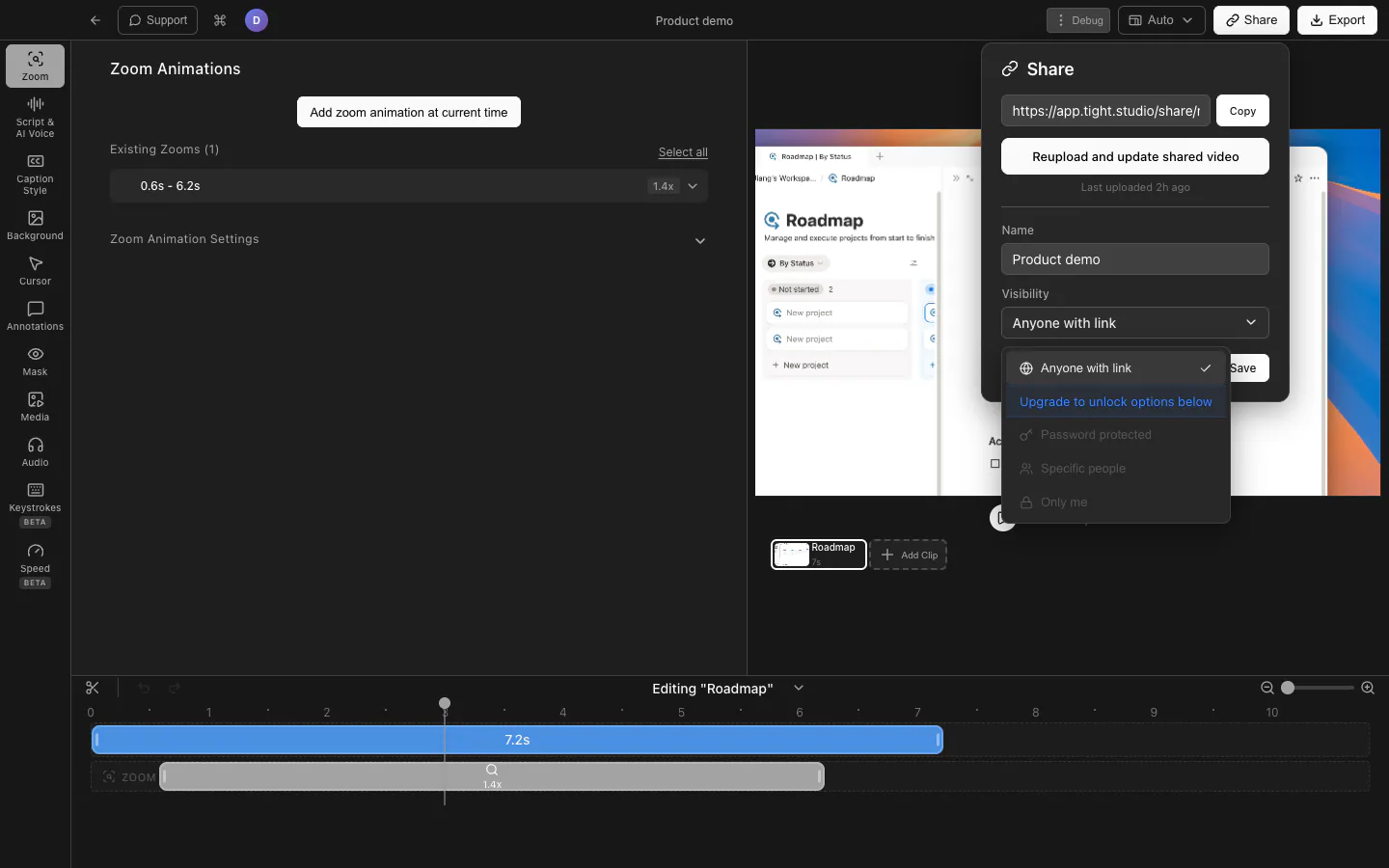
Tight Studio: render the finished video, create its browser link, then choose who can open it.
Pros
Renders a high-quality local video before upload, preserving the fine text and interface detail of the finished export.
Keeps a local video file in addition to the optional browser link.
Lets you update the shared video and control access with public, password-protected, specific-viewer, or private options depending on plan.
Cons
A shareable link is not ready the moment recording stops. The video must be rendered and exported first.
Render time increases with video length, resolution, frame rate, and editing complexity.
Loom
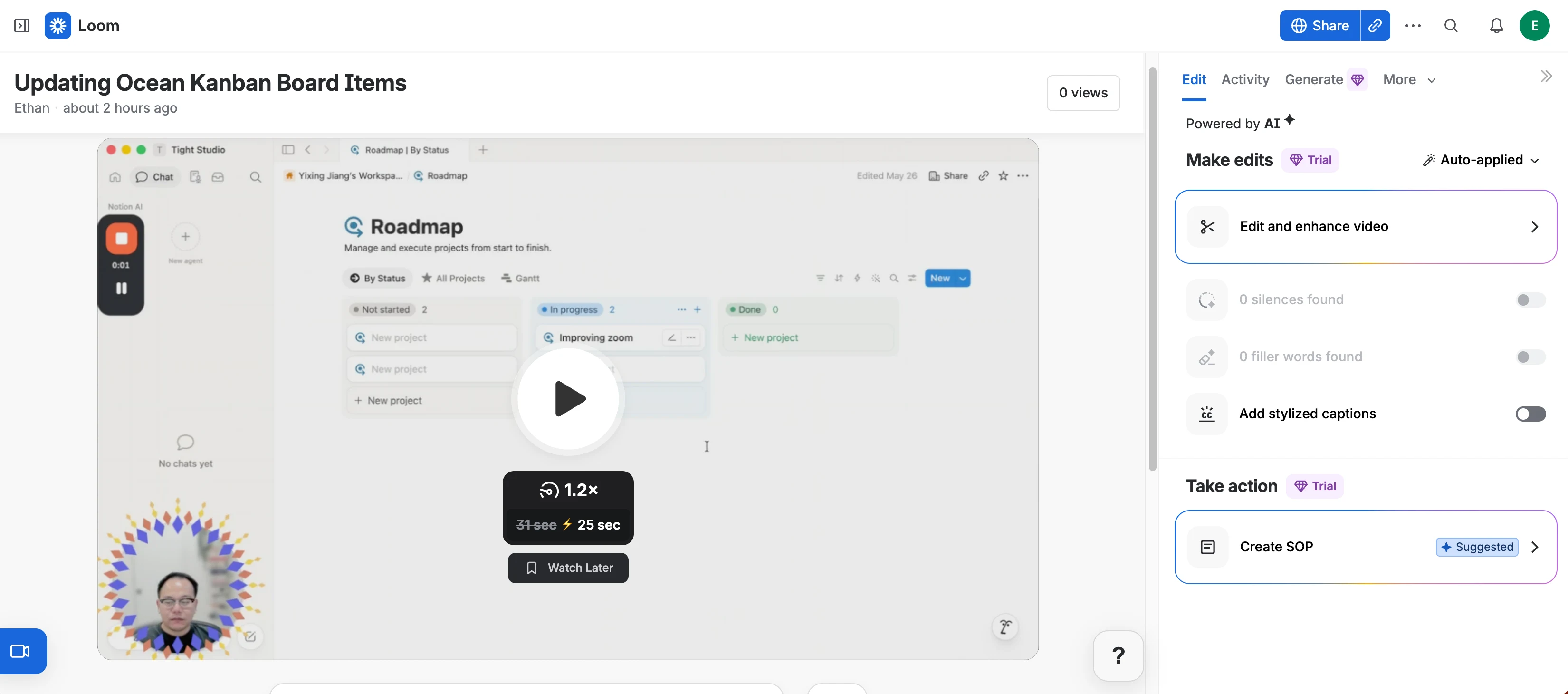
Loom: stopping the recording opens a hosted video page with its share link already available.
Pros
Creates the hosted video page and shareable link immediately after recording in our test.
The link can be copied before making a local export or waiting through a separate render workflow.
Adaptive streaming changes playback resolution to keep the hosted video playing as bandwidth changes.
Cons
The hosted video looked visibly softer and blurrier than the Tight Studio export in our test, especially around interface text.
Loom encodes recordings into multiple cloud-streaming resolutions, so the web player may serve a lower-resolution version as bandwidth changes.
Starter recordings are limited to 720p; higher-resolution recording requires an eligible paid plan and supported hardware.
Timeline and transcript-based video editing
Removing mistakes is faster when an editor supports both precise timeline cuts and a transcript that can drive the video edit.
The problem it solves
A visible mistake is easy to locate on a timeline, but a repeated word or incorrect sentence can be harder to find in a spoken recording. Waveform editing gives direct timing control. Transcript-based editing turns the spoken words into another way to navigate and cut the footage.
Our take
Loom wins for spoken-content editing. Both products remove selected timeline segments, but Loom also lets Business + AI and Enterprise users select transcript text and trim the matching footage. Tight Studio currently requires finding and removing the range on the waveform or timeline.
Tight Studio
Tight Studio: select a time range on the waveform, then cut it from the finished video.
Pros
Removes unwanted sections by selecting a range directly on the waveform and timeline.
Keeps zooms, captions, masks, annotations, and other timed edits visible while the cut is made.
Supports multiple recording clips inside the same project for replacing or restructuring larger sections.
Cons
Does not remove footage by selecting words or sentences in the transcript.
Finding a spoken mistake requires scrubbing the video or locating it on the waveform first.
Loom
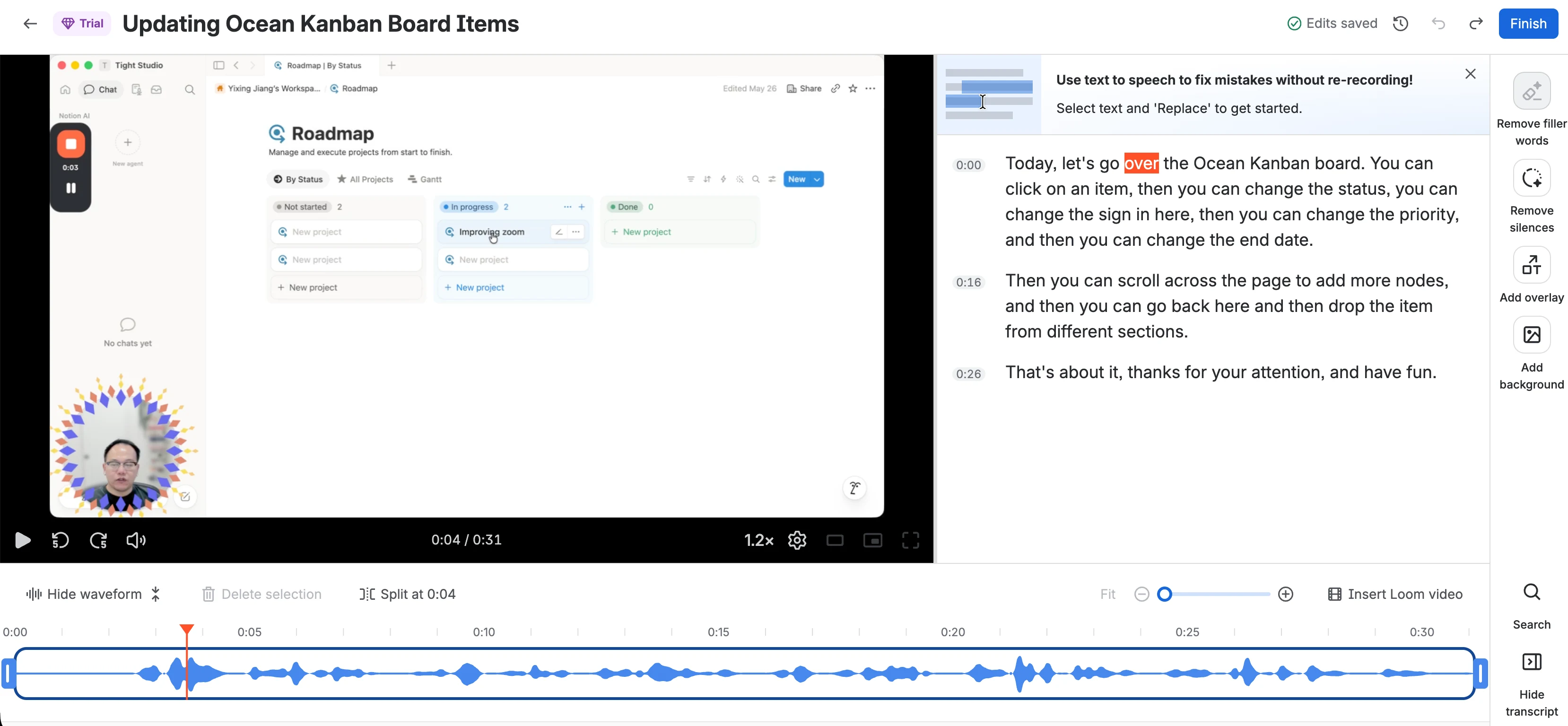
Loom: remove a waveform selection or select transcript text to trim the matching footage.
Pros
Removes unwanted sections with waveform selections, splits, and trims.
Edit by Transcript lets users select a word or sentence and remove the matching section of video.
Transcript search makes spoken mistakes easier to find without repeatedly scrubbing the timeline.
Cons
Edit by Transcript is limited to Business + AI and Enterprise plans.
Waveform trimming, stitching, and other video editing features require an eligible paid plan.
Automatic and manual zoom after recording
Post-recording zoom keeps the original screen capture intact while close-ups are generated or adjusted as editable timeline effects.
The problem it solves
The most important button or field is often too small in a full-screen recording. If the framing is already baked into the video, a missed zoom requires another take or a second editor. Keeping the screen source editable makes those decisions reversible.
Our take
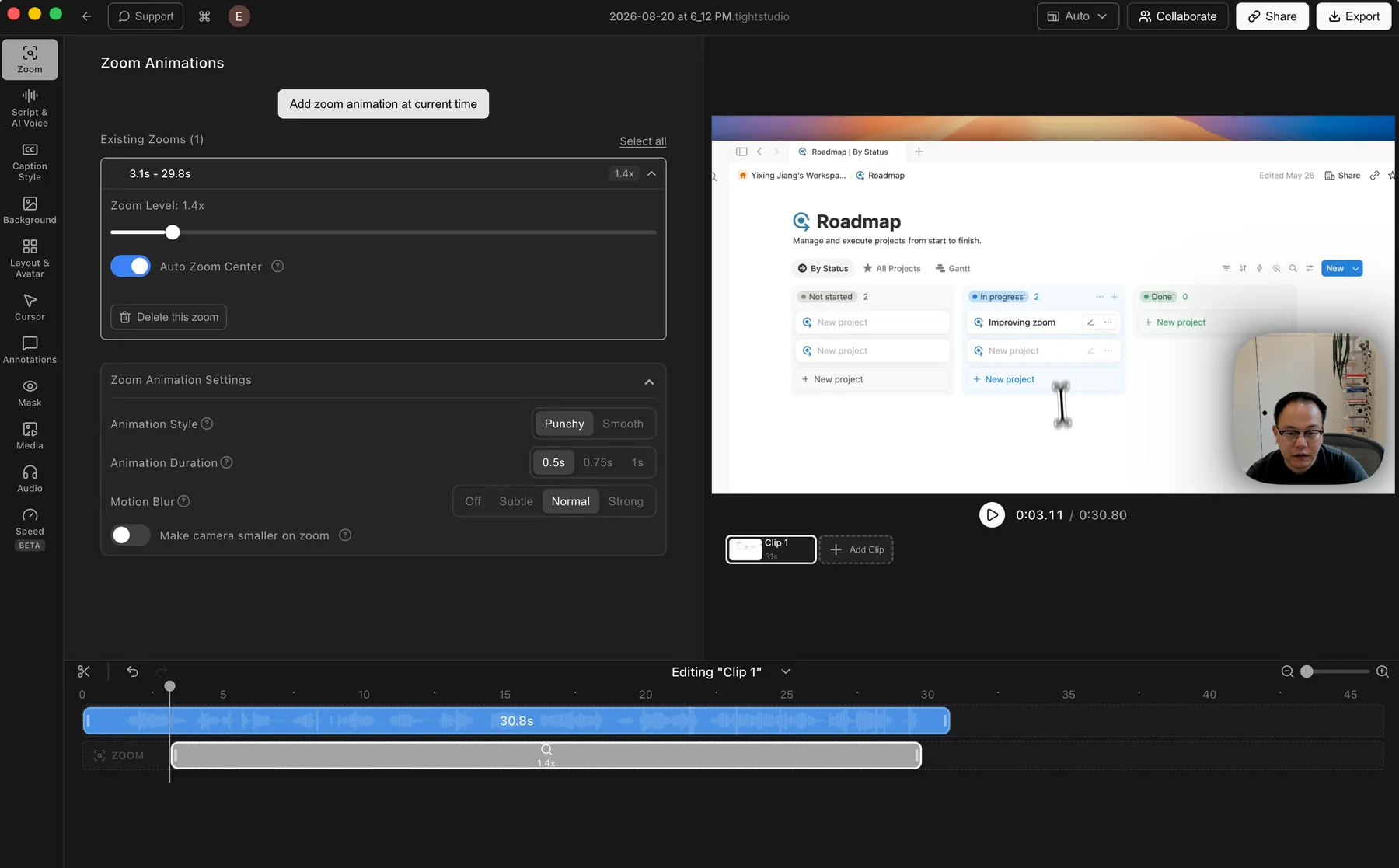
Tight Studio wins decisively. It generates zooms from recorded actions and lets users add or adjust zoom segments after capture. Loom's post-recording editor does not provide content zoom effects. Its Fit control enlarges the editing waveform for precise trims, not the recorded interface for viewers.
Tight Studio
Tight Studio: automatic and manual zoom segments remain editable after recording.
Pros
Generates zooms from recorded clicks and keystrokes after capture, so the original screen recording remains editable.
Manual zooms can be added, moved, resized, or removed directly on the timeline.
Controls cover zoom level, auto-centering, animation duration, motion blur, and camera size.
Cons
Automatic zooms can still need manual adjustment when several nearby actions compete for attention.
The finished composition must be rendered before it can be shared as a video.
Loom
Not editable after recording
Loom records the captured screen as part of the finished picture. Its editor can trim or stitch the clip, but it does not expose the screen as a layer that can be reframed with post-recording zoom segments. Any screen zoom must happen in the recorded app or browser during capture, or be added later in another editor.
Keeps the recording workflow simple because there is no zoom track to configure afterward.
Application or browser zoom performed during capture appears in the finished recording.
Cons
Does not generate editable, action-based zooms after recording.
A missed or poorly framed zoom requires another take or a separate video editor.
Backgrounds and brand customization
A background adds separation, color, or brand identity around a screen recording without requiring a new take.
The problem it solves
A raw screen capture can feel flat or blend into the page where it is embedded. A framed background adds contrast and gives the creator room to apply brand colors or imagery while keeping the recorded interface readable.
Our take
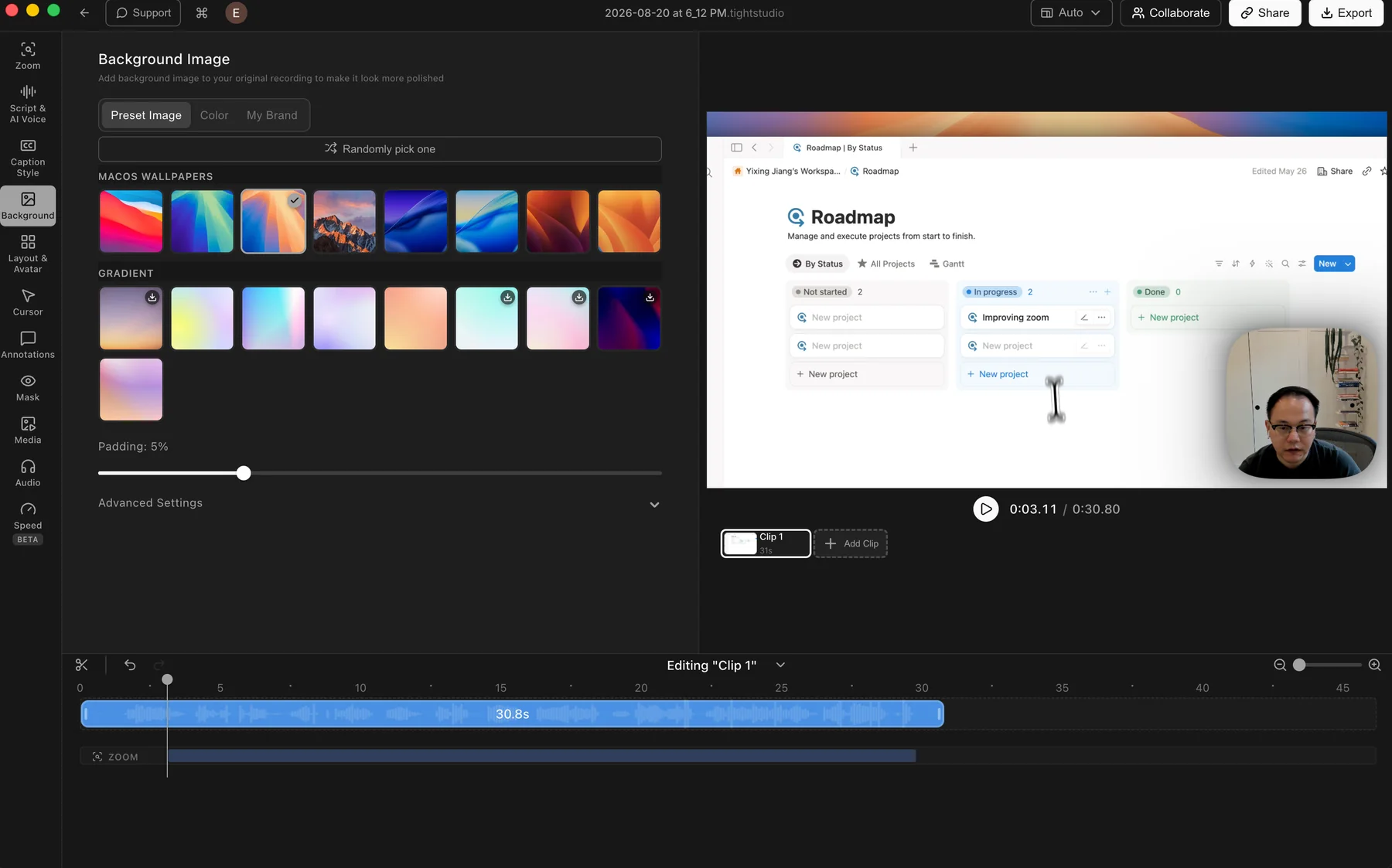
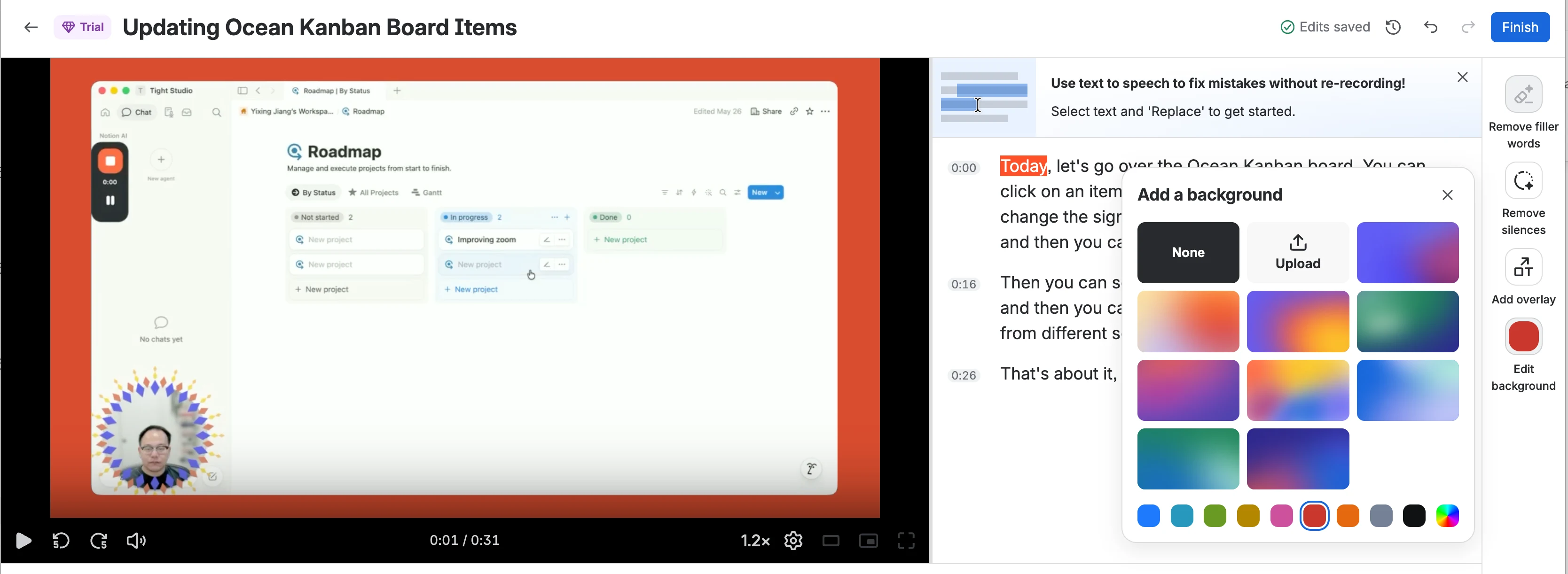
Tight Studio wins for background choice and framing control. Both products support preset colors and gradients plus custom-image uploads. Loom's compact picker is perfectly adequate for a simple frame, but Tight Studio adds a broader wallpaper and gradient library plus visible padding controls. Loom also says its post-recording backgrounds do not carry over to downloaded videos.
Tight Studio
Tight Studio: preset wallpapers and gradients with color, brand image, and padding controls.
Pros
Includes a broad set of macOS wallpapers and gradient backgrounds for quick styling.
Solid colors and custom brand images cover the main branded-video workflows.
Random selection and padding controls make it easy to change the frame quickly.
Cons
The larger preset library takes longer to browse than Loom's compact picker.
Some fine controls sit inside Advanced Settings instead of the main panel.
Loom
Loom: a compact set of gradients and colors, plus custom-image upload.
Pros
Offers a compact selection of gradient and solid-color backgrounds.
Lets users upload a custom image for a branded backdrop.
The simple picker makes a basic background quick to apply to the whole recording.
Cons
The preset selection is limited compared with Tight Studio's wallpapers and gradients.
Post-recording backgrounds require a paid Loom plan.
Loom says these backgrounds do not carry over to downloaded video files.
Cursor styling and motion after recording
An editable cursor track can smooth pointer movement and change its appearance after the actions have already been captured.
The problem it solves
A raw cursor can be small, visually noisy, or inconsistent with the finished video's style. When the pointer is baked into the screen pixels, those problems cannot be corrected without recording again or rebuilding the effect elsewhere.
Our take
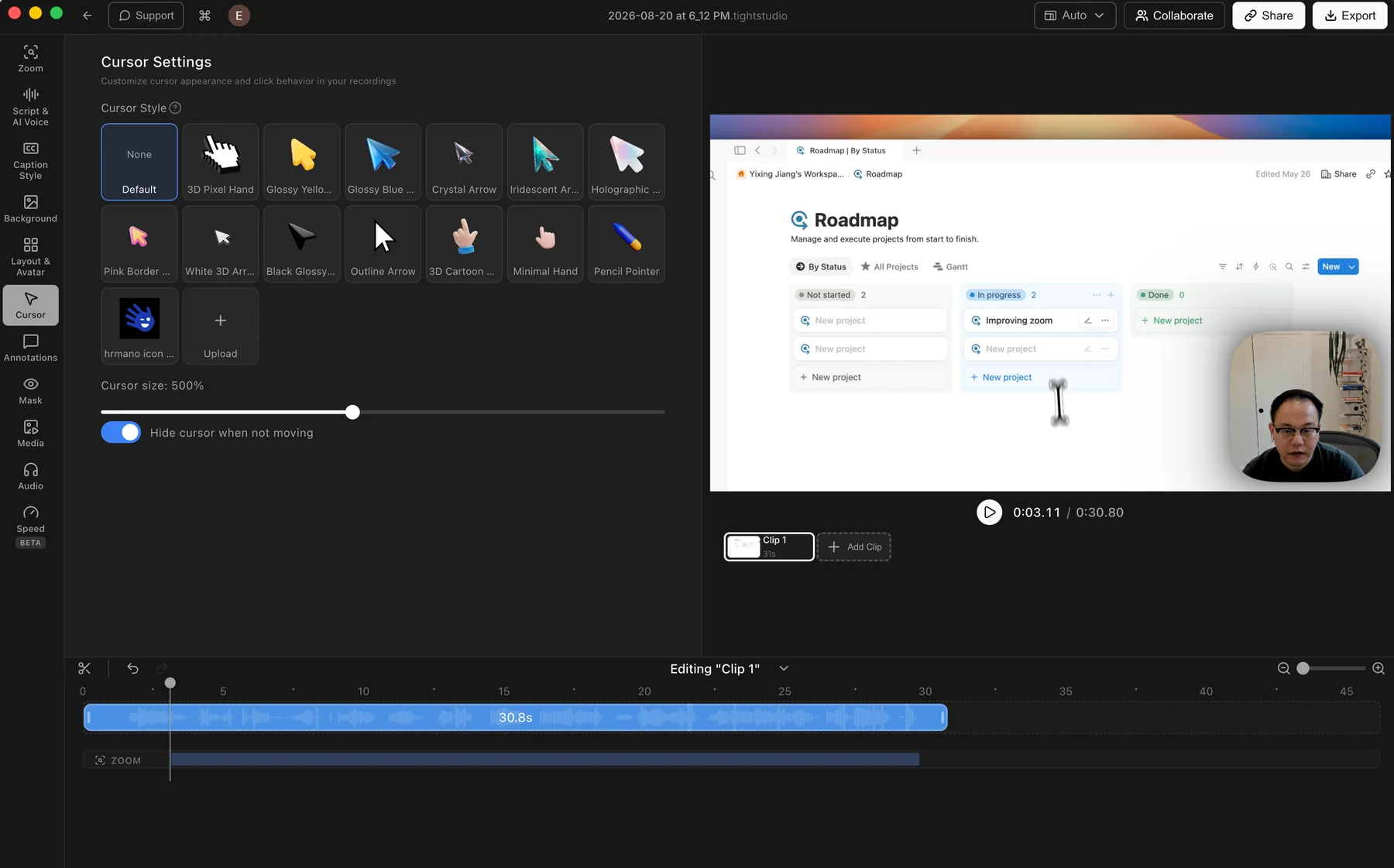
Tight Studio wins for post-recording cursor control. Its recorded input data drives a smooth, replaceable cursor that remains editable. Loom can highlight clicks in its paid desktop recorder, but that setting must be enabled before capture and cannot be added or restyled afterward.
Tight Studio
Tight Studio: cursor motion, style, size, and visibility remain editable after recording.
Pros
Uses recorded input data to smooth the cursor path after capture instead of baking raw pointer motion into the screen video.
Lets users change cursor style and size, upload a custom cursor, or hide it when idle after recording.
Cursor changes render into the finished video without requiring another take.
Cons
Does not provide manual point-by-point cursor path correction.
Does not offer a library of click-effect styles or click sounds.
Loom
Set during recording
Loom can highlight mouse clicks when the option is enabled in the desktop app before capture. The pointer and its highlight are recorded into the video, so Loom does not provide a separate cursor track that can be restyled or smoothed afterward.
Paid desktop-app users can enable click highlighting before recording.
The pointer appears exactly as it was captured, with no post-recording setup.
Cons
Cannot resize, replace, smooth, or hide the recorded cursor after capture.
Click highlighting cannot be added or changed retroactively in the Loom editor.
Camera layout changes after recording
Separate screen and camera sources let a presenter move, resize, hide, or feature the camera at different points in the finished video.
The problem it solves
A camera bubble that works for one screen can cover the next button or feel repetitive throughout the recording. If screen and camera are already combined, changing that framing later means another take or a more complex external edit.
Our take
Tight Studio wins decisively for layout editing. It keeps the camera separate and provides a timed layout track for side-by-side, corner, camera-primary, and hidden states. Loom provides useful camera bubble controls before and during recording, but the resulting bubble is fixed in the post-recording video.
Tight Studio
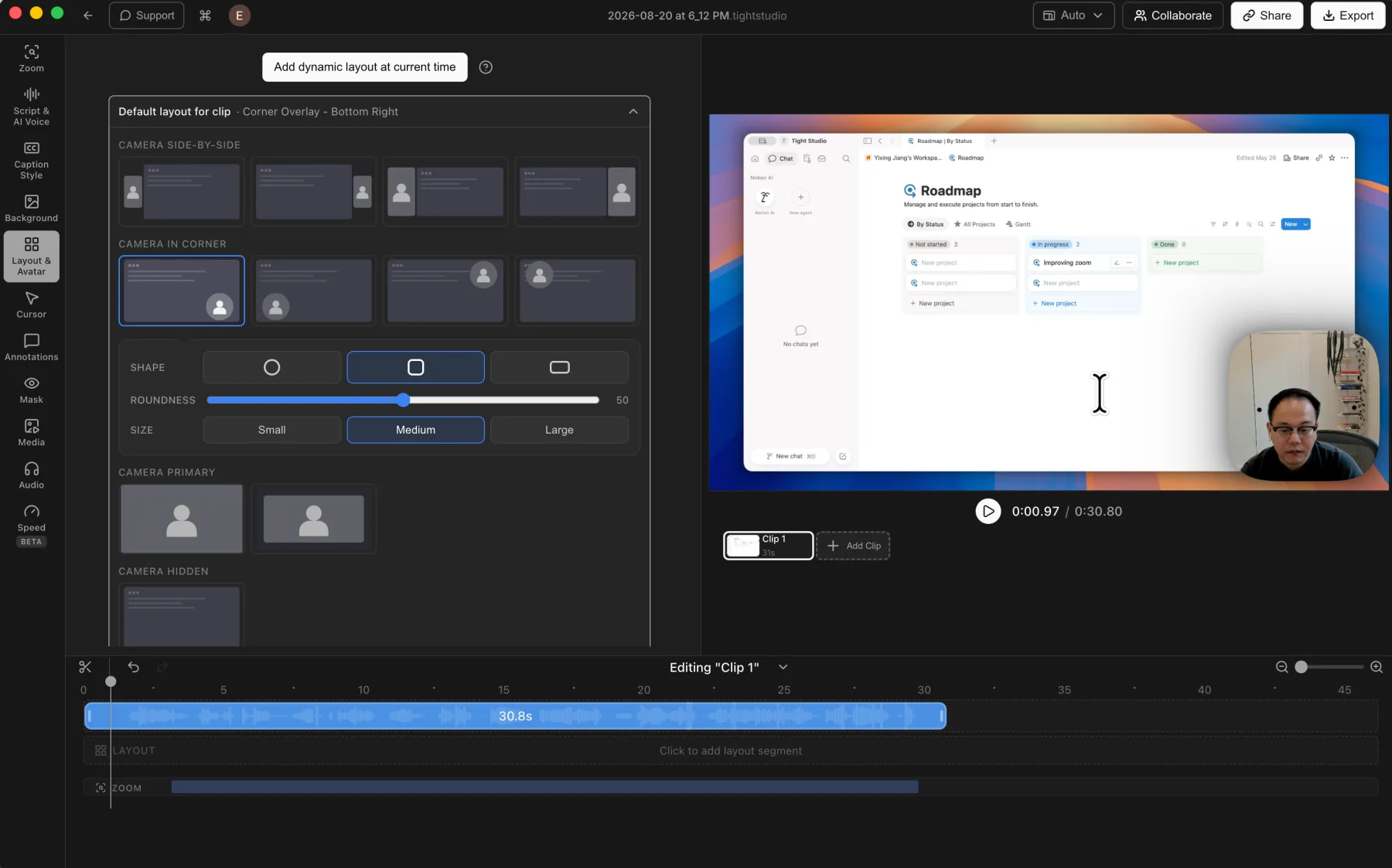
Tight Studio: camera layout, shape, size, position, and visibility can change across the timeline.
Pros
Keeps screen and camera as separate sources that can be rearranged after recording.
Supports side-by-side, corner overlay, camera-primary, and camera-hidden layouts across the timeline.
Camera position, shape, size, mirroring, and virtual background remain editable.
Cons
More layout control means more decisions before the video is ready to export.
The finished composition must be rendered before sharing.
Loom
Set before or during recording
Loom lets users position and resize the camera bubble, apply camera effects, and turn the camera on or off from the recorder. Those choices are captured into the combined video. The post-recording editor does not expose a separate camera layer or a layout track for rearranging them later.
Provides a simple camera bubble that can be positioned and resized while recording.
The camera can be turned on or off during a recording when the recording menu is enabled.
Cons
Cannot move, resize, reshape, or hide the camera bubble after capture.
Does not provide timeline-based side-by-side, camera-primary, or camera-hidden layout segments.
System audio, music, and microphone controls
Both apps capture system audio, but only Tight Studio keeps it separate from the microphone for independent post-recording volume control. Music can also be captured live or added as an editable track after recording.
The problem it solves
A music track can overpower narration, start too early, or be missing entirely. When microphone and system audio are baked into one recording, those choices must be correct before capture. Separate post-recording tracks keep the mix reversible but require another editing step.
Our take
Tight Studio wins for post-recording audio control. It captures system audio and microphone audio as separate tracks, adds built-in or custom music after capture, supports timed music segments, and provides independent volume controls. Loom can capture music through system audio, but the microphone, system-audio setting, playback, and levels must be prepared before recording. Loom is simpler when that live mix is already correct; Tight Studio is more flexible afterward.
Tight Studio
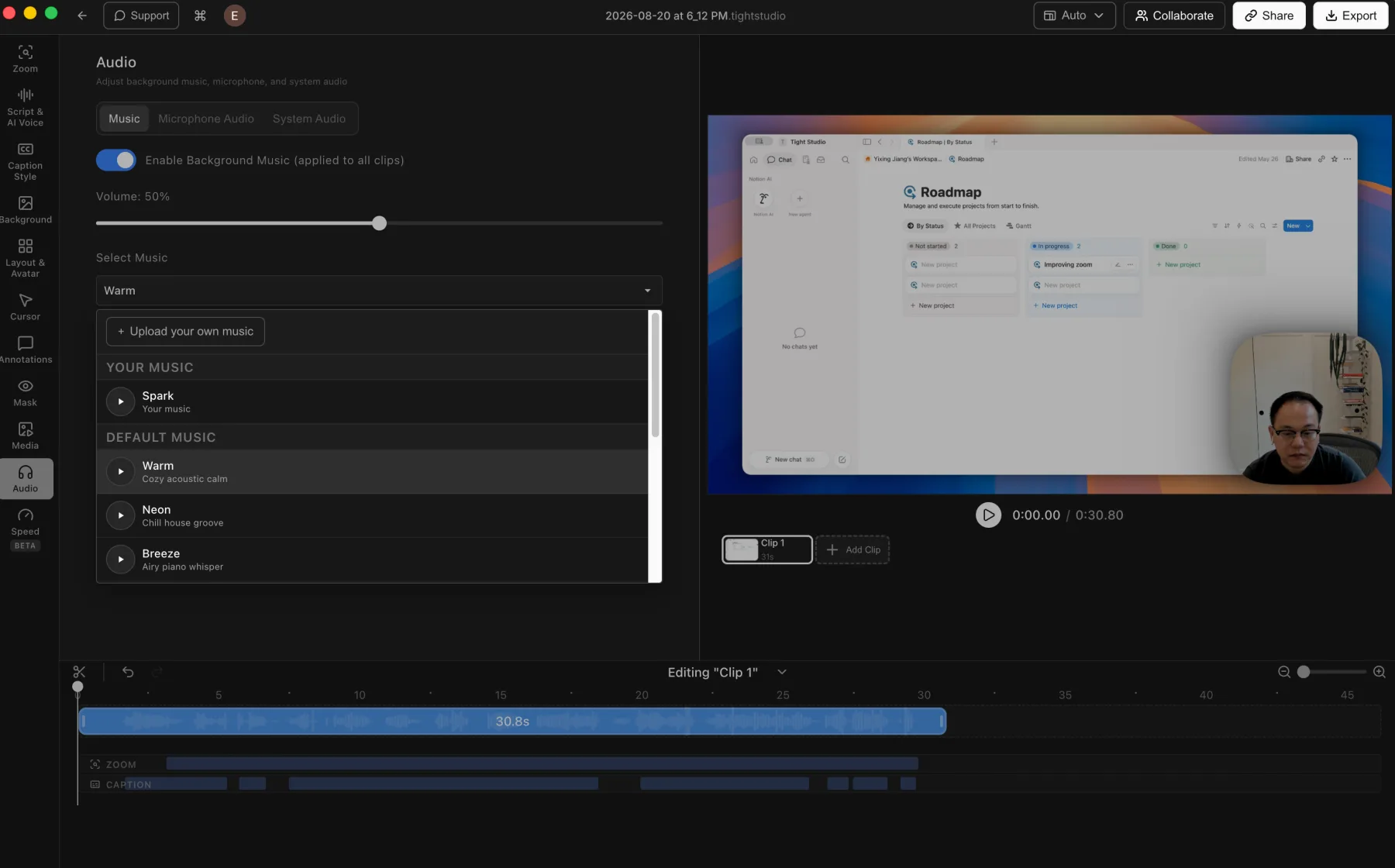
Tight Studio: built-in music, custom uploads, and music volume controls.
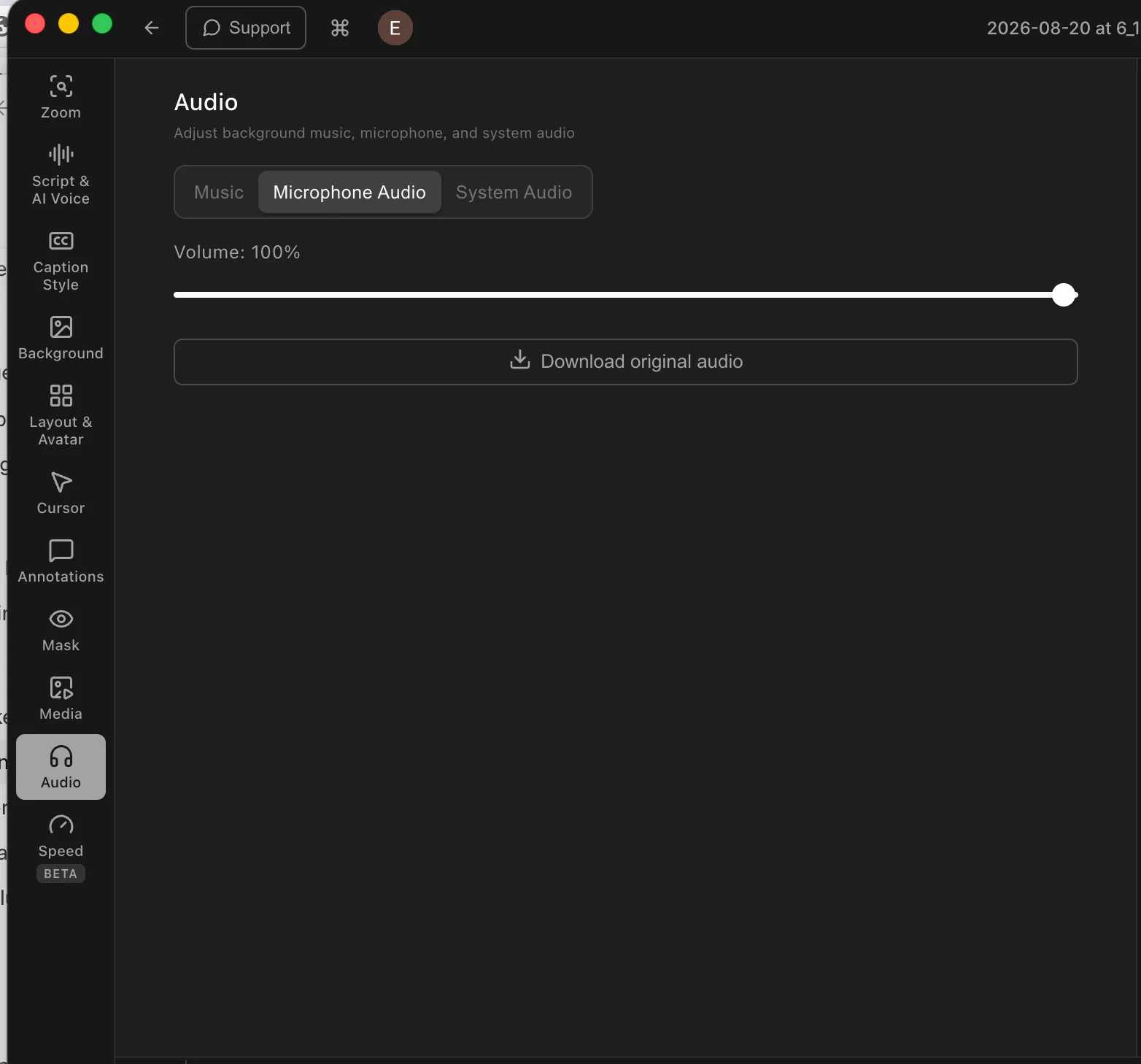
Tight Studio: direct microphone volume control and original-audio download.
Pros
Captures system audio and microphone audio as separate tracks with independent volume controls.
Adds built-in music or an uploaded audio file after recording.
Advanced music segments can be placed and trimmed to chosen time ranges instead of running across the entire video.
Supports post-recording microphone muting and direct microphone volume adjustment.
Cons
Does not filter system-audio capture to selected apps.
Does not provide automatic microphone noise reduction or volume normalization.
Custom music timing requires the advanced music-segment workflow rather than the simpler background-music mode.
Loom
Configured before recording
Loom does not provide a dedicated post-recording music track. To include music, play it through system audio and enable system-audio capture before recording. For a music-only recording, turn off the microphone in the recorder first. The selected microphone and system audio are captured into the recording rather than kept as separate editor tracks.
Lets users select a microphone source or turn the microphone off before recording.
The desktop app can capture system audio from other applications, while the Chrome extension can include audio from the current tab.
Needs no later music setup when the captured mix is already correct.
Cons
Does not provide a built-in background-music library or a post-recording music-upload workflow.
Microphone state, system-audio capture, music playback, and their relative levels must be prepared before recording.
Captured narration and music are not exposed as separate post-recording tracks for independent timing, muting, or volume changes.
Text, shape, highlight, and privacy annotations
Annotations direct attention after recording, while privacy and highlight masks solve two different problems: hiding sensitive information and reducing surrounding visual noise.
The problem it solves
A viewer may need a label, arrow, or box to understand the next action. Other moments need stronger treatment, such as dimming the surrounding interface or concealing an email address, access token, or customer detail that should not appear in the finished video.
Our take
Tight Studio wins overall, but Loom covers the core callout tools well. Both add timed text, arrows, and boxes after recording. Tight Studio also provides highlight masks, ellipses, lines, and dedicated privacy masks with blur or image replacement. Loom's separate blur feature must be applied before or during supported Chrome recordings, not in the post-recording editor.
Tight Studio
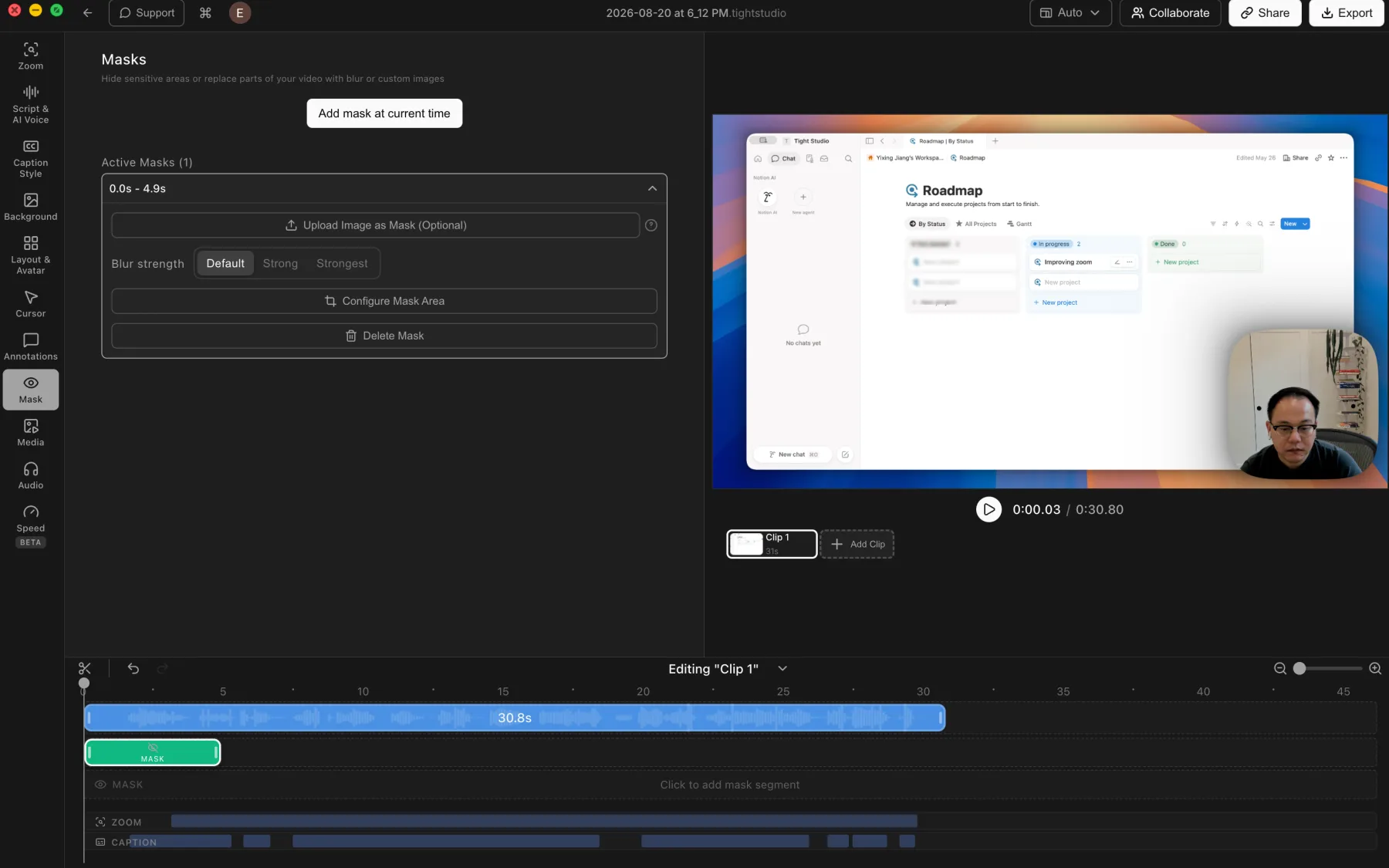
Tight Studio: timed privacy masks with blur strength and custom-image replacement.
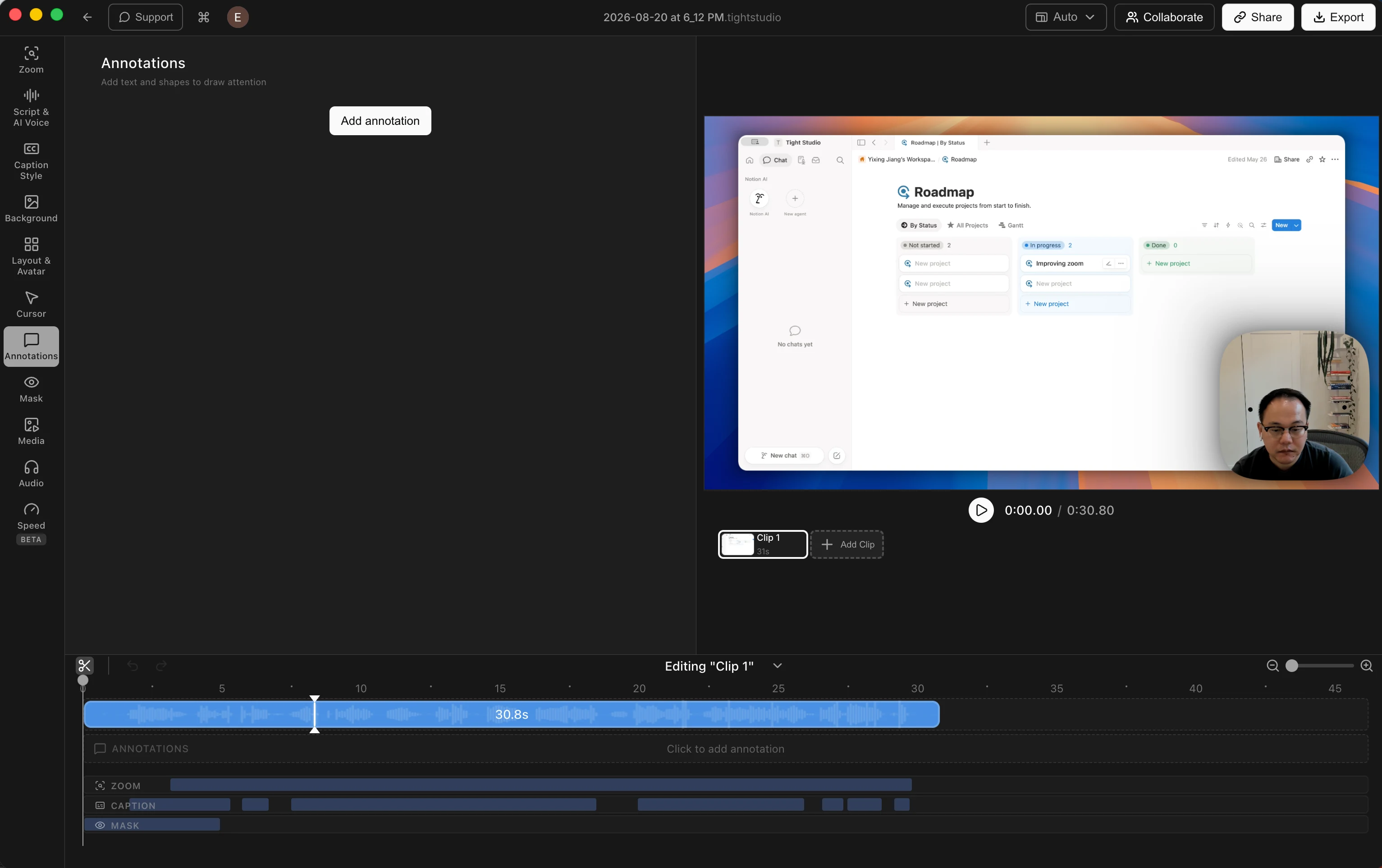
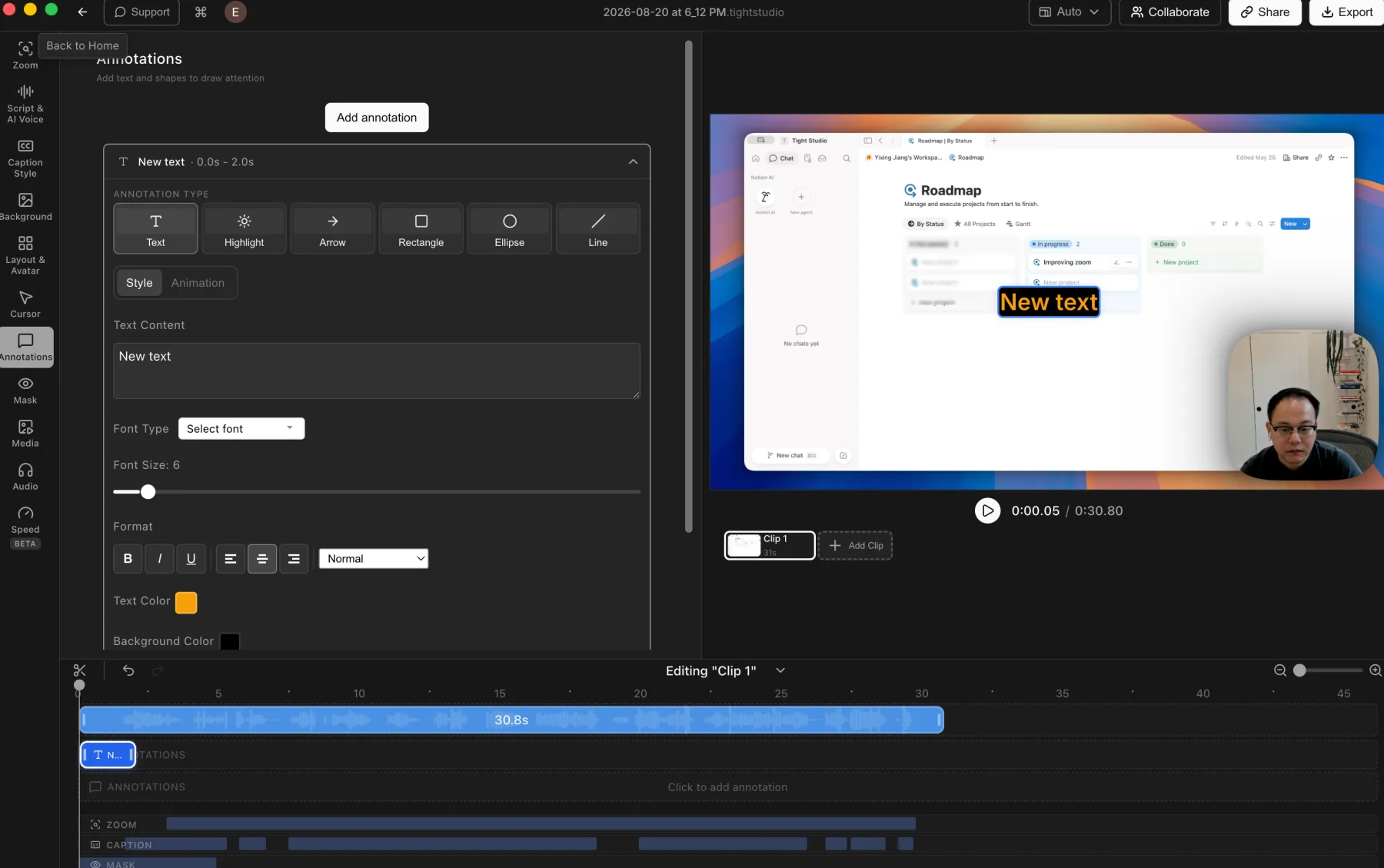
Tight Studio: styled text, highlights, arrows, rectangles, ellipses, and lines.
Pros
Adds timed text, highlights, arrows, rectangles, ellipses, and lines after recording.
Highlight masks dim the surrounding interface so one selected region stands out.
Privacy masks can be timed, resized, and adjusted with blur strength or a custom replacement image.
Cons
Masks and annotations require manual placement and timing.
The broader toolset exposes more controls than Loom's compact overlay menu.
Loom
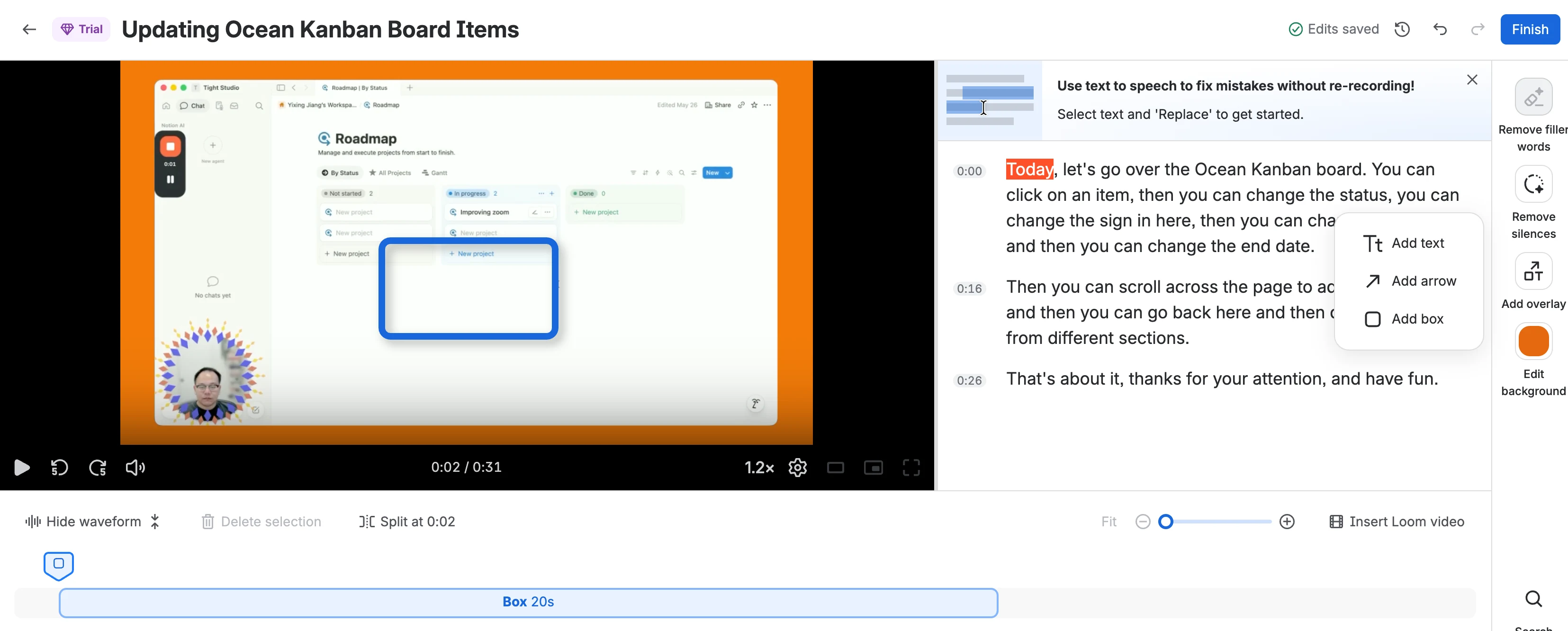
Loom: timed text, arrow, and box overlays in the post-recording editor.
Pros
Adds text, arrow, and box overlays after recording.
Lets users adjust overlay color, text size, position, and duration on the timeline.
Loom says overlays carry over to downloaded videos.
Cons
Post-recording overlays require Business + AI or Enterprise.
Does not provide a highlight mask that dims everything outside a selected region.
Does not provide a dedicated post-recording privacy mask. Loom blur must be applied before or during capture in its Chrome extension.
AI voice generation and speech repair
AI voice can either repair a short spoken mistake or turn a new script into complete narration. The useful distinction is how much text can be generated and which voices are available.
The problem it solves
A mispronounced name or incorrect phrase should not require another recording take. Larger changes create a different need: generating a paragraph, replacing all narration, or choosing a voice that was never present in the original recording.
Our take
Tight Studio wins for AI narration breadth, while Loom has an unusually useful repair tool. Loom replaces a short selected phrase with synthesized audio that matches the creator's voice, which is ideal for a mispronunciation or small update. Tight Studio can generate complete paragraphs or an entire video from a script, with both personal voice cloning and a searchable voice library.
Tight Studio
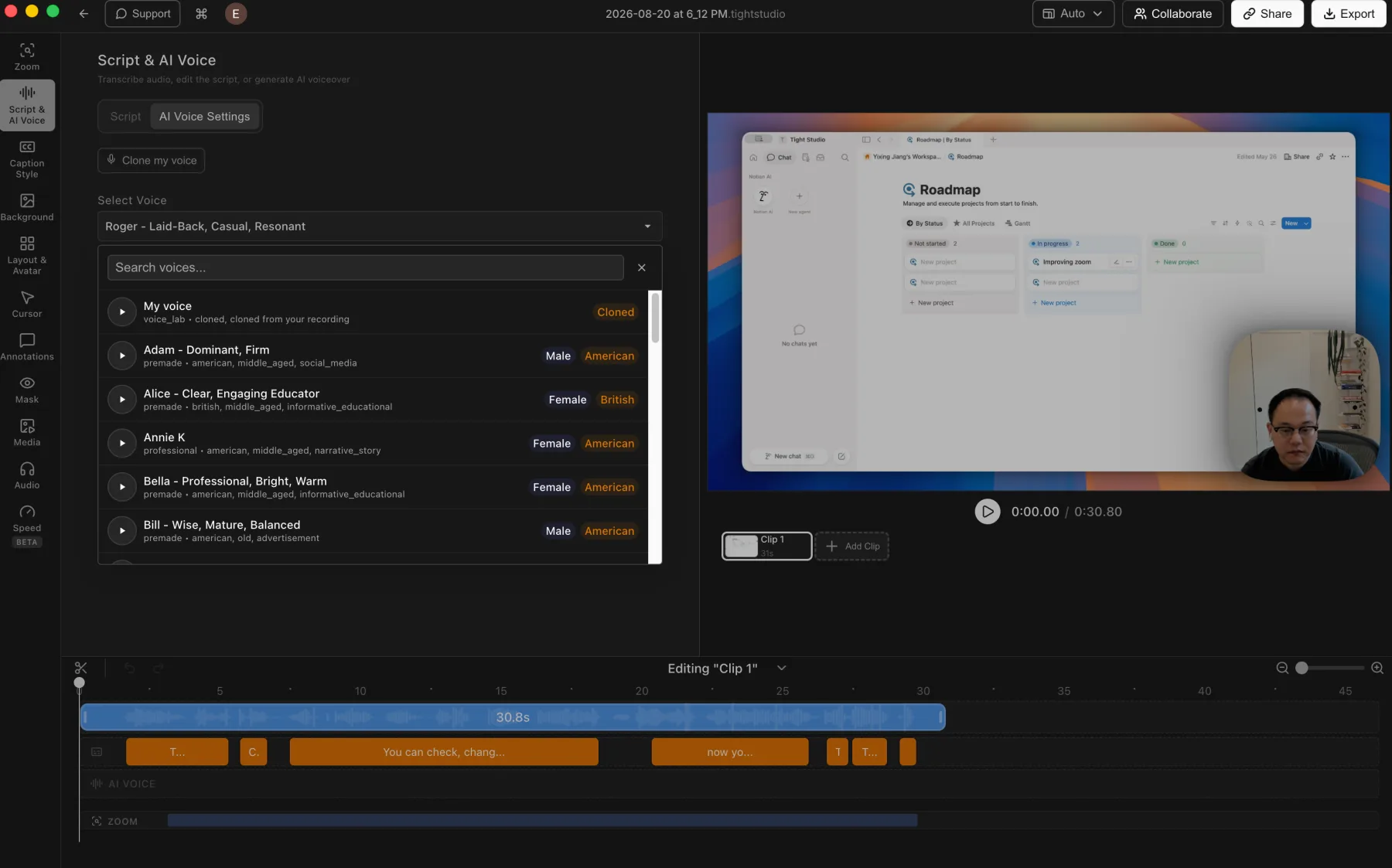
Tight Studio: voice cloning and a searchable voice library connected to the editing timeline.
Pros
Generates complete paragraphs or a full video narration from the edited script.
Provides a searchable library of voices with previews as well as personal voice cloning.
Keeps generated narration on a dedicated AI Voice track for timeline-based editing.
Cons
Generated speech may still need previewing and script adjustments to match the intended delivery.
AI voice generation is a Pro feature rather than part of the free editing workflow.
Loom
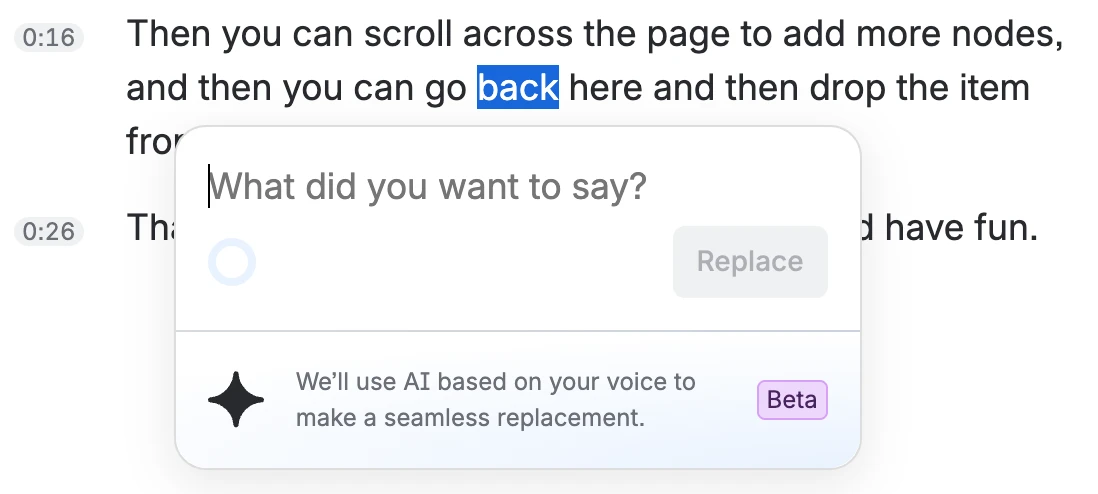
Loom: replace a short selected phrase with generated speech that matches the creator's voice.
Pros
Uses the creator's own synthesized voice to repair a selected spoken mistake.
Makes a mispronunciation, missing detail, or outdated phrase fixable without recording another take.
Keeps the replacement inside the transcript-based editing workflow.
Cons
Does not offer a broad voice library or let users choose a different narration voice.
Our test limited one replacement to 10 words. Loom also documents a similar-length requirement and a limit of 10 replacements per video.
Does not generate a complete paragraph or full-video narration from a new script.
Multiple clips and media imports
Both products can combine more than one video, but they differ in what can be inserted directly into the current project and whether still images can become timed visual media.
The problem it solves
A second take, supporting clip, product image, or branded visual often needs to appear inside an existing recording. If the editor only accepts videos that are already hosted in its own library, local files require an upload and processing step before assembly, while still images need another editor entirely.
Our take
Tight Studio wins for flexible project assembly. It records more takes, imports local video clips directly, and adds still images as timed media. Loom can stitch another Loom-hosted video from its library or a permitted URL, which covers reusable intros, updates, and collaborative clips well. Its insert dialog does not directly accept local media, and it does not add still images to the video timeline.
Tight Studio
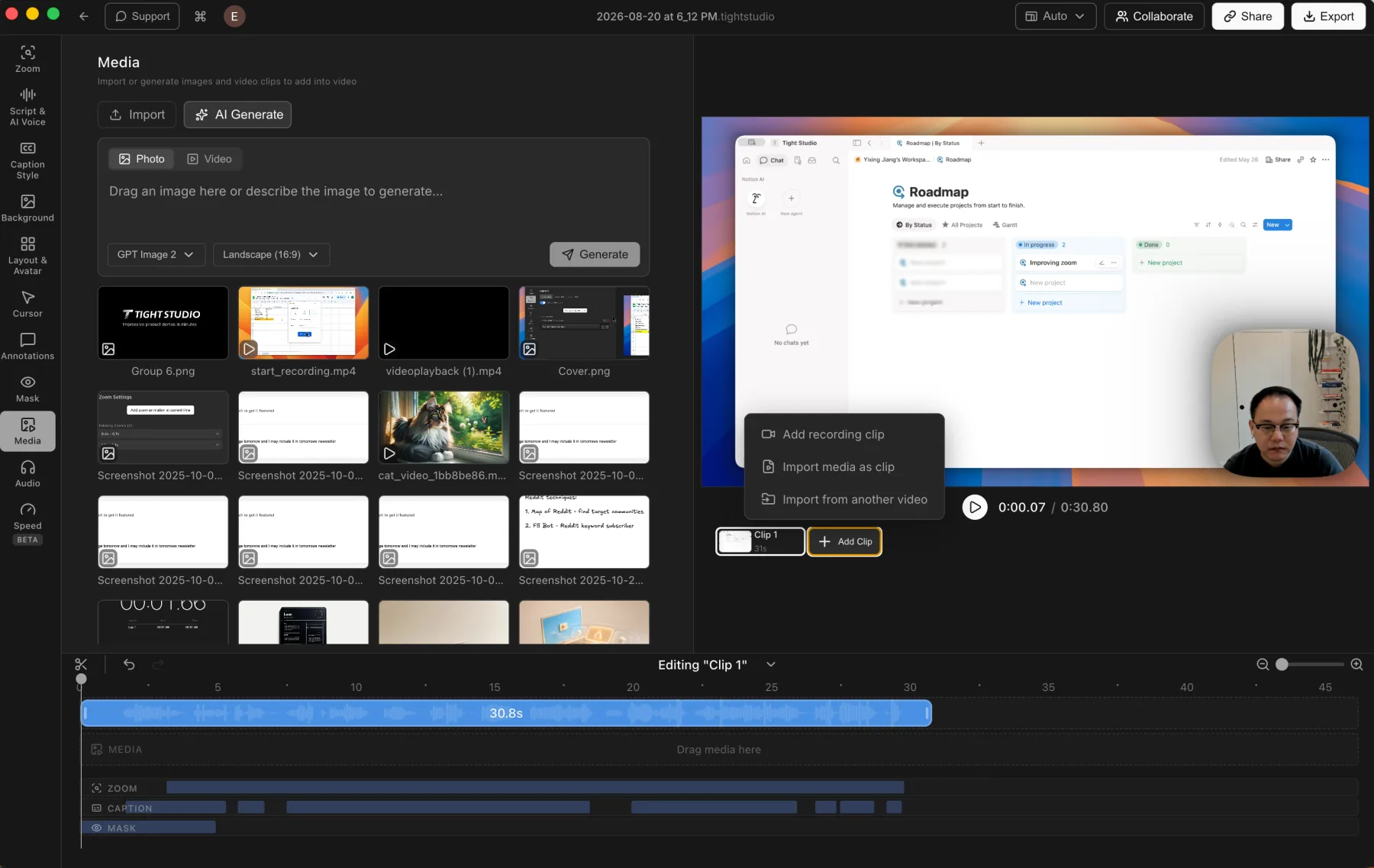
Tight Studio: imported media and additional recording clips stay inside one editable project.
Pros
Records additional takes inside the current project and combines them into one finished video.
Imports local video files directly as additional clips without uploading them to a separate library first.
Imports photos and places them on the timeline as timed visual layers.
Cons
Larger multi-clip projects require more timeline organization than a simple one-take recording.
Imported media and additional takes still need to be rendered into the final export before sharing.
Loom
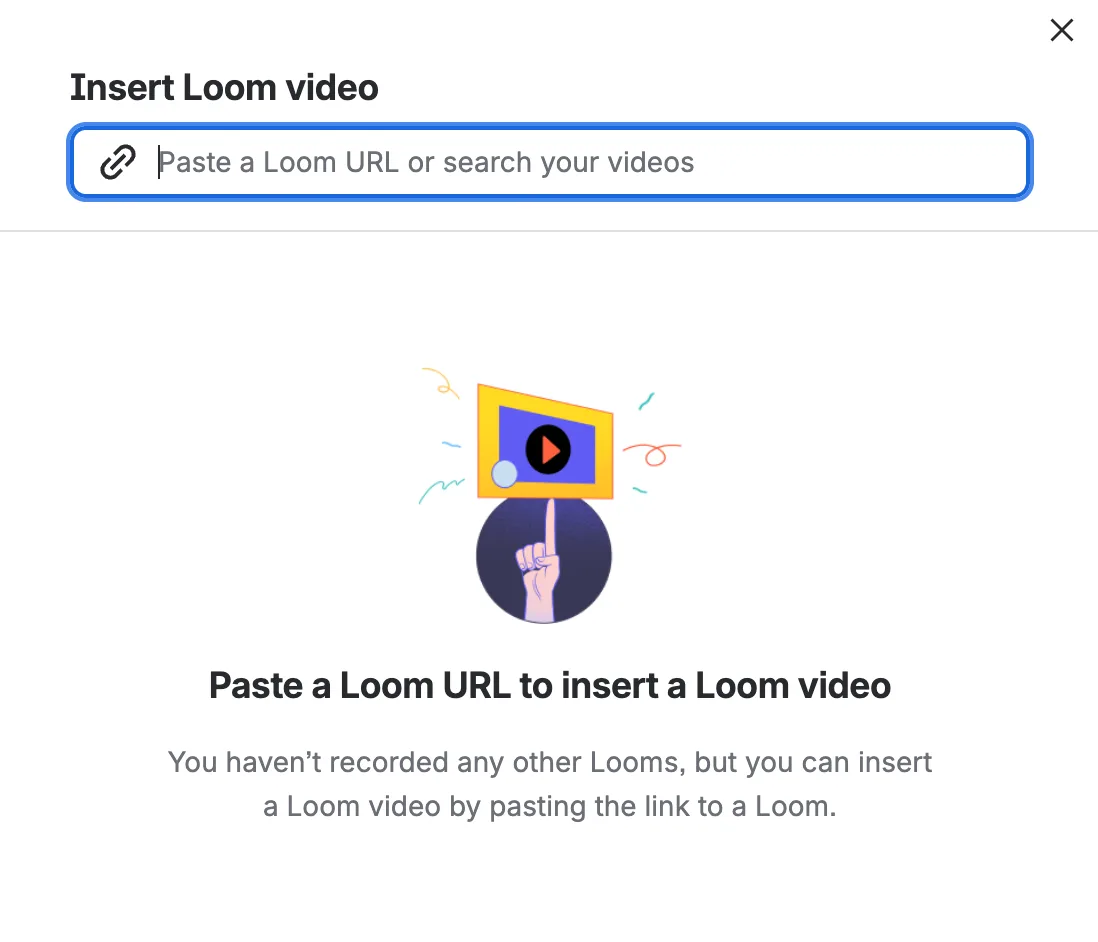
Loom: insert another Loom-hosted video by URL or by searching the video library.
Pros
Stitches multiple Loom-hosted videos into one finished video on eligible paid plans.
Accepts another creator's Loom URL when that video's permissions allow stitching.
Lets users reorder the inserted Loom clips as whole units.
Cons
The insert dialog does not directly accept a local video file. External videos must first go through Loom's separate paid library-upload workflow.
Does not import still images as timed media inside the video editor.
Reorders whole clips but does not reorder trimmed sections within an individual clip.
iPhone and iPad screen recording
Both products record a mobile screen, but one optimizes for sending a quick hosted work message while the other brings the capture into a desktop editing and device-framing workflow.
The problem it solves
A raw mobile-screen capture communicates what happened, but a finished device demonstration often needs a recognizable hardware frame, deliberate canvas layout, zooms, annotations, and multiple takes. The right workflow depends on whether speed or presentation control matters more.
Our take
Loom wins for recording and sharing a quick iPhone work message without a Mac. Its iOS app records the screen, camera, or audio and sends the hosted result directly to communication apps. Tight Studio wins for a produced mobile-screen video: it captures a connected device into the Mac editor, adds a device frame, and keeps the recording available for zooms, captions, annotations, masks, backgrounds, and multi-clip editing.
Tight Studio
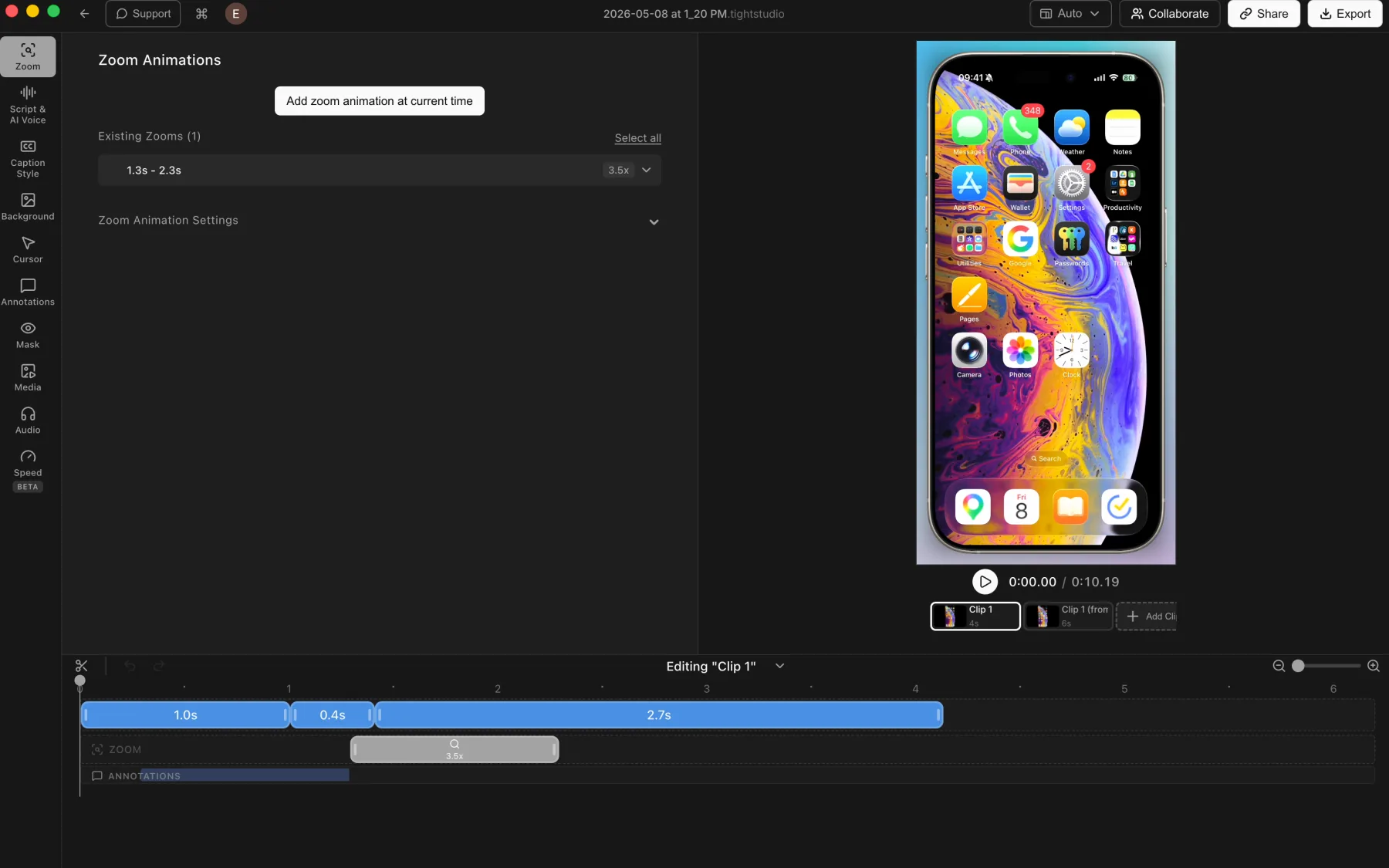
Tight Studio: a connected iPhone recording with a device frame, multiple clips, zoom, and annotation tracks.
Pros
Captures a connected iPhone or iPad directly into the Mac editor through USB.
Renders the mobile screen inside a polished device frame for the finished video.
Applies the normal editing tools, including manual zooms, backgrounds, captions, masks, annotations, and multiple clips.
Cons
Requires connecting and trusting the device before recording.
Touch gestures do not provide desktop-style cursor metadata, so zooms may need manual placement.
Loom
Quick mobile work messages
Loom records directly on the iPhone or iPad, then processes the capture into My Videos for immediate sharing. The iOS app supports screen-only, camera-only, or audio-only recordings and can send them directly to Slack, Gmail, Messenger, SMS, and other destinations.
Records an iPhone or iPad screen without connecting it to a Mac.
Creates a hosted Loom that can be shared immediately from the mobile app.
Also supports separate camera-only and audio-only mobile messages, plus comments and emoji reactions.
Cons
Does not provide a selectable iPhone or iPad device frame around the recorded screen.
Cannot record the iOS screen and camera simultaneously because of an Apple iOS limitation.
Prioritizes a quick hosted work message rather than a device-demo composition with mobile-specific framing controls.
AI documentation, timestamped comments, and integrations
Loom extends a recording beyond the video itself. It can create written work from the transcript, collect feedback at specific moments, and keep recording and sharing inside Gmail or Slack.
The problem it solves
A work recording often needs to become documentation, trigger a precise discussion, or reach a team in the app where the conversation already happens. Copying steps into an SOP, describing the right timestamp, and moving links between tools all add friction after the recording is finished.
Our take
Loom wins decisively in this category. Its AI workflows generate useful first drafts of SOPs and how-to guides, its video page keeps comments and reactions attached to exact moments, and its Gmail and Slack integrations reduce context switching. Tight Studio currently focuses on creating and collaboratively editing the finished video, without these documentation, viewer-feedback, or communication-app workflows.
Tight Studio
Not available in Tight Studio
Tight Studio supports shared project editing and browser video links, but it does not currently turn a recording into an SOP or how-to guide, collect timestamped viewer comments on the share page, or provide native Gmail and Slack workflows.
Pros
Keeps collaborative editing focused on the source project and finished video rather than generated documentation.
Exports a standard video file that can still be attached or linked from any communication app.
Cons
Does not generate SOPs, step-by-step guides, bug reports, PR descriptions, QA steps, or code documentation from a recording.
Does not let viewers leave comments or reactions at specific moments in a shared video.
Does not provide first-party Gmail or Slack recording, embedding, preview, or notification workflows.
Loom
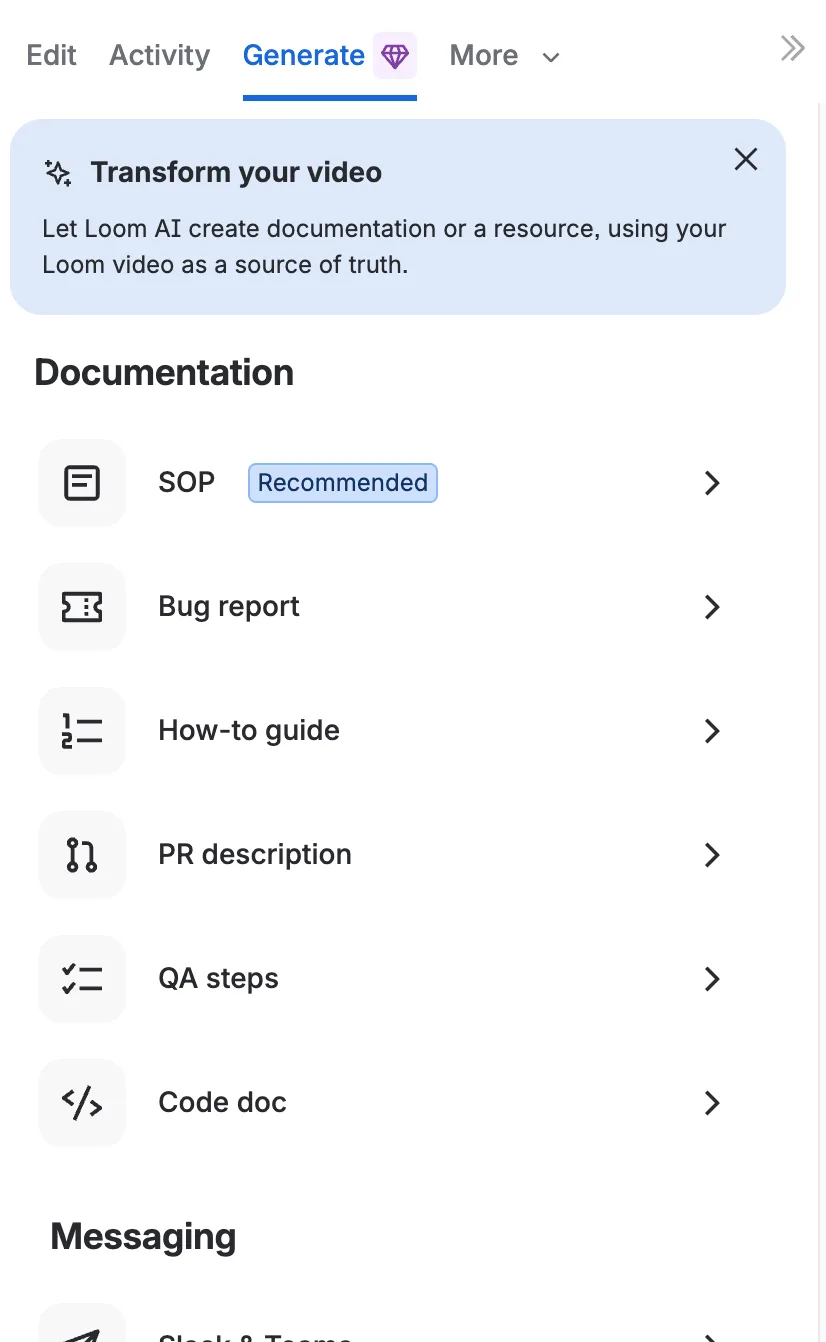
Loom Generate: turn a recording into reusable documentation and work artifacts.
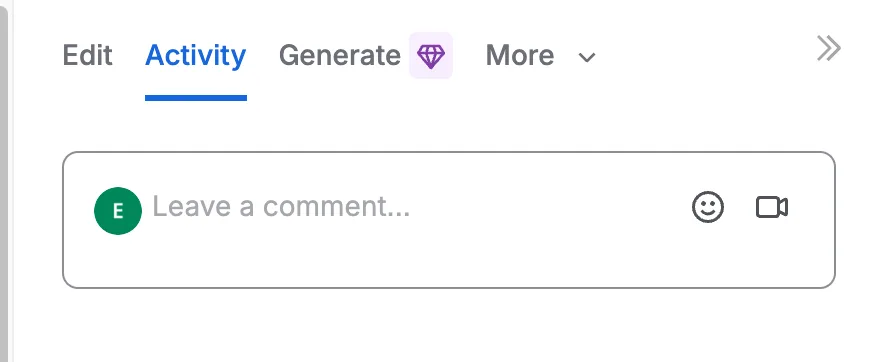
Loom Activity: viewers can comment or react at the moment they are watching.
Pros
AI workflows turn a transcript into an SOP, step-by-step guide, bug report, PR description, QA steps, or code documentation, with relevant screenshots added automatically when supported.
Comments and emoji reactions appear on the video timeline, so feedback stays connected to the exact moment being discussed.
Gmail can start or insert a recording from the composer, while Slack supports recording commands, playable previews, thread links, and notifications for views, reactions, and comments.
Cons
AI documentation workflows require Loom's AI Suite and a recording with a usable transcript.
Generated documents still need a human review before they become a reliable SOP, bug report, or technical reference.
The integrations deliver the most value when the team already uses Loom as its cloud video communication hub.
The core difference
Internal work messages versus polished external videos
Loom is optimized for internal asynchronous communication: record a message, get an immediate cloud link, and keep the discussion moving through comments, analytics, and integrations. Tight Studio is designed for customer-facing product demos, user tutorials, and screen-led social videos. It takes longer to render, but provides richer post-recording editing and a high-quality local master that preserved sharper interface detail in our test.
Loom strengths
When should you choose Loom?
You send internal work messages
Loom opens a hosted recording with its link already available, then adds shared folders, timestamped comments, analytics, and Gmail and Slack workflows for fast team communication.
You need viewer analytics
Loom tracks views and engagement, while Tight Studio focuses on video creation rather than audience analytics.
You record from the browser
Loom offers extensions for Chromium-based browsers in addition to its desktop app.
Tight Studio strengths
When should you choose Tight Studio?
You publish videos for customers
Tight Studio renders a high-quality local master and provides richer visual editing, making it better suited to polished product demos, user tutorials, and screen-led social videos where crisp interface detail matters.
You want local processing
Recording and editing stay on the Mac unless you decide to create a shareable link.
You want deeper visual editing
Smart zoom, smooth cursor paths, music, animated text, styled captions, and AI media generation provide more production control.
What both do well
The table does not need to repeat the basics
Both products already cover the foundation of a polished Mac screen recorder. The comparison below focuses on the differences that can actually change your choice.
Screen and camera recording
iPhone and iPad screen recording
Automatic transcription and captions
Timeline-based segment removal
Multiple clips in a finished video
Preset and custom-image backgrounds
Timed text, arrow, and box overlays
AI speech correction in the creator's voice
Browser share links and access controls
Team workspaces and shared project editing
Decisive differences
The differences that can change your decision
Both products record and share screen videos. This table focuses on the workflow, quality, editing, and collaboration differences that lead to a different choice.
Feature
Tight Studio
Loom
Shareable link after recording
PartialAvailable after render and upload
YesHosted page is ready immediately
High-quality local file
YesCreated by the normal export workflow
PartialDownloads require an eligible paid role
Free recording quality
YesStandard export without a watermark
PartialStarter recording is limited to 720p
Timeline segment removal
YesSelect and cut a range on the waveform
YesWaveform trims and splits on paid plans
Transcript-based video editing
NoTranscript does not drive timeline cuts
YesBusiness + AI and Enterprise
Background colors and gradients
YesBroad preset library with padding controls
YesCompact selection on paid plans
Custom image background
YesMy Brand image backgrounds
YesUpload an image on paid plans
Background included in downloads
YesRendered into the exported video
NoPost-recording background is hosted only
Post-recording smart and manual zoom
YesEditable zoom track driven by clicks and keystrokes
NoScreen framing is fixed after capture
Post-recording cursor editing
YesSmooth, resize, replace, or hide the cursor
NoClick highlighting must be enabled before recording
Post-recording camera layouts
YesSeparate camera source and timed layout track
NoCamera bubble is fixed after capture
Timed text, arrow, and box overlays
YesPlus ellipse and line tools
YesBusiness + AI and Enterprise
Highlight mask
YesDims the area outside the selected region
NoNo post-recording highlight-mask tool
Post-recording privacy mask
YesBlur or replace a timed region
NoBlur is available only before or during Chrome capture
Full video editor
YesZoom effects, captions, overlays
PartialTrim, stitch, transcript edits, AI cleanup
Multiple clips in one video
YesRecord or import clips inside the project
YesStitch Loom-hosted videos on paid plans
Direct local-video import into the current edit
YesImport another video as a project clip
NoUpload to the Loom library first, then insert the hosted video
Still images as timed video media
YesPlace photos and graphics on the timeline
NoNo image-media import in the video editor
iPhone and iPad screen recording
YesCapture over USB into the Mac editor
YesRecord directly in the Loom iOS app
Device frame for mobile recordings
YesRendered around the captured device screen
NoMobile capture is shown without a hardware frame
Professional styled captions
YesPreset and custom visual styles
YesTranscription and closed captions
Full-script AI narration
YesGenerate paragraphs or a complete video
NoLimited to selected speech replacements
AI speech repair in your own voice
YesGenerate from any edited script text
YesShort, similar-length corrections in the creator's voice
AI voice library
YesSearchable voices with previews
NoUses the creator's synthesized voice only
Background music library
YesBuilt-in tracks and custom audio
NoMusic must be captured as system audio
Add or time music after recording
YesFull-video music or timed segments
NoNo separate post-recording music track
Post-recording microphone mute and volume
YesIndependent microphone track controls
NoMicrophone is configured before capture
System-audio capture
YesSeparate track with independent volume control
YesCombined into the captured clip
Desktop-native app
YesApple Silicon Mac
YesMac and Windows
Local video processing
YesVideo stays local until you share it
NoCloud-first workflow
Browser extension
No
YesChromium-based browsers
Team workspace
YesPro workspace and collaborative editing
YesLibraries, spaces, comments, and reactions
AI-generated SOPs and how-to guides
NoNo recording-to-document workflow
YesAI Suite with a usable transcript
Timestamped viewer comments and reactions
NoShared links do not collect in-video feedback
YesComments and reactions appear on the timeline
Gmail recording and embed workflow
NoShare a standard link or file manually
YesRecord or insert the latest Loom from Gmail
Slack recording, previews, and notifications
NoShare a standard link or file manually
YesRecord, watch, and follow engagement in Slack
Viewer analytics
No
YesViewer and engagement insights
Your questions, answered
What is the practical difference?
Choose based on the work you need to finish, not the longest feature list.
Workflow
Loom prioritizes getting an internal work message into a shared team space immediately. Tight Studio prioritizes refining and rendering a customer-facing or public video locally before export or sharing, so its link arrives later.
Finished video quality
The cloud-optimized Loom playback looked highly compressed and softer around interface text in our test. Loom encodes recordings into multiple adaptive-streaming resolutions for continuous playback. Tight Studio completes a higher-quality local render first, then uploads that finished video. The difference matters most when the result will be reused as a customer-facing demo, tutorial, or social video rather than watched once as an internal update.
Editing workflow
Both products can remove a selected range from the video timeline. Loom also offers Edit by Transcript on Business + AI and Enterprise, letting users select a word or sentence and trim the matching footage. Tight Studio currently requires locating and cutting the unwanted range on its waveform or timeline.
Editable composition
Tight Studio keeps the screen, camera, cursor input, and timed effects available as separate project elements until export. Loom captures the arranged screen, pointer, and camera bubble into a combined recording. Loom can trim, stitch, and edit spoken content afterward, but zoom effects, cursor styling, and camera layouts must be set before or during recording rather than changed on separate post-recording tracks.
Backgrounds
Both products support post-recording colors, gradients, and custom-image backgrounds. Loom keeps the picker compact, while Tight Studio offers a broader wallpaper and gradient library plus padding controls. Loom says its post-recording backgrounds are paid and do not carry over to downloaded videos.
Annotations and privacy masks
Both products add timed text, arrows, and boxes after recording. Loom limits overlays to Business + AI and Enterprise, while Tight Studio also provides ellipses, lines, highlight masks that dim the surrounding interface, and post-recording privacy masks with blur or image replacement. Loom's separate blur feature must be applied before or during a supported Chrome recording.
AI voice
Loom has a useful speech-repair workflow that replaces selected transcript text with synthesized audio in the creator's voice. Our test limited one replacement to 10 words, while Loom officially requires replacement text to remain similar in length and limits each video to 10 replacements. Tight Studio supports the broader creation workflow: complete paragraphs or full-video narration using a personal clone or a searchable voice library.
Music and microphone
Both products capture system audio, but they preserve it differently. Loom combines the selected microphone and system audio in the recorded clip, so music playback and relative levels must be prepared before recording. Tight Studio keeps system audio and microphone audio on separate tracks with independent volume control, then also lets you add built-in or uploaded music afterward and time music segments.
Multiple clips and media imports
Both products can produce a video from multiple clips. Loom stitches Loom-hosted videos selected from the library or supplied by URL on paid plans. Its insert dialog does not directly accept local videos or still images; external videos use a separate paid upload-to-library workflow first. Tight Studio records additional takes and imports local videos or photos directly into the current project.
iPhone and iPad recording
Loom records directly on iOS and is optimized for sending a quick hosted screen, camera, or audio message from the mobile app. It does not provide a hardware device frame, and iOS screen and camera capture cannot run together. Tight Studio captures a connected iPhone or iPad into the Mac editor, renders a device frame, and provides the same post-recording tools used for desktop projects.
Documentation, feedback, and integrations
Loom can turn a transcript into an SOP, step-by-step guide, bug report, PR description, QA steps, or code documentation through its AI Suite. It also places viewer comments and emoji reactions on the video timeline, records or inserts videos from Gmail, and supports Slack recording commands, playable previews, thread links, and engagement notifications. Tight Studio does not currently provide these recording-to-document, timestamped-feedback, Gmail, or Slack workflows.
Privacy and storage
Loom uses cloud processing as its core model. Tight Studio processes locally, so a video stays on the Mac unless the creator chooses to share it.
Pricing and ownership cost
Both have free tiers and team workspaces. Loom paid plans are listed per creator at $18 or $24 per month, while Tight Studio paid plans start at $9 per month billed yearly and Pro includes collaborative editing. Tight Studio collaborator entitlements should be confirmed before making a seat-cost claim.
Pricing
Current plans and practical limits
$0 / month
Standard exports have no watermark. Free includes five Add Clip trial uses, up to five seven-day share links, and 100 trial AI credits; trial AI Voice exports are watermarked.
Loom prices paid creators per user. Tight Studio Plus starts at $9 per month billed yearly; Pro adds its team workspace and AI creation tools.
Tight Studio
Free$0No watermark on standard exports; 5 Add Clip trial uses, up to 5 shareable links with 7-day expiration, and 100 trial AI credits
Plus$9/moBilled yearly, or $19/mo monthly. Unlimited multi-clip recording and unlimited non-expiring shareable links
Pro$24/moBilled yearly, or $49/mo monthly. 1,000 AI credits/mo plus team workspace and collaborative editing
Loom
Starter$025 videos, 5 min limit, up to 720p
Business$18/user/moPer creator, billed monthly
Business + AI$24/user/moPer creator, billed monthly
EnterpriseCustomContact sales
Using both products
Can you use both?
Yes. A practical split is to use Loom for quick internal updates and Tight Studio for polished external-facing recordings. You can also export a Tight Studio video and upload or share it through Loom when your team needs Loom's established commenting or analytics workflow. This is a video file handoff, not a native integration between the products.
How we checked the facts
Reviewed against current public product information
This is a first-party comparison written and reviewed by the Tight Studio team. We reviewed it on August 21, 2026 using official product documentation, pricing pages, and the current Tight Studio pricing and feature pages. Feature availability can depend on plan, platform, or workflow, so the table uses notes and “Partial” where a simple yes/no would be misleading.
“Tight Studio combines simplicity with impact. It's effortless to use, yet the videos I create in minutes consistently help attract new users to our latest product features.”
“I've been using Tight Studio recently to prep presentations and share demos with my colleagues, and it's been a huge time saver. The whole flow feels really smooth, even for someone with no video editing skills. I can go from recording to a clean, shareable product demo in minutes with almost no effort.”
“Awesome tool - I've used it to seamlessly edit my video recordings to show it to peers and for presentations and guides for software usage! Setup is super easy, and I LOVE the auto-zoom feature. Crazy how fast the team is shipping too.”
Choose Loom for fast internal work messages where an immediate link, timestamped feedback, analytics, and Gmail or Slack integration matter most. Choose Tight Studio for customer-facing product demos, user tutorials, and screen-led social videos where richer post-recording editing, crisp interface detail, and a reusable high-quality local master matter more.
FAQ
Frequently asked questions
Which app creates a shareable link faster?
Loom. In our test, the hosted Loom page and link were available immediately after recording stopped. Tight Studio first renders and exports the finished video, then uploads it to create a shareable link. That takes longer, but it also gives you a high-quality local file before the video goes to the cloud.
Why can a Loom recording look blurry?
Loom encodes a recording into several streaming resolutions and its web player adapts quality to the viewer's available bandwidth. The hosted Loom used for this comparison looked softer around interface text than the Tight Studio export. Results can vary with the selected recording resolution, plan, device, and connection, and Loom Starter is limited to 720p.
Can both Tight Studio and Loom remove parts of a video?
Yes. Both editors let you select and remove unwanted time ranges. Tight Studio performs the edit on the waveform and timeline. Loom also offers Edit by Transcript on Business + AI and Enterprise, which lets you select a word or sentence and trim the matching footage. Tight Studio does not currently provide transcript-driven video cuts.
Can both Tight Studio and Loom add video backgrounds?
Yes. Both support preset colors and gradients plus custom-image backgrounds. Loom's smaller selection is adequate for basic styling. Tight Studio adds more wallpapers and gradients plus padding controls. Loom's official documentation says its post-recording backgrounds require a paid plan and do not carry over to downloaded videos.
Can Loom change zoom, cursor, or camera layouts after recording?
Not in the same way as Tight Studio. Loom captures the screen, pointer, and camera bubble into a combined recording. It can trim, stitch, and edit spoken content afterward, but it does not expose editable zoom segments, a cursor track, or a separate camera-layout track. Click highlighting, camera size and position, and camera visibility must be configured before or during recording. Tight Studio keeps the screen, camera, and recorded input data available to assemble and adjust in the editor before rendering.
Can Loom add annotations or blur information after recording?
Loom can add timed text, arrows, and boxes after recording on Business + AI and Enterprise, and those overlays carry into downloaded videos. It does not provide Tight Studio's highlight mask or dedicated post-recording privacy mask. Loom has a separate blur feature, but its official documentation says it must be applied before or during recording through the Chrome extension and only works on supported DOM-based websites.
Can Loom generate AI voice narration like Tight Studio?
Loom provides a useful but narrower AI speech-repair tool. Select existing transcript text, type a similar-length replacement, and Loom generates corrected audio in the creator's voice. In our test, one replacement supported up to 10 words. Loom's official documentation also limits a video to 10 replacements. Tight Studio can generate complete paragraphs or a full-video narration from a script, using either a personal voice clone or a searchable library of other voices.
Can Loom add background music after recording?
Not as a separate music track in Loom's editor. To include music, play it from another app and enable system-audio capture before recording. Turn the microphone off first when the video should contain music without narration. Tight Studio also captures system audio, keeping it separate from the microphone with independent volume control, and it lets you add built-in or custom music after recording across the full video or selected time ranges.
Can Loom combine multiple clips or import videos and images?
Loom can stitch multiple Loom-hosted videos by selecting one from the library or pasting a permitted Loom URL. Its insert dialog does not directly import a local video or image file. Loom separately supports uploading external video files to its library on paid plans, after which they become hosted Loom videos, but still images cannot be added as timed media in the video editor. Tight Studio records additional takes, imports local video clips, and adds still images directly inside the current project.
Can Loom record an iPhone screen with a device frame?
Loom can record an iPhone or iPad screen directly from its iOS app and turn it into a quickly shareable hosted work message. It does not add a selectable hardware device frame around that mobile recording, and iOS does not allow Loom to record the screen and camera simultaneously. Tight Studio instead captures a connected iPhone or iPad into its Mac editor, renders the screen inside a device frame, and provides the same timeline tools used for desktop projects.
Which collaboration and documentation tools does Loom have that Tight Studio does not?
Loom can turn a recording into an SOP, step-by-step guide, bug report, PR description, QA steps, or code documentation through its paid AI workflows. Viewers can leave comments and emoji reactions at specific moments on the video timeline. Loom also integrates more deeply with Gmail and Slack: Gmail can start or insert recordings from the composer, while Slack can start recordings, show playable previews, link back to the sharing thread, and deliver engagement notifications. Tight Studio does not currently provide these recording-to-document, timestamped-feedback, or first-party communication-app workflows.
Is Tight Studio a good alternative to Loom?
Yes, when the video is intended for customers or a public audience rather than primarily for internal work messaging. Loom is stronger for instant links, browser capture, viewer analytics, comments, and team communication. Tight Studio is better suited to polished product demos, user tutorials, and screen-led social videos that need a crisp local export, automatic zoom, cursor smoothing, music, overlays, and deeper visual editing.
Is Tight Studio free?
Free includes standard exports without a watermark, five account-level Add Clip trial uses, up to five shareable links with seven-day expiration, and 100 trial AI credits. AI Voice exports use a watermark during the trial.
Can Tight Studio create shareable video links like Loom?
Yes. Tight Studio can upload the rendered video and create a browser link with access controls. Unlike Loom, the link is not ready the moment recording stops because Tight Studio finishes the high-quality local render first.
Does Tight Studio work on Windows?
Currently, Tight Studio is available for macOS with Apple Silicon only. Loom supports Mac, Windows, mobile apps, and Chromium-based browser recording.
Want to try Tight Studio?
Create polished product demos and user tutorials when a high-quality finished video matters more than an instant internal message.