Cap is an open-source Loom alternative with a fast Instant workflow and a more polished Studio editor. Compare its Studio Mode directly with Tight Studio on zoom motion, editing workflow, ownership, and pricing.
Cap wins on ownership. Tight Studio wins on zoom motion in our test.
Choose Tight Studio
When smooth post-recording zoom, direct iPhone recording, built-in music, AI narration, generated media, and a guided Apple Silicon Mac workflow matter most.
Choose Cap
When open-source code, self-hosting, Windows support, quick Instant recordings, or a conventional Studio timeline are requirements.
The framing matters: Cap's Instant Mode is the Loom-style record-and-share workflow. Studio Mode is the closer Tight Studio competitor. Both Studio editors provide automatic zoom and manual framing, but Tight Studio's motion was smoother and less disorienting in our test.
This is a first-party comparison. Ethan tested Cap 0.5.9 on August 21, 2026, with a 26.4-second Notion walkthrough. We reviewed automatic and manual zoom, backgrounds, camera Scenes, cursor controls, locally generated captions, microphone and audio controls, connected-device recording options, an appended second recording, and the available timeline track types. Assessments of zoom comfort and cursor movement quality are subjective observations from this test.
The Tight Studio screenshot and product details are reused from our August 20 Screen Studio comparison of Tight Studio 3.1.5, keeping the Tight Studio side consistent across both pages.
Auto zoom and manual zoom controls
Cap and Tight Studio both turn recorded interactions into editable close-ups after capture. The difference is how the motion feels and how much control you get when the automatic result needs correction.
The problem it solves
A full-screen capture can make the important button, field, or menu too small to follow. Building every close-up by hand takes time, while an automatic camera that travels too far can make the viewer feel unsteady.
Our take
Tight Studio wins this test. Both apps generated editable zooms and supported manual framing, but Cap's automatic camera drifted farther than the action required and felt dizzy. Cap's manual center control is a useful correction when automatic framing misses.
Tight Studio
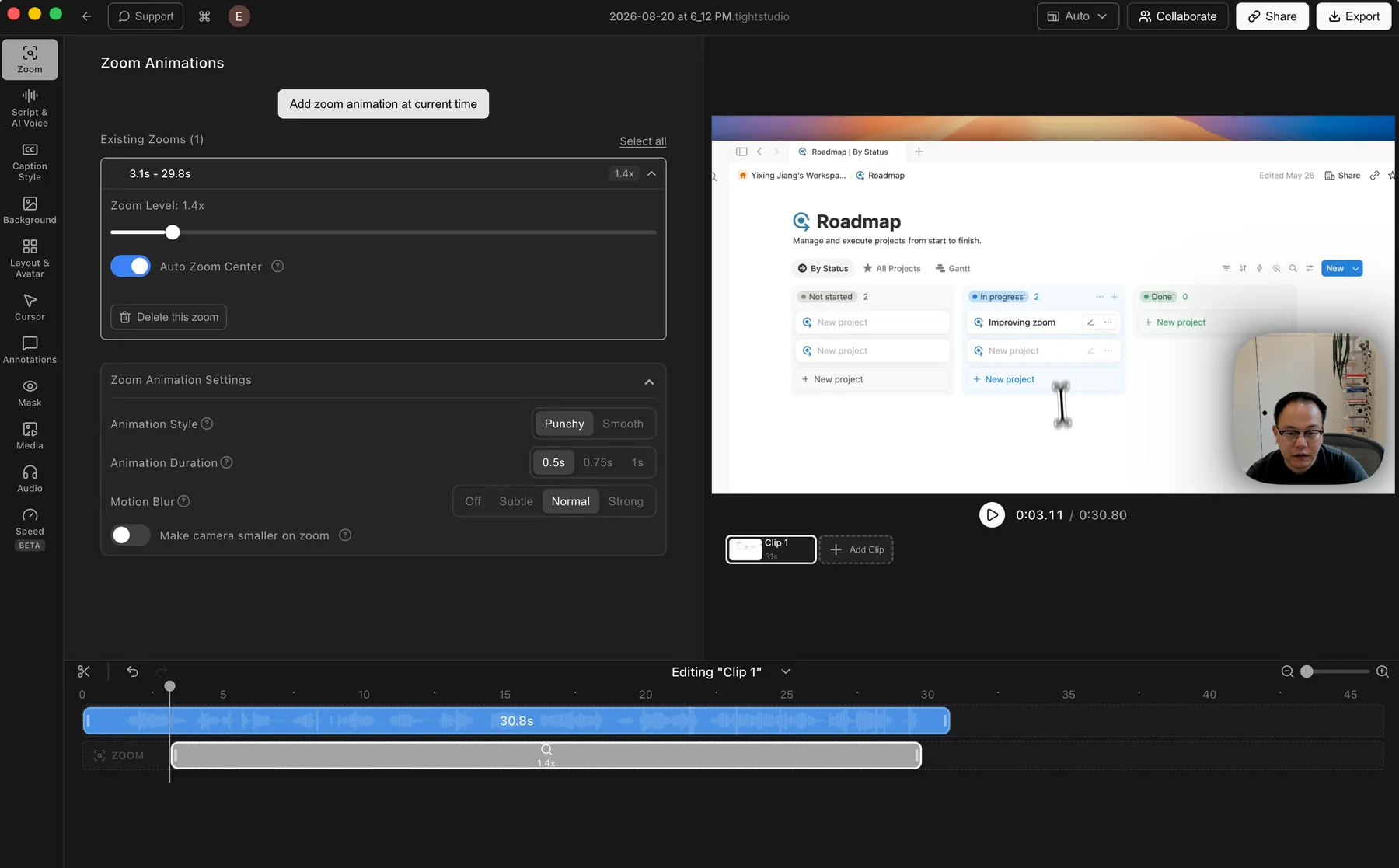
Tight Studio: an automatic zoom segment with its motion controls open.
Pros
Generates zooms after recording, so the original capture and every zoom segment remain editable.
Manual zooms can be added and adjusted directly on the timeline.
Controls cover zoom level, auto-centering, animation style and duration, motion blur, and camera size.
Cons
The extra motion controls take a little time to learn.
Finding a preferred motion style can still require previewing and adjustment.
Cap
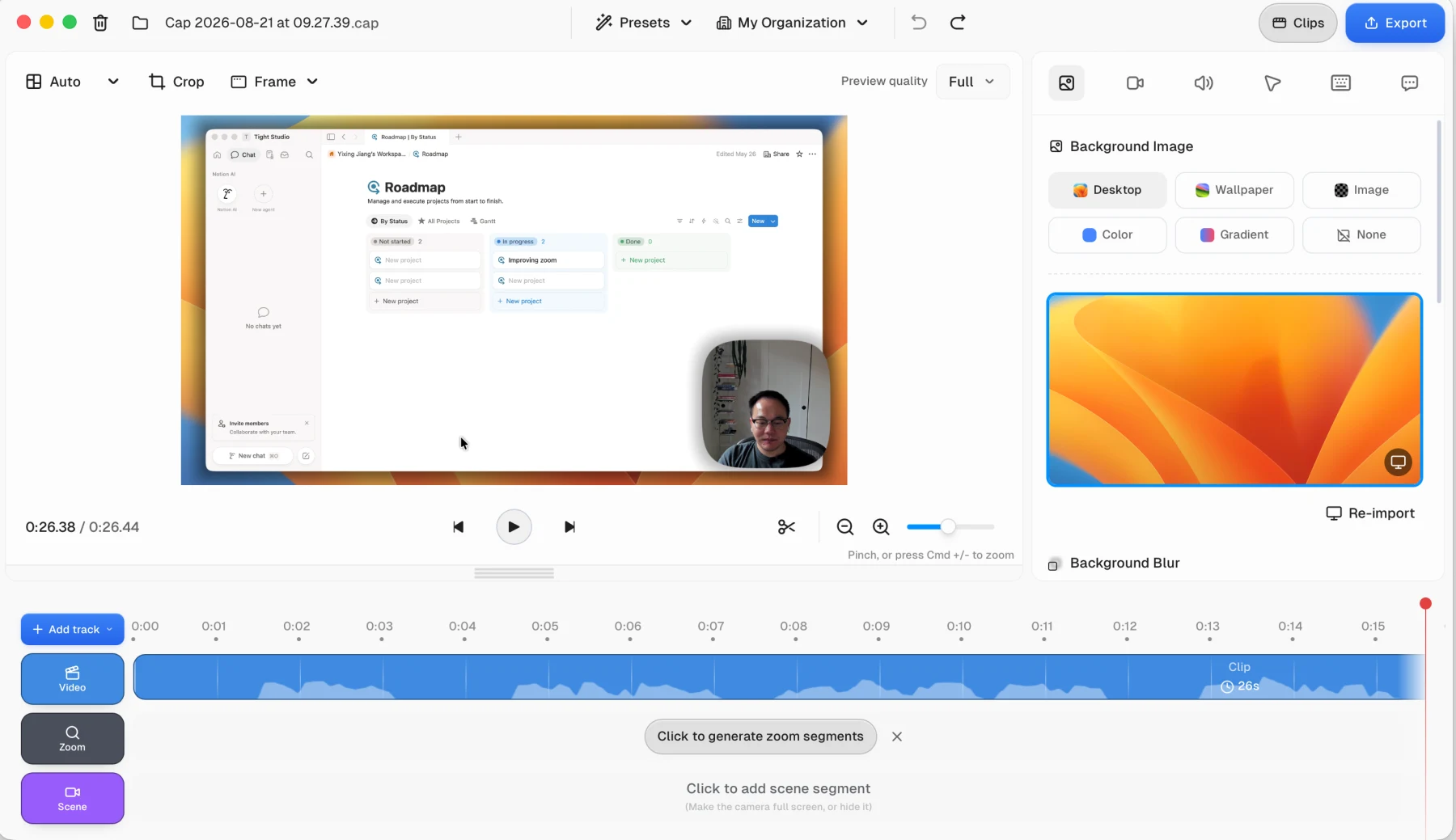
Cap: click to generate automatic zoom segments after the recording is finished.
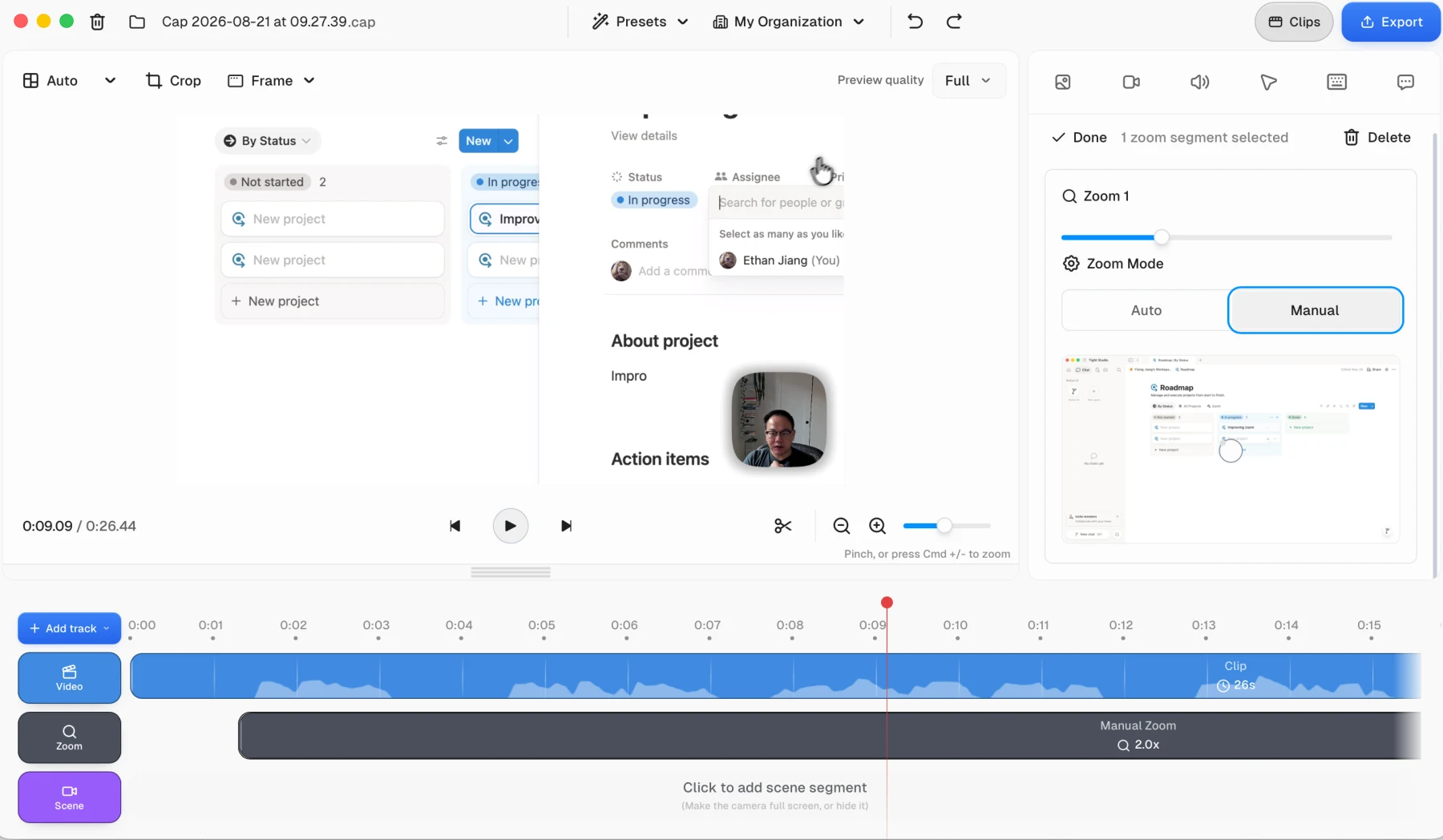
Cap: switch a zoom to Manual, then place its center on the recorded frame.
Pros
Can generate a full set of automatic zoom segments after a Studio Mode recording.
Keeps generated zoom segments visible and editable on a dedicated timeline track.
Supports manual zoom framing with a visual center control and adjustable zoom level.
Cons
In our test, automatic framing drifted farther than the action required and created a dizzy feeling.
The automatic animation felt less settled and less smooth than Tight Studio on the same short walkthrough.
Background images, colors, and blur
Backgrounds add separation around the recorded window and let the finished video match a visual style without rebuilding the composition in another editor.
The problem it solves
A raw window capture can feel cramped or visually flat. Wallpaper, gradient, color, image, blur, and padding controls create breathing room and a consistent frame around the screen content.
Our take
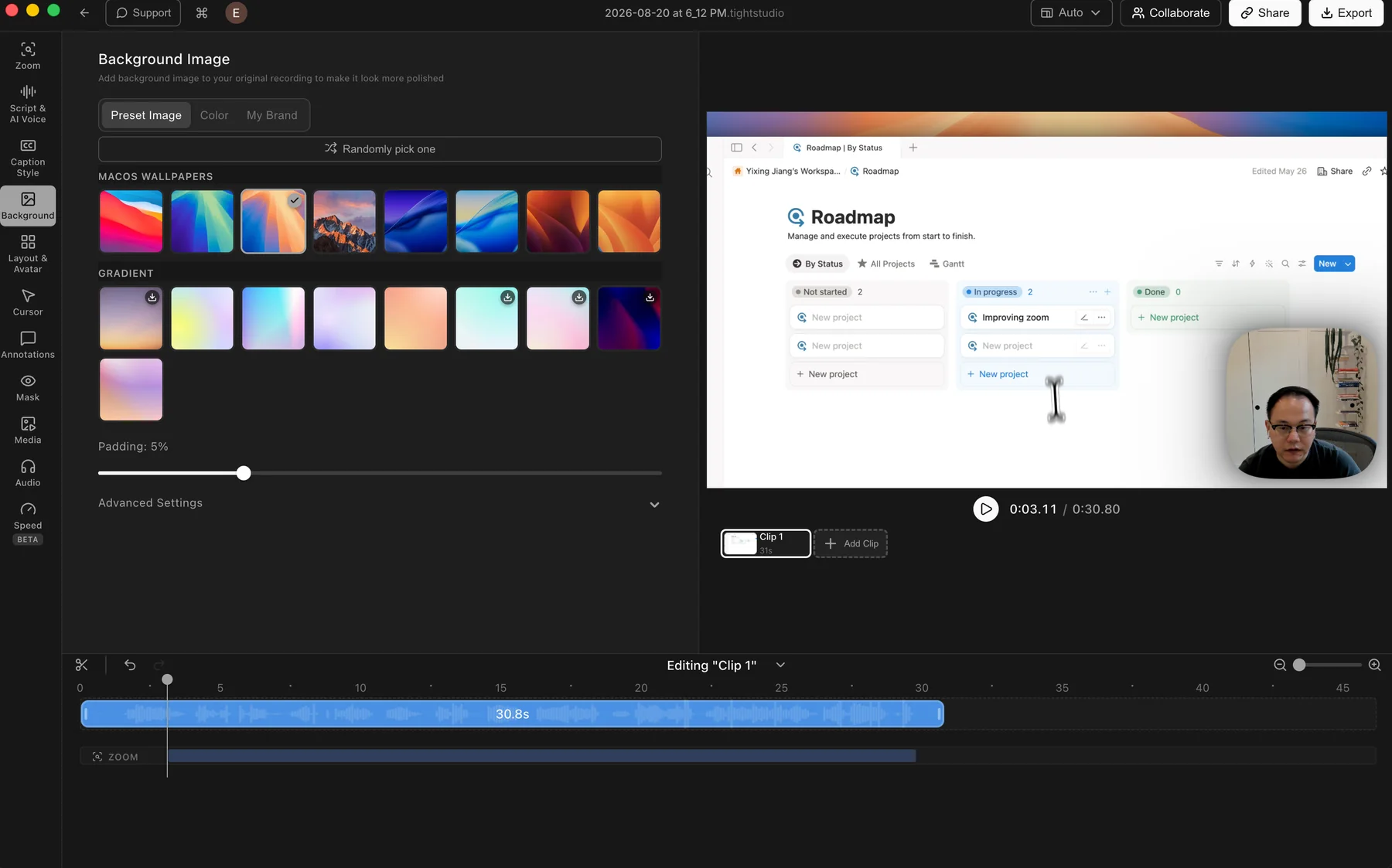
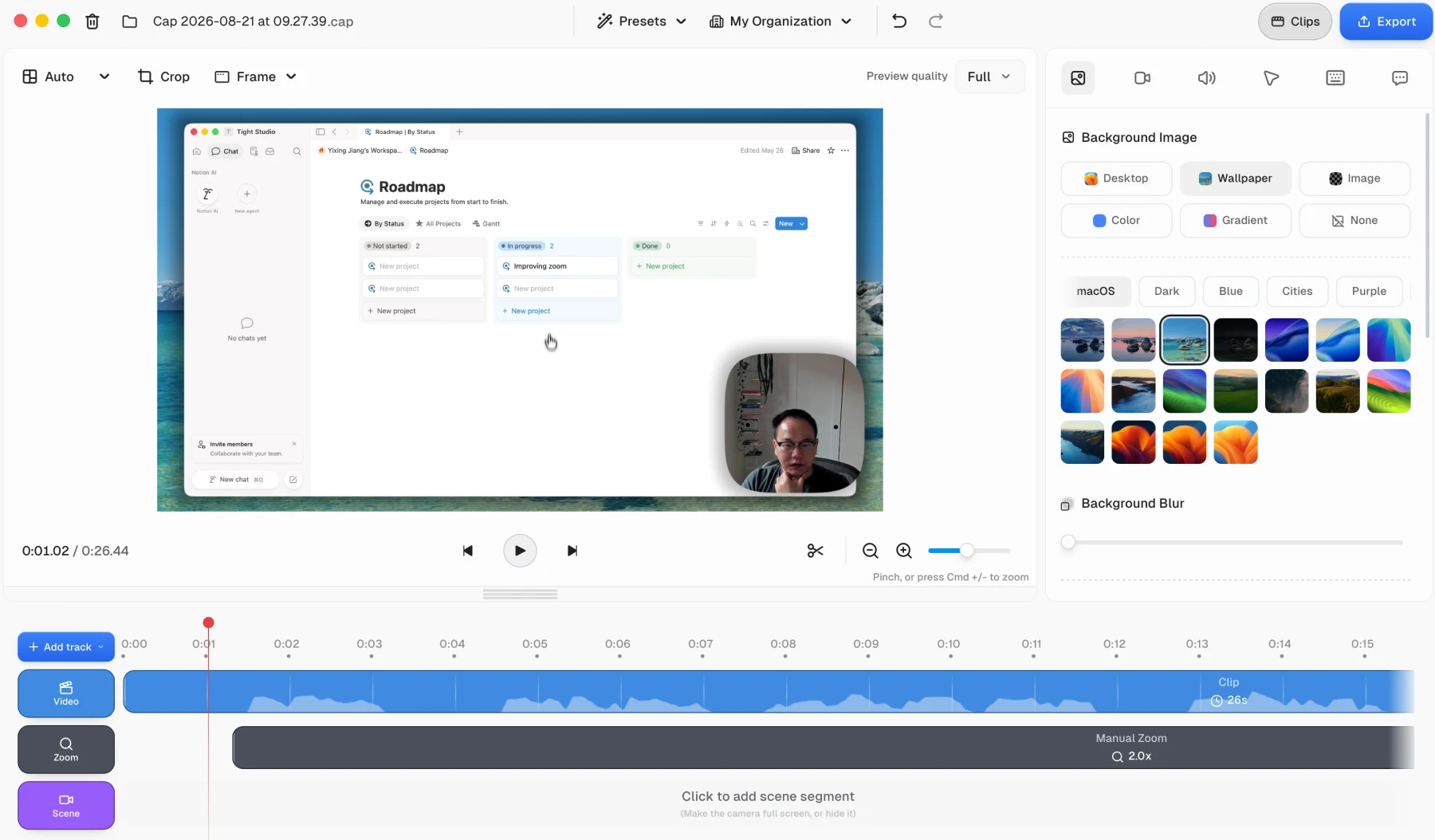
Cap wins on preset breadth. Both products cover the main wallpaper, gradient, color, and custom-image workflows, but Cap exposes a much wider categorized wallpaper library and direct blur control. Tight Studio keeps a more compact selector with random selection and direct padding controls.
Tight Studio
Tight Studio: preset wallpapers and gradients with color, brand image, and padding controls.
Pros
Includes preset macOS wallpapers and gradient backgrounds for quick styling.
Solid colors and custom brand images cover the main branded-video workflows.
Random selection and padding controls make it easy to change the frame quickly.
Cons
Shows fewer preset categories and fewer wallpaper choices at a glance than Cap.
Some fine controls sit inside Advanced Settings instead of the main panel.
Cap
Cap: a broad wallpaper library organized into macOS, Dark, Blue, Cities, and Purple categories.
Pros
Provides a wide range of built-in wallpaper images organized into visual categories.
Separates Desktop, Wallpaper, Image, Color, Gradient, and None into clear background modes.
Keeps background blur directly below the preset library for quick adjustment.
Cons
The broader preset browser is denser than Tight Studio's compact tabbed selector.
Random selection and padding are not exposed beside the library in the tested panel.
Cursor images and movement smoothing
Cursor treatment affects both visual identity and how easily viewers can follow an interaction. Appearance controls determine what the pointer looks like, while movement controls determine how it travels between actions.
The problem it solves
A small recorded cursor can be hard to follow, while abrupt or overly floaty movement distracts from the interface. Presets and custom images solve the appearance problem; smoothing styles help the pointer move clearly without feeling mechanical.
Our take
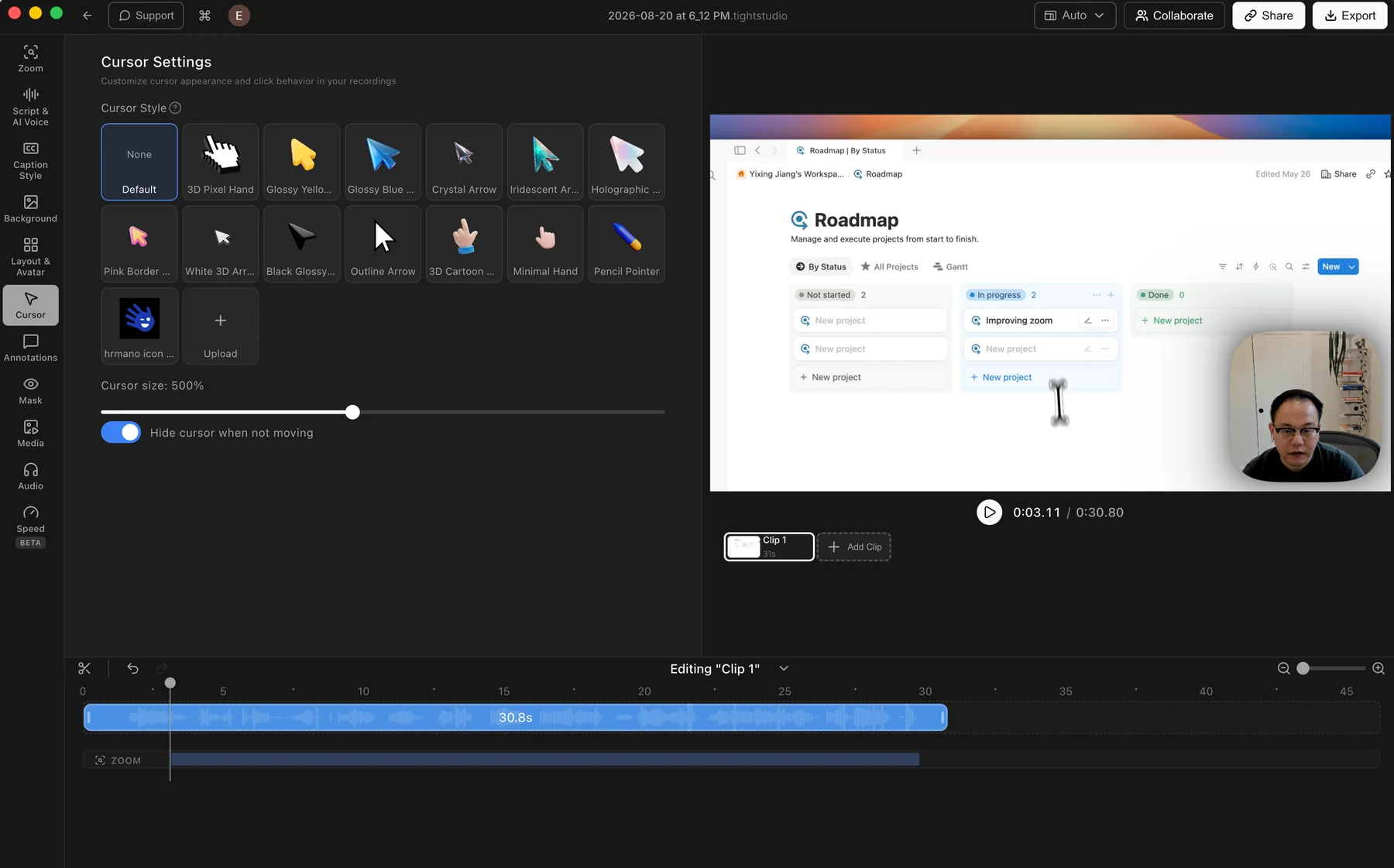
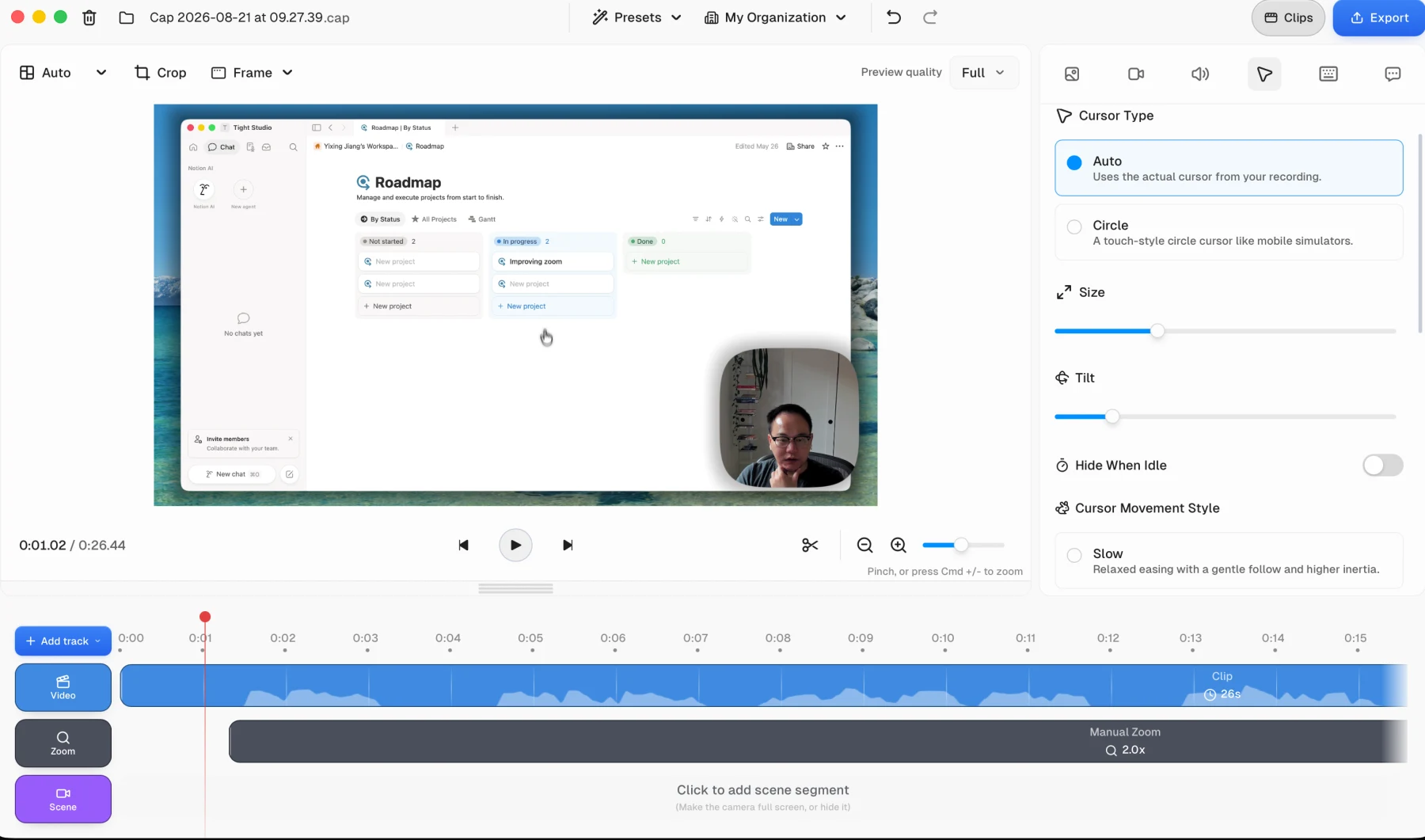
Split decision. Cap's movement smoothing felt good in our subjective test and offers more explicit motion-style choices. Tight Studio wins on cursor appearance with a varied preset library and custom uploads; Cap can only keep the recorded cursor or replace it with Circle.
Offers a varied library of preset cursor designs and adjustable cursor size.
Lets users upload their own cursor image for a branded or product-specific pointer.
Can hide the cursor when it is not moving to reduce visual clutter.
Cons
Does not offer built-in click effects or click sounds.
Cap
Cap: keep the cursor recorded during capture or replace it with a touch-style Circle.
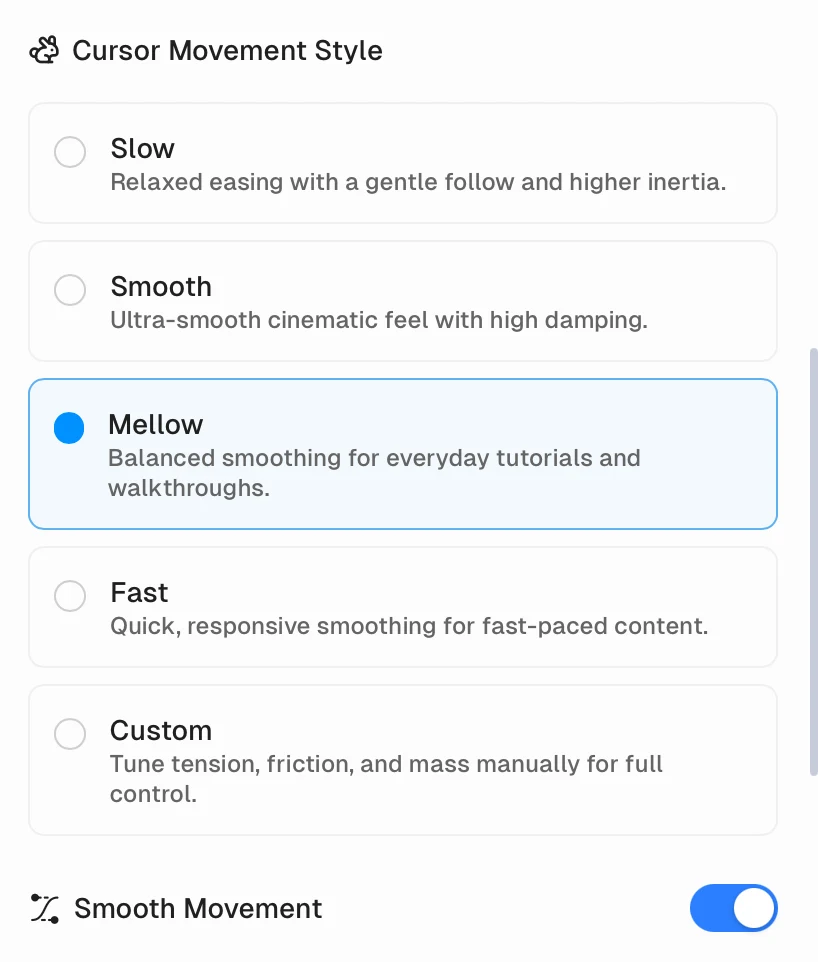
Cap: Slow, Smooth, Mellow, Fast, and Custom movement styles, with manual tension, friction, and mass available through Custom.
Pros
Cursor movement felt good in our subjective test, with smooth and readable travel between interactions.
Provides Slow, Smooth, Mellow, Fast, and Custom movement styles; Custom exposes tension, friction, and mass.
Includes size, tilt, hide-when-idle, and smooth-movement controls.
Cons
Circle is the only replacement cursor image; there are no other built-in cursor designs.
Does not provide a custom cursor-image upload option in the tested panel.
Camera layouts, Scenes, and virtual backgrounds
Camera layout changes keep the presenter visible without covering important content, while background controls determine whether the recorded room remains visible behind them.
The problem it solves
A fixed corner camera can block the interface or feel repetitive throughout a longer recording. Dynamic layouts let the presenter move aside, take focus, or disappear when the screen needs more room, while background replacement can create a cleaner camera layer.
Our take
Tight Studio wins overall. Cap's Scene track provides genuine dynamic layout changes and transition controls, closing much of the gap beyond its corner-only default panel. Tight Studio still offers a broader layout library and can remove or replace the camera background, while Cap supports blur only.
Tight Studio
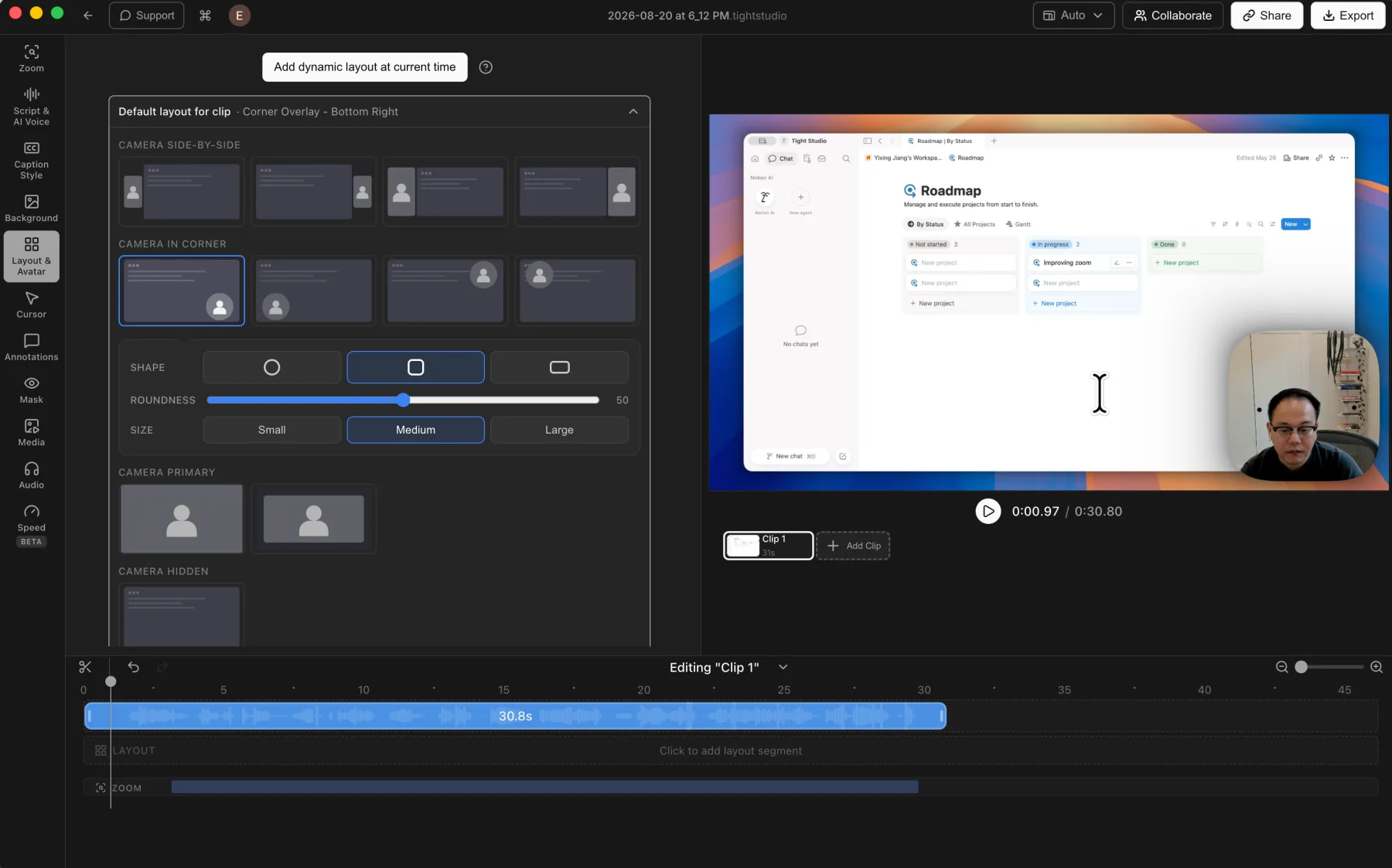
Tight Studio: a broad layout library with camera shape, size, timeline, and virtual-background controls.
Pros
Supports camera position, shape, size, mirroring, and layout changes across the timeline.
Offers side-by-side, corner overlay, camera-primary, and camera-hidden layout styles.
Can remove the recorded camera background or replace it with a preset or uploaded image.
Cons
The broader control set takes longer to scan than Cap's default camera panel.
Cap
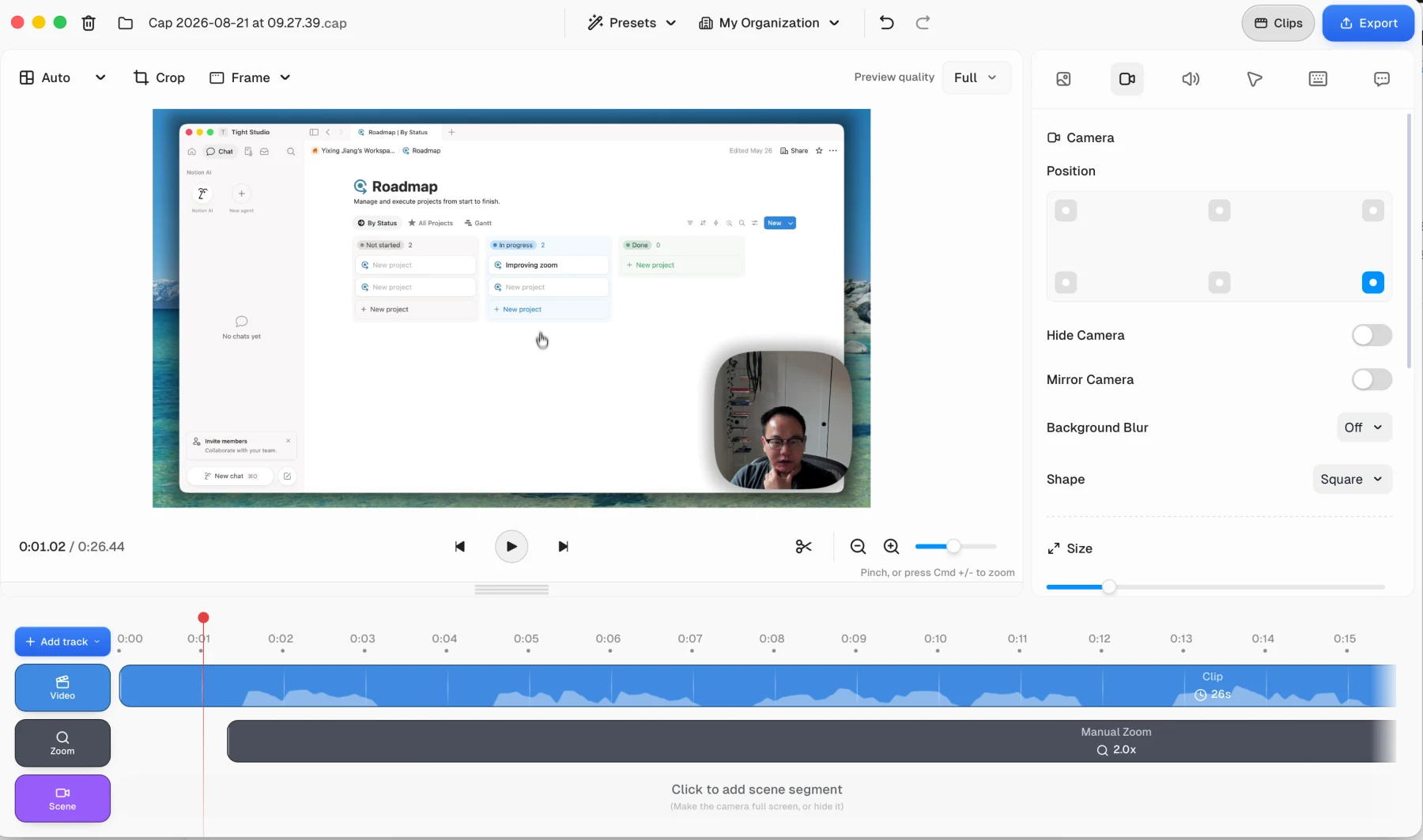
Cap: the default Camera panel is built around corner overlays, shape, size, mirroring, and blur.
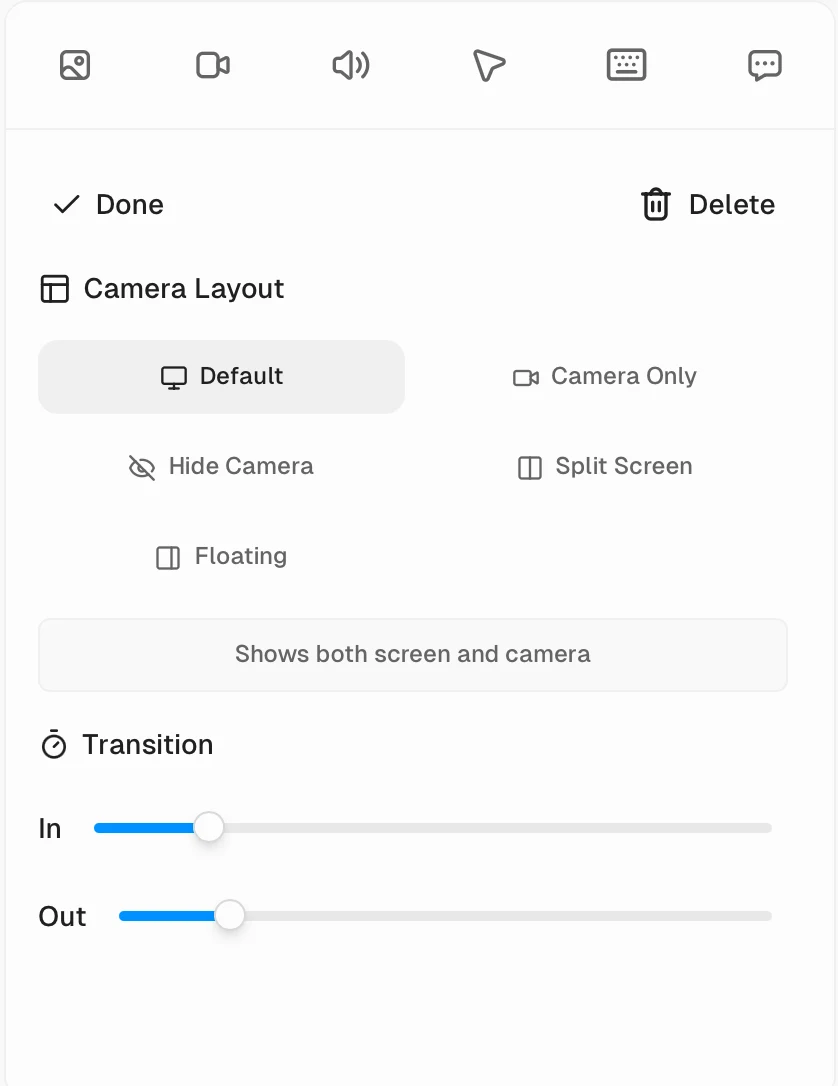
Cap: Scene segments add Default, Camera Only, Hide Camera, Split Screen, and Floating layouts over time.
Pros
Provides direct controls for camera overlay position, visibility, mirroring, shape, size, and background blur.
Scene segments add dynamic Default, Camera Only, Hide Camera, Split Screen, and Floating layouts.
Each Scene exposes separate transition-in and transition-out timing controls.
Cons
The default Camera panel is limited to edge and corner overlays; broader compositions require adding Scene segments.
Camera background treatment stops at blur, with no image replacement or background removal.
Local transcription, transcript editing, and caption styles
Automatic transcription removes the need to type captions manually. The editing workflow determines how quickly errors can be found and corrected, while style controls determine how the words appear in the finished video.
The problem it solves
Transcripts often need corrections for names, product terms, and sentence breaks. Separate caption blocks can make it harder to review the full spoken narrative, while a unified script makes broad reading and correction easier.
Our take
Split decision. Cap wins for local transcription through a downloaded model and states that captions remain on the device. Tight Studio wins for editing with a unified transcript view, synchronized timeline segments, and per-word timing correction. Both provide built-in styles, while Tight Studio adds detailed custom styling.
Tight Studio
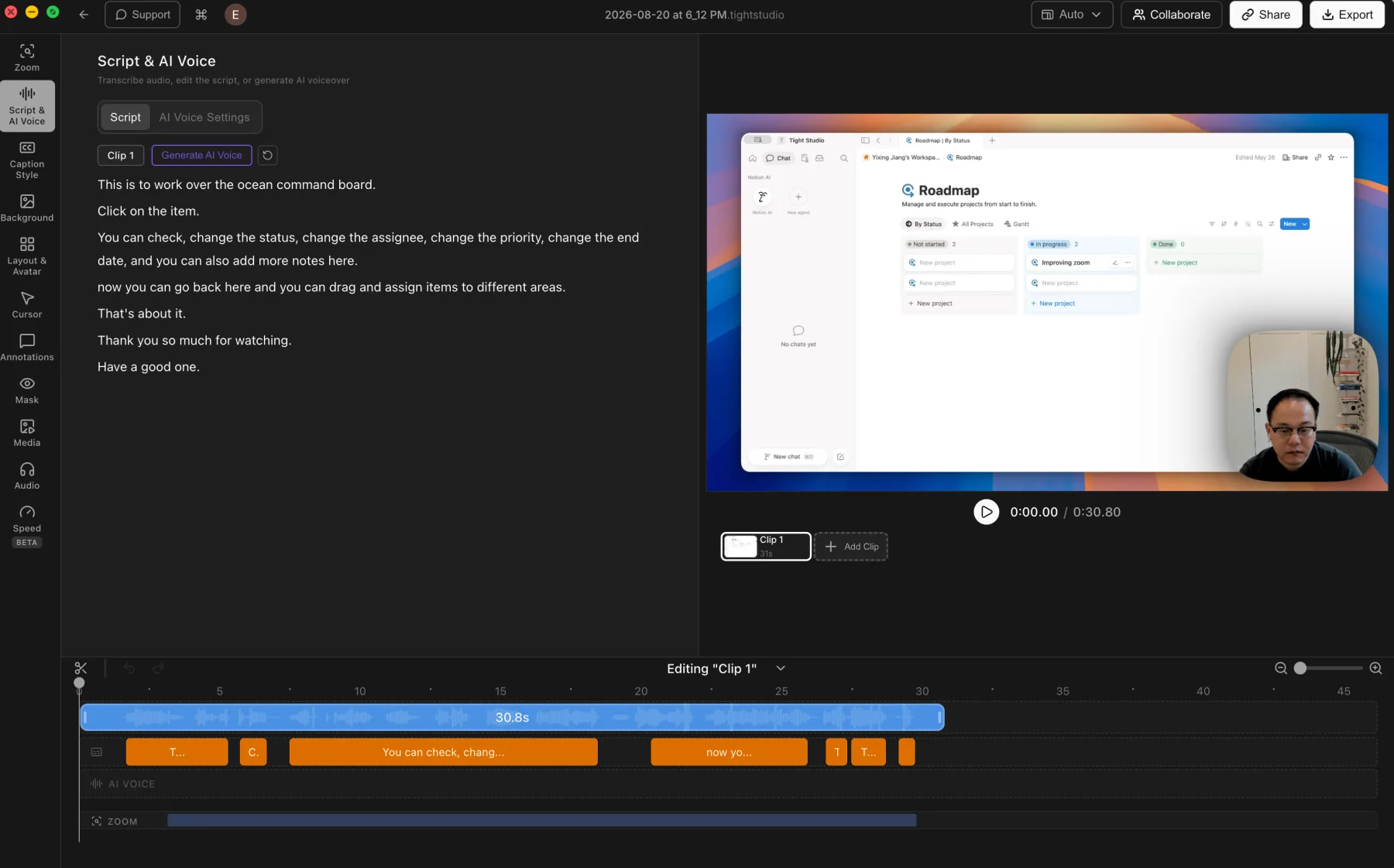
Tight Studio: transcript text stays visible beside its caption segments on the timeline.
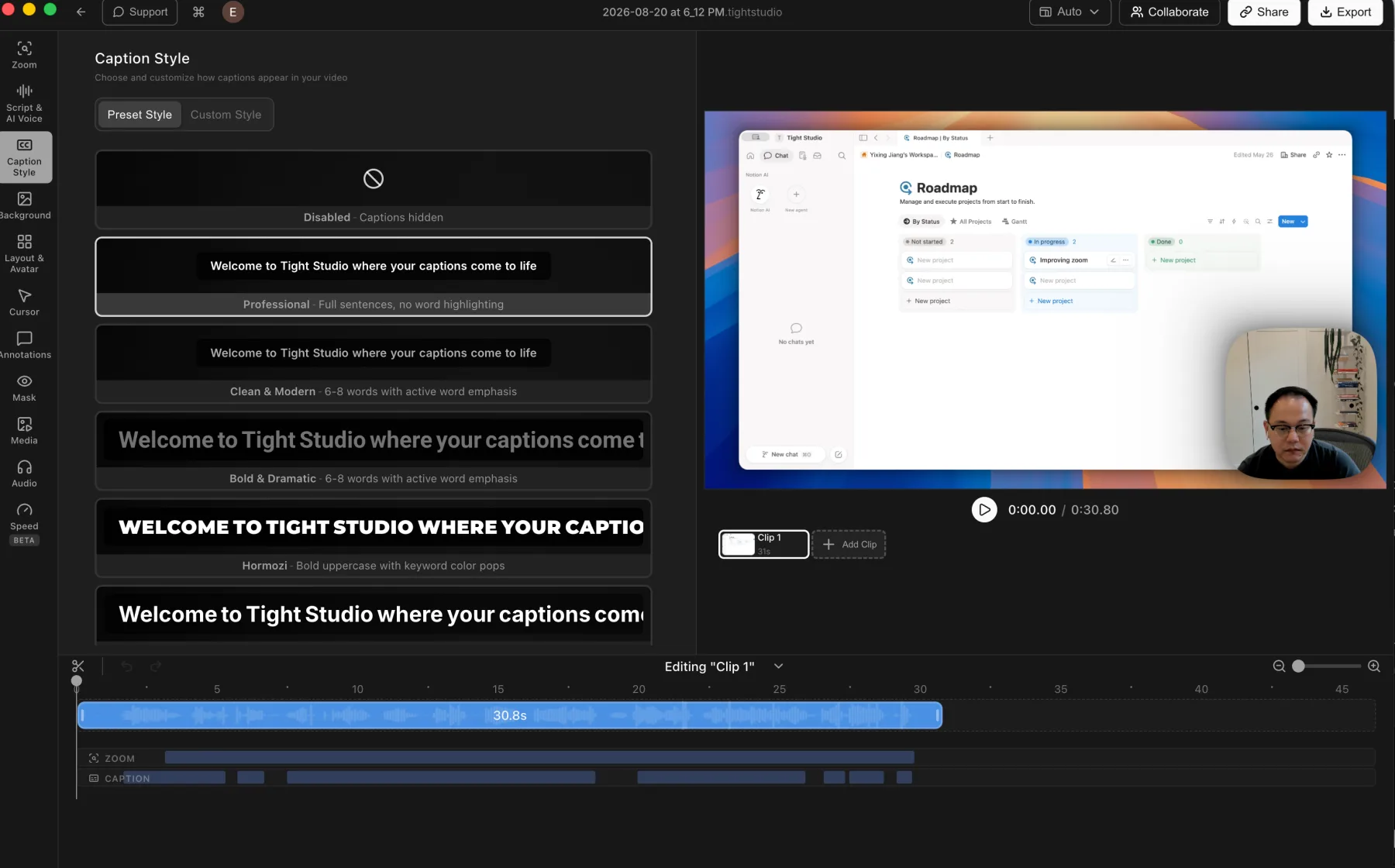
Tight Studio: caption presets plus detailed custom styling controls.
Pros
Uses ElevenLabs cloud transcription, with Tight Studio's privacy policy stating that audio is deleted after processing and not stored on Tight Studio servers.
Presents transcript editing as readable script text beside synchronized caption segments on the timeline.
Retains word-level timestamps and supports correcting the source timing of an individual caption word.
Includes caption style presets and detailed custom styling controls.
Cons
Audio must leave the Mac for cloud processing, even with the stated no-retention policy.
Transcription requires an internet connection.
Cap
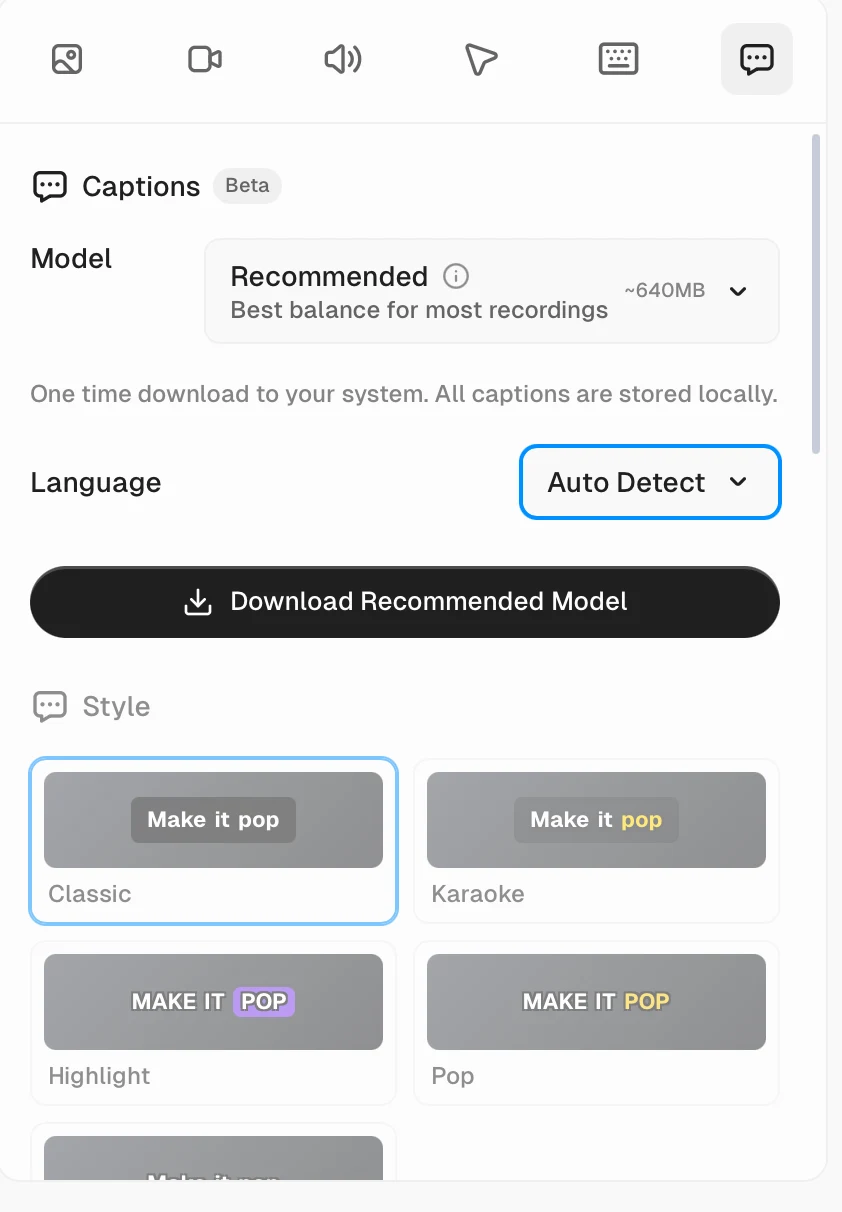
Cap: download the recommended transcription model once, keep captions local, and choose a built-in style.
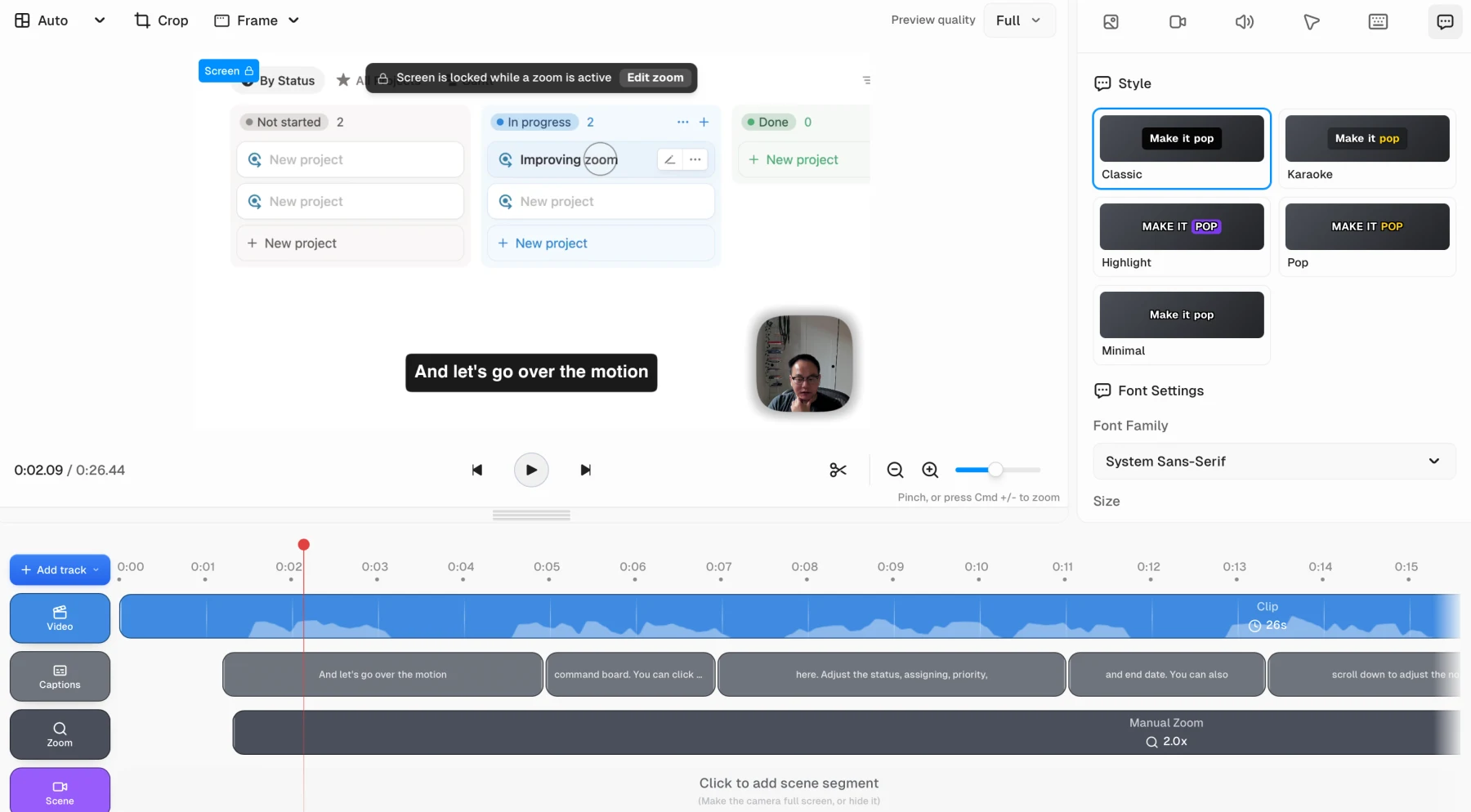
Cap: separate caption segments on the timeline with five visible style presets and font controls.
Pros
Uses a downloaded transcription model and states that captions are stored locally.
Supports automatic language detection and exposes a recommended model of roughly 640 MB.
Includes Classic, Karaoke, Highlight, Pop, and Minimal caption presets plus font settings.
Cons
The tested editor does not provide one unified transcript panel for reviewing and correcting the full recording.
Caption text is divided into separate timeline segments instead of remaining visible as one continuous script.
Music and microphone controls
Microphone controls keep narration balanced, while background music can give the finished recording a more deliberate pace and tone.
The problem it solves
A microphone track may need muting or level adjustment after recording. When the editor has no automatic cleanup, noisy or uneven speech must be fixed elsewhere, while a missing music library means finding and licensing a track before it can be imported.
Our take
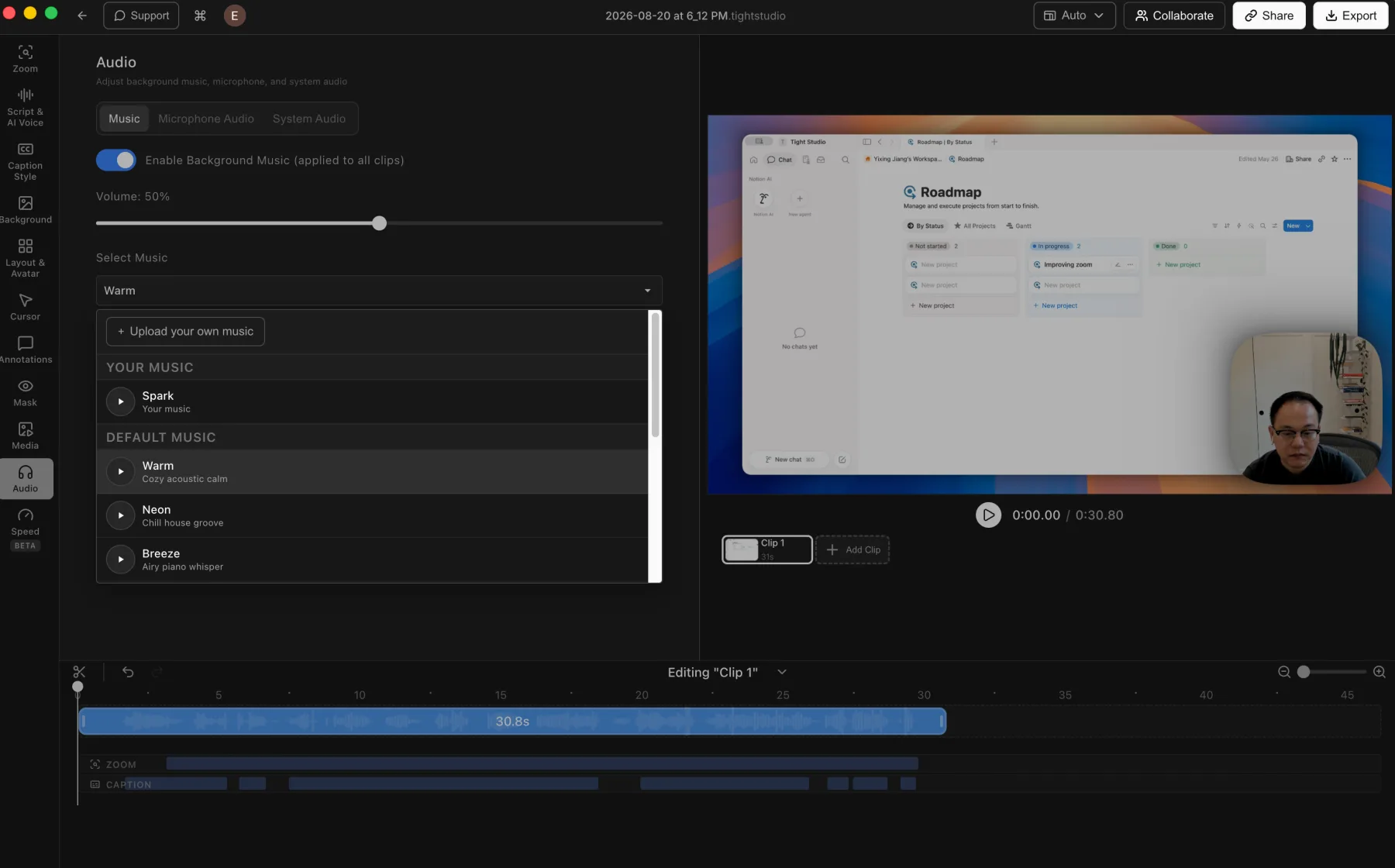
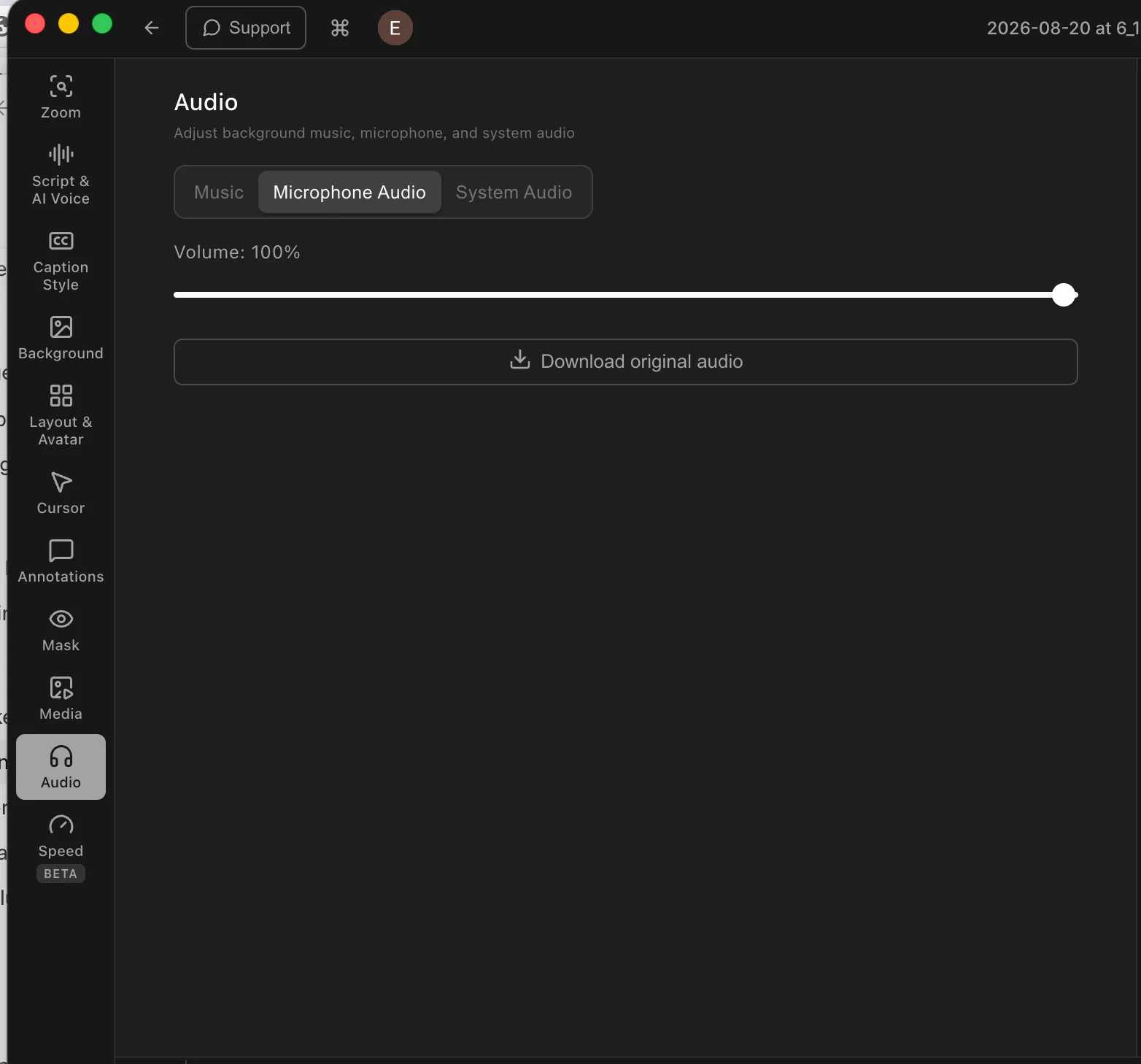
Tight Studio wins overall. Both products support microphone muting, direct volume adjustment, and custom audio imports, and neither provides automatic microphone enhancement. Tight Studio adds a built-in royalty-free music library and precisely timed music segments; Cap relies on audio files supplied by the user.
Tight Studio
Tight Studio: built-in music, custom uploads, and music volume controls.
Tight Studio: direct microphone volume control and original-audio download.
Pros
Includes a built-in royalty-free music library and lets users upload their own audio files.
Advanced music segments can be placed and trimmed to selected timeline ranges.
Supports microphone muting and direct microphone volume adjustment.
Cons
Does not provide automatic microphone noise reduction, speech enhancement, or volume normalization.
Custom music timing uses the advanced music-segment workflow rather than the simpler background-music mode.
Cap
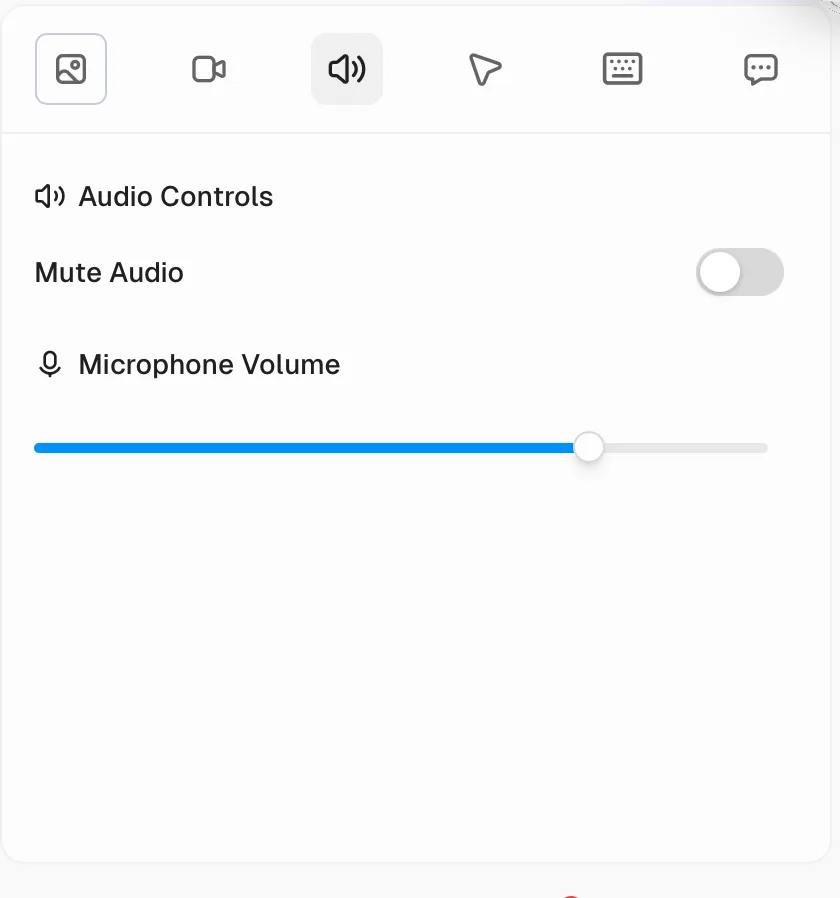
Cap: basic microphone muting and volume adjustment, with no enhancement control in the tested panel.
Pros
Supports muting the recorded microphone track.
Provides direct microphone volume adjustment.
Lets users add an Audio track and import their own background audio.
Cons
Does not provide automatic microphone enhancement, noise reduction, or normalization in the tested panel.
Does not include a built-in music library, so background audio must come from an external file.
Text, masks, shape annotations, and media overlays
Timeline overlays add explanation, visual emphasis, privacy protection, and supporting media without changing the underlying recording.
The problem it solves
Text and masks cover labels and sensitive information, but many recordings also need arrows, outlined shapes, screenshots, logos, or supporting video. Missing overlay types force another editor or a less precise visual explanation.
Our take
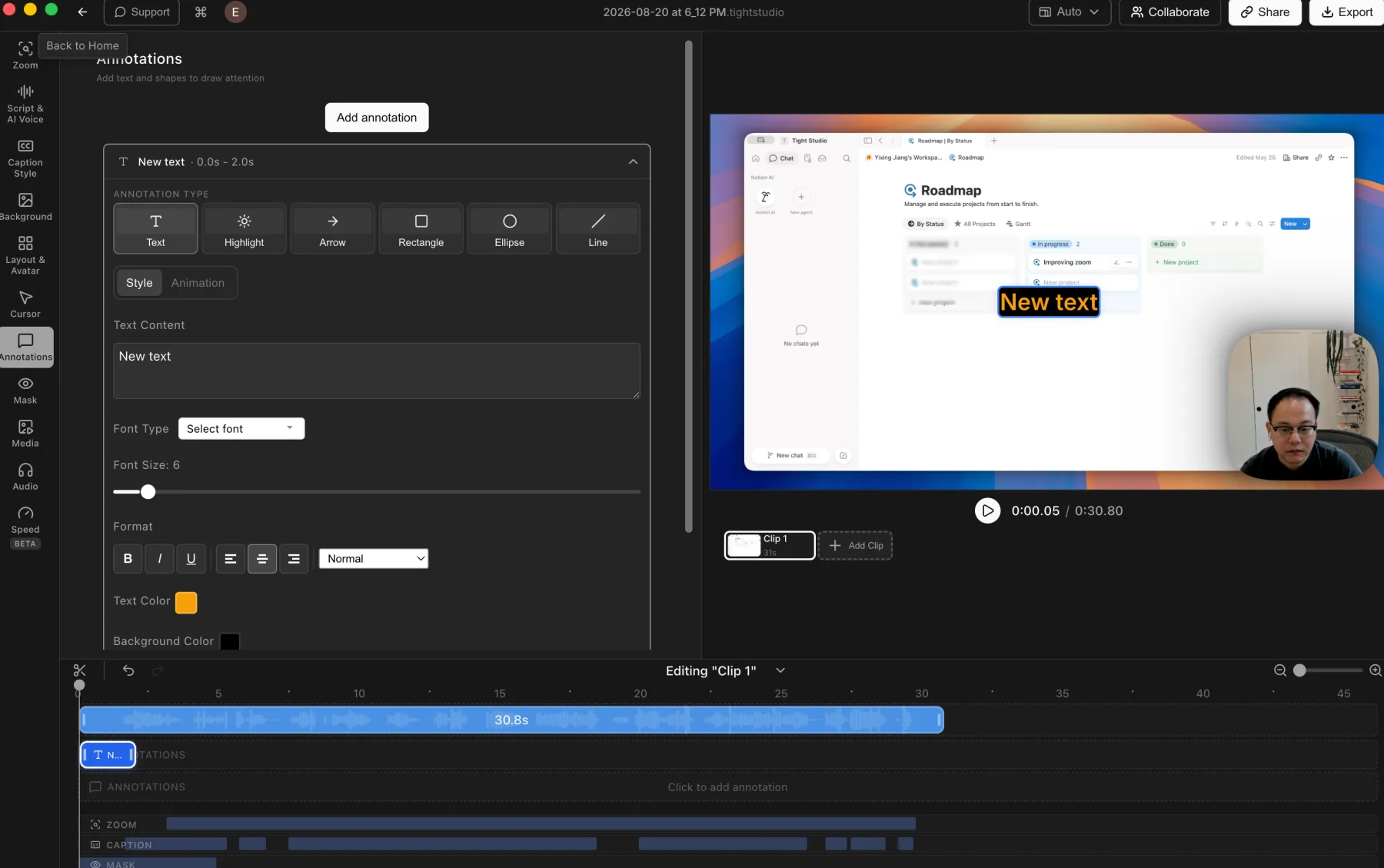
Tight Studio wins on overlay breadth. Both products support timed text and privacy masks, and Cap adds a useful keyboard track for displaying key presses. Tight Studio adds standalone highlights, arrows, rectangles, ellipses, and lines plus timed photo and video overlays, none of which appear in Cap's tested track menu.
Tight Studio
Tight Studio: styled text, highlights, arrows, rectangles, ellipses, and lines.
Tight Studio: photos and videos can be placed on the timeline as media overlays.
Pros
Adds styled text, highlights, arrows, rectangles, ellipses, and lines with timeline control.
Supports privacy masks and highlight masks for hiding details or directing attention.
Places imported photos and videos on the timeline as timed visual layers.
Cons
The broader annotation and media toolset adds more controls to learn and organize.
Masks, annotations, and media overlays still require manual placement and timing.
Cap
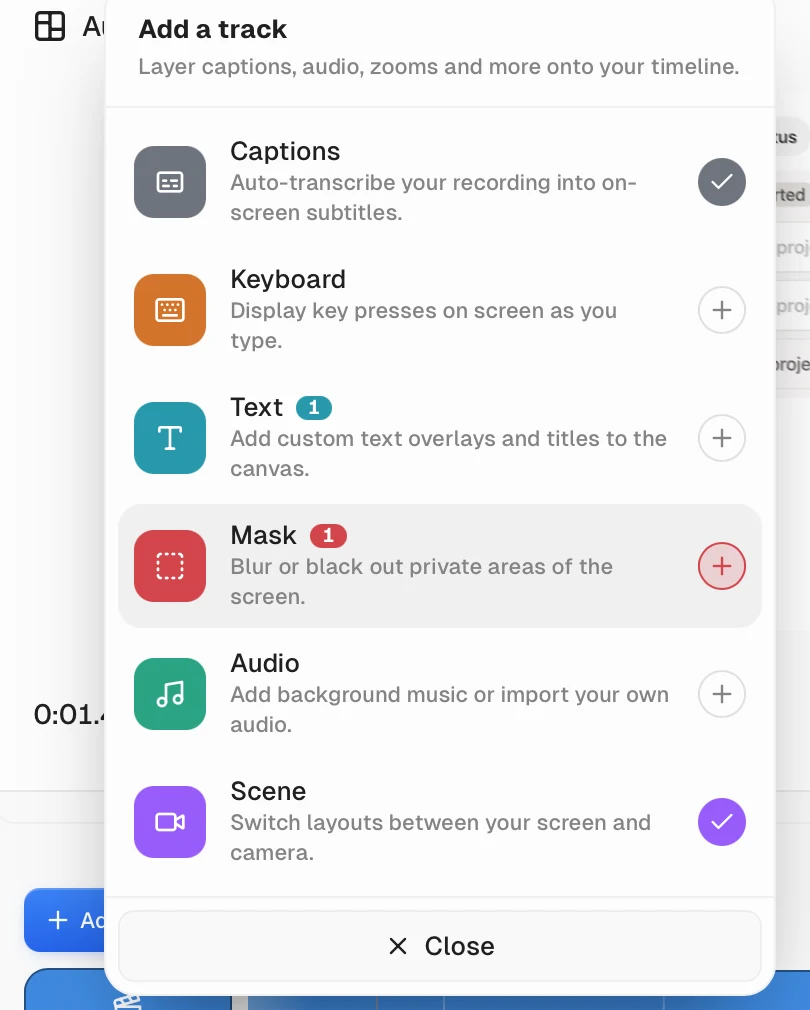
Cap: text, keyboard, and privacy-mask tracks are available, but shapes and visual media overlays are absent from the tested menu.
Pros
Supports custom text overlays and titles on a dedicated timeline track.
Provides mask overlays that blur or black out private areas of the screen.
Adds an on-screen keyboard track for displaying key presses.
Cons
Does not provide arrow, rectangle, ellipse, line, or other standalone shape annotations.
Does not support photo or video overlays as timed visual media layers.
AI voice narration and visual AI avatars
AI narration turns editable script text into speech, while an AI avatar adds a generated visual presenter. These are separate capabilities and should not be treated as interchangeable.
The problem it solves
Correcting one spoken line normally requires another recording take. AI narration makes the script editable and regenerates the voice, while AI avatars address the separate need for an on-screen virtual presenter.
Our take
Tight Studio wins AI narration with script-generated voice, personal voice cloning, and a premade voice library. Cap does not offer comparable AI voice controls. Neither product currently generates visual AI avatar presenters, so that separate category is a tie at no support.
Tight Studio
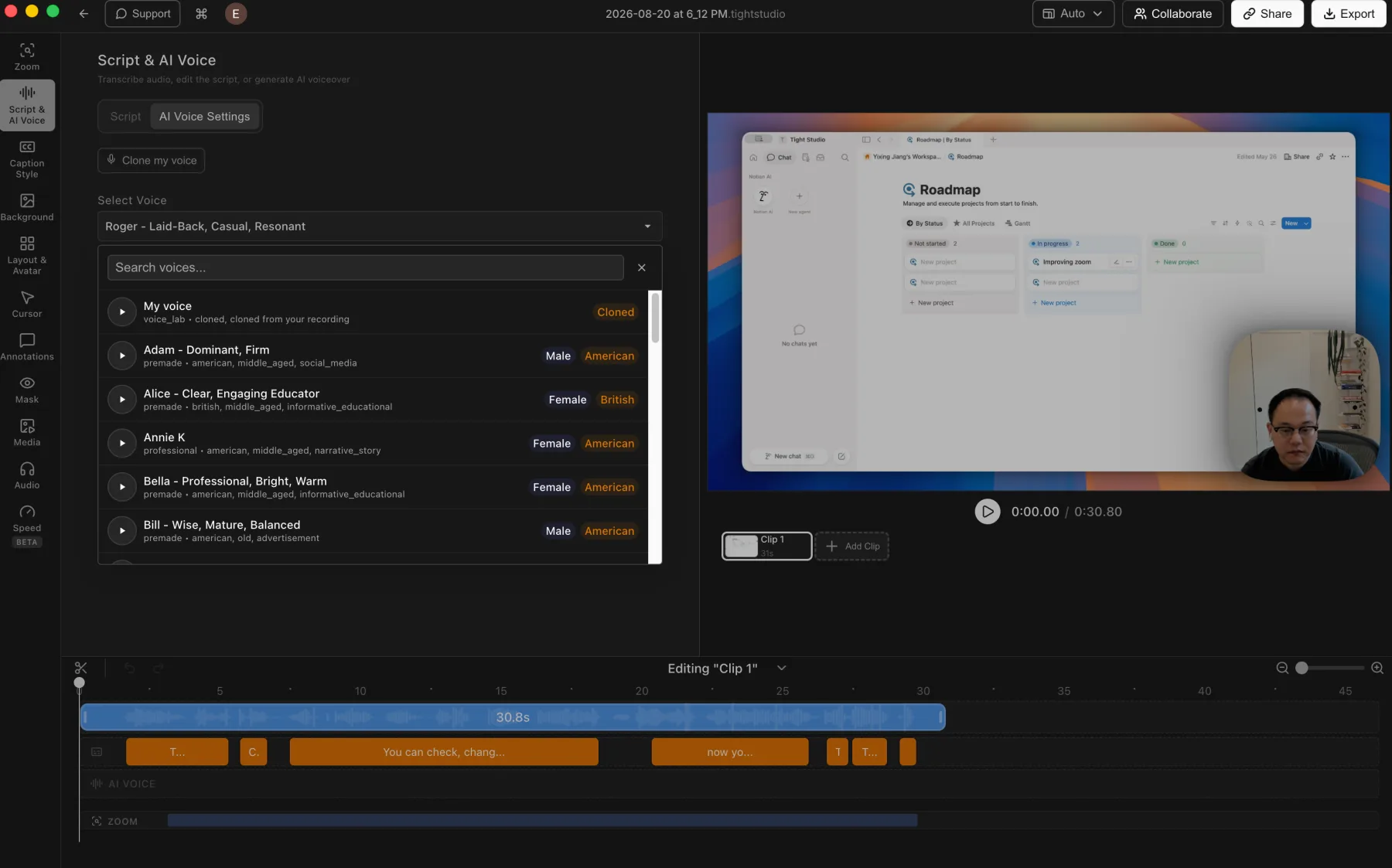
Tight Studio: voice cloning and a searchable voice library connected to the editing timeline.
Pros
Turns an edited script into generated narration without recording another take.
Lets users clone their own voice or choose and preview a searchable library of premade voices.
Keeps generated narration on a dedicated AI Voice track for timeline-based editing.
Cons
Does not generate a visual AI avatar presenter.
Generated speech may still need previewing and script adjustments to match the intended delivery.
Ongoing AI voice generation is a Pro feature after the included trial credits.
Cap
AI voice and avatars are not available
Cap Studio does not provide script-generated AI narration, personal voice cloning, or visual AI avatar presenters in the tested editor.
Pros
Keeps the default narration workflow based on the original microphone recording, without AI generation setup or credits.
Cons
Does not generate AI narration from editable script text.
Does not provide personal voice cloning or a built-in voice library.
Does not generate a visual AI avatar presenter.
Multi-clip recording and media imports
Recording another take or importing supporting media inside the same project avoids an export-and-reassemble workflow in another editor.
The problem it solves
A second take should behave like part of the same project, not an isolated file. Video, captions, and other project state need to stay in sync, while photo and video imports make it possible to add supporting visuals without another editing handoff.
Our take
Tight Studio wins overall. Both products can append another recording and import video, but Tight Studio also imports photos as timed media. In our Cap test, the second recording was added to the video track without automatically extending or refreshing the existing captions, so the multi-clip workflow needed manual follow-up.
Tight Studio
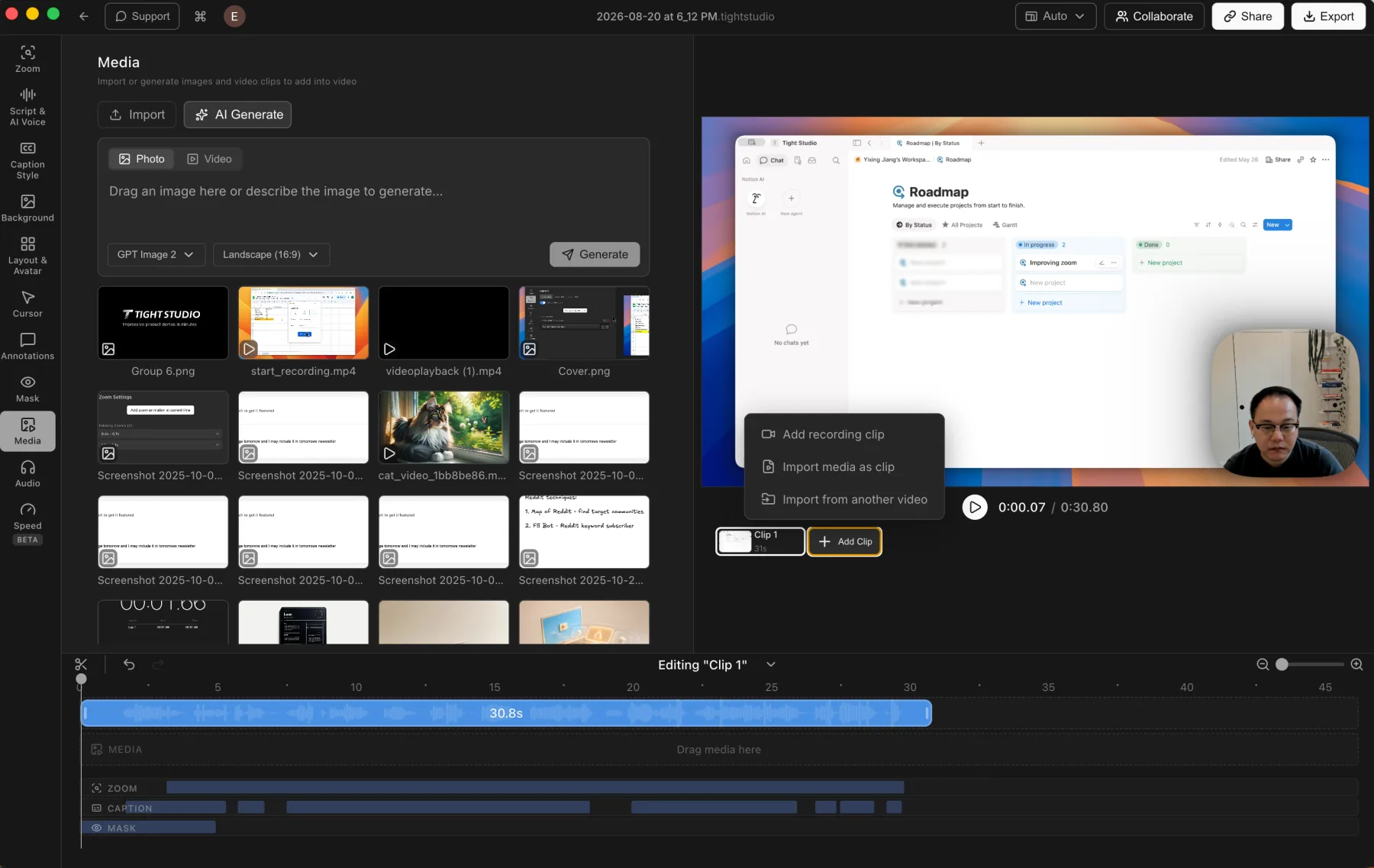
Tight Studio: imported media and additional recording clips stay inside one editable project.
Pros
Combines multiple screen recordings into one project, including new takes and clips imported from another video.
Imports photos and videos into the media library, then places them on the timeline as timed visual layers.
Keeps assembly, visual edits, and the final export in one app, avoiding an extra handoff and video encode.
Cons
Larger multi-clip projects require more timeline organization than a simple one-take recording.
Cap
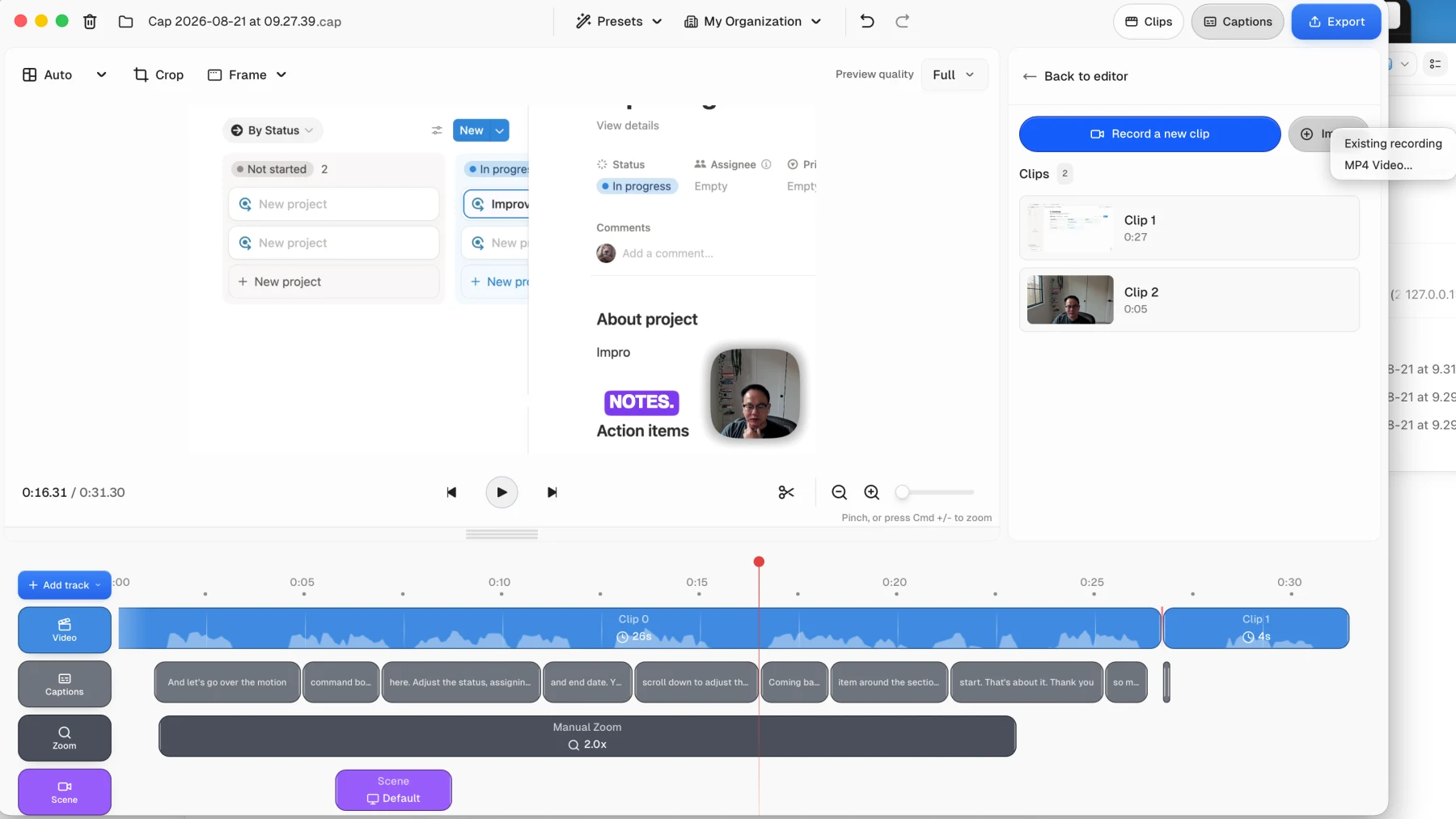
Cap: append a new recording or import an MP4, but the existing captions did not extend into the second clip in our test.
Pros
Can record another clip directly into the current project.
Can import an existing Cap recording or an external MP4 video.
Keeps appended clips visible in both the Clips panel and the main video timeline.
Cons
In our test, caption and transcription state did not update automatically after the second recording was added; the caption track stopped with the original clip.
Does not support importing photos as project media.
The missing automatic follow-through made the multi-clip workflow feel incomplete in this test.
iPhone and iPad recording with device frames
Direct mobile-device capture keeps the recording, editing, and export workflow on the Mac, while a device frame gives the vertical screen a finished hardware presentation.
The problem it solves
Without connected-device capture, the iPhone or iPad must be recorded separately and transferred as a file. Without a device frame, that imported portrait video remains a plain rectangle unless another editor or mockup workflow is added.
Our take
Tight Studio wins. It records a connected iPhone or iPad through USB, places the screen inside a polished device frame, and keeps the mobile clip available for the normal editing workflow. Cap can import a separately recorded MP4, but it does not provide direct iOS capture or a device frame in the tested editor.
Tight Studio
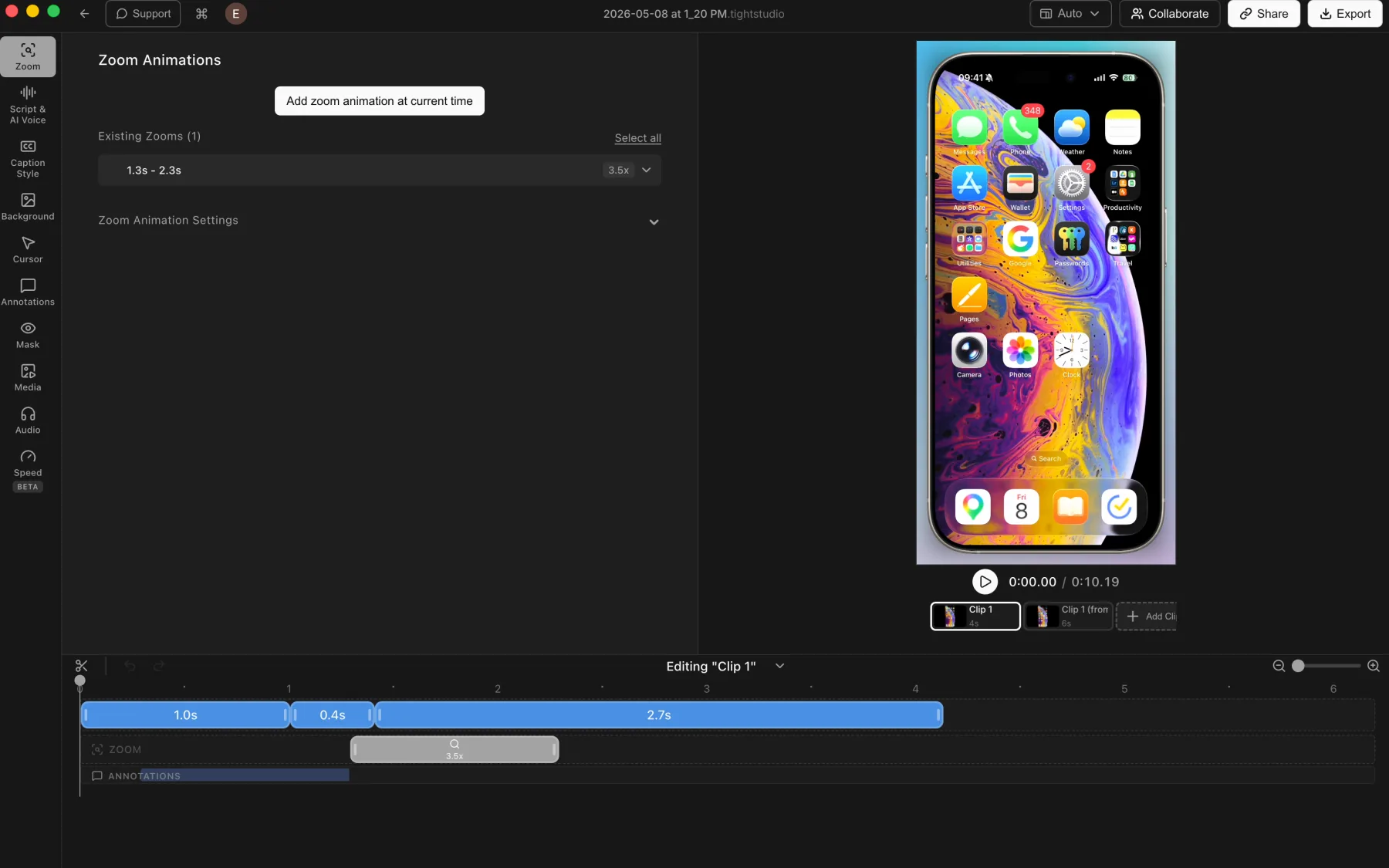
Tight Studio: a connected iPhone recording with a device frame, multiple clips, zoom, and annotation tracks.
Pros
Captures a connected iPhone or iPad directly into the Mac editor through USB.
Renders the mobile screen inside a polished device frame that appears in the finished export.
Applies the normal editing tools, including manual zooms, backgrounds, captions, masks, annotations, and multiple clips.
Cons
Requires connecting and trusting the device before recording.
Touch gestures do not provide desktop-style cursor metadata, so zooms may need manual placement.
Cap
No direct iPhone recording
Cap Studio does not provide a connected iPhone or iPad recording mode or a device frame for presenting mobile footage in the tested editor.
Pros
Can import a mobile recording after it has been exported as an MP4 file.
Cons
Does not record a connected iPhone or iPad directly into the project.
Does not add a realistic iPhone or iPad device frame around imported mobile footage.
Requires a separate mobile recording and file-transfer workflow before editing can begin.
The core difference
An open-source Loom alternative versus a focused Studio workflow
Cap spans two jobs. Instant Mode is the Loom-style path for recording and sharing quickly, while Studio Mode adds the timeline, automatic zoom, cursor treatment, captions, backgrounds, and other controls that make it a direct Tight Studio competitor. Choose first by ownership and platform, then by the editing experience you prefer.
Cap strengths
When should you choose Cap?
You need open-source software
Cap is AGPL licensed, so teams can inspect the code and make source-level decisions for themselves.
You want a Loom-style Instant workflow
Cap Instant Mode prioritizes recording and getting a browser link quickly, while Studio Mode is available when the recording needs a fuller edit.
You need self-hosting or Windows
Cap can run its cloud on your own infrastructure and ships native apps for Mac and Windows. Tight Studio is a hosted service with an Apple Silicon Mac app today.
Tight Studio strengths
When should you choose Tight Studio?
You want smoother automatic zoom
In our Cap 0.5.9 test, automatic framing drifted farther than the action required and felt dizzy. Tight Studio produced smoother, more settled movement on the comparison walkthrough and exposes additional motion controls.
You want built-in AI creation
AI narration, voice cloning, and generated media are available inside Tight Studio alongside its screen-presentation controls.
You want music without sourcing tracks elsewhere
Tight Studio includes a royalty-free music library, accepts custom audio uploads, and can place and trim music segments on selected timeline ranges. Cap accepts imported audio but does not provide a built-in music library.
You record iPhone or iPad walkthroughs
Tight Studio captures a connected iPhone or iPad through USB, renders the mobile screen inside a polished device frame, and keeps the result in the same editing workflow. Cap requires a separately recorded mobile video to be imported as an MP4 and does not add a device frame.
You prefer one guided production workflow
Tight Studio stays focused on the polished Studio use case instead of splitting the product between instant hosted messages and fuller timeline editing.
What both do well
The table does not need to repeat the basics
Both products already cover the foundation of a polished Mac screen recorder. The comparison below focuses on the differences that can actually change your choice.
Local desktop recording and editing
Automatic and manual zoom segments
Smoothed cursor movement and cursor controls
Multi-clip projects and imported video
Backgrounds, text tracks, captions, masks, and music
Optional share links and team workspaces
Decisive differences
The differences that can change your decision
The products overlap on most Studio editing basics. This table focuses on workflow, ownership, platform support, and the tested zoom result.
Feature
Tight Studio
Cap
Recording workflows
Studio editorRecord into an editable local project
Instant + StudioInstant for fast sharing; Studio for polished editing
Automatic zoom motion
YesSmooth and controlled in our test
PartialGenerated zooms drifted too far in our test
Manual zoom center
YesAdjust framing on the timeline
YesSwitch to Manual and place the center visually
Built-in background selection
FocusedWallpapers, gradients, colors, brand images, and random selection
BroaderCategorized wallpaper library plus desktop, image, color, gradient, and blur controls
Cursor image choices
BroaderPreset designs plus custom image upload
Recorded + CircleKeep the recorded cursor or replace it with Circle
Cursor movement styles
SmoothedAutomatic smoothing with cursor appearance controls
5 stylesSlow, Smooth, Mellow, Fast, and Custom; movement felt good in our subjective test
Dynamic camera layouts
YesLayout track with a broad preset library
YesScene track with Default, Camera Only, Hide, Split Screen, and Floating
Camera background replacement
YesRemove the background or use a preset/custom image
NoBackground blur only
Caption transcription
Cloud AIElevenLabs cloud transcription under a stated no-retention policy
Local modelOne-time model download; captions stored locally
NoSeparate caption segments; no unified transcript panel found
Caption styling
Presets + customPreset library plus detailed custom styling
5 presetsClassic, Karaoke, Highlight, Pop, and Minimal plus font settings
Microphone mute and volume
YesMute plus direct track volume control
YesMute Audio toggle plus Microphone Volume slider
Automatic microphone enhancement
NoNo automatic cleanup or normalization
NoNo enhancement control in the tested panel
Built-in music library
YesRoyalty-free tracks plus custom uploads
NoImport your own audio only
Custom audio import
YesUpload audio and place timed music segments
YesAdd an Audio track and import a file
Text and privacy-mask overlays
YesTimed text plus blur and image-replacement masks
YesText track plus blur or blackout masks
Shape annotations
YesHighlights, arrows, rectangles, ellipses, and lines
NoNo standalone shape tools in the tested track menu
Photo and video overlays
YesTimed media layers on the project timeline
NoNo visual media overlay track
AI narration / voiceover
YesPremade voices, personal voice cloning, and script-based generation
NoNo AI voice controls in the tested editor
Visual AI avatar presenters
NoVoice-only AI narration
NoNot available
Record additional clips
YesRecord additional takes inside the project
YesRecord a new clip; captions did not update automatically in our test
Import external video
YesImport video into the media library or as another clip
YesImport an existing recording or MP4 video
Import still photos
YesPlace photos on the timeline as timed media
NoNo photo import option in the tested Clips panel
Direct iPhone and iPad recording
YesCapture a connected device through USB
NoImport a separately recorded MP4 instead
Mobile device frame
YesRendered around the device screen and included in export
NoNo device-frame option in the tested editor
AI media generation
YesGenerate images on demand (Pro)
No
Windows app
NoApple Silicon Mac only
YesNative Mac and Windows apps
Open source
No
YesAGPL, self-hostable
Self-hostable cloud
No
YesRun your own Cap server
Free local recording
YesStandard exports have no watermark; trial limits apply
YesUnlimited Studio recording for personal use
Free share-link limits
5 linksEach Tight Studio link expires after 7 days
5 minutesEach Cap Instant recording is capped at 5 minutes
Your questions, answered
What is the practical difference?
Choose based on the work you need to finish, not the longest feature list.
Workflow
Cap offers two starting points: Instant Mode for a fast hosted recording and Studio Mode for a local project with a fuller editor. Tight Studio starts with the polished local project workflow, then lets the creator export or optionally share the finished result.
Automatic and manual zoom
Both generate editable zoom segments after recording and support manual framing. Cap makes generation an explicit click after a Studio capture, then lets each segment switch from Auto to Manual with a visual center control. In our short Notion test, Cap drifted too far between actions and felt dizzy; Tight Studio produced smoother motion and provides controls for animation style, duration, motion blur, auto-centering, and camera size.
Editing depth
Both offer cursor treatment, text tracks, caption presets, music, multi-clip editing, masks, imported clips, and high-resolution export. Tight Studio adds AI voiceover, voice cloning, and generated media. Cap combines its comparable Studio editor with a more conventional timeline and an Instant recording product.
Background selection
Both support preset wallpapers, gradients, colors, and custom images. Cap exposes the broader built-in selection, with categories including macOS, Dark, Blue, Cities, and Purple plus a visible background blur control. Tight Studio uses a smaller, more compact library and adds one-click random selection, brand images, and direct padding controls.
Cursor image and movement
Cap keeps the actual recorded cursor or replaces it with a Circle, with no other built-in cursor images or custom image upload in the tested panel. Tight Studio offers a broader preset cursor library plus custom uploads. Cap provides Slow, Smooth, Mellow, Fast, and Custom movement styles, and its cursor movement felt good in our subjective test.
Camera layouts and background treatment
Cap defaults to six edge and corner camera positions with visibility, mirroring, shape, size, and blur controls. Adding a Scene segment expands this to Default, Camera Only, Hide Camera, Split Screen, and Floating layouts with separate transition-in and transition-out timing. Tight Studio uses a similar timeline layout model with a broader preset library, then adds camera background removal and preset or uploaded virtual background images. Cap only blurs the recorded camera background.
Captions and transcript editing
Cap downloads a transcription model, supports automatic language detection, and states that captions are stored locally. Its tested editor includes Classic, Karaoke, Highlight, Pop, and Minimal styles plus font settings, but no unified panel for reviewing the full transcript. Tight Studio uses cloud transcription under a stated no-retention policy, then keeps one editable script beside synchronized caption segments and supports correcting individual word timing.
Music and microphone controls
Both products can mute the microphone, adjust its volume, and import custom audio. Neither provides automatic microphone enhancement, noise reduction, or normalization in the tested controls. Tight Studio adds a royalty-free music library and can place and trim music segments on selected timeline ranges, while Cap relies on audio files supplied by the user.
Text, masks, shapes, and media overlays
Both products add timed text and privacy masks. Cap also provides a Keyboard track for displaying key presses, but its tested track menu does not include standalone shapes or visual media overlays. Tight Studio adds highlights, arrows, rectangles, ellipses, and lines plus timed photo and video layers.
AI voice and AI avatars
Tight Studio generates narration from editable script text and supports premade voices and personal voice cloning. Cap does not provide comparable AI voice controls in the tested editor. Neither product currently generates visual AI avatar presenters, so Tight Studio leads only in the voice category.
Multi-clip recording and media imports
Both products can record another clip inside the current project and import external video. Cap accepts an existing Cap recording or MP4, but does not offer photo import. In our Cap test, adding a second recording did not automatically update caption and transcription state, and the caption track stopped with the original clip. Tight Studio also imports photos as timed media and presents the broader multi-clip assembly workflow in one project.
iPhone and iPad recording
Tight Studio records a connected iPhone or iPad directly through USB, presents the screen inside a realistic device frame, and includes that frame in export. Cap does not provide connected iOS capture or a device frame in the tested editor, although a separately recorded mobile MP4 can be imported as a normal video.
Ownership, platform, and privacy
Both keep ordinary Studio recording and editing local and use network services for selected cloud features. Cap is AGPL, runs on Mac and Windows, and can self-host its cloud. Tight Studio is closed source, limited to Apple Silicon Macs today, and offers hosted sharing, collaboration, captions, and AI services without a self-hosted option.
Pricing and open-source ownership
Cap offers unlimited local Studio recording for personal use; the five-minute free limit applies to Instant share recordings. Commercial desktop use is $29 per year and Cap Pro is priced per user. Tight Studio Free has trial limits for Add Clip and AI Voice, with paid plans from $9 per month billed yearly.
Pricing
Current plans and practical limits
$0 / month
Standard exports have no watermark. Free includes five Add Clip trial uses, up to five seven-day share links, and 100 trial AI credits; trial AI Voice exports are watermarked.
Cap offers unlimited local Studio recording for personal use; its five-minute free limit applies to Instant share recordings. Tight Studio Free uses trial limits for Add Clip and AI Voice.
Tight Studio
Free$0No watermark on standard exports; 5 Add Clip trial uses, up to 5 shareable links with 7-day expiration, and 100 trial AI credits
Plus$9/moBilled yearly, or $19/mo monthly. Unlimited multi-clip recording and unlimited non-expiring shareable links
Pro$24/moBilled yearly, or $49/mo monthly. 1,000 AI credits/mo plus team workspace and collaborative editing
Cap
Free (Open Source)$0AGPL licensed; unlimited local Studio recordings for personal use, with a 5-minute limit on free Instant share recordings
Desktop License$29/yrCommercial use, unlimited local editing, and 20 shareable links/mo up to 5 min each; annual and lifetime purchase options are shown
Cap Pro$12/user/moBilled monthly, or $8.16/user/mo billed yearly. Unlimited sharing, AI, custom domain, and team workspaces
Using both products
Can you use both?
Yes. Cap can cover Windows, self-hosted sharing, or quick Instant recordings, while Tight Studio can handle Apple Silicon Mac projects that need smoother zoom motion in our test or its additional AI tools. Moving a finished video between them is a normal file handoff, not a native integration.
How we checked the facts
Reviewed against current public product information
This is a first-party comparison written and reviewed by the Tight Studio team. We reviewed it on August 21, 2026 using official product documentation, pricing pages, and the current Tight Studio pricing and feature pages. Feature availability can depend on plan, platform, or workflow, so the table uses notes and “Partial” where a simple yes/no would be misleading.
“Tight Studio combines simplicity with impact. It's effortless to use, yet the videos I create in minutes consistently help attract new users to our latest product features.”
“I've been using Tight Studio recently to prep presentations and share demos with my colleagues, and it's been a huge time saver. The whole flow feels really smooth, even for someone with no video editing skills. I can go from recording to a clean, shareable product demo in minutes with almost no effort.”
“Awesome tool - I've used it to seamlessly edit my video recordings to show it to peers and for presentations and guides for software usage! Setup is super easy, and I LOVE the auto-zoom feature. Crazy how fast the team is shipping too.”
Choose Cap when open-source control, self-hosting, Windows support, a Loom-style Instant workflow, local caption transcription, a keyboard overlay, a wide categorized background library, explicit cursor movement styles, or its conventional Studio timeline is decisive. Choose Tight Studio when smoother automatic zoom in our test, direct iPhone and iPad capture with a device frame, a built-in music library with precise timeline segments, unified transcript editing, shape and media overlays, photo imports and more complete multi-clip follow-through, broader cursor-image choices, AI narration, generated media, and a focused Apple Silicon Mac production workflow matter more. Neither product currently supports visual AI avatar presenters, and neither provides automatic microphone enhancement. The two products already overlap on most Studio editing basics.
FAQ
Frequently asked questions
Is Tight Studio a good alternative to Cap?
Yes, especially when you use Cap Studio Mode rather than Instant Mode. Both provide automatic zoom, cursor smoothing, captions, music, multi-clip editing, local recording, sharing, and team workspaces. Choose Cap for open-source code, self-hosting, Windows, or fast Instant recordings. Choose Tight Studio for smoother zoom motion in our test, AI narration, AI media generation, and its guided Mac presentation workflow.
Is Tight Studio free?
Free includes standard exports without a watermark, five account-level Add Clip trial uses, up to five shareable links with seven-day expiration, and 100 trial AI credits. AI Voice exports use a watermark during the trial.
Does Cap have AI voiceover or styled captions?
Cap does not currently document text-to-speech narration. Its Studio Mode downloads a transcription model, states that captions are stored locally, and includes Classic, Karaoke, Highlight, Pop, and Minimal styles plus font settings. The tested editor divides captions into timeline segments and does not provide one unified transcript panel for reviewing the whole recording. Tight Studio uses cloud transcription, keeps an editable continuous script beside the timeline, supports per-word timing correction, and includes preset and custom caption styling.
Can Cap combine multiple recordings and imported media?
Partially. Cap can record another clip into the current project and import an existing Cap recording or MP4 video. It does not support importing photos. In our test, adding a second recording also did not automatically refresh the caption and transcription state: the caption track stopped with the original clip and required manual follow-up. Tight Studio combines additional recordings, imported videos, and photos in one project.
Can Cap record an iPhone or add an iPhone device frame?
No. Cap Studio does not provide a connected iPhone or iPad recording mode or a device-frame option in the tested editor. You can record the device separately and import the result as an MP4, but it remains a normal video without a realistic phone frame. Tight Studio records a connected iPhone or iPad through USB, places the screen inside a polished device frame, and includes that frame in the finished export.
Does Cap support AI voice or AI avatars?
No. Cap does not provide script-generated AI narration, personal voice cloning, a premade voice library, or visual AI avatar presenters in the tested editor. Tight Studio supports script-based AI narration with premade voices and personal voice cloning, but it also does not generate visual AI avatars.
What overlays and annotations can Cap add?
Cap provides Text, Mask, and Keyboard tracks. Text adds titles and labels, Mask can blur or black out private areas, and Keyboard displays key presses. The tested Add a track menu does not include standalone arrows, rectangles, ellipses, lines, photos, or video overlays. Tight Studio adds those shape annotations and timed photo or video media layers.
Can Cap enhance microphone audio or add background music?
Cap provides a Mute Audio toggle and a Microphone Volume slider, but the tested Audio Controls panel does not include automatic speech enhancement, noise reduction, or normalization. An Audio track can import your own background audio, but Cap does not provide a built-in music library. Tight Studio also lacks automatic microphone cleanup, but adds a royalty-free music library, custom uploads, and music segments that can be placed and trimmed on selected timeline ranges.
Is Cap actually open source?
Yes. Cap is open source under the AGPL and its cloud can be self-hosted. Cap documents unlimited local Studio recording for personal use; the five-minute free limit applies to Instant Mode share recordings. Commercial desktop licensing and hosted Cap Pro features are separate paid options.
Does Tight Studio work on Windows?
No - Tight Studio is macOS Apple Silicon only today. Cap ships native apps for both Mac and Windows, so if you need cross-platform recording, Cap is the better fit. If you need Windows or Intel Mac support from Tight Studio, email ethan@tight.studio and we will prioritize accordingly.
Can I self-host Tight Studio?
No - Tight Studio's cloud is hosted and the app is closed source. If self-hosting is a hard requirement (compliance, data residency, or just personal preference), Cap is the right pick because it is AGPL and you can run the cloud yourself.
Why pick Tight Studio over Cap?
Pick Tight Studio when smoother zoom motion, AI narration, AI media generation, or its guided Mac workflow matter more than source access. In our Cap 0.5.9 test, automatic zoom framing drifted more than the action required and felt dizzy, although each zoom could be switched to Manual and recentered. Pick Cap when open-source ownership, self-hosting, Windows support, Instant sharing, or its conventional Studio timeline matters more.
How does Cap automatic zoom compare with Tight Studio?
Both generate editable zoom segments after a recording and both support manual framing. Cap makes generation an explicit step after a Studio Mode capture, then lets you switch a segment from Auto to Manual and place its center. In our short Notion walkthrough, Cap moved the frame farther than necessary and the drifting felt dizzy. Tight Studio produced smoother, more settled motion in this test and exposes additional controls for animation style, duration, motion blur, auto-centering, and camera size.
Does Cap support custom backgrounds?
Yes. Cap Studio Mode exposes Desktop, Wallpaper, Image, Color, Gradient, and None background modes. Its built-in wallpaper library is broad and organized into categories including macOS, Dark, Blue, Cities, and Purple, with a separate background blur control. Tight Studio covers the same core wallpaper, gradient, color, and brand-image workflows with a smaller preset library plus direct random-selection and padding controls.
Can Cap change the recorded cursor style?
Partially. Cap can keep the actual cursor captured in the recording or replace it with a touch-style Circle, but Circle is its only alternative image and the tested panel does not include custom cursor-image uploads. It also provides size, tilt, hide-when-idle, and smooth-movement controls. Its Slow, Smooth, Mellow, Fast, and Custom movement styles felt good in our subjective test. Tight Studio offers a broader preset cursor library plus custom image uploads.
Can Cap change camera layouts during a video?
Yes. Cap starts with corner camera placement in the default Camera panel, then lets you add Scene segments to change the composition over time. Scene options include Default, Camera Only, Hide Camera, Split Screen, and Floating, with separate transition-in and transition-out controls. Tight Studio uses a similar timeline layout concept with a broader preset library.
Can Cap remove or replace the camera background?
No. Cap can blur the recorded camera background, but it does not provide camera background removal or virtual background image replacement. Tight Studio can remove the camera background or place the presenter over a preset or user-uploaded image.
Want smoother automatic zoom?
Download Tight Studio free for polished screen recordings with editable zoom, cursor motion, captions, and optional AI creation.