By Ethan Jiang

Tight Studio vs Screen Charm

Screen Charm does a small subset of Screen Studio-style fundamentals well, especially automatic zoom and cursor motion, but its overall feature set is very limited. Tight Studio adds captions, AI voice, camera-only capture, overlays, imported media, multiple clips, and resilient recording controls.

Download Tight Studio free

macOS Apple Silicon - Free to start

Quick verdict

Screen Charm handles a small core feature set well, but stops there

Choose Tight Studio

When you need recording recovery, camera-only footage, multiple takes, imported media, captions, overlays, dynamic layouts, or AI voice inside one project.

Choose Screen Charm

When your recordings are clean single takes, you only need visual polish around that capture, you want a MacBook Pro frame, and captions, AI narration, overlays, and media imports are unnecessary.

Our overall view: Screen Charm executes a limited subset of core Screen Studio-style features well. Its automatic zoom, cursor motion, MacBook frame, click effects, and microphone enhancement are good, but the product offers little beyond that focused workflow. Tight Studio has the broader creation toolset, including captions, AI narration, camera-only recording, overlays, imported media, additional clips, dynamic layouts, and a free finished export.

This is a first-party comparison. Ethan tested Tight Studio 3.1.5 and Screen Charm 1.9.5 on August 21, 2026, using an M1 MacBook Air with 16 GB of memory running macOS 26.3. Both apps recorded the same Notion walkthrough.

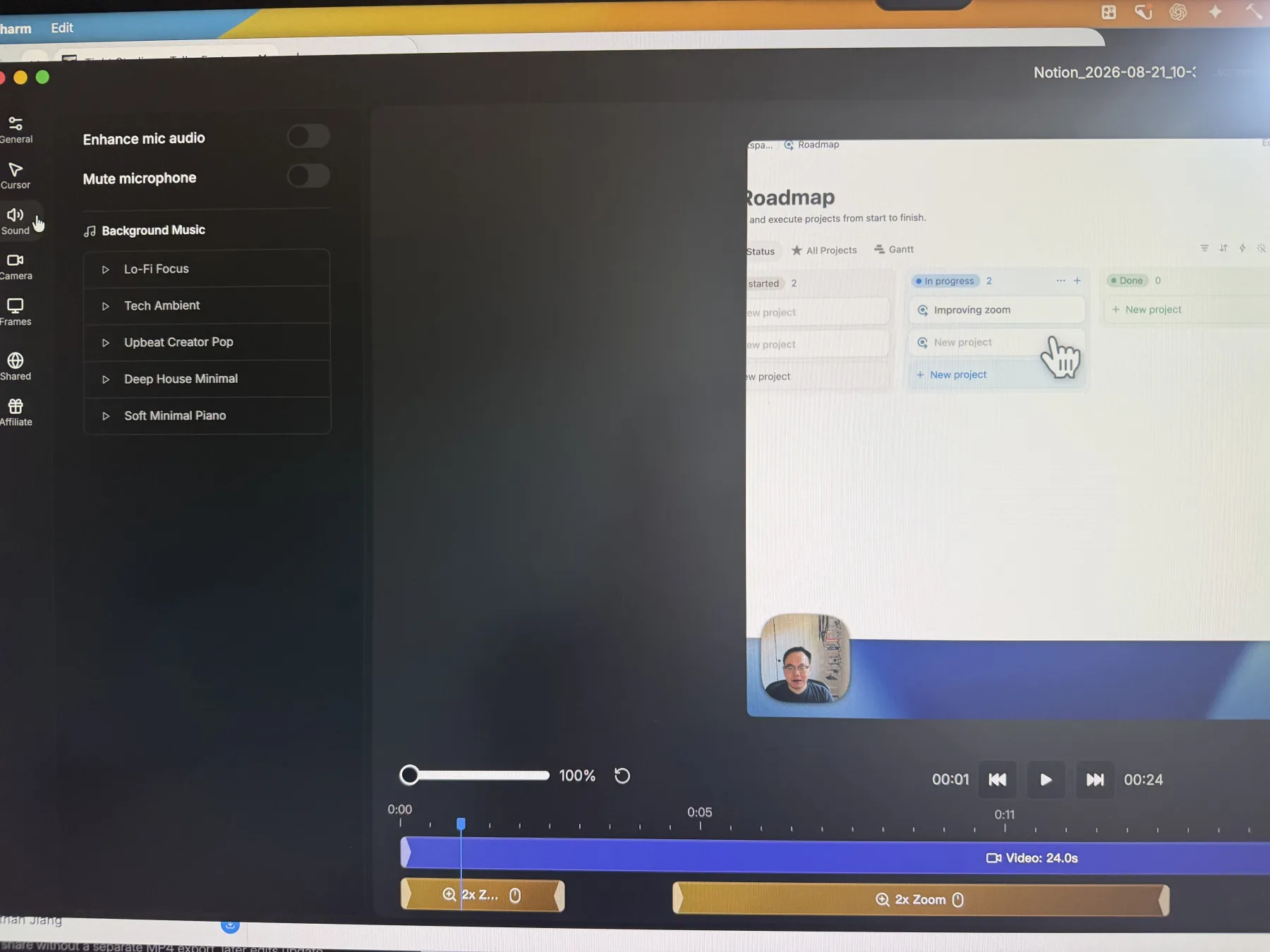
Screenshot note: Screen Charm blocks screenshots of its editor, so we photographed its interface with an iPhone. Differences in sharpness, color, or framing reflect the capture method, not product or export quality.
Recording controls and recovery

Pause, restart, and discard controls let you recover from interruptions or mistakes without turning one bad moment into a full retake.

The problem it solves

Longer recordings rarely go perfectly. A notification appears, the wrong window opens, or a sentence needs another try. Without controls during capture, the only reliable option is to finish or abandon the entire take and start again from the recorder.

Our take

Tight Studio wins decisively. Screen Charm's recorder is simple, but the tested build did not provide pause, resume, restart, or discard controls. Tight Studio provides all four and can add multiple recorded takes to one project.

Tight Studio

Pros

  • Pauses and resumes an active recording from the control panel or a keyboard shortcut.
  • Restarts the current take or discards it without saving a bad capture.
  • Adds more recorded takes to the same project instead of forcing one continuous recording.

Cons

  • The extra recovery and multi-take controls create a slightly busier workflow than a basic start-and-stop recorder.
  • Free accounts include two trial uses of Add Clip; unlimited multi-take recording requires Plus or Pro.

Screen Charm

Basic recording controls

Screen Charm 1.9.5 records a screen, window, or selected area with optional camera, microphone, and system audio. In our test, an active recording did not expose pause, resume, restart, or discard controls.

View Screen Charm features

Pros

  • Keeps the start-to-finish recording flow simple and easy to scan.
  • Captures the screen, camera, microphone, and system audio together.
  • Works well when a recording can be completed as one clean take.

Cons

  • Does not provide pause or resume during an active recording in the tested build.
  • Does not provide restart or discard actions during an active recording in the tested build.
  • Does not offer Tight Studio's same-project multi-take recording workflow.

Camera-only recording

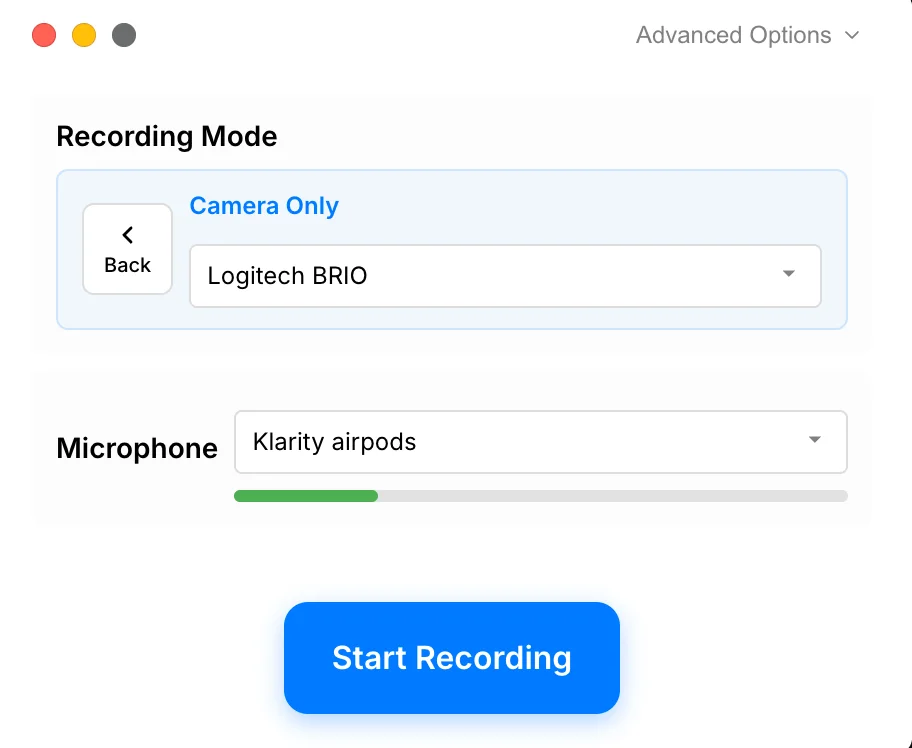
Camera-only capture records the presenter and microphone without requiring a desktop screen, while keeping that footage ready to combine with other clips.

The problem it solves

A screen recorder that always requires a screen source cannot create a standalone presenter segment. Recording that footage elsewhere adds a separate capture tool and another import step.

Our take

Tight Studio wins. It provides a dedicated Camera Only source and keeps the take in the same editing workflow. Screen Charm can record a webcam beside a screen capture, but we did not find a camera-and-microphone-only recording mode in version 1.9.5.

Tight Studio

Pros

  • Records the camera and microphone without requiring a screen capture.
  • Keeps the camera-only take inside the same editor used for screen and mobile recordings.
  • Combines camera-only footage with other recorded or imported clips in one project.

Cons

  • A camera-only take does not include screen content unless another clip is added to the project.

Screen Charm

No camera-only recording mode

Screen Charm 1.9.5 can record a camera alongside the screen, but we did not find a mode for recording only the camera and microphone.

View Screen Charm features

Pros

  • Records a camera and microphone together with a desktop capture.

Cons

  • Does not start a camera-and-microphone recording without capturing the screen in the tested build.
  • Standalone camera footage requires a separate recorder.

Automatic zoom and zoom editing

Automatic zoom turns clicks into smooth close-ups after recording, keeping small interface details readable without manual keyframes.

The problem it solves

A full-screen capture can make the important button or field too small to follow. Building every close-up by hand takes time, while rigid zooms can make the video feel abrupt or disorienting.

Our take

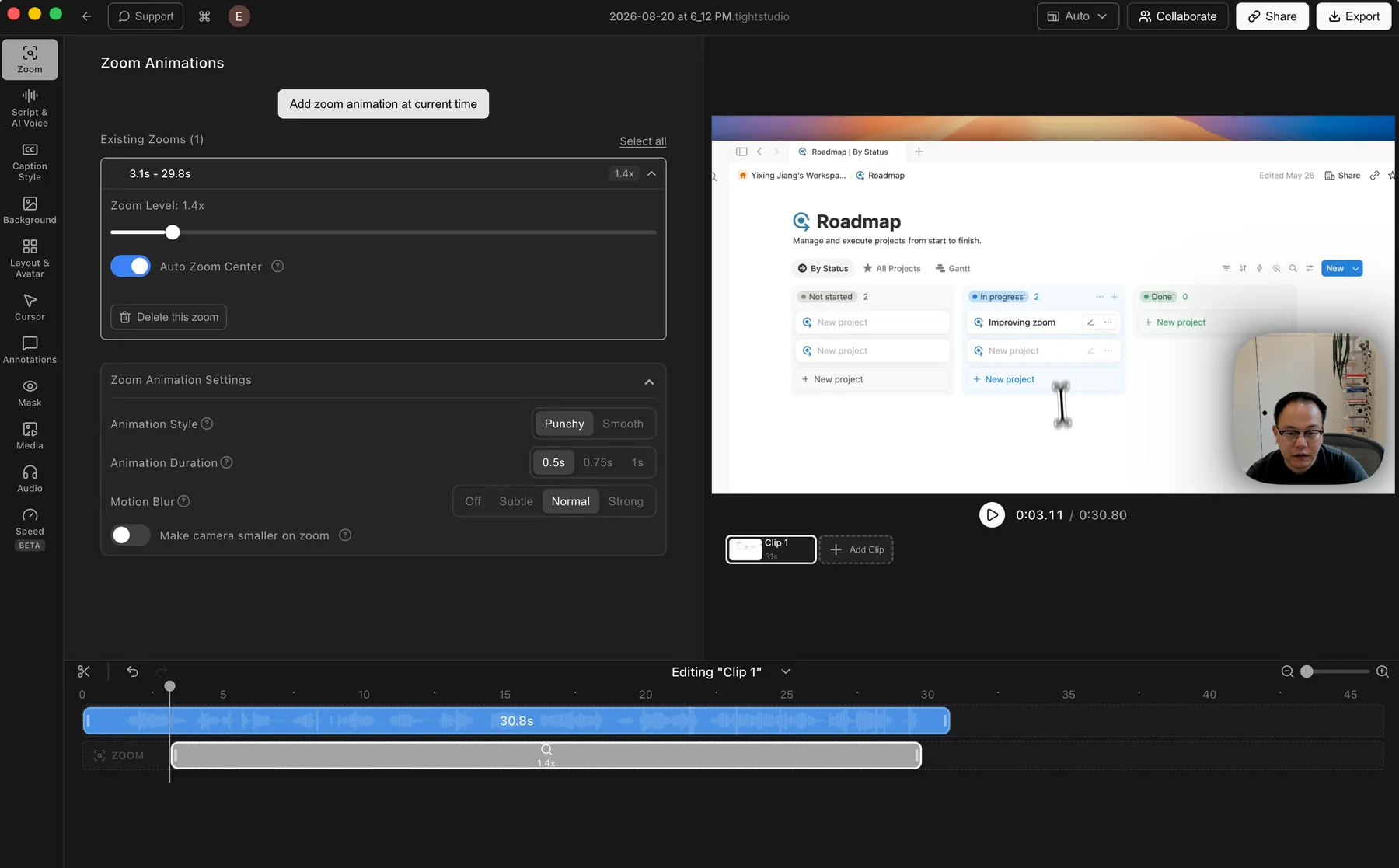
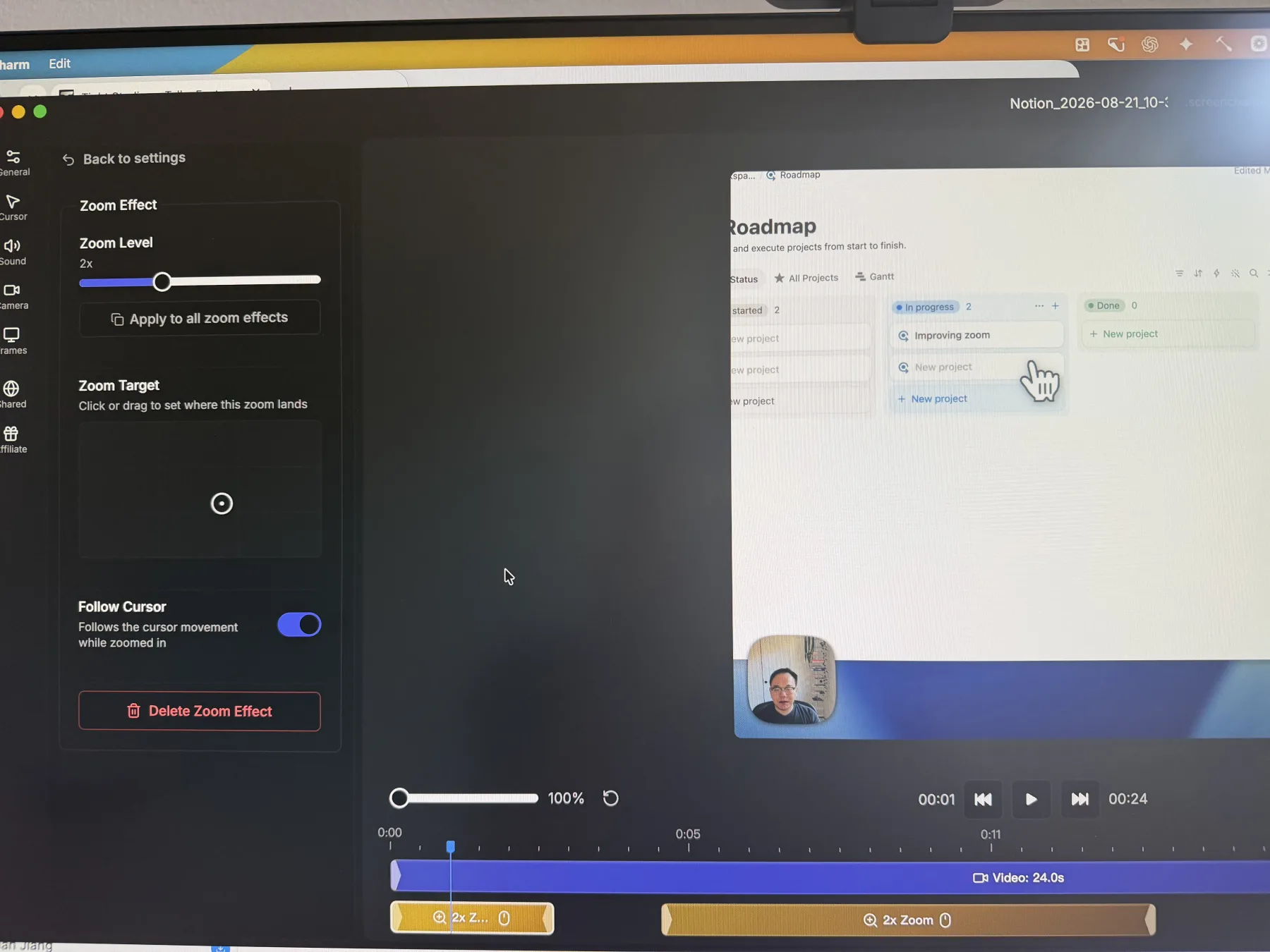
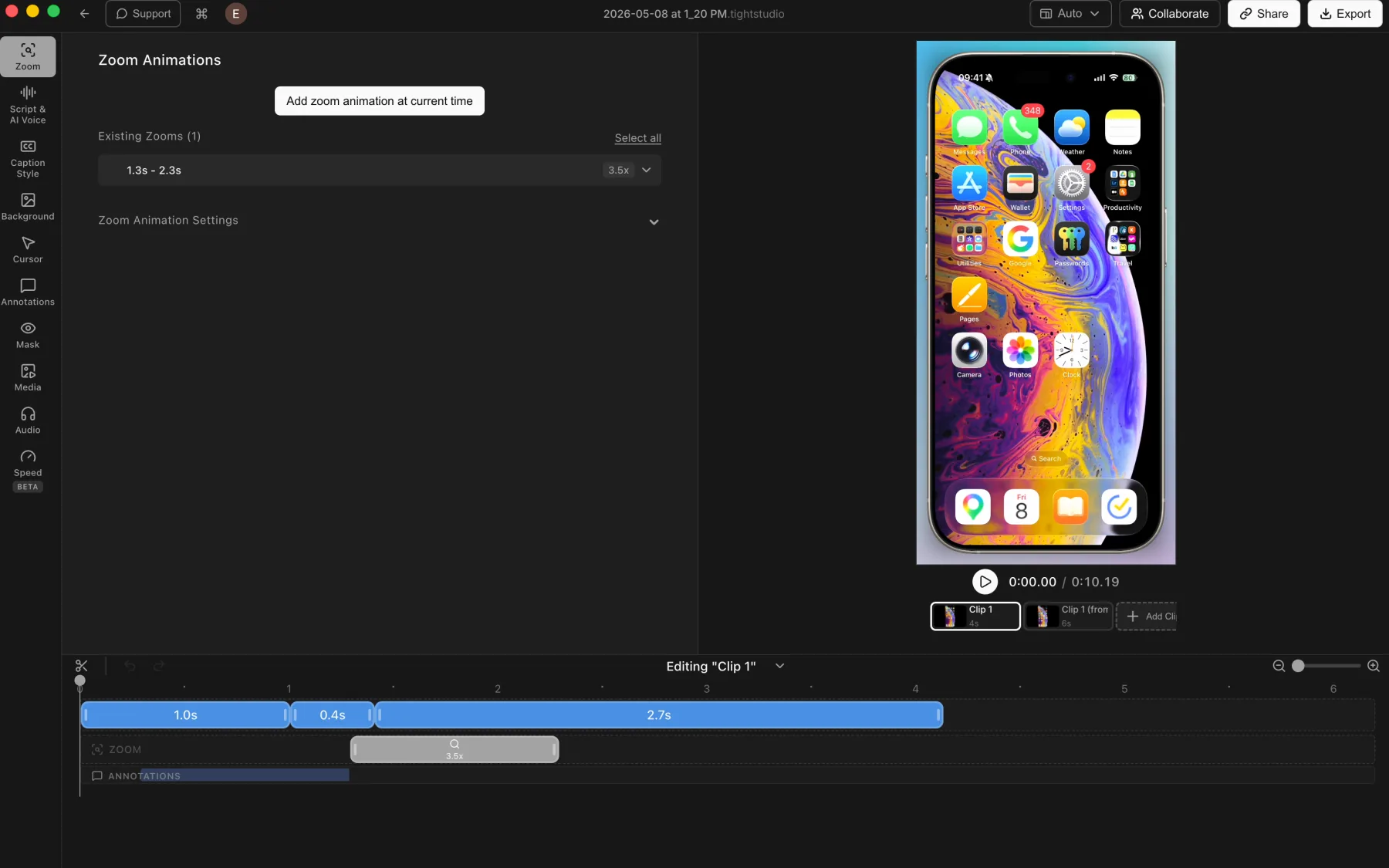
Tie on the core result. Screen Charm's automatic zoom was smooth and its focused controls cover the essentials. Tight Studio exposes more detailed motion and camera controls, but zoom quality alone is not a decisive reason to reject either app.

Tight Studio

Pros

  • Creates smooth automatic zooms after recording and keeps every segment editable.
  • Supports manual zooms plus controls for zoom level, auto-centering, animation duration, motion blur, and camera size.
  • Keeps the original capture editable, so zoom decisions can change without recording again.

Cons

  • The larger control set takes longer to explore than Screen Charm's more focused panel.
  • Fine-tuning several motion settings can be unnecessary when the automatic result already looks right.

Screen Charm

Pros

  • Produces smooth automatic zoom motion after recording.
  • Makes the zoom level and landing target easy to adjust for each effect.
  • Can follow the cursor while zoomed and apply one zoom level across all zoom effects.

Cons

  • Exposes fewer detailed motion controls than Tight Studio in the panel we tested.
  • The editor photo is less sharp than a direct screenshot because Screen Charm blocks screen capture.

Cursor animation, size, and click effects

Smooth cursor motion keeps the pointer easy to follow, while sizing, click feedback, and replacement artwork determine how clearly each interaction appears.

The problem it solves

A small or jumpy system cursor is easy to lose once a recording is scaled down. Click feedback confirms when an action happened, while replacement cursor artwork can improve contrast or match a video's visual style.

Our take

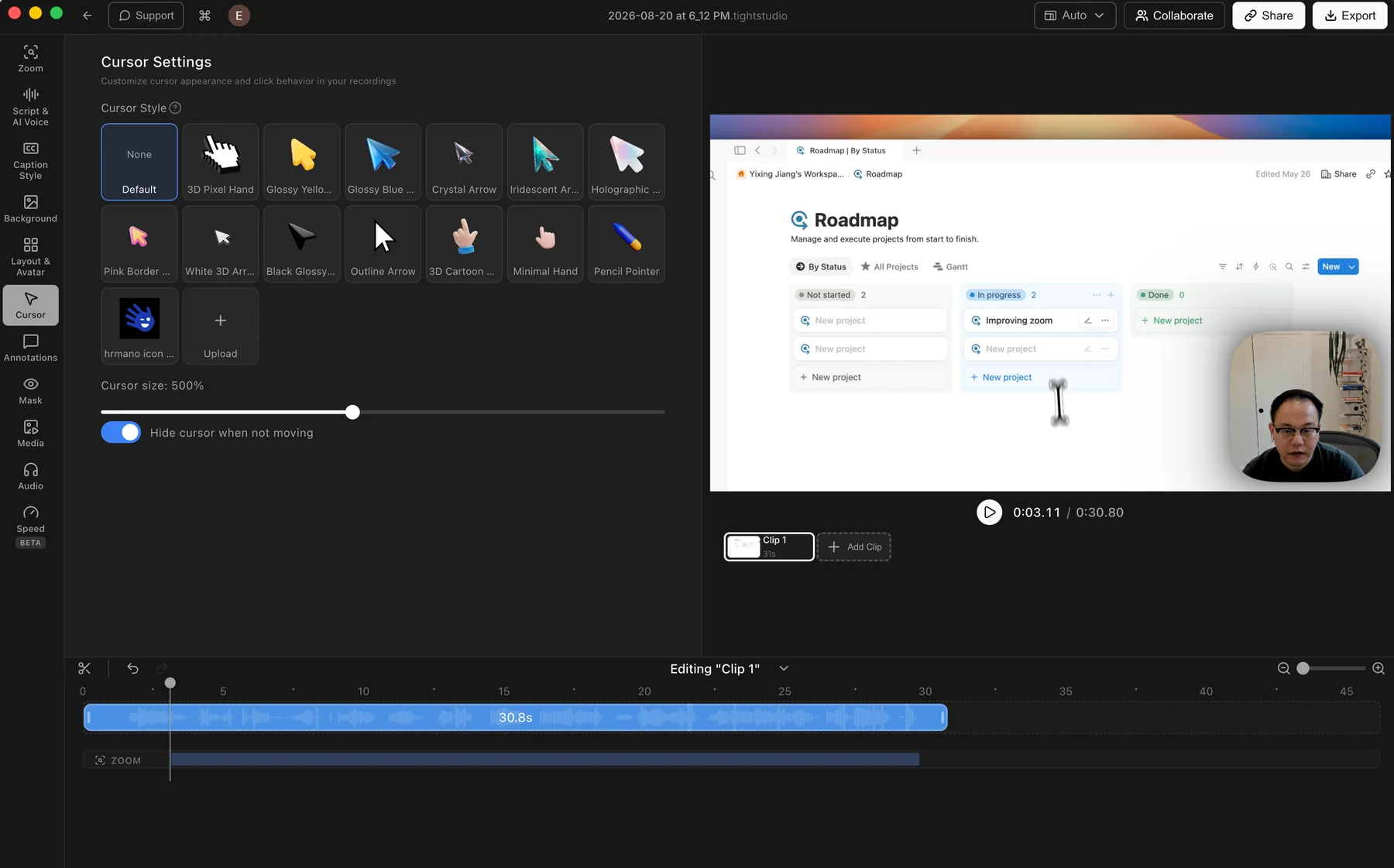
Split decision. Both apps smooth cursor movement and support cursor sizing. Screen Charm wins for built-in click effects. Tight Studio wins for its preset cursor image library and custom cursor PNG uploads with hotspot editing.

Tight Studio

Pros

  • Smooths recorded cursor movement and lets users adjust cursor size.
  • Includes a varied library of built-in cursor images for changing the pointer style.
  • Uploads custom cursor PNGs and lets users set the precise click hotspot.

Cons

  • Does not provide a configurable built-in click-highlight effect in the current editor.
  • Choosing and positioning custom cursor artwork adds a setup step that many recordings do not need.

Screen Charm

Smooth cursor controls

Screen Charm smooths cursor movement, lets users adjust the cursor size, and provides built-in cursor click effects. In the editor we tested, it did not include replacement cursor images or a custom cursor upload.

View Screen Charm features

Pros

  • Produces smooth cursor movement without manual path editing.
  • Lets users increase or reduce the cursor size after recording.
  • Includes cursor click effects that make interactions easier to notice.

Cons

  • Does not provide a library of built-in replacement cursor images.
  • Does not let users upload their own cursor artwork.

Music and microphone controls

Microphone cleanup can improve recorded narration quickly, while music uploads and timeline controls determine how much freedom you have over the soundtrack.

The problem it solves

A noisy or uneven microphone can distract from the screen, but a fixed music library can also be limiting when a video needs a specific track. The useful tradeoff is automatic cleanup versus control over the source and timing of the audio.

Our take

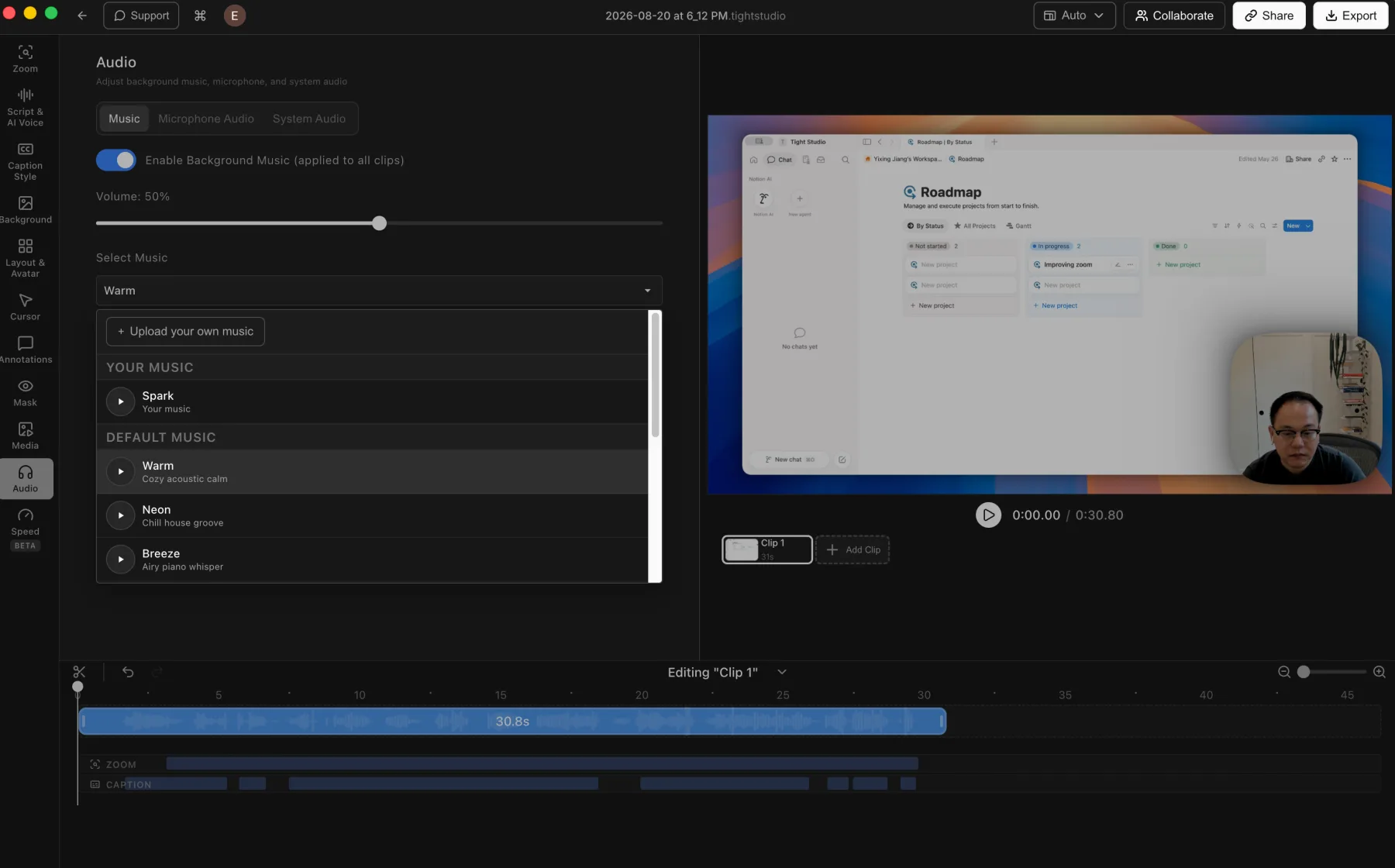
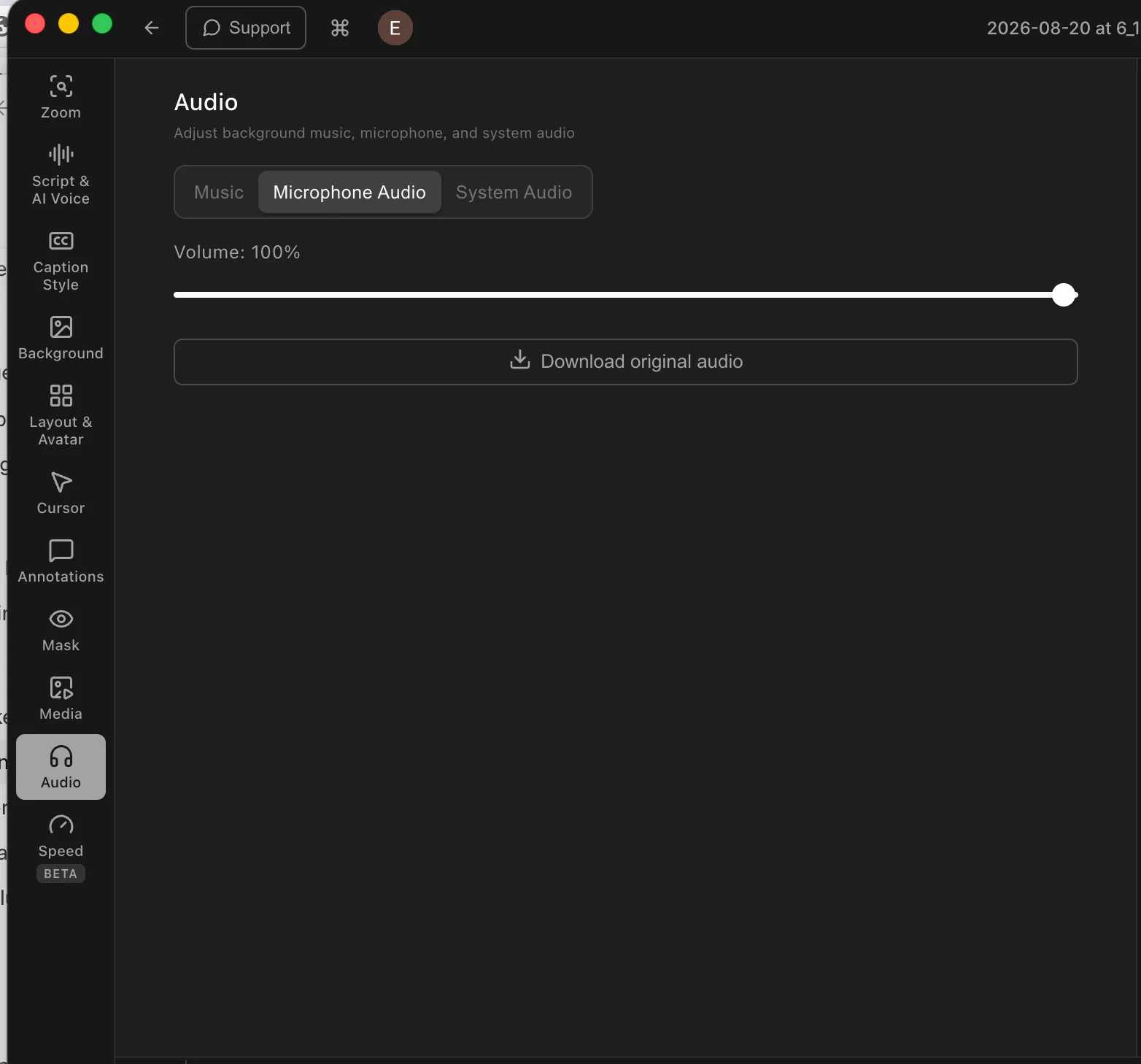
Split decision. Screen Charm wins for its built-in microphone enhancement toggle. Tight Studio wins for audio flexibility because it accepts custom music, supports placement and trimming, provides direct microphone volume control, and lets users download the original audio. Both include built-in music and microphone muting.

Tight Studio

Pros

  • Includes built-in background music and lets users upload their own audio files.
  • Places and trims uploaded music on chosen timeline ranges through its advanced music controls.
  • Supports microphone muting, direct volume adjustment, and downloading the original audio.

Cons

  • Does not provide automatic microphone noise reduction or volume normalization.
  • Precisely timing custom music requires the advanced music workflow rather than the simpler background-music mode.

Screen Charm

Pros

  • Provides an Enhance mic audio option for automatic microphone cleanup.
  • Supports muting the recorded microphone track.
  • Includes five simple background music choices in the editor we tested.

Cons

  • Does not let users upload their own music in the editor we tested.
  • We confirmed the microphone enhancement control was present but did not evaluate its output quality.

Automatic captions and transcript editing

Captions make spoken narration readable without sound, while transcript and timing controls provide a practical way to correct names, product terms, and synchronization mistakes.

The problem it solves

Automatic transcription is rarely perfect. Without a caption workflow, adding accessible on-screen narration requires exporting the video and finishing the work in another editor or captioning service.

Our take

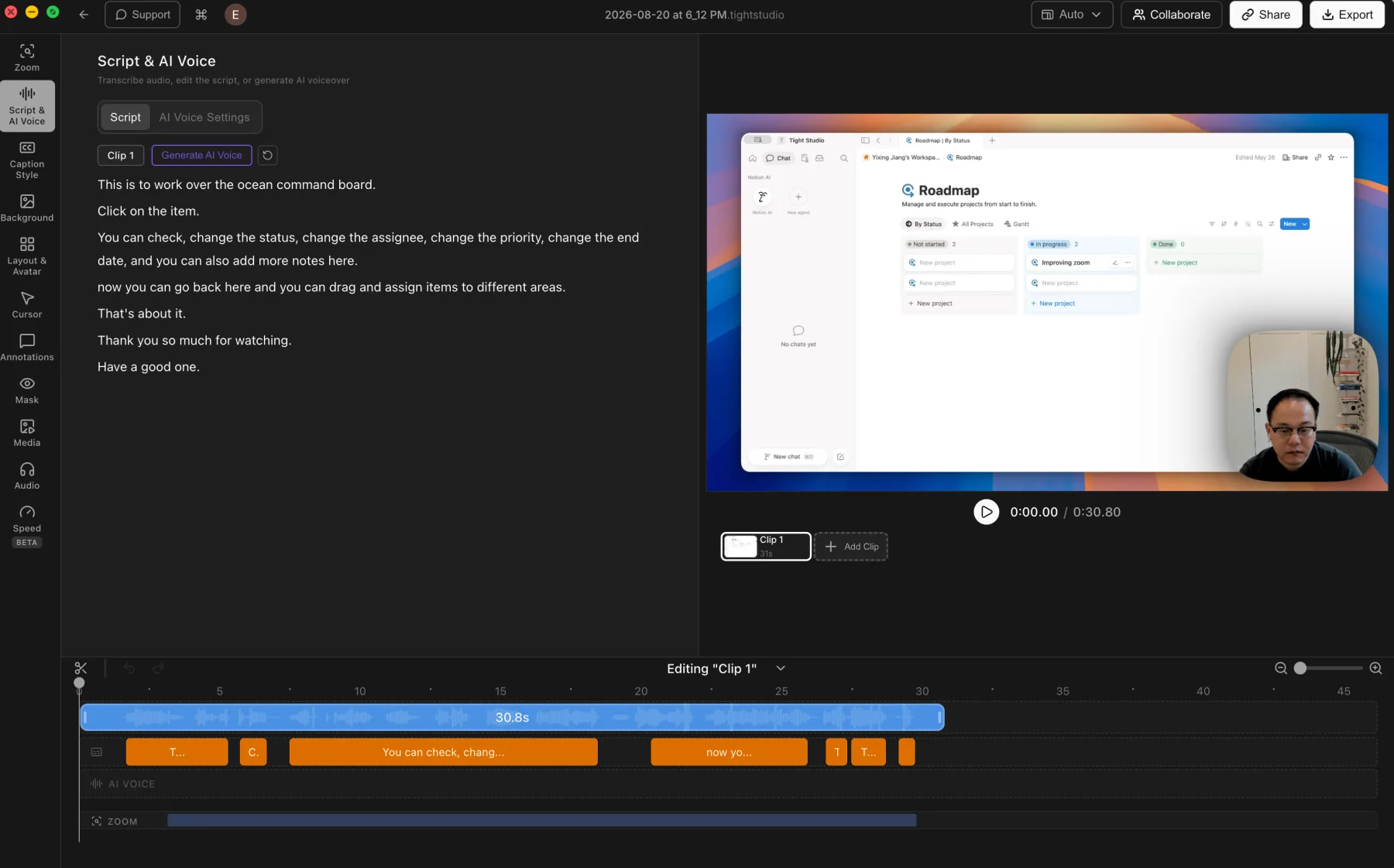
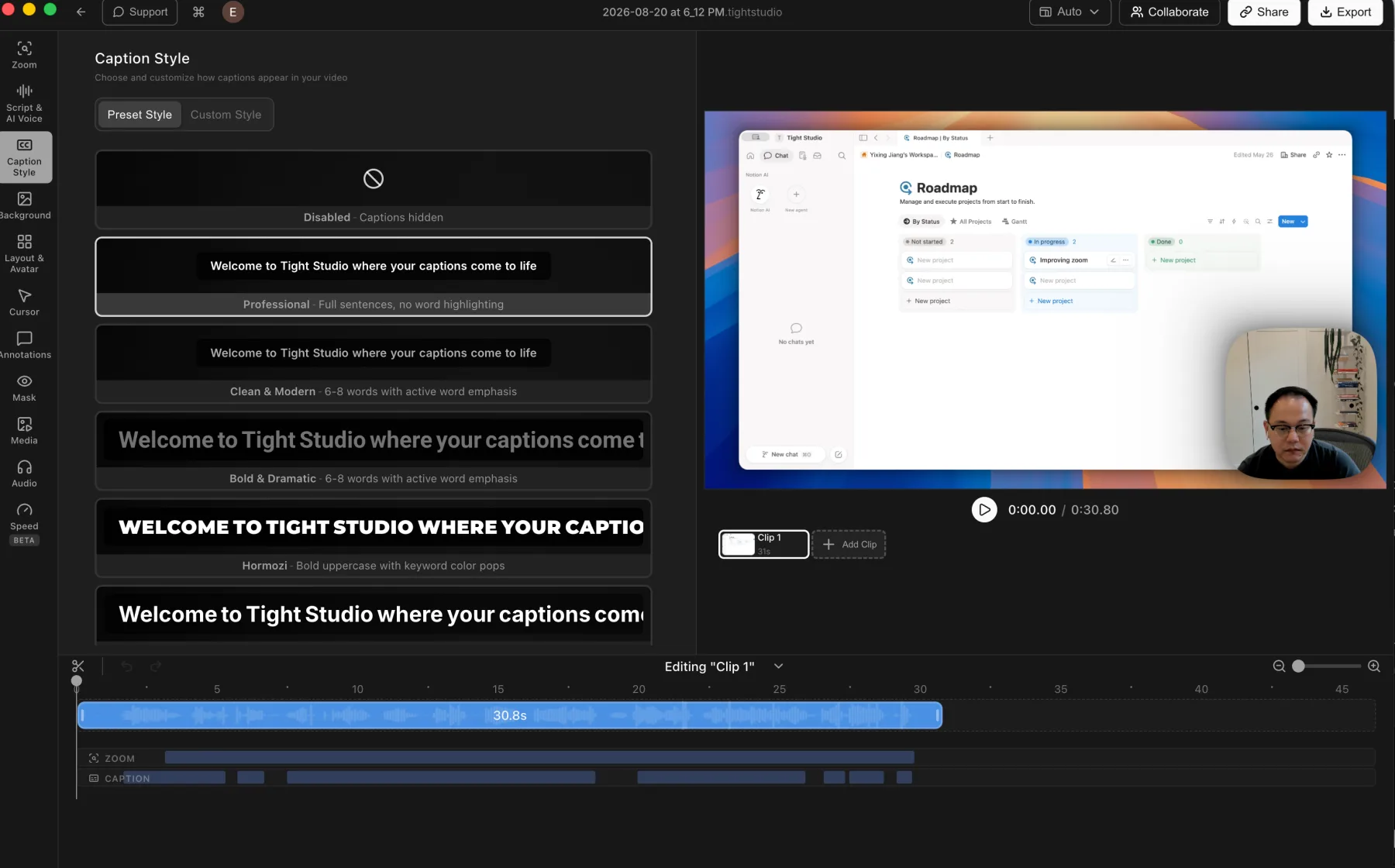
Tight Studio wins decisively. We found no caption or transcript support in Screen Charm 1.9.5, which is a surprising omission for a polished screen recorder. Tight Studio generates captions, provides integrated transcript correction and per-word timing, and includes preset and custom caption styles.

Tight Studio

Pros

  • Generates captions automatically from recorded microphone audio.
  • Keeps editable transcript text beside synchronized caption segments on the timeline.
  • Retains word-level timestamps, supports individual timing correction, and includes preset and custom caption styles.

Cons

  • Transcription uses cloud processing rather than staying entirely on the Mac.
  • Generating captions requires an internet connection.

Screen Charm

No caption workflow found

We did not find automatic captions, transcript generation, transcript editing, caption styling, or caption export anywhere in the Screen Charm 1.9.5 editor we tested.

View Screen Charm features

Pros

  • Keeps the editor focused by omitting a separate transcription and caption-configuration workflow.

Cons

  • Does not generate captions from the recorded microphone audio in the tested build.
  • Does not provide transcript correction or caption timing controls in the tested build.
  • Does not provide caption styling or caption export controls in the tested build.

AI voiceover and voice cloning

AI voice turns an editable script into narration, making spoken changes possible without matching another microphone recording or repeating the entire take.

The problem it solves

Correcting one outdated or mispronounced line traditionally means recording again and matching the timing, tone, and microphone sound. Script-generated narration makes the text the editable source for the voice track.

Our take

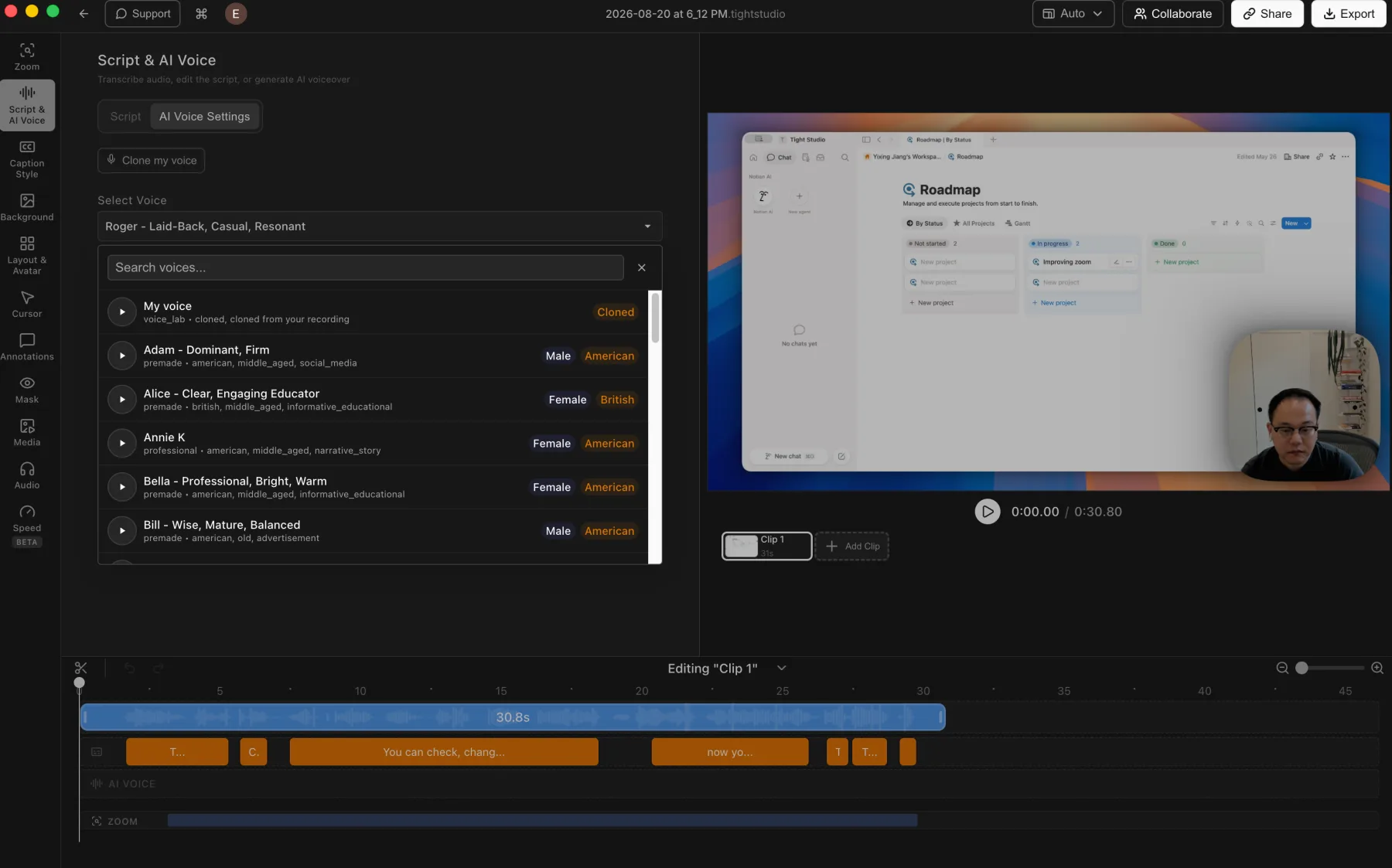
Tight Studio wins decisively. Its Pro workflow includes script-generated narration, premade voices, personal voice cloning, and a dedicated timeline track. We found no AI voice, voice-cloning, or generated-narration tools in Screen Charm 1.9.5.

Tight Studio

Pros

  • Turns an edited script into generated narration without recording another take.
  • Clones the user's voice or provides a searchable library of premade voices with previews.
  • Keeps generated narration on a dedicated AI Voice track for timeline-based editing.

Cons

  • Generated speech may still need previewing and script adjustments to match the intended delivery.
  • AI voice generation is a Pro feature rather than part of the free editing workflow.

Screen Charm

No AI voice workflow found

We did not find script-generated narration, premade AI voices, or voice cloning in the Screen Charm 1.9.5 editor.

View Screen Charm features

Pros

  • Keeps narration tied to the recorded microphone track instead of adding a separate generated-voice workflow.

Cons

  • Does not generate narration from an edited script in the tested build.
  • Does not provide built-in voice cloning or a searchable AI voice library in the tested build.
  • Narration changes require another recording pass or an external voice tool.

Text, mask, highlight, and shape overlays

Overlays explain, emphasize, and protect information after recording without permanently altering the captured source.

The problem it solves

A recording may expose private data, need a label, or benefit from a clear visual pointer. Without timed overlays, those changes require another editor or a full recording pass with the source already modified.

Our take

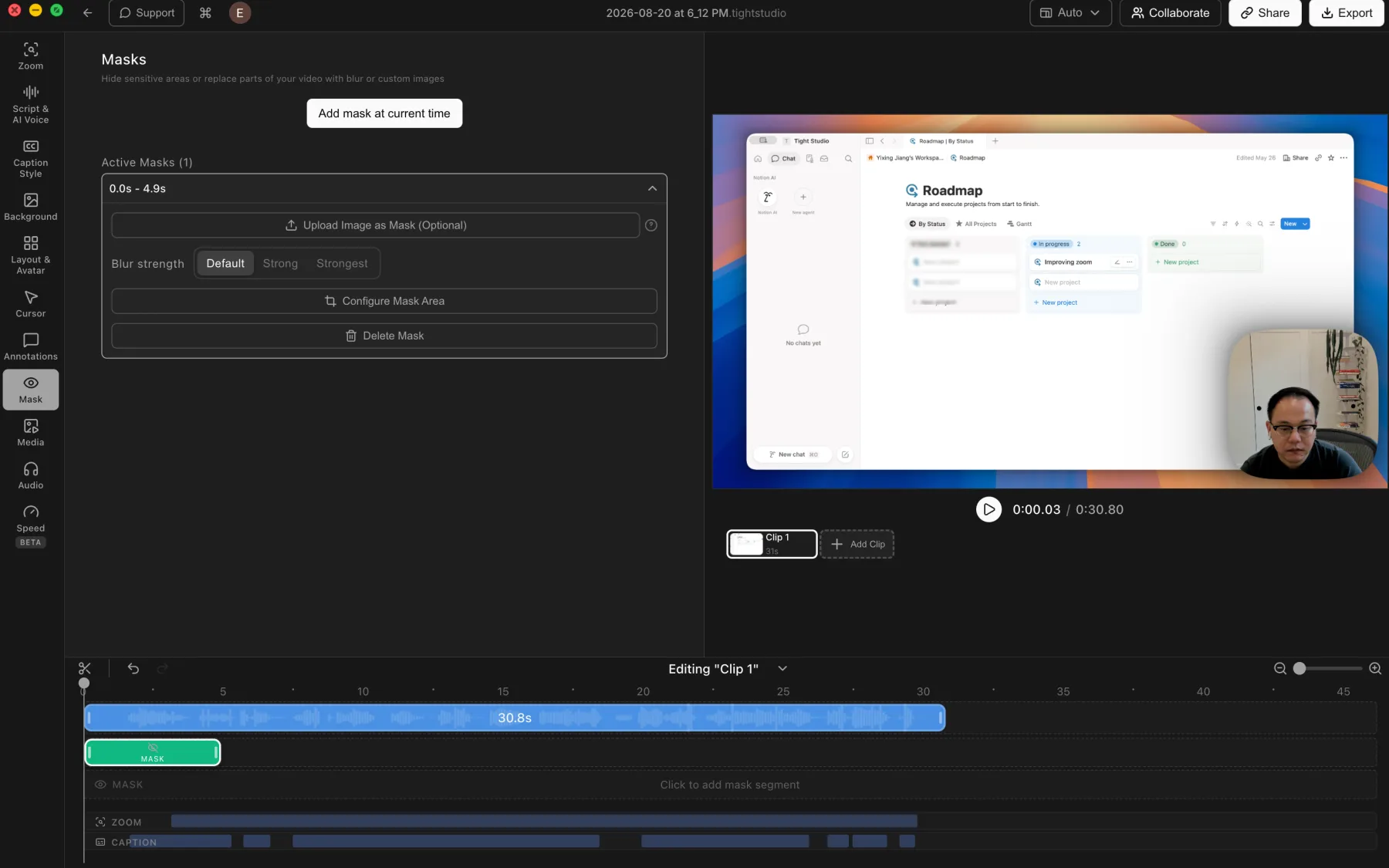
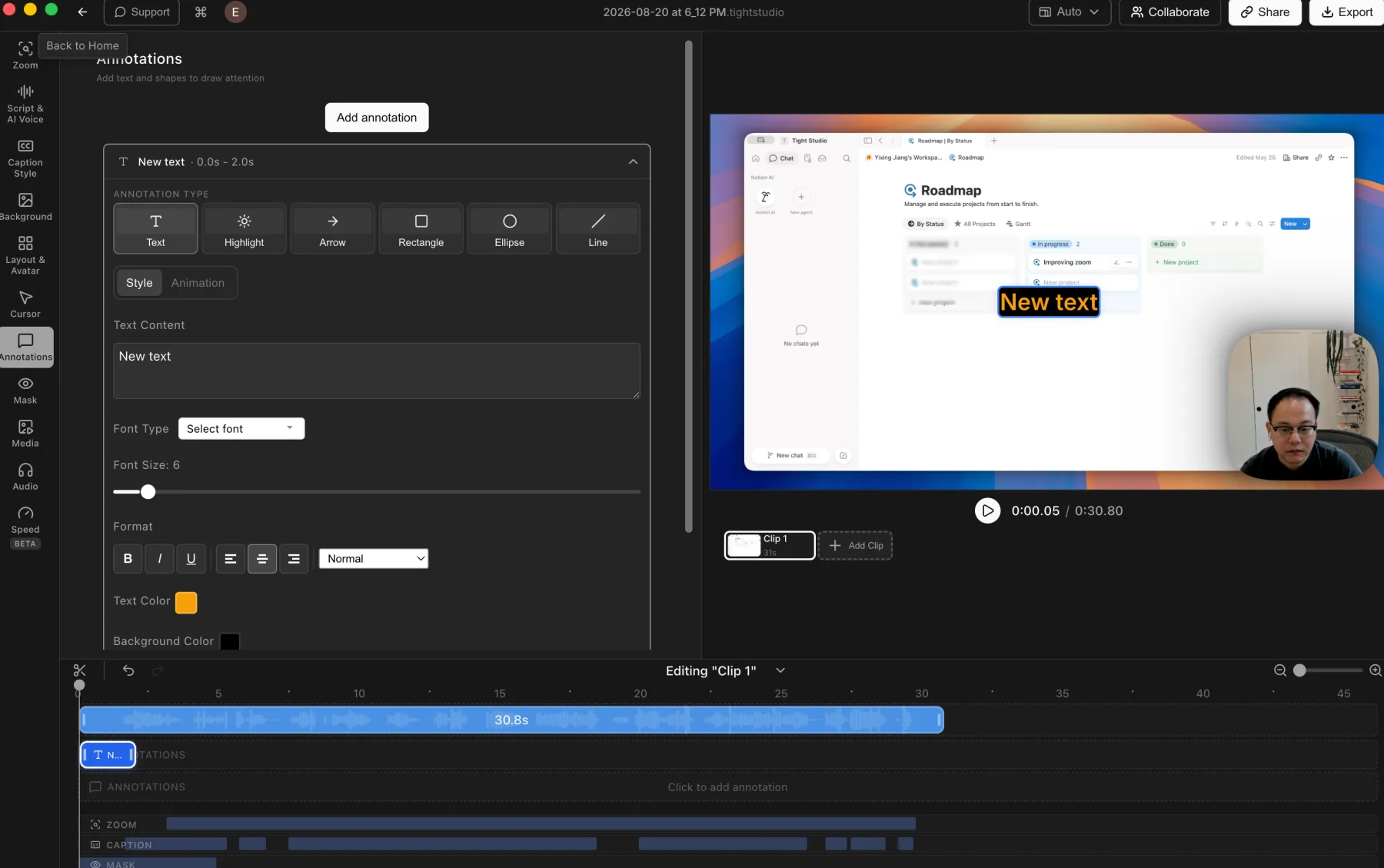
Tight Studio wins decisively. It includes styled text, highlights, arrows, shapes, privacy masks, and highlight masks with timeline control. We found none of these overlay or masking tools in Screen Charm 1.9.5.

Tight Studio

Pros

  • Adds styled text, highlights, arrows, rectangles, ellipses, and lines with timeline control.
  • Supports privacy masks for hiding details and highlight masks for directing attention.
  • Times, resizes, and adjusts masks with multiple blur strengths or a custom replacement image.

Cons

  • The broader overlay toolset adds more controls to learn and adjust.
  • Masks and annotations require manual placement and timing.

Screen Charm

No overlay tools found

We did not find text overlays, privacy masks, highlight masks, arrows, shapes, or comparable timed annotation tools in Screen Charm 1.9.5.

View Screen Charm features

Pros

  • Keeps the editing timeline focused on the recorded screen, camera, and zoom effects.

Cons

  • Does not provide text or highlight overlays in the tested build.
  • Does not provide privacy masks for hiding sensitive information in the tested build.
  • Arrows, shapes, and other callouts require another editor.

Imported media and additional clips

Media import and clip assembly turn a single recording into a project that can combine separate takes, external video, photos, logos, and supporting visuals.

The problem it solves

A one-source editor works until the recording needs a retake, introduction, inserted image, or existing video. Without import and Add Clip controls, assembly moves to another editor and introduces another export step.

Our take

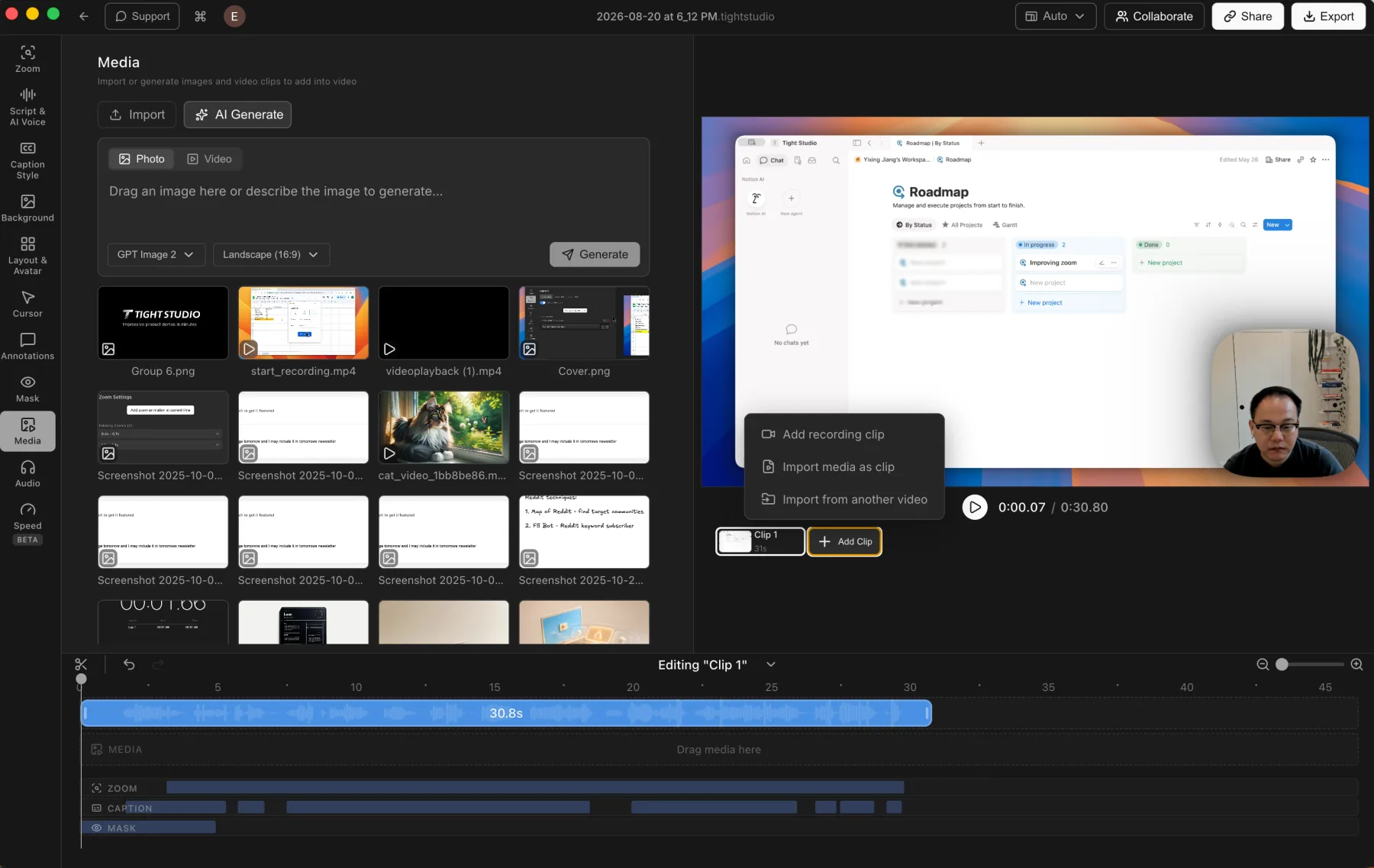
Tight Studio wins decisively. It imports photos and videos, records or imports additional clips, and keeps the result in one timeline. We found no media import, video append, or Add Clip workflow in Screen Charm 1.9.5.

Tight Studio

Pros

  • Adds more screen, camera-only, or mobile recordings to the same project.
  • Imports photos and videos into the media library and places them on the timeline as visual layers or additional clips.
  • Keeps assembly, visual edits, and the final export in one app.

Cons

  • Larger multi-clip projects require more timeline organization than a simple one-take recording.
  • Unlimited Add Clip use requires Plus or Pro after the two free trial uses.

Screen Charm

No media import or Add Clip workflow

We did not find controls for importing photos or videos, appending another recording, or adding a new take to the current Screen Charm 1.9.5 project.

View Screen Charm features

Pros

  • Keeps each project centered on one recorded source.

Cons

  • Does not import photos or videos into the current project in the tested build.
  • Does not append another recorded take or external video clip in the tested build.
  • Multi-source assembly requires another editor and an additional export step.

Camera position and dynamic layouts

Camera placement and layout presets keep the presenter visible without covering important screen content, while timeline changes let the composition adapt from one moment to the next.

The problem it solves

One camera position may work for most of a recording but cover an important control later. Static side-by-side and stacked layouts solve the basic framing problem, while timeline-based layouts can move, enlarge, or hide the presenter only where the content requires it.

Our take

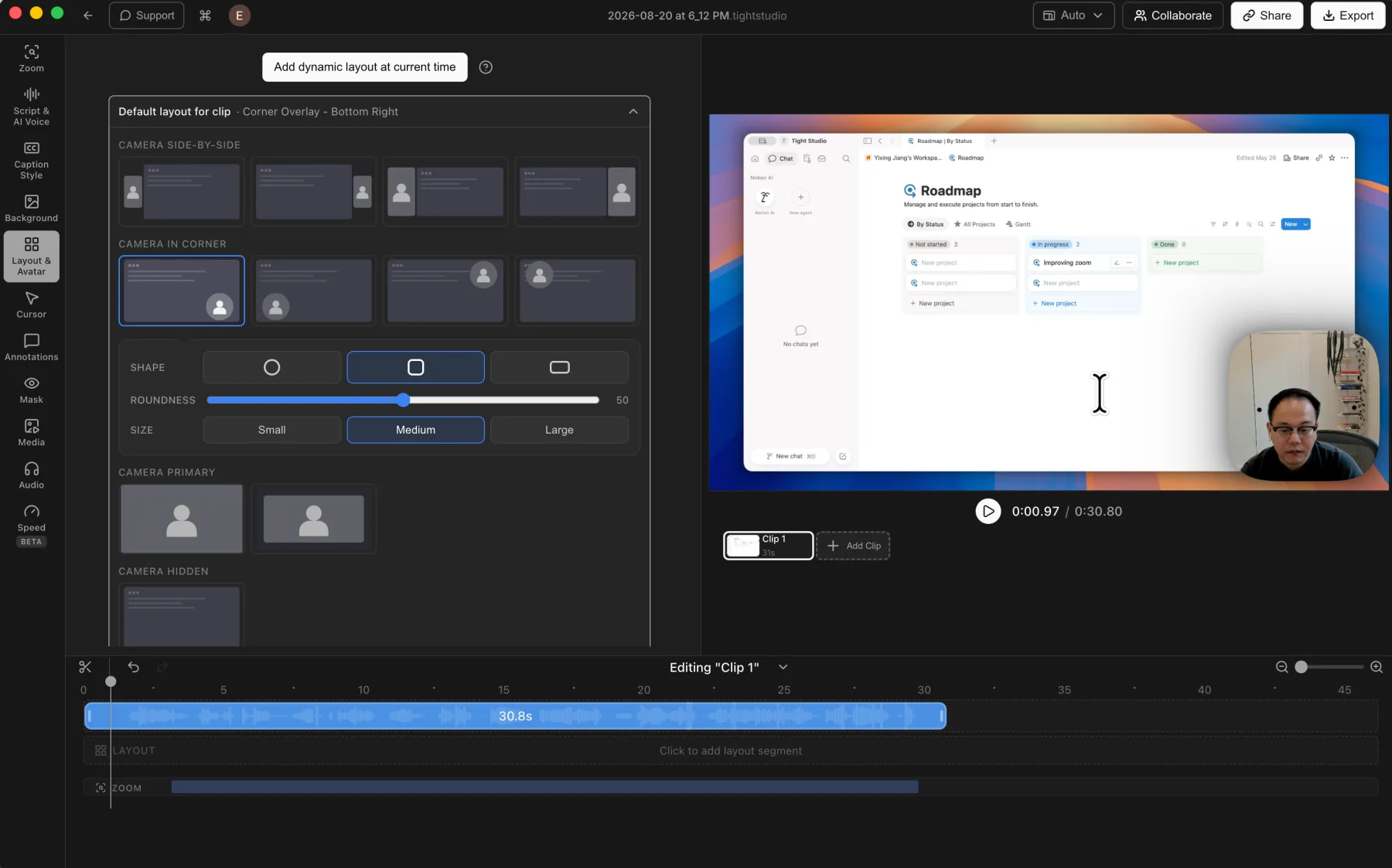
Tight Studio wins for layout flexibility. Screen Charm provides good camera position controls plus useful side-by-side and vertical layouts. Tight Studio offers comparable static layouts and can also place layout changes on the timeline, allowing the composition to switch throughout the video.

Tight Studio

Pros

  • Adjusts camera position, shape, size, mirroring, and layout after recording.
  • Includes side-by-side, vertically stacked, corner overlay, camera-primary, and camera-hidden layouts.
  • Places layout segments on the timeline so the composition can change during the video.

Cons

  • The larger preset library and timeline controls take longer to scan than Screen Charm's simpler camera panel.
  • Dynamic layout segments are unnecessary when one composition works for the entire recording.

Screen Charm

Pros

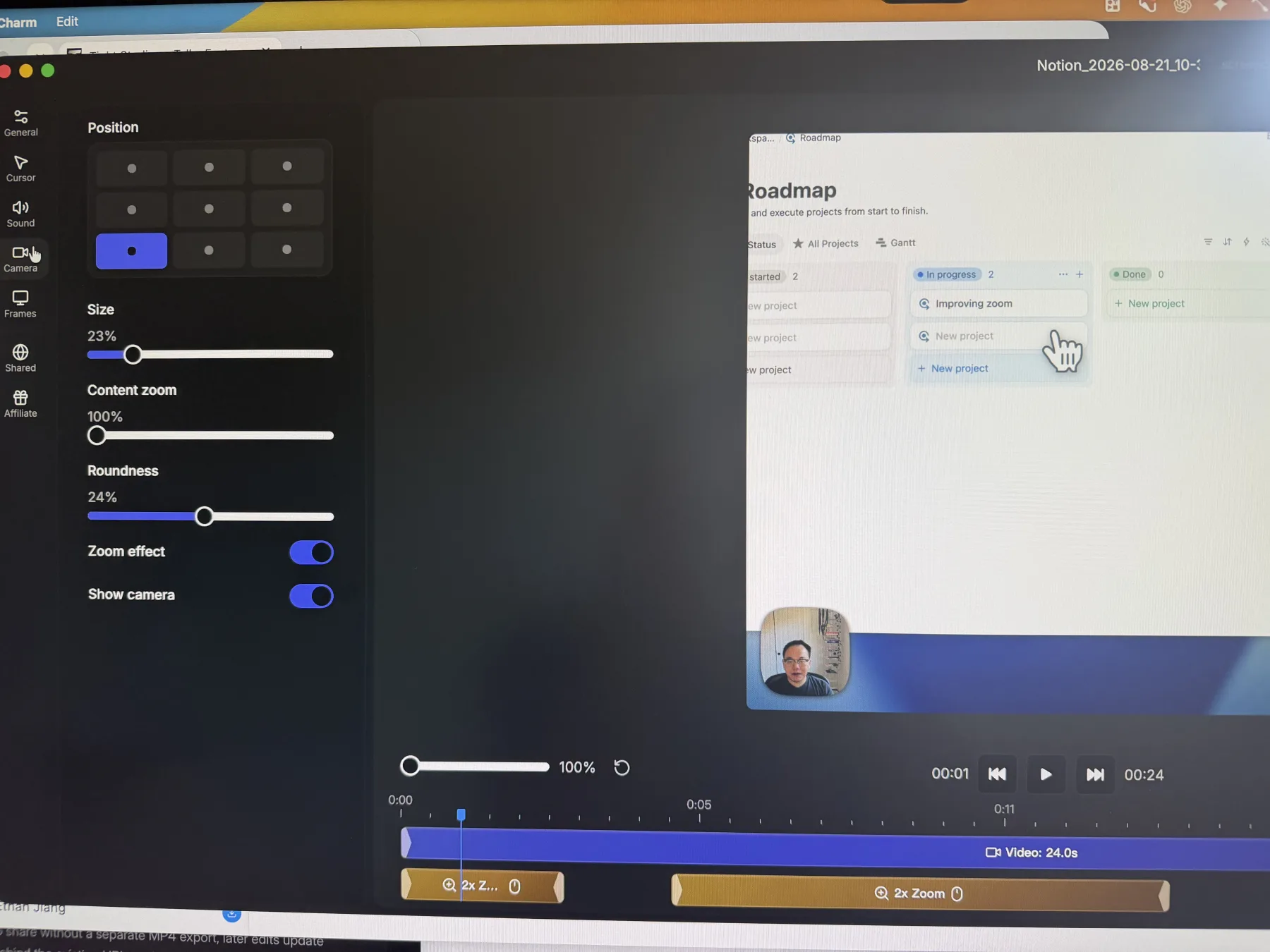
  • Makes nine common camera positions easy to select after recording.
  • Adjusts camera size, content zoom, roundness, zoom behavior, and visibility.
  • Provides useful side-by-side and vertically stacked layout options.

Cons

  • Does not support changing camera layouts dynamically with segments on the timeline.
  • A chosen layout remains static instead of adapting to different moments in the video.

MacBook device frame for desktop recordings

A hardware frame presents the captured screen as part of a physical device, adding context and a distinctive visual treatment without building a mockup elsewhere.

The problem it solves

Background padding can separate a recording from the canvas, but it still looks like a floating rectangle. A realistic laptop shell makes the Mac context immediately visible and gives the screen a finished physical boundary.

Our take

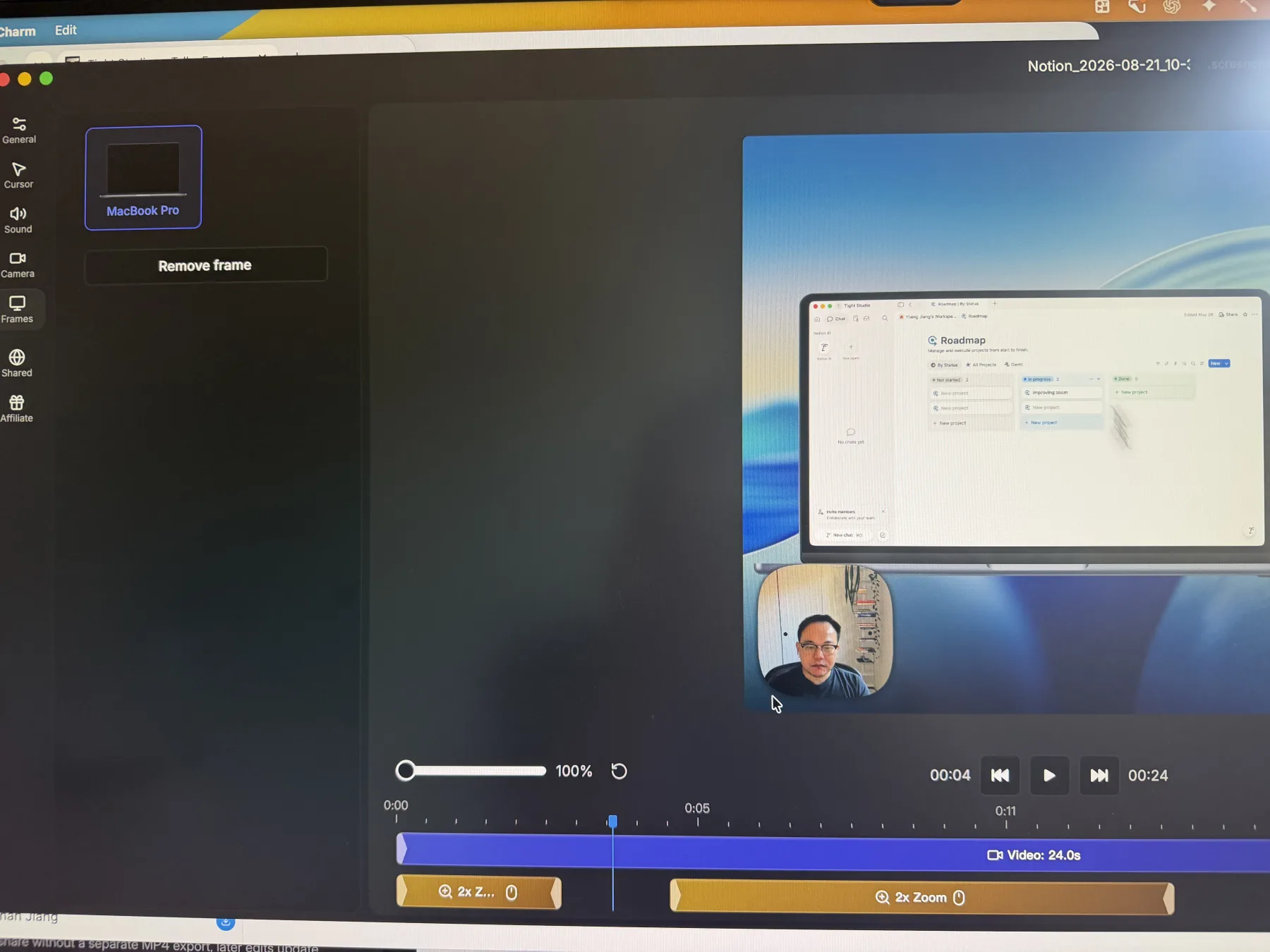
Screen Charm wins with a unique advantage in this comparison. It can place a macOS desktop recording inside a MacBook Pro frame and remove that frame with one click. Tight Studio includes an iPhone device frame for connected mobile captures, but it does not currently offer a MacBook frame for desktop recordings.

Tight Studio

Pros

  • Places connected iPhone and iPad captures inside a polished mobile device frame.
  • Keeps mobile recordings in the same multi-clip editing workflow as desktop recordings.
  • Applies backgrounds, manual zooms, captions, masks, and annotations to device captures.

Cons

  • Does not provide a MacBook hardware frame for desktop screen recordings.
  • The mobile device frame is tied to the connected-device recording workflow rather than offered as a general desktop frame effect.

Screen Charm

Pros

  • Wraps a macOS desktop recording in a polished MacBook Pro hardware frame.
  • Applies the frame directly in the editor and removes it with one button.
  • Provides a visual treatment that Tight Studio does not currently offer for desktop captures.

Cons

  • Only one MacBook Pro frame was visible in the editor we tested.
  • The hardware shell reduces the space available to the recorded screen within the final canvas.

A well-executed subset of core features versus a complete creation workflow

Our overall view is that Screen Charm does a small subset of Screen Studio-style fundamentals well. Its automatic zoom and cursor animation were smooth in our test, its static camera layouts are useful, and its MacBook Pro frame is distinctive. The feature set is otherwise very limited: Screen Charm 1.9.5 did not expose recording recovery controls, captions, AI voice, camera-only capture, overlays, media import, additional clips, or dynamic camera layouts. Tight Studio provides those broader capture, editing, and creation workflows.

When should you choose Screen Charm?

You prefer a one-time purchase

Screen Charm costs $79 once and includes future updates. It is the more straightforward purchase if you want a focused Mac recorder without a subscription.

You want polished automatic zoom with few decisions

Screen Charm automatically creates zoom effects after recording. In our test, the motion was smooth, and the editor made zoom level, target, follow-cursor behavior, and timeline timing easy to adjust.

Your recordings are usually clean single takes

The lightweight recording flow is easiest to appreciate when you rarely pause, restart, discard, or assemble several takes into one finished video.

You want built-in cursor click feedback

Both apps smooth cursor movement and support cursor sizing. Screen Charm also provides click effects that make interactions easier to notice without changing the cursor image.

You want one-click microphone enhancement

Screen Charm provides an Enhance mic audio toggle alongside microphone muting and a small built-in music library. We confirmed the control was available but did not evaluate the processed sound quality.

You only need a static camera layout

Screen Charm makes camera position, size, content zoom, and roundness easy to adjust. Its side-by-side and vertically stacked layouts cover common compositions when one layout can remain in place for the full video.

You want a MacBook frame around a desktop capture

Screen Charm can place the recorded macOS screen inside a MacBook Pro hardware frame and remove it again with one click. Tight Studio provides an iPhone frame for connected mobile recordings, but no equivalent MacBook treatment for desktop captures.

When should you choose Tight Studio?

You need control while recording

Tight Studio lets you pause and resume, restart the current take, or discard it without saving a bad capture. Those controls reduce the cost of a mistake during a longer recording.

You record in sections

Add Clip lets you record another take from the current project and keep every section in one editing workflow. Screen Charm is centered on one recorded source rather than a multi-take project.

You want more room after capture

Tight Studio combines automatic zoom with imported media, annotations, styled captions, masks, optional AI narration, and share links. Screen Charm is deliberately narrower and easier to scan.

You want to replace the cursor image

Tight Studio includes a library of preset cursor artwork and accepts custom cursor PNG uploads with editable hotspots. Screen Charm keeps the recorded cursor and does not provide built-in replacement images or custom uploads in the editor we tested.

You want to use your own music

Tight Studio accepts custom audio files, then lets you place and trim music on chosen timeline ranges. Screen Charm included five built-in tracks but did not provide a music upload control in the editor we tested.

You want camera layouts to change over time

Tight Studio places camera layout segments on the timeline, so a video can move between picture-in-picture, side-by-side, stacked, camera-primary, and hidden-camera compositions. Screen Charm provides useful static layouts but no timeline-based layout changes.

You need captions and transcript correction

Tight Studio generates captions from recorded microphone audio, keeps editable transcript text beside the timeline, supports per-word timing correction, and includes preset and custom caption styles. We did not find a caption or transcript workflow in Screen Charm 1.9.5.

You need a broader creation workflow

Tight Studio combines camera-only recording, AI narration and voice cloning, text and shape annotations, privacy and highlight masks, imported photos and videos, and additional recorded clips. We did not find equivalent workflows in Screen Charm 1.9.5.

The table does not need to repeat the basics

Both products already cover the foundation of a polished Mac screen recorder. The comparison below focuses on the differences that can actually change your choice.

  • Smooth automatic zooms created after recording
  • Editable zoom timing and manual zoom targeting
  • Cursor smoothing and adjustable cursor size
  • Screen, camera, microphone, and system-audio capture
  • Adjustable camera placement plus side-by-side and stacked layouts
  • Background styling, built-in music, and microphone muting
  • Local MP4 export and browser share links
  • Native Apple Silicon Mac apps

The differences that can change your decision

Both apps cover polished Mac recording, automatic zoom, smooth cursor motion, static camera layouts, and built-in music. Captions, AI narration, overlays, media assembly, timeline layouts, and desktop device frames can change the decision.

Feature Tight Studio Screen Charm
Pause and resume recording
Yes Control panel and keyboard shortcut
No Not found in Screen Charm 1.9.5
Restart active recording
Yes Restart the current take
No Not found in Screen Charm 1.9.5
Discard active recording
Yes Discard before saving the take
No Not found in Screen Charm 1.9.5
Same-project multi-take recording
Yes Add Clip keeps takes together
No Single recorded source workflow
Camera-only recording
Yes Camera and microphone without the screen
No No camera-only mode found
Automatic zoom
Yes Editable after recording
Manual zoom target
Yes Manual framing and auto-centering
Yes Click or drag the landing target
Detailed zoom motion controls
Yes Duration, style, blur, framing, camera size
Partial Level, target, follow cursor, apply to all
Smooth cursor animation and sizing
Yes
Yes
Cursor click effects
No No configurable click highlight in the current editor
Yes Built-in click feedback
Built-in replacement cursor images
Yes Multiple preset cursor styles
No Uses the recorded cursor
Custom cursor image upload
Yes Upload a PNG and set its hotspot
No No custom cursor upload found
Camera, microphone, and system audio
Yes
Yes
Adjustable camera position and size
Yes Position, shape, size, and mirroring
Yes Nine positions plus size and roundness
Side-by-side and stacked camera layouts
Yes
Yes
Timeline-based camera layout changes
Yes Add and edit layout segments
No One static layout for the video
MacBook frame for desktop recordings
No Device frame is limited to iPhone and iPad captures
Yes Built-in MacBook Pro frame
Automatic microphone enhancement
No Manual microphone volume control
Yes Enhance mic audio toggle
Built-in background music
Yes Royalty-free music library
Yes Five tracks in the tested editor
Custom music upload
Yes Upload, place, and trim audio
No No music upload found
Automatic captions
Yes Generated from microphone audio
No No caption workflow found in 1.9.5
Editable transcript and word timing
Yes Integrated transcript and per-word timing
No No transcript editor found
Caption style controls
Yes Presets and custom styling
No No caption styling found
AI voice narration and voice cloning
Yes Script narration, premade voices, and cloning with Pro
No No AI voice workflow found
Text, mask, and highlight overlays
Yes Timed annotations and privacy controls
No No overlay tools found
Import media and append clips
Yes Photos, videos, recordings, and Add Clip
No No import or append workflow found
Free finished export
Yes Standard export without a watermark
No Export requires the lifetime license
One-time purchase
No Free, Plus, and Pro plans
Yes $79 lifetime license

What is the practical difference?

Choose based on the work you need to finish, not the longest feature list.

Can you pause or restart a Screen Charm recording?

Not in the Screen Charm 1.9.5 recorder we tested. We did not find pause, resume, restart, or discard controls after recording began. Tight Studio exposes all four actions, including keyboard shortcuts for pause and resume.

Which app has better automatic zoom?

Both produce smooth automatic zoom. Screen Charm is strong here. It automatically creates zoom segments, lets you set the zoom level and landing target, can follow the cursor while zoomed, and can apply one zoom level to every effect. Tight Studio also creates editable automatic zooms and adds controls for animation duration, motion blur, auto-centering, and camera size. Motion quality was not a decisive reason to reject either app in this test.

Which app has better cursor controls?

Screen Charm wins for click effects; Tight Studio wins for cursor images. Both apps produce smooth cursor animation and let users change cursor size. Screen Charm adds built-in click effects. Tight Studio does not currently expose a configurable click-highlight effect, but it provides multiple preset cursor images, custom PNG uploads, editable click hotspots, and hide-when-idle behavior. Screen Charm did not provide replacement cursor artwork or custom uploads in our test.

Which app has better audio controls?

Screen Charm wins for mic enhancement; Tight Studio wins for custom music. Both apps include built-in background music and microphone muting. Screen Charm adds an Enhance mic audio toggle, but its editor did not let us upload a custom music file. Tight Studio accepts custom audio, supports timeline placement and trimming, provides direct microphone volume control, and can download the original audio, but it does not automatically clean up microphone noise or normalize volume.

Which app has better camera layouts?

Both have useful presets; only Tight Studio changes them on the timeline. Screen Charm provides nine camera positions, size, content zoom, roundness, visibility, side-by-side, and vertically stacked layouts. Tight Studio provides comparable placement controls and a broader preset library, then adds layout segments that switch the composition during the video. Screen Charm did not provide dynamic timeline layouts in our test.

Which app can add a MacBook frame?

Screen Charm has the desktop-device-frame advantage. Screen Charm wraps a macOS desktop recording in a MacBook Pro frame directly in the editor. Tight Studio does not currently offer a MacBook frame for desktop captures. Its device-frame workflow instead presents connected iPhone and iPad recordings inside mobile hardware.

Does Screen Charm support captions?

No caption workflow was found in Screen Charm 1.9.5. We did not find automatic captions, transcript generation, transcript editing, caption timing, caption styling, or caption export in the editor we tested. Tight Studio supports automatic transcription, integrated transcript correction, per-word timing adjustment, caption style presets, and detailed custom styling.

Does Screen Charm support AI voice or camera-only recording?

Neither workflow was found in Screen Charm 1.9.5. Screen Charm records a camera beside the screen, but we did not find a camera-and-microphone-only recording mode. We also found no script-generated narration, premade AI voice library, or personal voice cloning. Tight Studio provides Camera Only capture and a Pro AI Voice workflow inside the same editor.

Can Screen Charm add overlays, imported media, or more clips?

The tested editor stays centered on one recorded source. We did not find text, mask, highlight, arrow, or shape overlays, nor controls for importing photos or videos, appending an external clip, or recording another take into the current project. Tight Studio supports these timed overlays, media imports, and additional clips on one timeline.

Which app is cheaper?

Screen Charm wins for one-time pricing; Tight Studio wins for a usable free export. Screen Charm costs $79 once, but its free trial cannot export a finished video. Tight Studio Free supports standard exports without a watermark. Tight Studio Plus is $9 per month billed yearly when unlimited multi-take recording and non-expiring share links are needed.

Who is Screen Charm best for?

People who value simplicity and rarely need recording recovery controls. Screen Charm fits a clean, single-take workflow: record a Mac screen, let the app add smooth zoom and cursor treatment, make a few adjustments, and export. Tight Studio fits better when recording mistakes, separate takes, imported media, or deeper post-capture changes are normal parts of the job.

Current plans and practical limits

$0 / month Standard exports have no watermark. Free includes two Add Clip trial uses, up to five seven-day share links, and 100 trial AI credits; trial AI Voice exports are watermarked.

Screen Charm is $79 once, but its trial cannot export. Tight Studio Free produces standard exports without a watermark; paid plans add unlimited multi-take recording, sharing, collaboration, and AI.

Tight Studio

Free $0 No watermark on standard exports; 2 Add Clip trial uses, up to 5 shareable links with 7-day expiration, and 100 trial AI credits
Plus $9/mo Billed yearly, or $19/mo monthly. Unlimited multi-clip recording and unlimited non-expiring shareable links
Pro $24/mo Billed yearly, or $49/mo monthly. 1,000 AI credits/mo plus team workspace and collaborative editing

Screen Charm

Free trial $0 Record and edit for free; finished video export is locked
Lifetime $79 once Three Macs, 4K export, share links, and future updates

Can you use Screen Charm and Tight Studio together?

Yes. Screen Charm exports standard MP4 files, so a finished Screen Charm recording can be imported into Tight Studio when it needs additional media, annotations, captions, or narration. This is a normal file handoff, not a direct product integration.

Reviewed against current public product information

This is a first-party comparison written and reviewed by the Tight Studio team. We reviewed it on August 21, 2026 using official product documentation, pricing pages, and the current Tight Studio pricing and feature pages. Feature availability can depend on plan, platform, or workflow, so the table uses notes and “Partial” where a simple yes/no would be misleading.

Loved by creators worldwide

See what our users have to say about Tight Studio.

4.8/5

“Tight Studio combines simplicity with impact. It's effortless to use, yet the videos I create in minutes consistently help attract new users to our latest product features.”

Sinyoung Lee
Sinyoung Lee Growth lead at Klarity

“I've been using Tight Studio recently to prep presentations and share demos with my colleagues, and it's been a huge time saver. The whole flow feels really smooth, even for someone with no video editing skills. I can go from recording to a clean, shareable product demo in minutes with almost no effort.”

Ivy Chen
Ivy Chen Data scientist at Yahoo

“Awesome tool - I've used it to seamlessly edit my video recordings to show it to peers and for presentations and guides for software usage! Setup is super easy, and I LOVE the auto-zoom feature. Crazy how fast the team is shipping too.”

Shivam Misra
Shivam Misra Software engineer at Quanta

Tight Studio or Screen Charm?

Screen Charm executes a small subset of core Screen Studio-style features well, particularly automatic zoom, cursor motion, and simple visual framing, but its overall feature set is very limited. Choose it when that focused workflow, its MacBook Pro frame, click effects, microphone enhancement, and $79 one-time price are enough. Choose Tight Studio when you need captions, AI narration, voice cloning, camera-only capture, pause, resume, restart, and discard actions, multiple takes, imported media, timed overlays and masks, dynamic camera layouts, custom cursor artwork, custom music, a watermark-free free export, or a broader editing workflow.

Frequently asked questions

Is Screen Charm free?

Screen Charm is free to download, record with, and evaluate, but exporting a finished video requires its $79 lifetime license. Tight Studio Free supports standard exports without a watermark.

Can you pause or restart a Screen Charm recording?

Not in Screen Charm 1.9.5, the build we tested. We did not find pause, resume, restart, or discard controls after recording began. Tight Studio provides all four actions.

How does Screen Charm zoom compare with Tight Studio?

Both produced smooth automatic zoom in our test. Screen Charm keeps the controls focused on zoom level, target, follow-cursor behavior, and timing. Tight Studio adds more detailed controls for animation duration, animation style, motion blur, auto-centering, and camera size.

How do Screen Charm cursor controls compare with Tight Studio?

Both apps smooth cursor movement and let you adjust cursor size. Screen Charm adds built-in cursor click effects. Tight Studio instead offers preset replacement cursor images, custom cursor PNG uploads, and hotspot editing, but it does not currently provide a configurable click-highlight effect.

Can Screen Charm enhance microphone audio or import music?

Screen Charm provides an Enhance mic audio toggle, microphone muting, and five built-in background tracks in the editor we tested. It did not provide a way to upload your own music. Tight Studio supports custom audio uploads, timeline placement and trimming, microphone volume control, and original-audio download, but not automatic microphone cleanup.

Can Screen Charm change camera layouts during a video?

No. Screen Charm lets you adjust the camera position, size, content zoom, and roundness, and it includes side-by-side and vertically stacked layouts. However, it does not provide timeline layout segments for switching compositions during the video. Tight Studio supports dynamic layout changes on the timeline.

Can Screen Charm add a MacBook frame to a screen recording?

Yes. Screen Charm can wrap a macOS desktop recording inside a MacBook Pro hardware frame and remove it again with one click. Tight Studio currently provides a device frame for connected iPhone and iPad recordings, but not a MacBook frame for desktop captures.

Does Screen Charm support automatic captions?

We did not find automatic captions, transcript generation, transcript editing, caption styling, or caption export in Screen Charm 1.9.5. Tight Studio generates captions from microphone audio and provides transcript correction, per-word timing, caption presets, and custom styling.

Does Screen Charm support AI voice or camera-only recording?

We did not find AI-generated narration, voice cloning, premade AI voices, or a camera-only recording mode in Screen Charm 1.9.5. Tight Studio provides script-generated narration and voice cloning with Pro, plus a Camera Only source for recording the camera and microphone without the screen.

Can Screen Charm add overlays, imported media, or additional clips?

Not in the Screen Charm 1.9.5 editor we tested. We did not find text, mask, highlight, arrow, or shape overlays, nor controls for importing photos or videos or appending another recorded take. Tight Studio supports these overlays, media imports, and additional clips in one project.

Does Screen Charm work on Intel Macs?

No. Screen Charm requires Apple Silicon and macOS Sonoma 14 or newer. Tight Studio also requires an Apple Silicon Mac.

Who should choose Screen Charm instead of Tight Studio?

Choose Screen Charm when you want a focused single-take recorder with smooth automatic zoom, do not need captions or broader editing tools, and prefer its $79 one-time price. Choose Tight Studio when recording recovery controls, camera-only capture, multiple takes, imported media, overlays, captions, or AI narration matter more.

What does Tight Studio Free include?

Free includes standard exports without a watermark, two account-level Add Clip trial uses, up to five shareable links with seven-day expiration, and 100 trial AI credits. AI Voice exports use a watermark during the trial.

Want recording controls that forgive mistakes?

Try Tight Studio free for captions, camera-only capture, multiple clips, overlays, imported media, recording recovery, dynamic layouts, custom media, and standard exports without a watermark.

Download free

macOS Apple Silicon - Free to start, no credit card required