
Product managers create demos long before and long after a feature ships. A clickable prototype can test an idea before engineering starts. A recorded walkthrough can align stakeholders during development. A launch demo can explain the finished workflow to customers and internal teams.
Calling all of these artifacts a “product demo” hides an important distinction: each format helps a team make a different decision. This guide compares tools for product demo videos, prototype reviews, functional prototypes, and interactive walkthroughs so you can choose the right artifact for the stage of work.
Match the product demo to the decision
Before choosing a tool, define what should happen after someone views the demo.
| Decision | Demo format | Typical audience |
|---|---|---|
| Should we pursue this interaction? | Clickable prototype | Design, engineering, users |
| Is the implementation moving in the right direction? | Short async walkthrough | Product squad and stakeholders |
| What changed in this release? | Feature demo video | Customers and internal teams |
| Should a prospect explore the product? | Interactive product tour | Buyers and evaluators |
A single demo should not try to validate an interaction, provide a status update, train customers, and sell the product at the same time.
Best product demo tools compared
| Tool | Demo format | Strongest part | Main limitation |
|---|---|---|---|
| Tight Studio | Polished product demo video | Zoom, separate microphone and system-audio tracks, AI voiceover, and multi-take recording | Mac only |
| Loom | Quick async walkthrough | Immediate sharing and threaded feedback | Less control over a permanent launch asset |
| Figma | Clickable prototype | Design and interaction stay in the same file | Shows a model of the product, not the shipped behavior |
| Lovable | Functional AI-generated prototype | Turns a brief, screenshot, or Figma design into a working product flow | Generated behavior still needs review before it represents the roadmap |
| Arcade | Interactive product tour | Lets viewers click through a guided flow | Limited narration and linear storytelling compared with video |
We evaluated these tools by the decision they support, how quickly the artifact can be updated, the type of feedback it collects, and whether the result works before or after a feature ships.
Product demo video tools for feature walkthroughs
Recorded video is useful when a PM needs to explain both the workflow and the reasoning around it. It preserves the sequence, narration, and emphasis for every viewer.
Tight Studio for polished feature demo videos
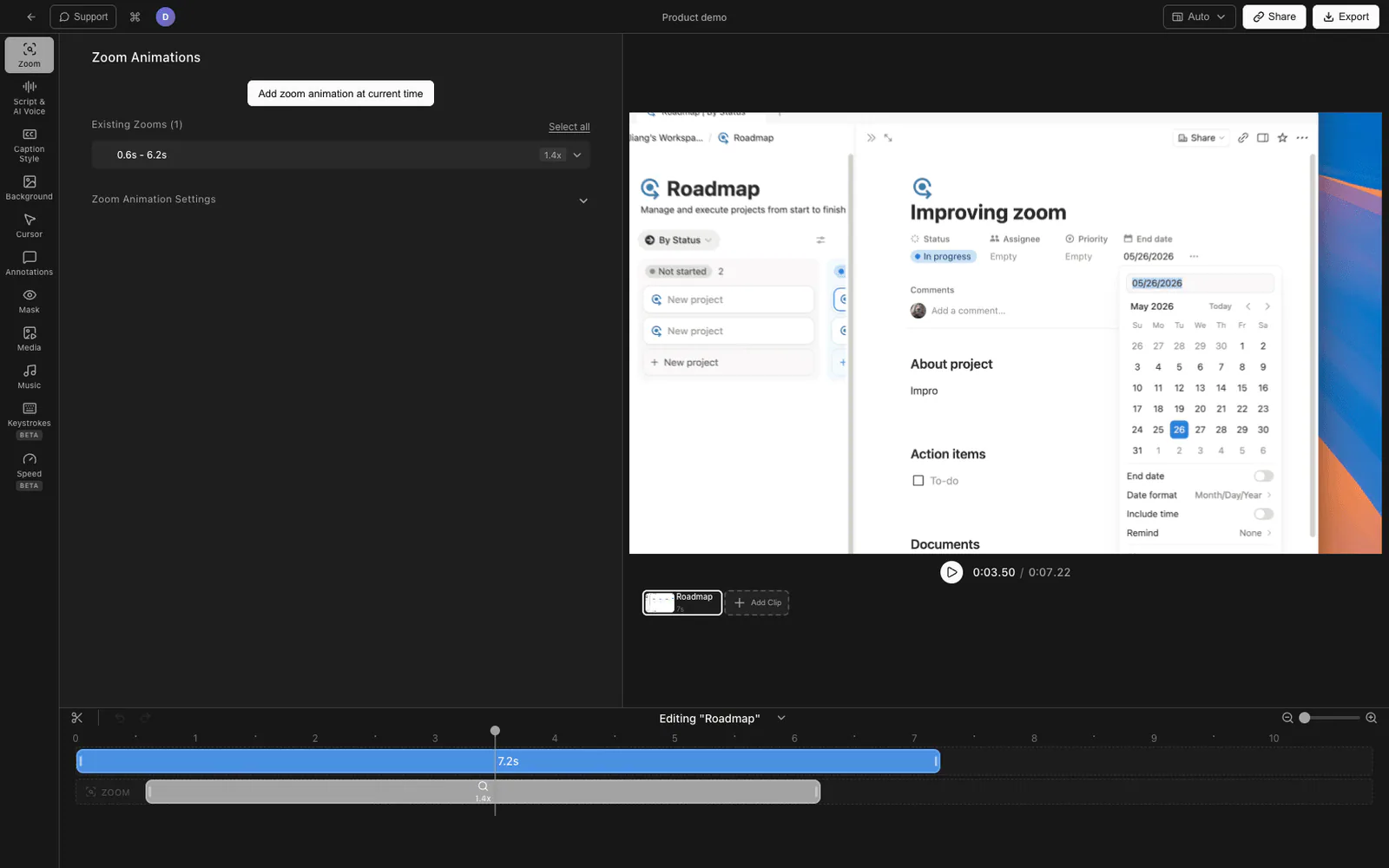
Tight Studio is a Mac screen recorder and editor for finished product demos, launch walkthroughs, tutorials, and customer-facing videos.
The features that matter for PM demo work are:
- Smart zoom animation follows clicks and brings small interface details into view.
- Cursor animation and click highlighting make interaction paths easier to follow.
- Multi-take recording lets a PM record the introduction, workflow, and result separately.
- System audio capture records computer audio separately from the microphone, with independent volume control.
- AI voiceover turns an approved script into consistent narration.
- Text annotations label constraints, beta states, or important values on screen.
- Intro and outro slides frame the release and next step.
- Captions and music can be handled in the same editing workflow.
Tight Studio exports a polished video file for a release post, help center, presentation, or launch page. It is Mac-only. Microphone and system audio remain separate in the editor, which makes application sound easier to balance or remove before export.
The product demo scripting guide helps turn a feature list into a concise story. For the full production sequence, see how to make a tutorial video.
Loom for async product reviews and progress updates
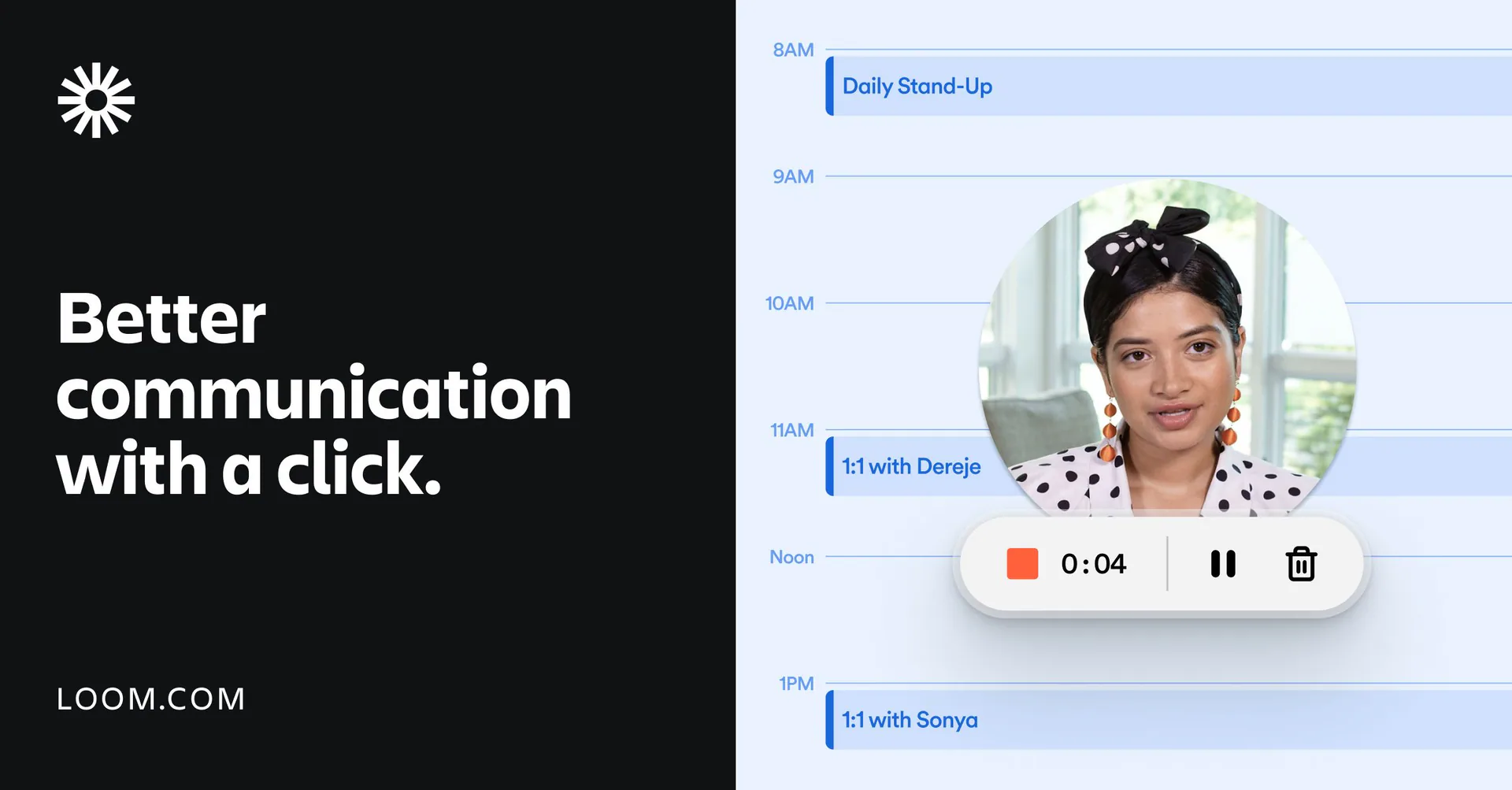
Loom is optimized for recording a screen and sharing the result immediately. Viewers can respond with time-stamped comments and reactions, which keeps feedback attached to the moment being discussed.
That makes Loom suitable for a work-in-progress build, bug reproduction, or weekly product update. A short-lived review video usually benefits more from speed than detailed editing. A launch asset or reusable customer demo has a longer shelf life and may justify a more controlled production workflow.
Clickable prototype tools for product demos
Clickable prototypes let stakeholders and users interact with a proposed flow before the full product exists. They are strongest when the open question is about navigation, states, or interaction rather than final performance.
Figma for product prototype demos
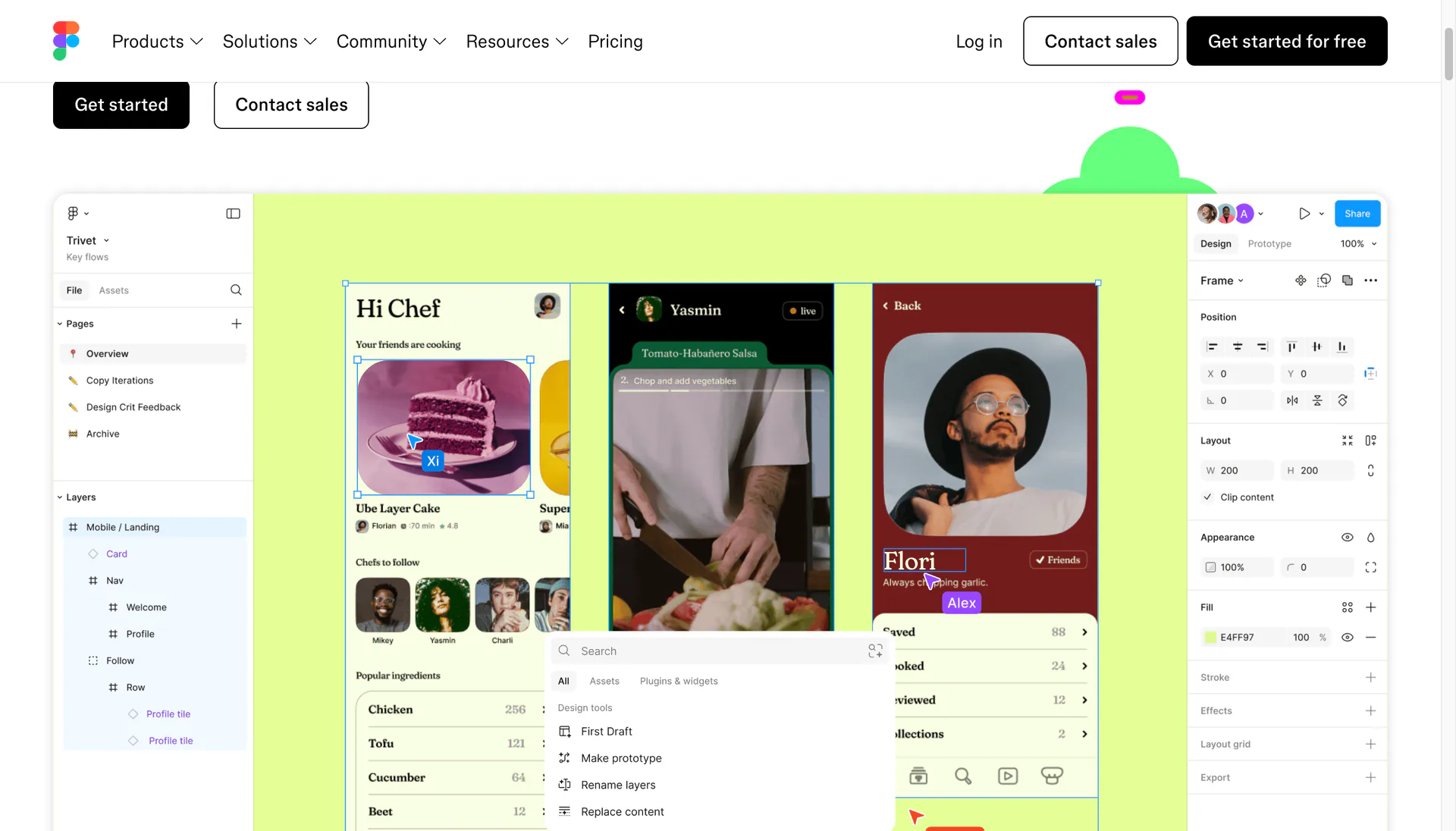
Figma keeps interface design and prototyping in the same file. PMs can follow connected flows, leave comments on the source frames, and share a presentation link without asking engineering to build a disposable version.
A prototype can communicate intent, but it should be labeled clearly. It may not represent real data, loading behavior, permissions, errors, or technical constraints. A useful PM demo calls out which parts are decisions and which parts are placeholders.
Lovable for functional product prototypes
Lovable turns a PRD, document, screenshot, or Figma design into a functional web prototype with connected flows, states, and logic. A PM can share the result with stakeholders or users and iterate through prompts before committing engineering time.
Lovable belongs on this list because it creates a demoable product experience rather than a research report. Treat the output as a decision-making prototype: review the generated behavior, label assumptions, and avoid presenting it as production-ready architecture or a confirmed engineering estimate. Projects can be exported to code or connected to GitHub when the prototype is ready for a technical handoff.
Interactive product walkthrough tools
Interactive walkthroughs sit between a video and a live product account. The viewer advances through a guided sequence, often without signing up or touching production data.
Arcade for self-guided product tours
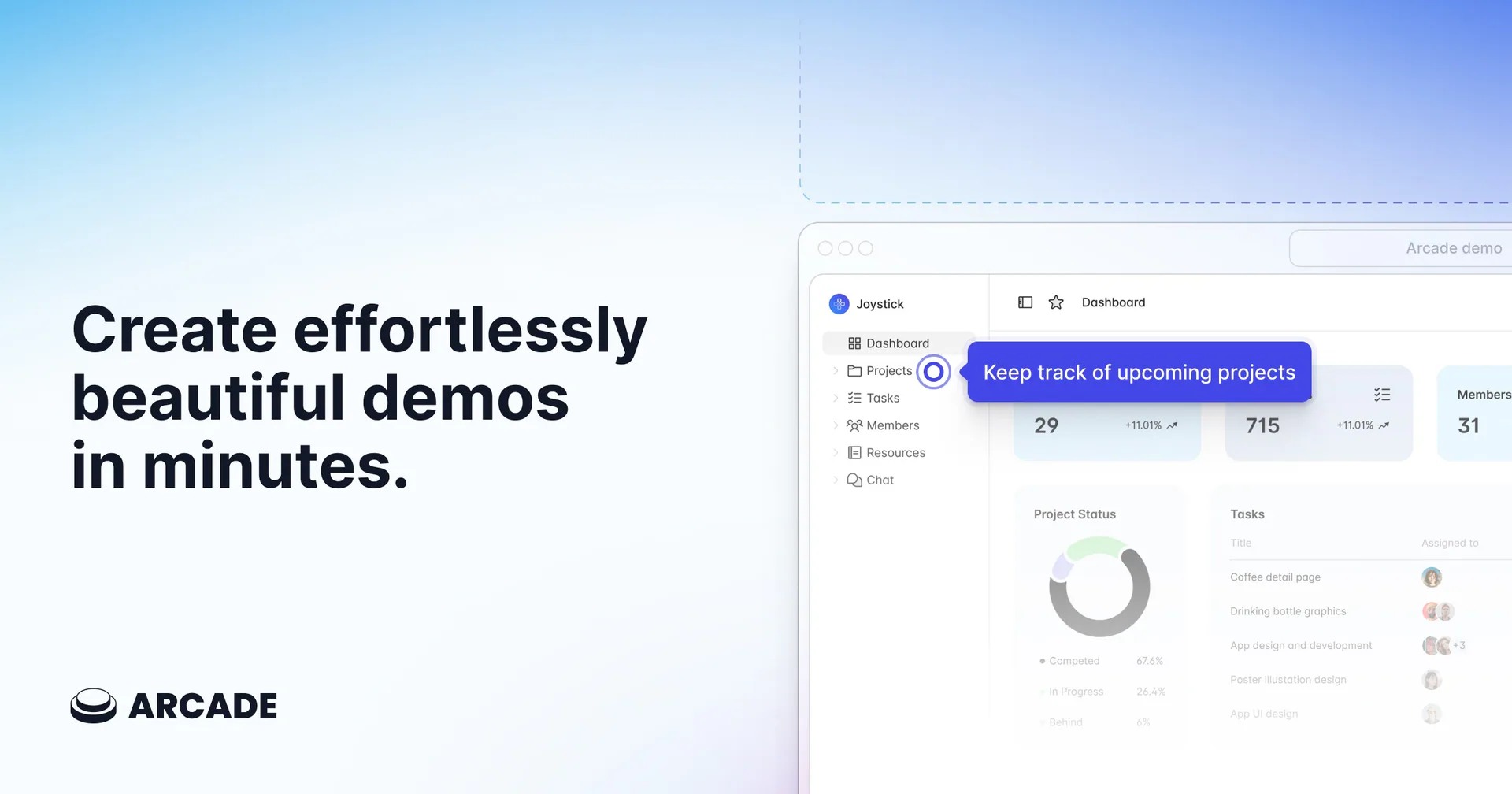
Arcade captures a workflow and presents it as a sequence the viewer can explore. Product teams can use the result in a launch page, release note, internal update, or help article.
The viewer controls the pace, which is useful for short feature paths. The tradeoff is narrative control. A recorded video is better when timing, narration, or motion carries the explanation; an interactive tour is better when exploration matters.
A product manager demo workflow
Use the same basic preparation whether the output is a prototype, video, or interactive walkthrough:
- Write the decision in one sentence. For example: “Can a workspace admin invite a contractor without granting billing access?”
- Choose one primary audience. Executives, engineers, customers, and research participants need different context.
- Prepare the shortest complete path. Remove setup steps that do not affect the decision.
- Use realistic data. Empty tables and placeholder names make a demo harder to evaluate.
- Include the result state. Do not stop immediately after the final click.
- Call out constraints. Label simulated data, incomplete states, and expected follow-up work.
- End with the requested response. Ask for approval, comments, task completion, or a launch action.
This structure keeps a product walkthrough from turning into a general tour of the interface.
Feature demo video structure
A concise feature demo usually needs five parts:
- Problem: Name the task or friction in one sentence.
- Starting state: Show where the user begins.
- Action: Demonstrate the smallest path through the feature.
- Result: Pause on the completed state and explain what changed.
- Next step: Tell the viewer where to try it, read more, or leave feedback.
For a public launch, record against a clean account and remove private data. For an internal update, keep enough real context that engineering and design can evaluate edge cases.
Product demo mistakes to avoid
- Reading the release notes over the interface. Show the user outcome rather than reciting a feature list.
- Skipping the starting state. Viewers need to know where the workflow begins.
- Using unrealistic sample data. Good data makes the benefit visible.
- Hiding incomplete behavior. A prototype or beta walkthrough should identify what is simulated.
- Showing only the happy path. Review demos should include permissions, loading, empty, and error states when those affect the decision.
- Sending a demo without a question. State what feedback or action is needed.
- Making a permanent asset from a temporary build. Match editing effort to the expected shelf life.
Frequently asked questions
What product demo tools do product managers use?
Product managers use different tools at different stages: Figma for clickable design prototypes, Lovable for functional AI-generated prototypes, Loom for quick async reviews, Tight Studio for polished product demo videos, and Arcade for self-guided interactive walkthroughs.
Is a product demo video the same as an interactive demo?
No. A product demo video controls the sequence, timing, and narration. An interactive demo lets the viewer advance through a guided version of the workflow. Video communicates a story consistently; interactive demos allow more self-paced exploration.
When should a PM record a demo instead of scheduling a meeting?
Record a demo when the explanation is repeatable and viewers can respond asynchronously. Schedule a meeting when the decision depends on live discussion, negotiation, or rapidly changing context. A short recording before the meeting can also reserve live time for decisions.
How long should a feature demo be?
A single-feature demo is often two to five minutes. A progress update can be shorter. If the video needs chapters for unrelated workflows, it will usually be clearer as separate demos.
Should product managers narrate prototype demos?
Narration helps when the prototype contains assumptions, constraints, or states that are not obvious from clicking. If the viewer needs to explore and form an independent opinion, provide the task and context separately so the narration does not prescribe the intended path.
How do you make a product demo accessible?
Add captions, keep important information visible rather than relying only on narration, use readable zoom and contrast, and provide a text summary or transcript. This caption styling guide covers the screen-recording workflow.